- Convert video, audio, and DVD over 500 formats.
- GPU acceleration to speed up the conversion process at 70X faster.
- More than 16 editor tools in the toolbox (Updating).
- Create videos for TikTok, YouTube, Facebook, etc.

Free Download100% Clear & Secure
Free Download100% Clear & Secure
MOD to MP3
Back to main page
Setting
Custom resolution:
| Core Features | Web Version | Pro Desktop |
| Max File Size | 50MB (Login: 100MB) | No Limit |
| Daily Limit | 2 Files (Login: 10 Files) | Unlimited |
| AI Video Upscaling | No | Yes (Up to 4K/8K) |
| GPU Acceleration | No | Yes (70X Faster) |
| Batch Processing | No | Yes |
Failed to upload media file! Please try again, or use AnyMP4 Video Converter Ultimate for Desktop.(Error code: 20015)

The original video resolution is higher than 1080p. If you want to output the original high resolution, you need to download the Pro Version. Or would you like to output the default 1080p resolution?

At a Glance
Converting MOD files to MP3 allows you to extract audio from vintage JVC/Panasonic camcorder videos or play legacy Amiga tracker music on modern devices. For quick, small files, online tools like FreeConvert work well. However, for batch processing large home videos without compromising privacy, professional desktop software such as AnyMP4 Video Converter Ultimate is the most reliable option.
Want to play your precious 20-year-old JVC Everio MOD-format home video on your smartphone, but find that the files won’t open or play without sound? No worries, you are not alone. Many users are struggling to find a solution. Whether you want to preserve those vintage audio tracks or save storage space, learning how to safely batch-convert MOD to MP3 is the ultimate fix. Understanding the difference between lossy and lossless audio before converting helps you extract MP3 audio from MOD without quality loss.
How We Tested
| Tool Name | Batch Support | Max File Size | Conversion Speed | Data Privacy |
|---|---|---|---|---|
| AnyMP4 Video Converter Ultimate | Yes (Simultaneous) | Unlimited | Ultra-Fast (GPU Hardware Accelerated) | 100% Offline Secured (Local Processing) |
| VLC Media Player | Yes (Sequential Queue) | Unlimited | Standard (CPU-bound) | 100% Offline Secured (Local Processing) |
| FreeConvert | Yes (Max 5 files free only) | 1GB Limit (Free Tier) | Internet-dependent (Upload/Download) | Cloud Server Upload (Deleted after 2 hours) |
Editorial Integrity & Legal Disclaimer
1. If your file comes from an old hard drive or SD card camcorder from the 2000s (such as the JVC Everio, Panasonic D-Snap, or Canon FS series), then it is a video file. When converting this type of MOD file to MP3, you are actually extracting the pre-existing audio track from the video container.
2. If your file was downloaded from a retro gaming website or a vintage chiptune library, then it is an Amiga module file. This format originated on the Commodore Amiga computer in the late 1980s and is a sequencer format.
How to tell their difference:
Check the file size. Camcorder MOD video files are typically very large, generally ranging from 20 MB to over 1 GB. Amiga tracker files, on the other hand, are highly optimized text and sample packages that typically range from 10 KB to 2 MB.
When dealing with large MOD files from old cameras, relying on web-based tools often results in frustrating upload times and potential privacy risks for personal home footage. AnyMP4 Video Converter Ultimate completely avoids these issues. It utilizes advanced hardware acceleration to extract audio locally on your device, ensuring your data never leaves your hard drive. It is the ultimate solution for converting bytes of old video footage into pristine MP3 tracks in seconds.
Secure Download
Secure Download
Steps to Convert:
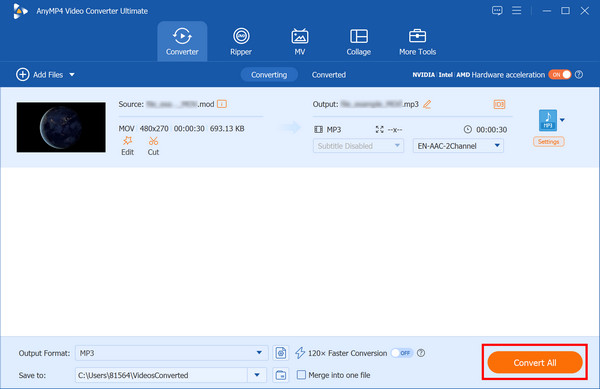
1. Load MOD Files: Click Add Files/Folders or drag and drop your MOD files/folders into the software interface.

2. Select Output Format: Choose MP3 from the Output Format drop-down menu > the Audio tab.
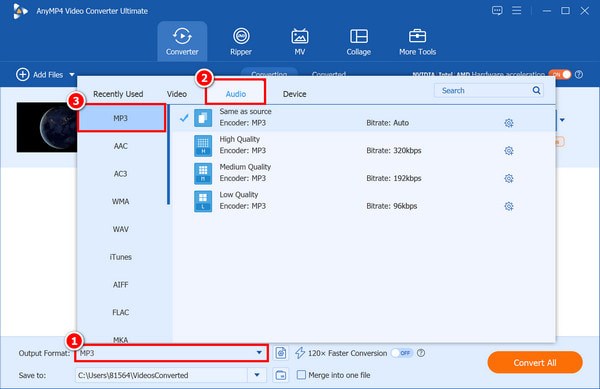
3. Convert file: Once finished, select a destination folder. Then click Convert All to extract your MP3 audio from the MOD file instantly.
What I Love:
Downsides:
Desktop software is the best choice for large projects. Video Converter Ultimate is a powerful batch conversion tool that natively supports legacy MPEG-2 camcorders. These features make it ideal for converting MOD files to MP3.
If you do not want to install third-party conversion programs, you can use VLC Media Player. Beyond being a mainstream, open-source media player that supports almost any format, VLC includes a highly versatile transcoding engine.
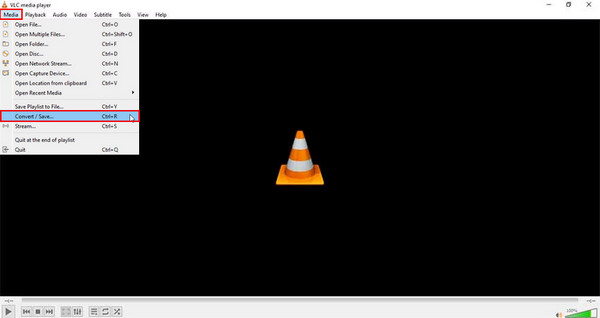
1. Open VLC Media Player, click on Media, then select Convert / Save (or press Ctrl+R).
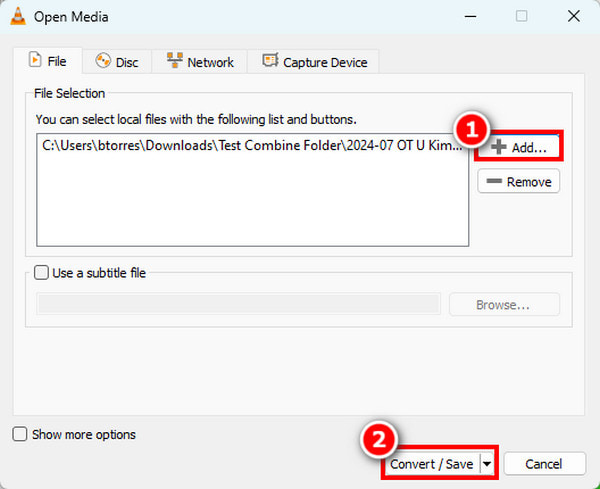
2. Click + Add... to browse and select your .mod file. Then click Convert/Save at the bottom of the window.
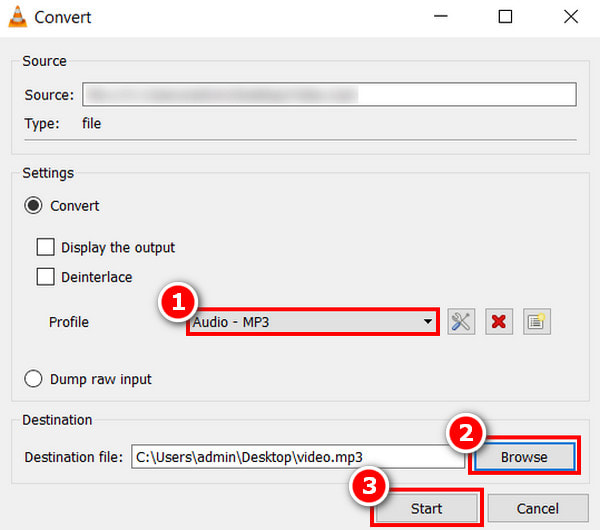
3. Go to the Profile dropdown menu and select Audio - MP3. Then, click Browse to choose the save path. Name it, ensuring the file extension ends in .mp3. Finally, click Start to convert.
VLC is open-source and free, which is suitable for budget-conscious users. The only downside is that its multi-file batch processing interface is somewhat rigid.
FreeConvert provides a free web tool for single MOD-to-MP3 file conversions. It allows you to turn tracker music or video files into a widely supported audio format. It operates directly in your browser, requiring no software installation.
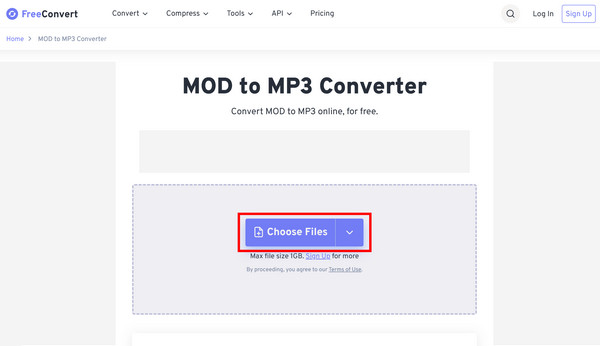
1. Go to the FreeConvert MOD to MP3 Converter website and click Choose Files to select your MOD file.
2. Click the Output option next to the file name and select the Audio tab> MP3 from the drop-down menu.
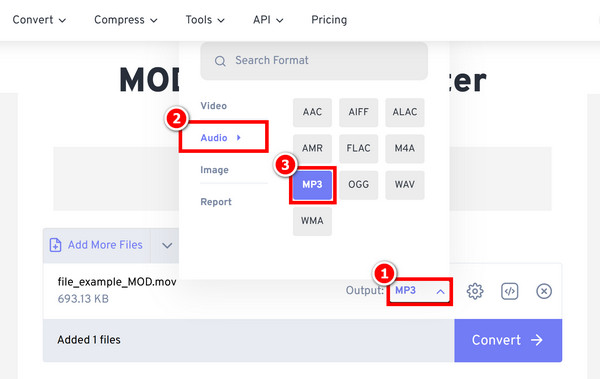
3. Click Convert to start the process. FreeConvert will upload the file to its cloud servers and extract the audio track. Once completed, download your converted file.
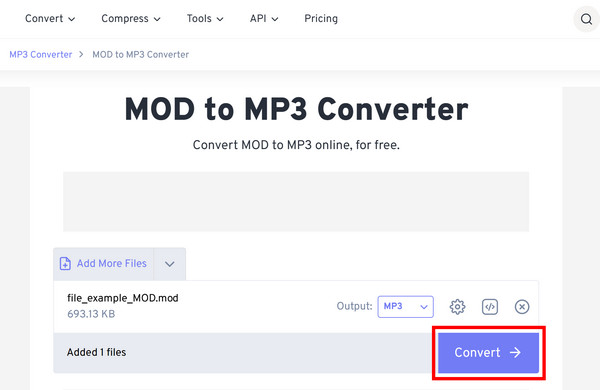
FreeConvert is convenient and easy to use. But its free version has a 1GB limit per file, and sometimes annoying advertisements.
Can I convert MOD files to MP3 using Windows Media Player?
The short answer is no. You cannot directly convert MOD files to MP3 using Windows Media Player (WMP).
Does extracting audio from a MOD video reduce the sound quality?
The short answer is yes, converting a MOD file to MP3 will reduce the sound quality.
How can I batch convert multiple MOD files to MP3 for free?
You can use conversion tools such as VLC Media Player or AnyMP4 Video Converter Ultimate to batch-convert all MOD files to MP3.
Why do online converters fail to process my JVC camcorder MOD files?
The reason online converters fail to process your JVC camcorder MOD files comes down to some specific technical obstacles in how the old cameras packaged their data.
What is the best bitrate for converting MOD tracker music to MP3?
For converting MOD tracker music to MP3, the best bitrate is 320kbps/Variable Bit Rate (VBR) V0.
When converting MOD to MP3, if you just have a few megabytes of retro game soundtracks, FreeConvert is more than enough; but if you are dealing with hundreds of megabytes of family home videos and value your privacy and speed, downloading the desktop AnyMP4 Video Converter Ultimate is the smartest investment. Are you extracting audio from a vintage JVC Everio or converting classic Amiga tunes? Let us know below!
 Updated by Alice Thorne to Convert Video, Convert Audio
More readings
 5 Best MOV to MP3 Converters (2026): Pro Quality & Speed Tested
Extract 320kbps MP3 from MOV files with our top 5 tested tools. Features detailed reviews, batch guides, and expert tips for lossless audio extraction.
 4 Best Ways to Convert FLAC to MP3 (2026: Lossless Quality & Batch)
Looking for the fastest FLAC to MP3 converter? Get AnyMP4, VLC, and online tool to batch convert while keeping 320kbps quality and ID3 tags on Windows/Mac.
 8 Best MP3 Players App and Software in 2026 [Windows & Mac]
Want to find the best MP3 player app and software on Windows PC/Mac? This post lists the eight best MP3 players to help you enjoy your MP3 files.
 5 Best Ways to Convert FLV to MP3 Without Quality Loss
How to extract audio from FLV? Get the top 5 FLV to MP3 converters (free, online, and desktop) for batch processing and 320kbps high-quality extraction.
 Add your comments to join the discussion here