
Free Download100% Clear & Secure
Free Download100% Clear & Secure
Quick Summary:
Looking for fast audio extraction to revive old VCDs? This guide breaks down 4 proven methods to achieve lossless MP3 conversion in under 3 minutes. We compare desktop heavyweights like AnyMP4 (US users' top choice for PC & Mac for seamlessly batch-processing multiple files), zero-install web tools like AnyMP4 Online, open-source VLC, and cloud-based Zamzar. Find out which of these top-rated global solutions fits your exact needs.
Let’s be honest for a second. You probably haven’t thought about a VCD since the early 2000s. But recently, maybe you were digging through your parents' attic, or you finally found that dusty CD booklet containing your high school garage band’s only recorded performance. You pop the disc into an external drive, open the folder, and there it is: a massive, clunky .dat file. You double-click it. Nothing happens.
Your intent here is simple: you want a fast audio extraction method. You need lossless MP3 conversion to revive old VCDs and preserve those nostalgic tracks. Ideally, you want this done in under 3 minutes, and if you have a whole binder of discs, you need software that can batch process multiple files without crashing your computer. In this guide, we are going to break down exactly how to convert DAT to MP3. No fluff, just the real, tested methods that actually work.
Before we start ripping files, let's establish what we are actually dealing with. A DAT file (specifically on a Video CD or VCD) isn't some mythical, encrypted format. It’s simply an MPEG-1 video container with a .dat extension slapped on it. Back in the late 90s and early 2000s, this was the standard way to burn low-resolution video and audio onto a standard 700MB CD-R.
The problem? They are archaic.
To play DAT files, you need to download the special DAT player software. Or you can extract audio from VCD and bring these files into the modern era, you need to convert MPEG-1 video to audio. Specifically, you want a lossless audio extractor that can convert that heavy video into a lightweight, universally playable 320 kbps MP3. This is how you properly digitize old media.
Don't throw away your physical VCDs immediately after ripping them! Discs can suffer from disc rot over the decades, but keeping the physical copy as a secondary backup in a cool, dry place is always a smart move for irreplaceable family memories.
If you are dealing with a massive collection of old media, or if audio quality is your absolute top priority, AnyMP4 Video Converter Ultimate is the undisputed heavyweight champion.
During my tests, this desktop software blew the competition out of the water. Because it utilizes advanced hardware acceleration, it processed my heavy 500MB DAT file in mere seconds—about 70x faster than the traditional open-source software I usually test. But speed isn't its only party trick.
Why it won my top spot:
Secure Download
Secure Download
How I actually use it (My Workflow):
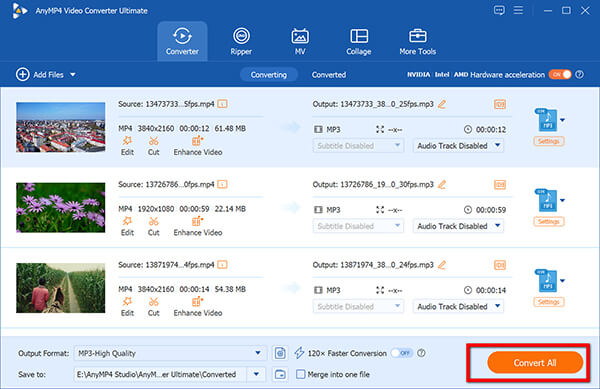
1. Bulk Import
Drag and drop an entire folder of massive .dat files directly into the center dashboard. (Real-world trace: Unlike standard converters that freeze when loading 10+ legacy files, the UI here remains responsive during bulk imports.)

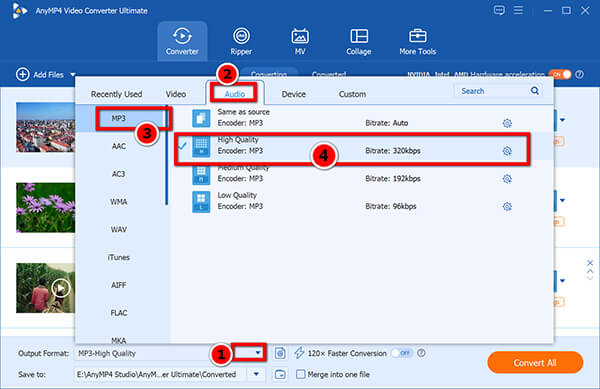
2. Format Selection (Crucial Step)
Click the Output Format dropdown on the bottom-left side. Ignore the video presets, navigate to the Audio tab, and select MP3. Select the High Quality (320kbps) preset.
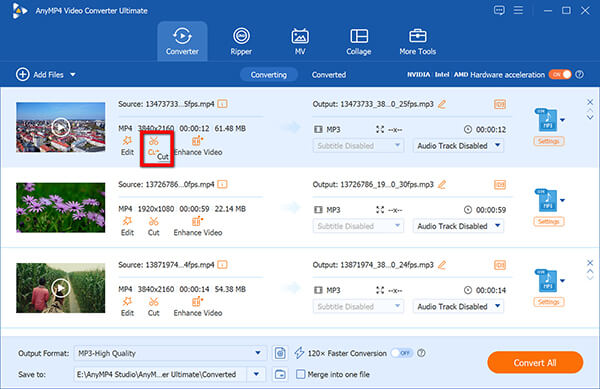
3. Trimming the Fat (Optional)
Click the Scissor icon next to any file. Old VCDs usually have a minute of dead silence or annoying menu music at the beginning. Drag the slider to instantly cut out the silence.
4. Convert DAT to MP3
Hit the massive Convert All button in the bottom right corner. Less than a minute later, your entire folder of heavy DATs was neatly lined up as MP3s.
Never leave the audio output on the Same as Source default when ripping old VCDs. Always manually force the 320kbps MP3 preset. MPEG-1 audio (DAT) is already heavily compressed; forcing 320 kbps ensures no further data loss during re-encoding.
What if you have one DAT file? You don't want to install desktop software, you don't care about trimming the audio—you want to convert a DAT file to MP3 online for free right now. Enter AnyMP4 Free Online Video Converter.
I usually hate web tools. They are notoriously sketchy, bombarding you with pop-up ads for fake antivirus software, slapping audio watermarks on your files, or worst of all, capping your uploads at a miserable 10MB. This tool is the rare exception. It is entirely browser-based, highly intuitive, and 100% safe from bundled malware. Most importantly, it offers a much larger file size allowance than its cloud competitors, which is crucial because DAT files are inherently bloated.
The Browser-Based Workflow:
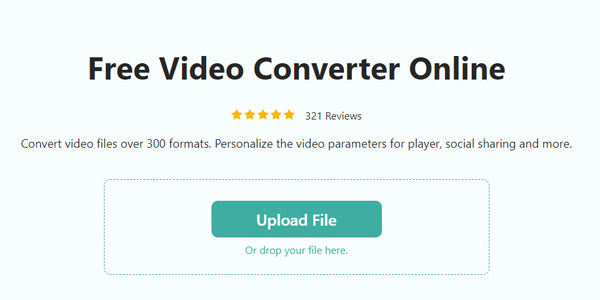
1. Upload DAT Files Online
Navigate to the Free Online Video Converter page and click Upload File to select the heavy DAT file.
2. Select MP3 Output
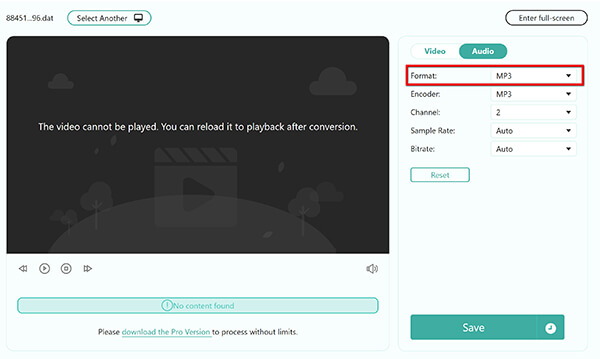
At the Output of the screen, click the Audio icon (the musical note) and select MP3 next to Output.
3. Conversion
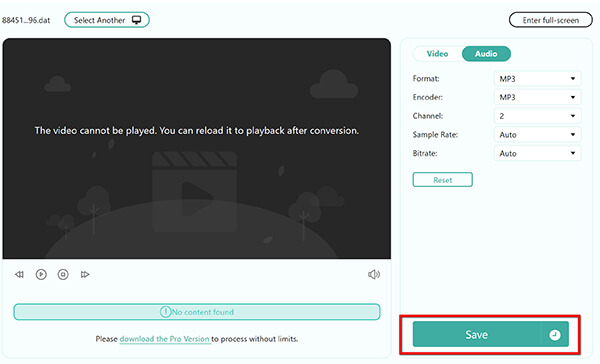
Hit Save, and the free online DAT converter will process the file. Once it is done, you can download it to your computer.
Even though the processing relies heavily on local resources, do not close or refresh the browser tab while the conversion bar is moving. Treat it like an active download; navigating away will kill the process.
If you are a bit of a tech geek, you probably already have VLC Media Player installed. It is the world’s most renowned, open-source DAT file player. But did you know it’s also secretly a DAT-to-MP3 converter?
I have a love-hate relationship with VLC for conversions. It is 100% free, powerful, and you don't need an internet connection. However, the UI makes me want to pull my hair out. The conversion menus are buried deep, and it is absolutely terrible for batch processing. If you have 20 files to convert, doing this manually for each one will ruin your Saturday. But for a single file, if you are patient, it works.
How I wrestle with VLC to get an MP3:
1. Find the Convert/Save Menu
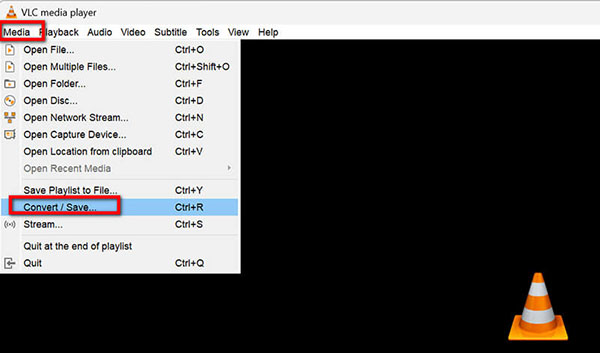
Open VLC. There is no friendly Export button. Click Media in the top left, then scroll down to Convert / Save. (Pro Tip: Press Ctrl+R to skip the menu diving and open the conversion dialog instantly).
2. Load the DAT Files
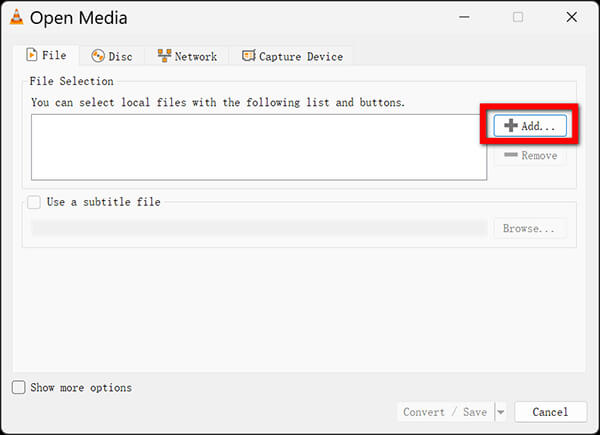
In the Open Media window, click Add to locate the DAT file, then hit the Convert / Save button at the bottom.
3. Find the MP3 Option
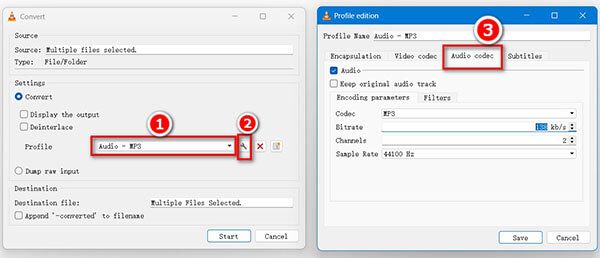
In the new window, navigate the Profile dropdown menu and carefully select Audio - MP3.
4. Convert DAT to MP3
Click Browse to choose a destination folder, name the file, and hit Start. The VLC playback timeline will visually represent the conversion progress.
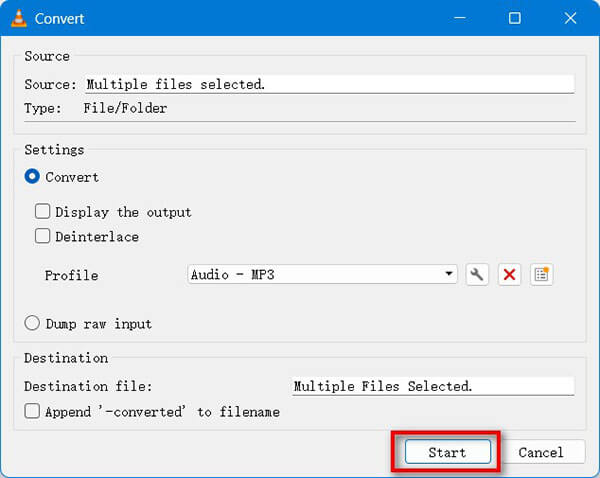
When naming the output file in step 4, you must manually append .mp3 to the filename (e.g., track01.mp3). If you forget this extension, VLC's aging code gets confused and will spit out a raw, unreadable dummy file, forcing a complete restart of the process.
If a strictly cloud-based converter is required and AnyMP4 Online isn't an option, FreeConvert is the most viable backup. Most famous cloud tools (like Zamzar) cap uploads at a useless 50MB, rendering them useless for legacy media. FreeConvert, however, offers a generous 1GB max file size on its free tier—making it one of the few web platforms that can actually swallow a full VCD DAT file without immediately demanding a credit card.
The Cloud Conversion Workflow:
1. Upload DAT to FreeConvert
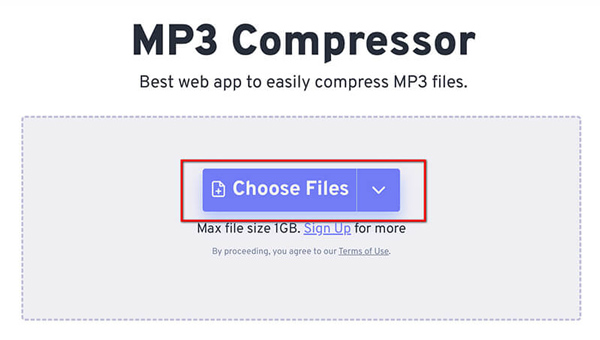
Navigate to FreeConvert and drop the DAT file into the upload box. (Real-world trace: Because this tool relies on cloud servers rather than local hardware, uploading a 500MB DAT file will take several minutes. Watch the percentage counter to ensure the connection doesn't time out.)
2. Format and Advanced Tweaks
Set the output to MP3. Next to the output selection, click the Advanced Settings (the small gear icon). If you want to convert DAT to MP4, just select MP4 as the output format here.
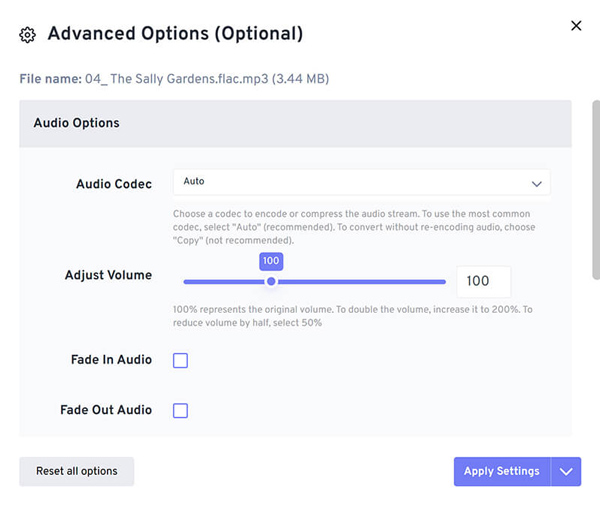
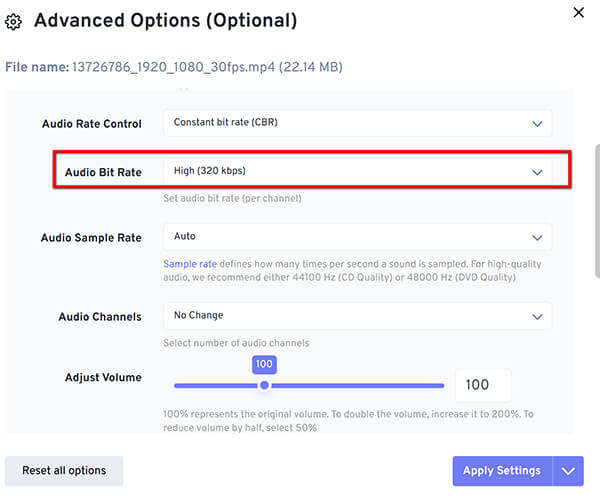
3. Maximize Quality
Inside the gear menu, find the Audio Bitrate dropdown and manually change it from the default Auto to 320 kbps. Apply the settings.
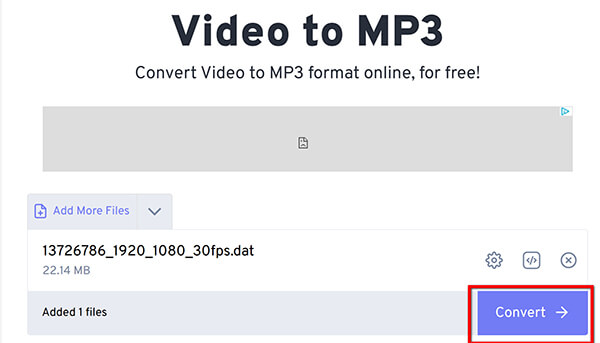
4. Convert & Download
Hit Convert, wait for the server to process the file in its queue, and download the resulting MP3.
While FreeConvert boasts a massive 1GB file limit, its free tier operates on Conversion Minutes (typically 25 per day). Ripping a single 45-minute DAT video will instantly max out your daily quota. If you need to batch process multiple files, you will be locked out until the next day unless you purchase a subscription.
How We Tested the Best DAT to MP3 Converters
What We Graded On:
To make your life easier, I've condensed our testing data into a quick cheat sheet.
| Primary Use Case | Tested Speed (500MB) | Max Audio Quality | Batch Processing | UX & Usability | File Size Limits | Price | |
|---|---|---|---|---|---|---|---|
| AnyMP4 Video Converter Ultimate | Bulk media extraction & pristine audio | < 15 seconds (GPU Accelerated) | True 320kbps MP3 (No data loss) | Yes (Unlimited, drag-and-drop) | 1-Click Execution | None | Premium (Offers Free Trial) |
| AnyMP4 Free Online Converter | Quick, one-off web tasks | Fast (Relies on browser engine) | High Quality MP3 | Yes (Multiple files allowed) | Highly Intuitive | Generous Local Limit | 100% Free |
| VLC Media Player (Alternative) | Open-source tech enthusiasts | ~45 mins (Processes in real-time) | Variable (Prone to config errors) | No (Requires complex scripting) | Clunky / Buried Menus | None | 100% Free |
| FreeConvert (Cloud Tool) | Small cloud-to-cloud transfers | Slow (Upload + Server Queues) | 320kbps (Must set manually) | Yes (Blocked by 25-min daily limit) | Ad-heavy interface | Strict 1GB upload cap | Free Tier & Paid Subscriptions |
The Editor's Takeaway:
Q: Can I rename a .dat file to .mp3?
A: Absolutely not. This is a massive misconception. Renaming the file extension does not actually change the file's internal coding or container. If you right-click and rename video.dat to audio.mp3, your media player will get confused by the file headers and throw an error. You must use a dedicated converter to re-encode the MPEG-1 audio stream to MP3.
Q: Will extracting an MP3 from a DAT file reduce audio quality?
A: Technically, converting from one compressed format (MPEG-1 audio) to another compressed format (MP3) is a lossy-to-lossy conversion, which can theoretically degrade quality. However, if you use a high-quality converter (such as AnyMP4) and set the output bitrate to 320 kbps, the human ear will not perceive any loss of quality. It will sound identical to the original VCD.
Q: Can I convert DAT to MP3 for free?
A: Yes. As outlined in the guide, you can use the AnyMP4 Free Online Video Converter for a simple browser-based experience, or VLC Media Player for free, open-source desktop software. Just be aware of the UI limitations and lack of batch processing with free desktop alternatives.
Q: How do I convert a large batch of DAT files to MP3 at once?
A: To batch process safely without crashing your system, you need desktop software with hardware acceleration. Download a tool like AnyMP4 Video Converter Ultimate, drag your entire folder of .dat files into the interface, select MP3 as your output, and click Convert All. The software will queue them up and process them back-to-back using your computer's GPU.
Let’s wrap this up. Your ultimate goal here is to reclaim your audio. Those old DAT files sitting on your hard drive or scratched onto a VCD spindle aren't doing anyone any good. By converting them to universally accepted MP3s, you preserve your memories, digitize your physical media, and finally get to listen to those tracks on your phone, laptop, or smart speaker. In summary, extracting audio from old VCDs doesn't have to be complicated. For a quick, one-off DAT to MP3 conversion without installing software, AnyMP4 Free Online Video Converter is a fantastic choice. However, if you are dealing with large files, multiple DAT videos, or require pristine audio quality with built-in editing capabilities, AnyMP4 Video Converter Ultimate stands out as the most reliable and efficient way to convert your DAT files into high-quality MP3s.
Secure Download
Secure Download
 Updated by Alice Thorne to Convert Audio, Convert Video
More readings
 How to Convert MP3 to M4A: 4 Fast & Free Ways (2026 Guide)
Need to change MP3 to M4A? Discover 4 easy ways to convert MP3 to M4A on Windows, Mac, and online for high-quality, fast, and free audio conversion.
 5 Best Methods to Convert MP3 Format to AAC as Profession
This post shares five ideal ways to convert MP3 to AAC on Windows 10/8/8.1/7/XP, Mac OS and online to help you enjoy high quality music on iOS devices.
 [Ultimate Tutorial] Top 8 Methods to Convert WMV Files to MP3
Check out our article to learn the efficient methods to convert WMV to MP3. They will keep the original audio quality as much as possible when converting.
 Top 7 MKV to MP3 Converters You Should Know - AnyMP4
Want to convert MKV video to MP3 music? Here we list top 7 MKV to MP3 converters to extract MP3 from MKV files free and online on Windows/Mac.
 Add your comments to join the discussion here