How to Convert M4V to MP3: 3 Proven Methods for 2026
At A Glance/TL;DR Summary
To convert M4V to MP3 quickly, you have three best options. For large files or batch conversions at lossless quality (up to 320 kbps), AnyMP4 Video Converter Ultimate is our top pick for Windows and Mac. For small, single files under 50MB, free online tools like CloudConvert or desktop media players like VLC get the job done effectively.
Do you want to listen to a classic iTunes speech video during your regular commute but avoid draining your phone’s battery while playing it? This is a common issue for locally downloaded video podcasts since listening to them usually means watching the video as well. Fortunately, extracting audio from M4V files using video converters is now easy. To learn how to convert M4V to MP3, make sure to read this step-by-step guide. This article not only offers free online solutions but also reveals the ultimate desktop tool that completes lossless batch conversions in just seconds.
Part 1. Why Extract Audio from M4V
Before proceeding with our tutorial on extracting audio from M4V videos, let us first discuss why changing M4V to MP3 format should be considered. Perhaps the most compelling reason to do so is to save storage space. Videos and audio files differ greatly in file size; the same applies to M4V and MP3 files. Moreover, MP3 files have dedicated players that can only access audio files. These come in the form of music player apps and even classic physical MP3 hardware. Finally, podcast consumption is another practical reason to convert M4V to MP3. Podcasts are simply best enjoyed in audio, and extracting audio from an M4V video podcast is one of the best solutions.
Part 2. How We Tested
Our Setup
We tested 12 different converters on an Apple M3 Mac and a Windows 11 PC (RTX 4070). Among the twelve programs we used during the initial testing, we selected the best options for PC/Mac, online, and open-source software.
Our Metric
We used a 1.2GB DRM-free M4V video file to measure conversion speed, CPU usage, and output audio waveform fidelity. Once done, we compared the quality of the converted MP3 to the original audio of the M4V file. Once the three tools had converted the M4V video to MP3, we tested how their output audio compared.
Method 1: The Best Way to Convert M4V to MP3 without Quality Loss (Expert Pick)
When it comes to PC and macOS options, AnyMP4 Video Converter Ultimate should be one of your top considerations, whether you are looking to extract audio from an M4V file or convert it to MP3. Unlike basic web tools that cap your file size and throttle your bandwidth, AnyMP4 Video Converter Ultimate is a powerhouse designed for efficiency and pristine audio quality.
What enables its superb efficiency is the software GPU acceleration feature, allowing a conversion speed 70X faster than the standard process. Thanks to this feature, you can extract the entire audio track from your video while you grab a cup of coffee, then come back to it, now fully converted to an audio file.
Moreover, you can ensure that your M4V audio is converted to an MP3 file with pristine audio quality. This was made possible by the software’s bitrate of up to 320 kbps. It doesn’t just convert; it preserves. You get a rich, lossless 320kbps MP3 that sounds exactly like the source, perfect for high-end headphones or car audio systems.
As a cherry on top, both the software’s efficient performance and quality preservation can be applied to large batches of files at once. You can simply drag and drop 50 M4V files into the software, hit convert, and walk away. After a few minutes, you can now listen to your M4V video converted to MP3 format.
Before proceeding with our tutorial, make sure to download AnyMP4 Video Converter Ultimate first to make it easier to learn how to use our software.
Step-by-Step Guide on PC & Mac
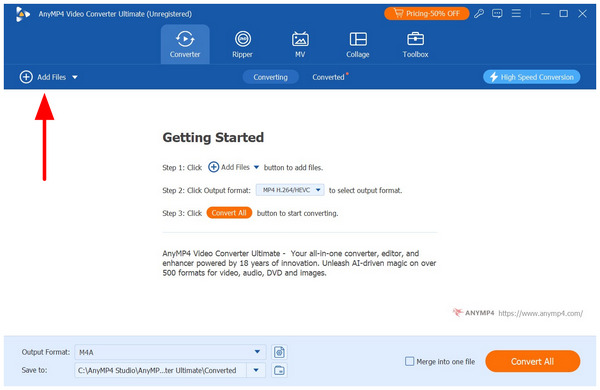
1. Open AnyMP4 Video Converter Ultimate and select Add Files in the Converter tab to upload the M4V you want to convert to MP3 audio.
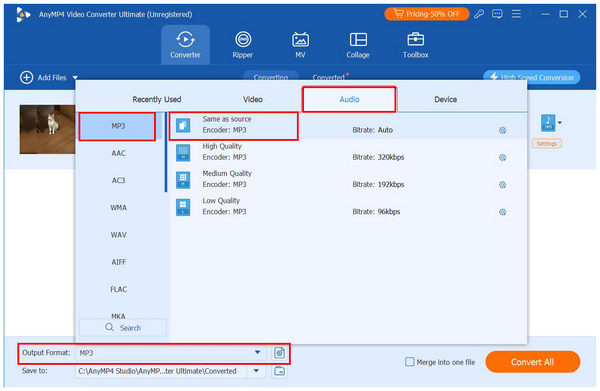
2. Wait for your M4V file to upload, then select Output Format, go to Audio, and click MP3. Under MP3, select the Same as Source conversion profile for lossless quality.
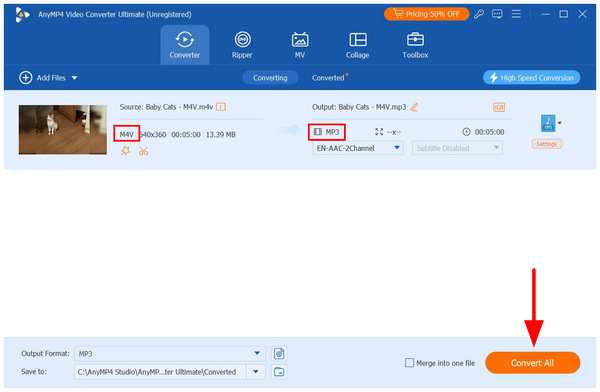
3. Once you have selected the conversion profile, you will return to the Converter tab’s main menu. Then select Convert All to begin the M4V-to-MP3 conversion process.
In addition to being the most reliable M4V-to-MP3 converter for computers, AnyMP4 Video Converter Ultimate is also designed to be simple and intuitive to use. This is another factor that makes it stand out versus other desktop-based solutions, which are usually more technical and intimidating.
Method 2: Convert M4V to MP3 Free Online (Best for Small Files)
With the most reliable desktop-based solution now discussed, let us move forward to the best tool to convert M4V to MP3 online for free. With that in mind, we will highlight CloudConvert as the second method for video-to-music conversion.
Although CloudConvert is an installation-free solution and the best in terms of accessibility, it is also limited by platform-specific downsides. Its upload and download times are highly dependent on the quality of your internet connection; privacy risks are also expected, and file uploads are limited to 1 GB. These are in direct contrast to the benefits of desktop software.
Steps to Use CloudConvert
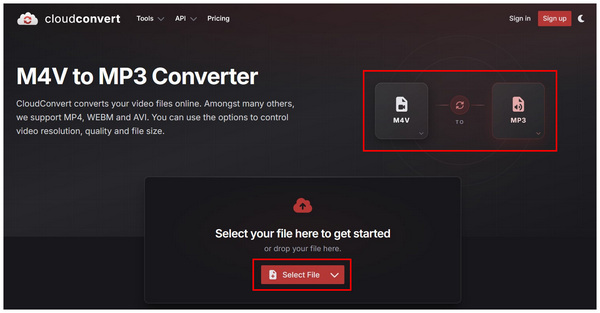
1. Go to CloudConvert’s website, then set the conversion formats from M4V to MP3. Once set, click on Select File to import the M4V file you want to convert.
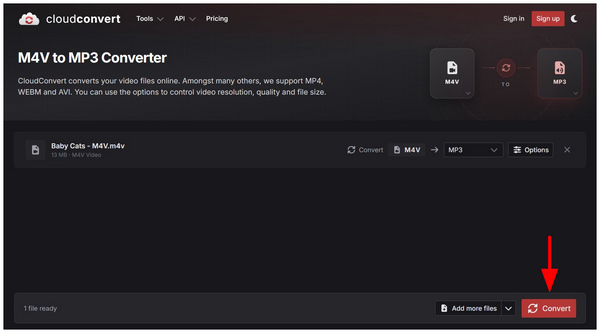
2. Once the M4V file is uploaded, select Convert.
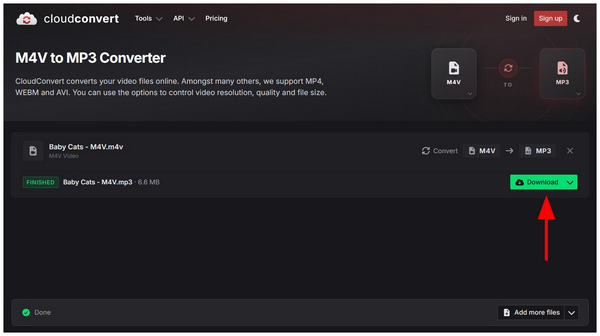
3. Wait for the conversion process to finish. Once done, select Download to import the converted MP3 back on your device.
For one-time video-to-audio conversions, CloudConvert is a reliable solution. However, its privacy issues and reliance on a stable internet connection are its biggest downsides. As such, it is not recommended to use the tool for regular file management needs.
Method 3: Using Free Open-Source Software (VLC Media Player)
When looking for tools to convert M4V to MP3 freeware, VLC Media Player is an unconventional solution, but it still gets the job done. Known as one of the best video player options for Mac and Windows, it also offers an advanced feature for basic format conversion.
In the advanced Convert feature of the software, VLC offers multiple converter profiles, including an option to convert a video file to audio saved in MP3 format. This is exactly what made VLC a good open-source solution.
However, its advanced features could be considered a bonus, as the software is cumbersome to operate when they are used. Its reliability is also questionable, as the file is prone to audio-video desync.
With that in mind, VLC is best used as an emergency solution and not your go-to option.
How to Extract Audio using VLC:
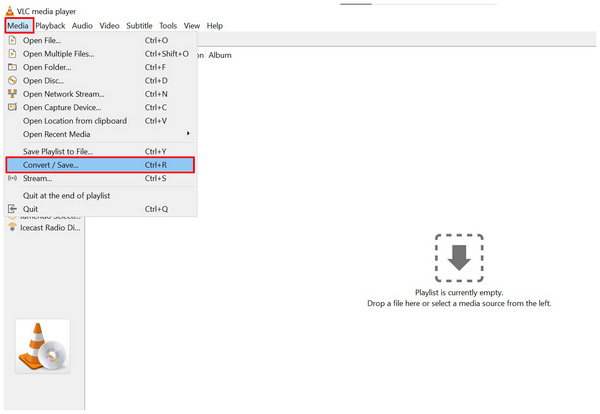
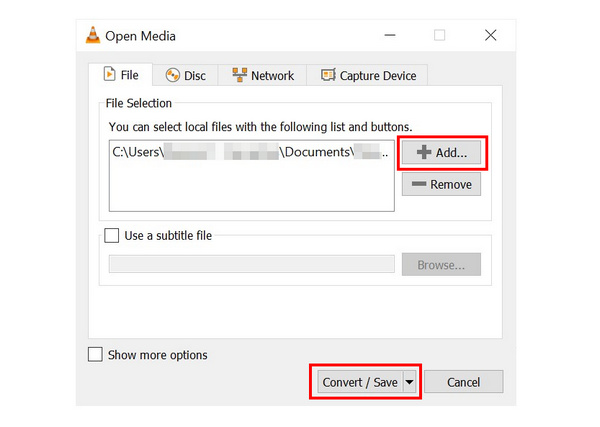
1. Open VLC Media Player and select the Media tab, then select Convert/Save.
2. In the Open Media menu, select Add to import the M4V file whose audio you want extracted. Then, select Convert/Save.
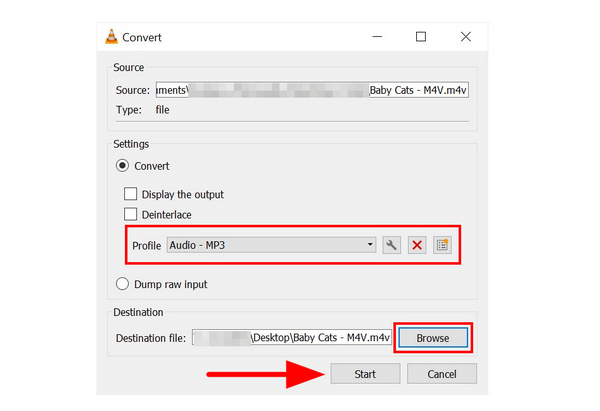
3. Once you are in the Convert menu, select Profile and choose the Audio - MP3 option. Then, select Browse to choose the destination for your converted MP3. Once these are all setup, click on Start to begin format conversion.
Since VLC is a reliable media player, its format conversion feature is a safe out-of-pocket solution for emergency needs. However, its subpar reliability and audio-video desync prevent it from being a reliable go-to solution.
Part 6. Feature Comparison: Which Tool is Right for You
| Features |
AnyMP4 Video Converter Ultimate |
CloudConvert |
VLC Media Player |
| Best Uses |
Fast batch conversion of multiple M4V files. |
One-time format conversions. |
Emergency M4V to MP3 conversion on desktop with no multimedia tools. |
| Conversion Speed |
Very fast with GPU acceleration |
Moderate to fast. Highly reliant on internet speed and stability. |
Moderate speed. Uses standard hardware resources. |
| Max File Size |
No file size limit. |
1GB |
No file size limit. |
Part 7. Expert Tips: How to Ensure the Best MP3 Quality
Since one of MP3’s significant downsides is its subpar quality, you have to ensure that the sample rate and bitrate you will use are inclined towards quality. Fortunately, this won’t affect the size of your MP3 as much since the format naturally has a small file size. To ensure that your MP3 will have good quality, use a 44.1 kHz sample rate and 320 kbps bitrate.
Part 8. Legal Disclaimer
This guide is strictly for extracting audio from DRM-free or personally created M4V files. We do not endorse or encourage the circumvention of copyright protections for commercial iTunes purchases. Converting M4V to MP3 on Mac using DRM-protected files is illegal. It is also recommended to use official M4V players.
Part 9. FAQs About M4V to MP3 Conversion
Can I convert DRM-protected iTunes M4V to MP3 directly?
No, you cannot. Converting DRM-protected files is illegal. When distributed, it will be a form of piracy. The same can be said if you want to convert M4A or MP3 file.
Does converting M4V to MP3 reduce the audio quality?
It depends on the conversion setting and the converter program you will use. To ensure quality preservation, we recommend using AnyMP4 Video Converter Ultimate. Use the program’s Same as Source option as the conversion solution.
What is the fastest way to batch convert M4V files to MP3 on a Mac?
Fast solutions for M4V to MP3 conversion on Mac are AnyMP4 Video Converter Ultimate and CloudConvert. For better reliability, use AnyMP4. For accessibility, use CloudConvert.
How do I extract audio from an M4V file for free?
There are several options you can use. Online tools and open-source programs are perhaps the best. However, the desktop solutions like AnyMP4 Video Converter Ultimate are another good option.
Which is better for audio extraction: VLC or a dedicated video converter?
A dedicated video converter is a superior option. VLC’s advanced features are quite basic when it comes to file conversion. However, it may be serviceable for emergency or one-off processes.
Conclusion
For occasional conversion of small M4V to MP3 files, CloudConvert and VLC may be sufficient; however, if you want efficiency, audio quality, large file processing, and data privacy , it is highly recommended to download AnyMP4 Video Converter Ultimate for long-term use. Exclusive multimedia converter tools are the perfect solution to stop wrestling with slow online tools. Download AnyMP4 for free today and extract your audio in seconds.




 Add your comments to join the discussion here