
Quick Answer:
To convert an HEVC (H.265) video to MP3, use desktop software such as AnyMP4 Video Converter Ultimate for fast batch processing and handling large files. For quick tasks, try AnyMP4 Free Online Video Converter or CloudConvert. Upload your HEVC file, select MP3, set the bitrate (up to 320 kbps), and convert.
HEVC (H.265) files are widely used today because of their high-efficiency video compression, especially from iPhones and modern cameras. But when you only need to extract audio, keeping the full video becomes unnecessary. I recently needed to extract a 2-hour interview from a 4K iPhone HEVC video. After testing 10 different tools, I found that not all converters handle HEVC smoothly due to codec limitations and heavy decoding requirements. In this post, I'll show you the most reliable ways to convert HEVC to MP3, balancing speed, audio quality, and privacy.

Converting H.265 to MP3 formats is useful in several real-world scenarios. If you want to save storage space, extracting audio removes bulky video data. It's also helpful for playing files on older devices or car stereos that don't support HEVC playback. Many users also convert HEVC videos into audio to create podcasts or voice recordings from interviews and lectures. Using a reliable video-to-audio extractor ensures you maintain clarity while significantly reducing file size.
AnyMP4 Video Converter Ultimate is a powerful video-to-audio converter for Windows and Mac. It efficiently converts HEVC to MP3 at high quality. It leverages hardware acceleration to handle heavy HEVC files, ensuring fast, smooth performance even with large 4K videos. It also supports simultaneous conversion, allowing you to extract audio from multiple HEVC files simultaneously. You can export MP3 files at up to 320kbps, preserving excellent audio quality. Plus, it's built-in editor lets you trim silence or unwanted sections before exporting.
I loaded a 5GB 4K HEVC file into AnyMP4 Video Converter Ultimate. Thanks to its GPU acceleration, it extracted the MP3 audio in under 15 seconds without any lag. The output quality remained clear and consistent, even at higher bitrates.
Secure Download
Secure Download
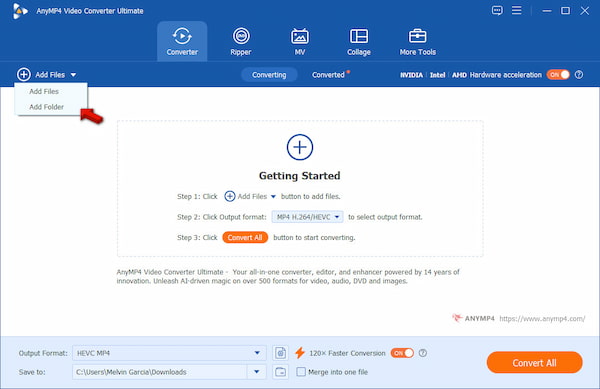
1. Run AnyMP4 Video Converter Ultimate to access the main interface. In the Converter tab, click +Add Files and choose your HEVC (H.265) video. If you have multiple files, select Add Folder to enable batch conversion.
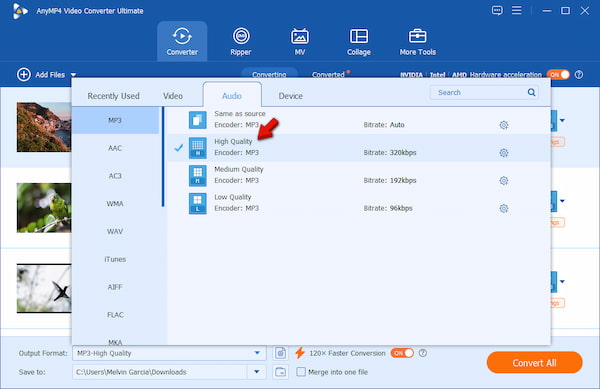
2. Head to the Output Format selector and switch to the Audio category. Choose MP3-High Quality as your output format, then select your preferred quality. You can also open Profile Settings to fine-tune the bitrate to 320Kbps and other audio parameters.
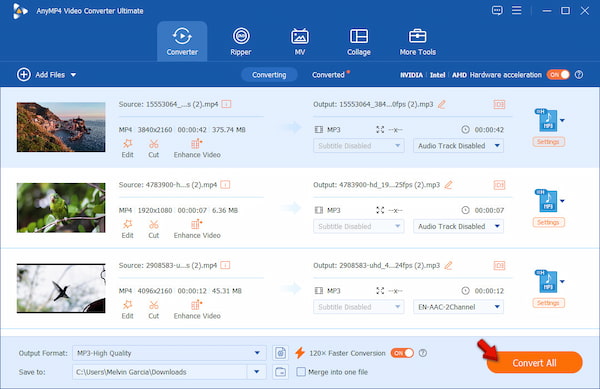
3. Navigate to the Save To selector and choose your destination folder. Enable 120× Faster Conversion for maximum speed. Finally, click Convert All to quickly and efficiently extract audio from your HEVC files.
AnyMP4 Free Online Video Converter offers a simple way to convert HEVC to MP3 without installing software. It is completely free to use and designed for quick, hassle-free conversions. It features an easy-to-use interface, making it perfect for beginners. Since everything runs online, there's no need to download or install anything. Plus, it follows a safe privacy policy, automatically deleting uploaded files from its servers after processing.
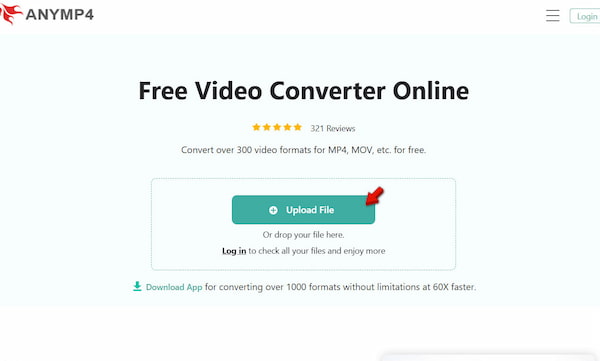
1. Using a browser, navigate to the official AnyMP4 Free Online Video Converter site by clicking the link provided. On the homepage, click + Upload File to import your HEVC (H.265) video. You can also drag and drop the HEVC file directly into the browser window for faster uploading.
2. Navigate to the Format selector and choose MP3 as your output. You can optionally adjust settings like bitrate, sample rate, and audio channels to control the output quality. Click Save to start the process. After the conversion is complete, download the MP3 file.
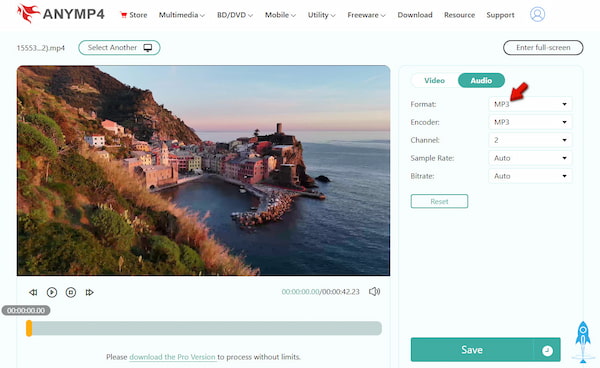
AnyMP4 Free Online Video Converter is perfect for quick, smaller files. I used it on my phone to convert a 50MB HEVC video memo, and the process was smooth and fast. Within seconds, I had a ready-to-use MP3 file without any complications.
VLC Media Player goes beyond being an HEVC player by allowing you to convert HEVC to MP3 for free. Since it's open source and preinstalled on many systems, it's the go-to tool for quick conversions without having to download additional software. However, its interface can feel clunky and less intuitive. It also lacks batch processing, meaning you can only convert one at a time.
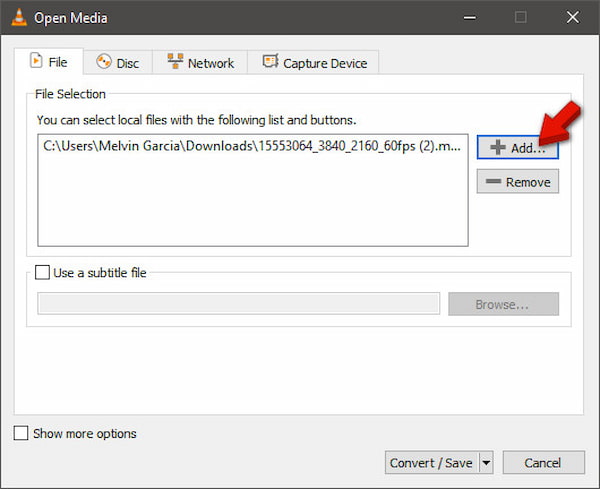
1. In VLC, click Media, then select Convert/Save to open the conversion window. In the File tab, click Add to load HEVC (H.265) video, then click Convert/Save to proceed.
2. In the next window, go to Profile and select Audio - MP3 as your output format. Then, click Browse to specify the destination path and click Start to begin the conversion.
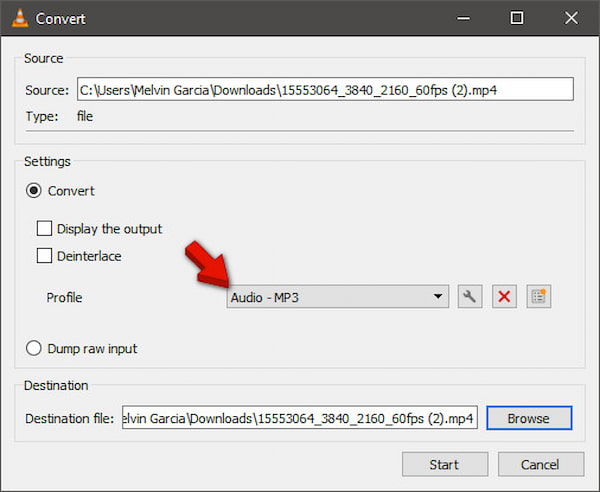
I tested VLC with a 1GB HEVC file. While it successfully extracted the audio, the process was slower. The setup required navigating multiple menus, which may be confusing if you're new to the tool. Still, the output MP3 quality was acceptable for everyday use.
CloudConvert is an online HEVC-to-MP3 converter that offers flexibility and convenience. It is integrated with Google Drive and Dropbox, allowing you to import and export files directly from your cloud accounts. It's also a highly reputable platform known for reliable performance and high-quality output. However, free users are limited to 25 conversions per day.
1. On the CloudConvert homepage, click Select File to add a HEVC video from your local drive. Alternatively, import files directly from Google Drive or Dropbox for faster access.
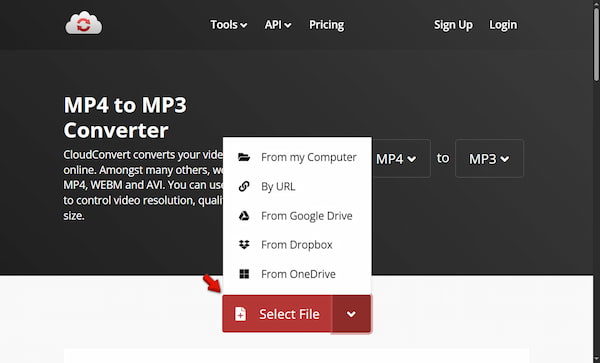
2. After uploading, click the Convert to dropdown menu and select MP3 as your output. Then, click Convert to initiate the audio extraction process.
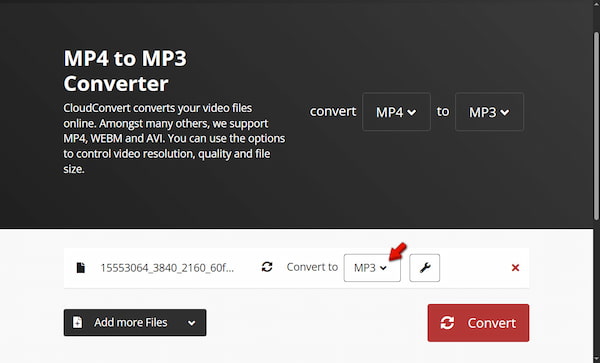
I tested CloudConvert with a medium-sized HEVC file stored in Google Drive. The integration worked seamlessly, and the conversion process was straightforward. However, since it has a daily cap, you will struggle with massive HEVC files unless you pay.
How I Test
| Best For | Price | Platform | Audio Quality Control | My Rating | |
|---|---|---|---|---|---|
| AnyMP4 Video Converter Ultimate | Batch processing & large HEVC files | Paid (Free Trial) | Windows and Mac | Excellent (Up to 320kbps) | 4.9/5 |
| AnyMP4 Free Online Video Converter | Quick, small files | Free | Web | Good | 4.6/5 |
| VLC Media Player | Tech-savvy users | Free | Windows, Mac, and Linux | Moderate (Clunky UI) | 4.2/5 |
| CloudConvert | Cloud storage integration | Freemium | Web | Good | 4.5/5 |
Q: Does converting HEVC to MP3 reduce audio quality?
A: Yes, it can slightly reduce audio quality since MP3 is a lossy format. It means some audio data is compressed and removed to reduce the file size. However, if you choose a high bitrate like 320kbps, the quality loss is minimal. Also, check how MP3 compares to other audio formats. Learn more about FLAC vs MP3 vs WAV here.
Q: Can I convert HEVC to MP3 on my iPhone/Android directly?
A: Yes, you can use online tools or dedicated apps. Browser-based converters like AnyMP4 Free Online Video Converter are the easiest option since they don't require installation. However, such tools are best suited only for smaller files.
Q: Why does my computer struggle to open HEVC files?
A: HEVC (H.265) files are highly compressed and require more processing power to decode. If your computer lacks hardware acceleration or proper codec support, playback and conversion can lag or fail.
Q: What is the difference between MP4 and HEVC?
A: MP4 is a container format that holds video, audio, and metadata. Meanwhile, HEVC (H.265) is a video compression codec used to encode video within a container such as MP4. In simple terms, MP4 is the file type, and HEVC is the method used to compress the video within that file.
Q: Is it safe to use online video converters?
A: It depends on the tool used. Reputable platforms like AnyMP4 Free Online Video Converter follow strict privacy policies. It deletes uploaded files after conversion, making them safer to use. However, not all online converters are secure, so it's important to choose trusted services.
To sum up, converting HEVC to MP3 is straightforward when you use the right tool. Ultimately, your choice depends on your needs. For large files, fast processing, and privacy, AnyMP4 Video Converter Ultimate is the clear winner. For quick, simple tasks, online tools like AnyMP4 Free Online Video Converter or CloudConvert get the job done without hassle. As a final recommendation, prioritize tools that support high-quality audio extraction and efficient HEVC decoding. Try one of these methods today and enjoy seamless, lossless audio extraction from your videos.
Secure Download
Secure Download
 Updated by Alice Thorne to Convert Audio, Convert Video
More readings
 3 Ways to Convert DVDs to MP3: Desktop and Online Tool
Follow us to see the 3 workable ways to convert DVDs to MP3 to enjoy the beautiful DVD audio on multiple portable devices.
 [2026] Easy Way to Convert Blu-ray to MP3 on PC & Mac
Want to listen to audio content on Blu-ray Discs more easily? Converting Blu-ray to MP3 is a good way. Read on to learn how to do it with the detailed steps.
 2 Verified Methods to Convert MP3 Files to MOV Format
There are two ways to convert your MP3 files to MOV format, only change file format or create a video with music file. This article shares a complete guide.
 Comprehensive Tutorial to Add MP3 to MP4 on Desktop and Online
Do you want to add an extra MP3 file to a MP4 file? You are lucky since this tutorial shares you with the easiest methods and concrete procedure.
 Add your comments to join the discussion here