- Convert video, audio, and DVD over 500 formats.
- GPU acceleration to speed up the conversion process at 70X faster.
- More than 16 editor tools in the toolbox (Updating).
- Create videos for TikTok, YouTube, Facebook, etc.

Free Download100% Clear & Secure
Free Download100% Clear & Secure
M4B to MP3
Back to main page
Setting
Custom resolution:
| Core Features | Web Version | Pro Desktop |
| Max File Size | 50MB (Login: 100MB) | No Limit |
| Daily Limit | 2 Files (Login: 10 Files) | Unlimited |
| AI Video Upscaling | No | Yes (Up to 4K/8K) |
| GPU Acceleration | No | Yes (70X Faster) |
| Batch Processing | No | Yes |
Failed to upload media file! Please try again, or use AnyMP4 Video Converter Ultimate for Desktop.(Error code: 20015)

The original video resolution is higher than 1080p. If you want to output the original high resolution, you need to download the Pro Version. Or would you like to output the default 1080p resolution?

At a Glance:
Best Ways to Convert M4B to MP3: Looking for a quick solution? The absolute best method depends entirely on your file size. For small audiobook snippets (under 50MB), online tools like CloudConvert work incredibly well. However, for massive, multi-hour M4B audiobooks, a dedicated desktop software like AnyMP4 Video Converter Ultimate is the most reliable choice. It offers 70x faster offline batch processing, zero quality loss, and 100% data privacy.
You are packing your bags for a massive weekend road trip. You have your snacks packed, your coffee is hot, and you just downloaded a thrilling 20-hour fantasy audiobook to keep you awake on the highway. But when you try to load it onto your car’s stereo via a USB drive, or you attempt to transfer it to your trusty Android phone, your screen flashes a frustrating error message: File Format Not Supported.
It is incredibly annoying. You looked closely at the file and realized it ended in .m4b. To solve this problem, you just need to change M4B to MP3. In this guide, we will show you 4 ways to convert M4B to MP3. Whether you need a quick online fix for a short language-learning lesson or you want to handle large M4B files completely offline for your massive digital library, I have got you covered.
How We Tested the Best M4B to MP3 Converters
| Supported Platforms | Batch Conversion | Max File Size Limit | Conversion Speed | Privacy & Security | Best For | |
|---|---|---|---|---|---|---|
| AnyMP4 Video Converter Ultimate | Windows 11/10 & macOS | Yes (Unlimited Simultaneous) | Unlimited | Ultrafast (70x Hardware Accel.) | 100% Local / Extremely Safe | Large audiobooks, batch processing entire libraries, zero quality loss. |
| CloudConvert | Any Web Browser | Yes (Limited to 5 at a time) | Up to 100MB (on Free Tier) | Slow (Depends entirely on Wi-Fi) | Cloud-based (Files deleted after 24h) | Quick, on-the-go conversions of very small, single files. |
| VLC Media Player | Windows / Mac / Linux | Technically yes (but very clunky) | Unlimited | Very Slow / Real-time | 100% Local / Safe | Tech-savvy users on a strict zero-dollar budget who have time to waste. |
| iTunes / Apple Music | Windows / macOS | Yes | Unlimited | Medium | 100% Local / Safe | Converting short, DRM-free clips that are already sitting inside your Apple library. |
Before we jump into the step-by-step tutorials, let's briefly talk about why this specific audiobook format is so frustrating to deal with, along with a quick legal reality check.
The Compatibility Problem
From a technical perspective, M4B (MPEG-4 Audio Book) is Apple’s preferred format. Its biggest superpower is that it saves your chapter markers and bookmarks. However, the moment you step outside the Apple ecosystem—like trying to use an Android phone, a smart TV, or a standard car stereo—M4B files turn into useless digital paperweights. MP3, on the other hand, is universally accepted. When you convert M4B to MP3, you instantly gain the freedom to listen to your books on literally any device.
The DRM Reality Check (Legal Disclaimer)
As we dive into these conversion methods, we need to have a transparent chat about DRM (Digital Rights Management). When you buy an audiobook directly from the Apple Books store or Audible, those files are usually encrypted with a DRM digital padlock to prevent piracy.
Please Read Carefully
The software tools and methods outlined in this guide are intended strictly for legally owned, DRM-free M4B files (such as public domain books from LibriVox, indie purchases, or personal recordings). Under the spirit of the Digital Millennium Copyright Act (DMCA), I do not endorse or encourage removing DRM for illegal sharing or copyright infringement. Converting legally owned, DRM-free files for your own personal fair use—like listening on your own Android phone—is completely fine. Always respect the hard work of the authors and voice actors!
When dealing with large audiobook files, relying on web-based converters often leads to frustrating browser timeouts, strict file size limits, and heavily compressed, terrible audio quality.
Based on my extensive, stopwatch-timed testing, AnyMP4 Video Converter Ultimate stands out as the absolute most robust, reliable desktop solution. If you want to know how to convert M4B to MP3 offline without tearing your hair out in frustration, this is the definitive answer.
Why I Personally Recommend It (The Real Benefits)
Step-by-Step Guide: How to Use AnyMP4 Video Converter Ultimate
1. Add Your M4B Audiobook Files
First, head over to the official AnyMP4 website and download the program. It functions perfectly as an M4B to MP3 converter for Mac/Windows.
Secure Download
Secure Download
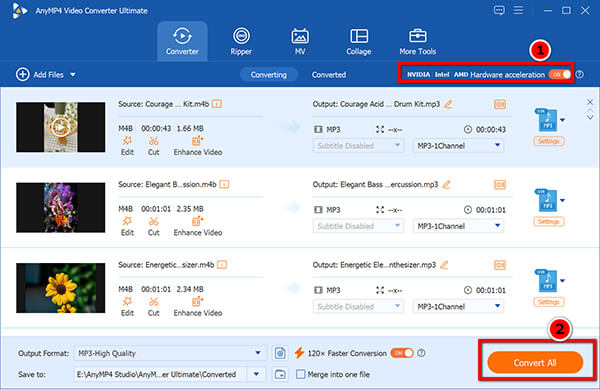
Launch the program. You will be greeted by a super clean, user-friendly, dark-mode interface. Click the massive + button right in the center of the screen, or simply drag and drop your M4B audiobook files directly from your desktop into the software window.

2. Choose MP3 as Your Output Format
On the right side of your imported file (or in the top right corner if you are doing a batch conversion), click the drop-down menu next to Output Format. Navigate over to the Audio tab, and precisely select MP3.
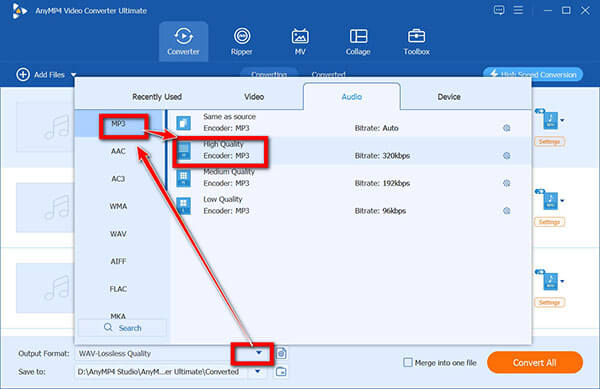
Adjust the audio settings for perfection (crucial step):
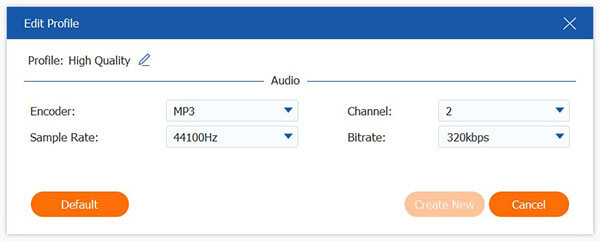
Next to the MP3 option you just selected, click the little Gear icon (Custom Profile settings). Here, you can ensure your audio bitrate is set to an optimal level. For standard spoken word, 128 kbps to 192 kbps is generally fine. But if you want absolute, crystal-clear perfection, max it out to 320 kbps. Click Create New to save these high-quality settings.
3. Convert M4B to MP3
Look at the bottom of the screen to choose exactly where you want the new MP3 files saved on your hard drive. Once that is set, click the massive Convert All button in the bottom right corner. Thanks to the hardware acceleration (Toggle on the GPU acceleration at the top-right corner), even large files will be finished in a flash.
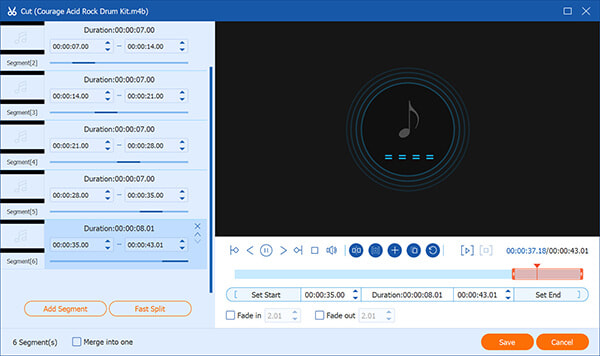
Are you desperately trying to convert M4B to MP3 with chapters? Here is the truth: the MP3 format natively struggles with advanced chapter metadata compared to M4B. However, AnyMP4 has a brilliant workaround! You can use its built-in Cut or Split tool right before you convert. This allows you to easily slice a giant 30-hour audiobook file into smaller, manageable, chapter-sized MP3 segments (e.g., Chapter1.mp3, Chapter2.mp3) before hitting convert!
Let's imagine a different scenario: You are sitting in the school library using a public computer, or you just have one tiny 15-minute M4B file (like a quick foreign language vocabulary lesson), and you really do not want to download or install any new software.
In this specific case, utilizing a free online converter is a very solid, quick backup plan. Tools like CloudConvert or FreeConvert are incredibly popular, safe, and easy to use.
Step-by-Step: How to use CloudConvert
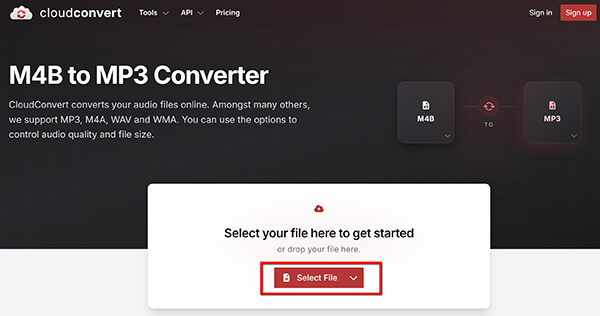
1. Open your Google Chrome or Safari web browser and navigate to https://cloudconvert.com/m4b-to-mp3.
2. Click the giant red Select File button right in the middle of the page and upload your M4B file from your computer.
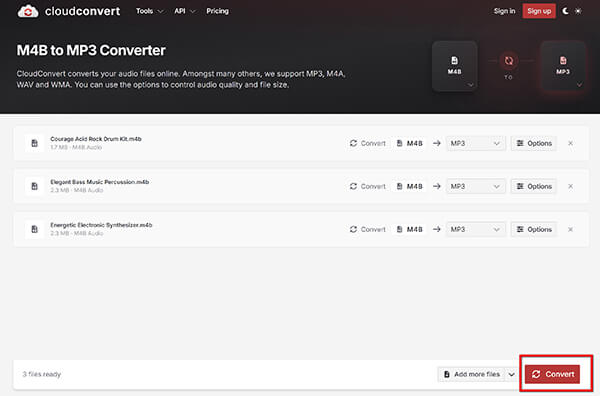
3. Hit the red Convert button. The website will now upload your file, process it on their remote servers, and eventually provide you with a green download link.
As a reviewer, I have to be completely honest with you. While online tools are incredibly convenient for small tasks, my testing revealed some glaring limitations you must be aware of:
Think of online converters like a convenience store—great for grabbing a quick snack (a small file), but terrible if you need to do your monthly grocery shopping (converting an entire audiobook library). For the big jobs, stick to desktop software!
If you consider yourself a bit of a tech geek (like I do) and you love utilizing software you probably already have installed on your computer without spending a dime, you can actually hack your media players to act as basic converters. It is a bit clunky, and the interface isn't pretty, but it is 100% free.
VLC is that legendary, open-source software with the orange traffic-cone icon that can play literally every video format in existence. But hidden deep inside its menus is a functional audio converter.
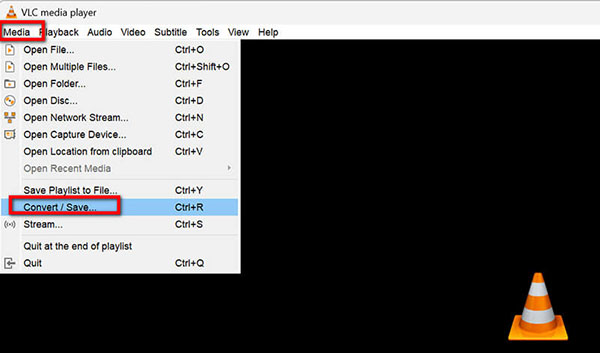
1. Open VLC on your computer. Click on Media in the top left corner, then select Convert / Save (or simply hit Ctrl+R on your keyboard).
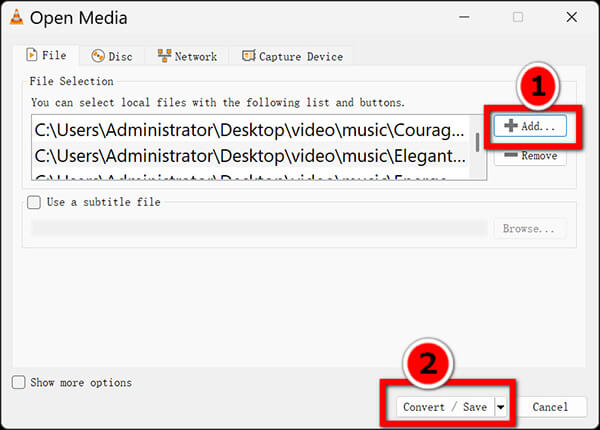
2. In the File tab that pops up, click the Add button and browse for your M4B file.
Click the Convert / Save button at the very bottom of that window.
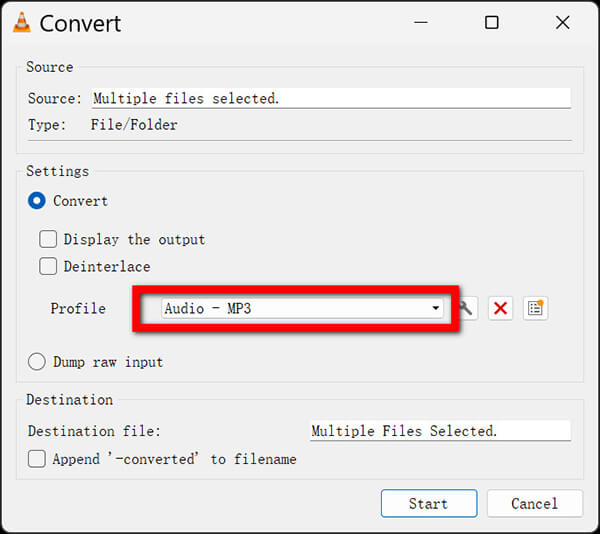
3. In the next dialog box, look for the Profile dropdown menu and carefully select Audio - MP3.
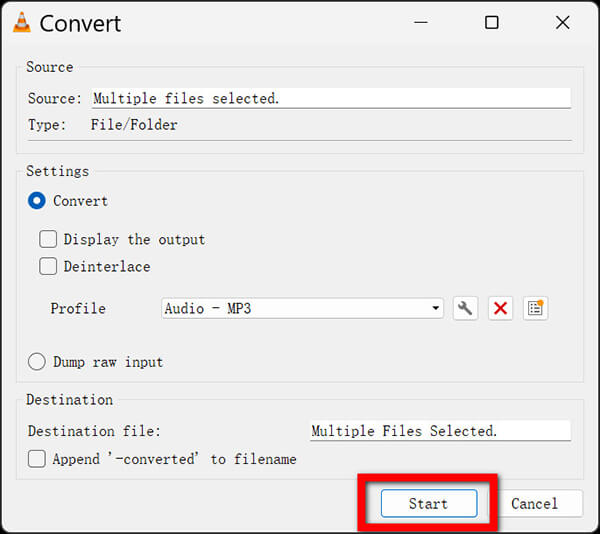
4. Click Browse to choose a destination file name. (Crucial Step: You MUST manually type .MP3 at the end of your file name, otherwise VLC might corrupt the file).
Click Start to convert M4B to MP3 immediately.
VLC converts audio in real-time or only slightly faster. There is no accurate progress bar that tells you how much time is left. If you are converting a 10-hour book, VLC might literally take an hour or more, and the software often looks like it has frozen. It also notoriously struggles with batch processing.
If you have an older Windows PC with iTunes installed, or a modern Mac using the Apple Music app, you can use it to create MP3 versions of your files, provided they are strictly DRM-free.
1. Open iTunes or Apple Music. Go to Edit > Preferences (or Music > Settings if you are on a Mac).
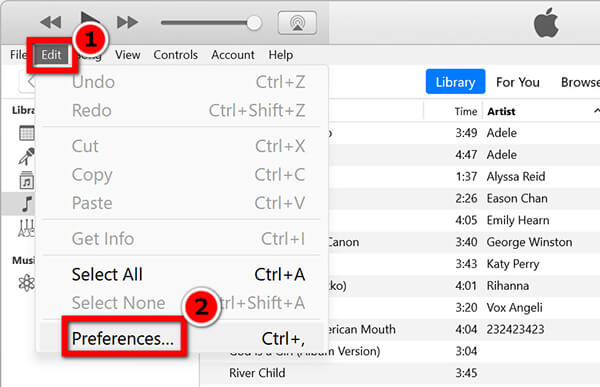
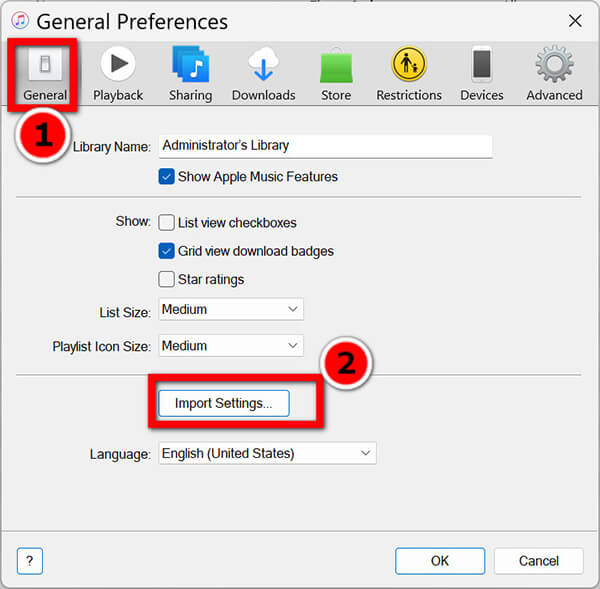
2. Under the General tab, find and click on Import Settings.
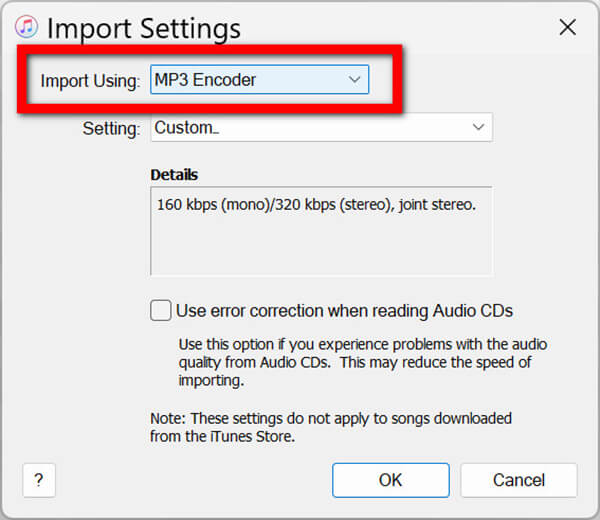
3. Change the Import Using option from AAC Encoder to MP3 Encoder. Make sure the quality is set to High. Click OK to save.
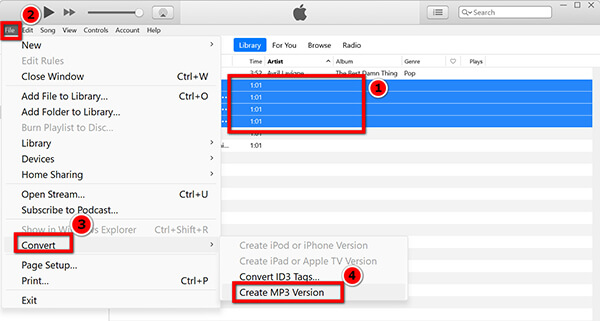
4. Go back to your audio library and select your M4B file.
5. Click File > Convert > Create MP3 Version in the top menu bar.
After the process is done, you can add the MP3 to your iPhone or Android phone for listening on the go.
This method is incredibly tedious. It actually duplicates the files directly inside your music library, making an absolute mess of your carefully organized folders. Plus, Apple has been slowly phasing out this specific conversion feature, making it harder to find in modern macOS updates.
Does converting M4B to MP3 reduce the audio quality?
Technically, yes, but practically no if you use the right settings. To keep a crystal-clear narrator's voice, avoid cheap web tools and use a desktop converter set to an audio bit rate of 192 kbps or 320 kbps. Your ears won’t tell the difference!
Can I convert DRM-protected M4B files from Apple Books or Audible?
No, standard converters will just throw an error due to the digital padlock. This guide is strictly for DRM-free files (like those from LibriVox). To check if your file is locked, try playing it in a non-Apple media player first.
How can I batch convert multiple M4B files on Windows 11?
The easiest way is to use desktop software. Just open AnyMP4, select all your M4B files in Windows Explorer, and drag-and-drop them into the window. Click Convert All, and let your computer do the heavy lifting.
Is it safe to use free online M4B to MP3 converters?
It is fine for public domain novels, but a big NO for private files. Since online tools require uploading your audio to a remote cloud server, always use local, offline software if your files contain sensitive personal or business information.
Will my audiobook chapters be preserved after converting to MP3?
Unfortunately, the MP3 format natively does not support M4B-style chapter markers. If you want to convert M4B to MP3 with chapters, use AnyMP4's built-in Split tool before converting. It lets you slice a giant 30-hour file into individual, neatly organized Chapter 1.mp3, Chapter 2.mp3 files automatically!
Phew! We have covered a massive amount of ground today. Whether you need to listen to audiobooks on your daily commute, load them onto an older MP3 player for a jog, or simply free yourself from the restrictions of the Apple ecosystem, converting M4B to MP3 is undoubtedly the smartest choice for universal audio compatibility.
To help you make your final decision and get back to your books, let's look at a quick, easy decision tree:
 Updated by Alice Thorne to Convert Audio
More readings
 Comprehensive Tutorial to Add MP3 to MP4 on Desktop and Online
Do you want to add an extra MP3 file to a MP4 file? You are lucky since this tutorial shares you with the easiest methods and concrete procedure.
 How to Add Image Album Art to MP3 in 7 Easy Ways (DIY)
Learn how to add image album art to MP3 files using desktop apps, mobile tools, and online editors to enhance your music library with visual flair.
 3 Ways to Edit MP3 Metadata to Organize Your Music Library
How to edit MP3 metadata and modify MP3 tags? Learn 3 easy ways to change metadata on MP3 using AnyMP4, MP3Tag, and VLC. Batch edit MP3 files like a pro today!
 5 Best MOV to MP3 Converters (2026): Pro Quality & Speed Tested
Extract 320kbps MP3 from MOV files with our top 5 tested tools. Features detailed reviews, batch guides, and expert tips for lossless audio extraction.
 Add your comments to join the discussion here