
Summary:
Looking for the fastest way to convert OGA files to MP3? For completely offline use and batch conversion, AnyMP4 Video Converter Ultimate is your best bet. If you want an immediate one-time conversion that does not require installation, FreeConvert can help.
OGA is a rare audio format associated with the Ogg container and Vorbis codec. If you’ve downloaded audio in OGA format, you may find it won’t play as easily as MP3s do. It is because OGA isn’t supported by many media players, applications, and devices. To ensure your OGA files play without error, you must convert them to the most widely supported audio format. In this post, we'll introduce three easy ways to convert OGA to MP3. By following these guides, you can ensure your audio works virtually on any media players, applications, and devices. Whether you need fast batch conversion, a free online tool, or an open-source solution, you'll find the best options here.
How We Test
| 100% Offline Privacy | Hardware Acceleration | Batch Processing | Maximum MP3 Output Bitrate | Ease of Use | Audio Editing Tools | Internet Required | Best For | |
|---|---|---|---|---|---|---|---|---|
| AnyMP4 Video Converter Ultimate |  100% privacy security 100% privacy security |
NVIDIA NVENC, Intel QSV, and AMD |
No limit |
320 kbps | 4.5/5 | Audio sync, volume booster, noise remover, audio compressor, etc. |  |
Large batches, sensitive/personal audio, and lossless conversion |
| FreeConvert | Files are uploaded to servers |
Server-side conversion only |
Up to 20 conversion minutes per day (Max 1 GB) |
320 kbps | 4/5 | Trim, fade effect, and reverse audio. | |
Single files and quick conversion |
| Audacity | Offline and open-source |
CPU-based only |
No limit |
320 kbps | 3.5/5 | Multi-track editing, mixing, and applying effects. | |
Advanced audio editing and basic audio conversion |
An OGA file is an audio file saved in the Ogg container encoded in Vorbis. Xiph.Org Foundation, the developer of the OGA file format, describes it as an open-source, patent-free audio container that uses the Ogg Vorbis compression method. It can deliver excellent sound quality at a small file size, perfect for different applications.
The challenge is that OGA has limited playback compatibility. Most media players, car stereos, phones, and editors cannot play the file. That’s why many file keepers choose to convert OGA to MP3. As we all know, MP3s are the world’s most compatible audio format. These files are supported by most OS, browsers, phones, media players, and applications.
AnyMP4 Video Converter Ultimate is a secure OGA converter with 100% data privacy. It can convert hundreds of OGA files to over 500+ formats, including MP3, simultaneously without lag or crashes. It processes every file conversion locally on your system, ensuring zero cloud uploads. It uses the most advanced hardware-accelerated file processing to achieve up to 120× faster conversion. Better yet, you can adjust audio codec, bitrate, sample rate, and channel to produce high-quality MP3s. It ensures your MP3s sound just as clear as the source.
1. Download AnyMP4 Video Converter Ultimate and complete the installation. After setup the software will run automatically.
Secure Download
Secure Download
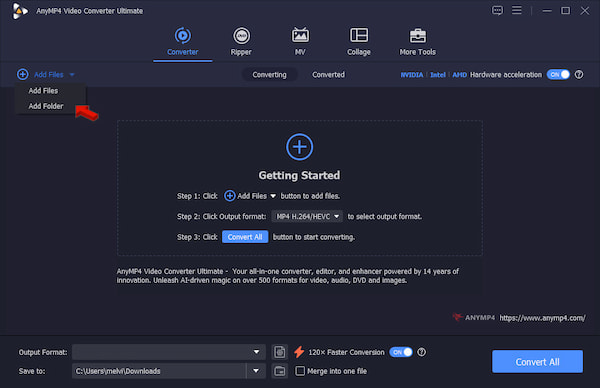
Click +Add Files to add your OGA sources from your computer. If you need to batch-convert OGA file to MP3, use the Add Folder instead.
2. Head to the Output Format picker and select MP3 under the Audio category. Essentially, select a quality preset that matches your intended use. Since both use lossy compression, we strongly recommend choosing the High Quality preset.
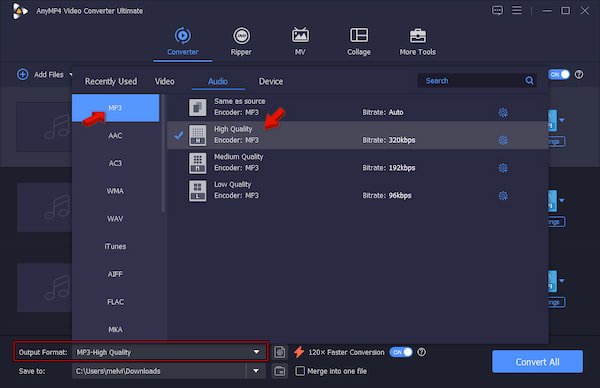
Set the bitrate to 320 kbps to retain audio detail, but 192 kbps is reasonably good for general music. The standard sample rate for playback is 44.1 kHz.
3. Go back to the main interface, toggle on Hardware Acceleration button. Set the output destination, then click Convert All to convert .oga to MP3.
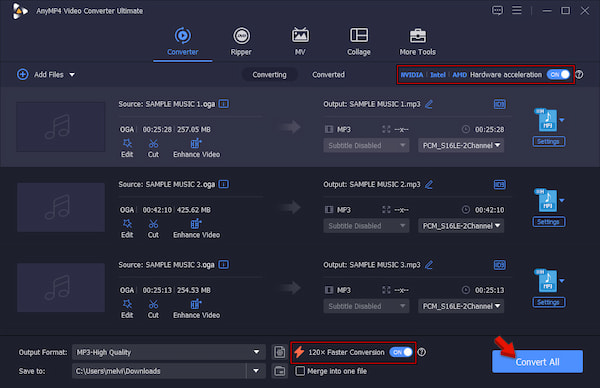
We conducted hands-on testing to evaluate AnyMP4's output quality, batch conversion, and speed. We use 100 OGA files totaling 2.37 GB on Windows 10. It took only 1 minute and 27 seconds to complete the conversion. During our audit, they heard no distortion, clipping, or synchronization issues in the converted MP3 files.
If you only need to convert a few OGA files that are under 1 GB, using online tools is a smart solution. FreeConvert can convert MP3 to OGA or vice versa without downloading anything. You can also add fade effects, reverse the audio, or trim start or end times.
To convert: Open a web browser and go to the FreeConvert site. Click Choose Files on the homepage to import the OGA source from your computer. To upload an OGA file from the cloud, click the arrow dropdown and select a cloud provider. Select MP3 in the Output picker, then click Convert to process the audio. Right after the conversion, download the file to your computer.
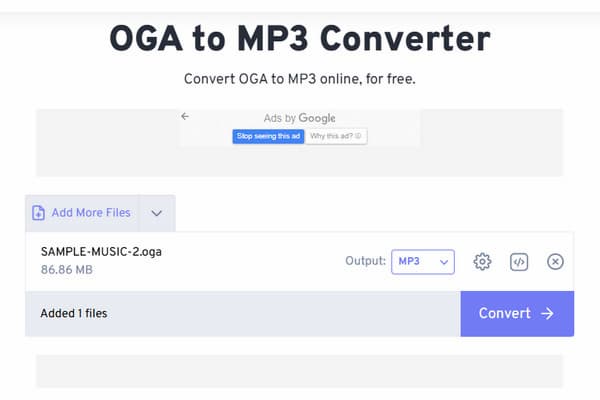
Remember, use FreeConvert cautiously. Unlike offline converters, this tool requires you to upload your files to the server. This action can expose you to data leakage and privacy risk. If your priority is your privacy, then it is definitely not a good option. Remember to select MP3 in the Output picker, as it is different from MP4. For further understanding, check the MP3 vs MP4 comparison for clarity.
If you don’t mind the technical setup, Audacity can convert OGA audio to MP3 effectively. Like AnyMP4, it processes the files entirely on your system, keeping your OGAs private. It also includes editing features that let you trim, normalize, reduce noise, or enhance audio.
To convert: The steps require only an import and export approach. Firstly, go to File, select Import, and click Audio to import the OGA source. Then, go to File again, but this time select Export Audio. Under the Format picker, choose MP3 Files as your export profile. Next, click Export to save the converted MP3 file.
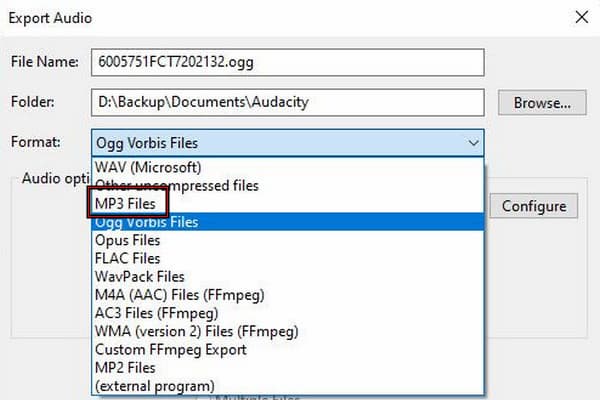
While Audacity can export OGA to different audio formats, it isn’t actually designed for audio conversion. Besides, you need to install the FFmpeg library for broader format compatibility and modify batch processing through Macros.
How can I batch-convert multiple OGA files to MP3 offline?
You can use AnyMP4 Video Converter Ultimate to batch-convert OGA to MP3 on Mac/Windows offline. With it, you can load hundreds of files and convert them to MP3 simultaneously. It saves all the converted files on your computer, even without an internet connection.
Is it safe to use online converters for personal OGA voice recordings?
To be real with you, it is not safe to use online converters for personal OGA voice recordings. Using an online tool requires uploading the file to third-party servers. It means your data is exposed to unauthorized access, leakage, and data scraping.
Can I convert OGA to MP3 at 320 kbps without losing audio quality?
Yes, you can convert to MP3 at 320 kbps without losing quality using AnyMP4. However, the process is technically lossy-to-lossy compression, meaning you can’t avoid losing some quality. However, when you convert OGA to MP3 at high quality (320 kbps), it minimizes degradation.
What is the difference between OGG and OGA files?
To explain it briefly, OGG is a multimedia container that can contain a mix of audio, video, and subtitles. It supports Vorbis, Opus, and Theora. In contrast, OGA is limited to audio-only streams using the Ogg FLAC or OggPCM codecs.
How do I play OGA files on an iPhone or Mac without converting them?
Natively, Apple does not support OGA files. To play them on your Apple device without conversion, you need a third-party media player. On the App Store, plenty of the best MP3 players have built-in codec support to play these files.
Converting OGA to MP3 guarantees smooth playback on media players, applications, and devices. For single-file conversion, any online converter will work just fine. But for offline conversion, with privacy as the top priority and hardware-accelerated batch conversion, AnyMP4 Video Converter Ultimate would be the one to choose. Download and convert your OGA files today! Got any questions or problems playing your OGA files?
 Posted by Alice Thorne to Convert Audio
More readings
 2 Ways to Convert MPG/MPEG to WMV on Windows/Mac/Online (Reversely)
Read and get 2 easy ways to convert MPG to WMV or WMV to MPG on your Windows and Mac computer. You can get both online and desktop MPG converters in this post.
 3 Ways to Rip DVD to MPG on Windows and Mac [2026 Guide]
Come to learn how to rip DVD to MPG files in three simple ways. Follow our step-by-step guide to convert your DVDs to the MPG format easily and efficiently.
 10 Best MP4 to WAV Converters to Extract Lossless Audio
Convert MP4 to WAV without losing quality. We tested 10 top converters for PC, Mac, and online to extract lossless PCM audio with 44.1/48kHz bitrates.
 5 Best Ways to Convert M4A to WAV (Free, Online & Pro) - 100% Quality
Learn how to convert M4A to WAV on Windows, Mac, and Online by using AnyMP4, iTunes, VLC, and Audacity to ensure lossless audio quality.
 Add your comments to join the discussion here