
Free Download100% Clear & Secure
Free Download100% Clear & Secure

If you are in a rush to add metadata to MP3 files, here is a quick look at our top picks:
Have you ever opened your phone’s music app only to find a bunch of tracks labeled Track 01 or Unknown Artist? Or maybe you’ve downloaded a podcast, and the cover art is just a generic grey musical note. It’s frustrating, right? I used to have a massive folder on my old laptop that looked like a digital junkyard, and hundreds of songs with no titles, no album names, and zero organization. It made finding my favorite songs for a road trip nearly impossible.
That is where learning how to edit MP3 metadata comes in. Metadata is essentially the ID card for your audio files. When you modify MP3 tags, you give your music a name, a face (cover art), and a home (an album). In this guide, I’m going to share my personal journey of cleaning up my library and show you three tested ways to change metadata on MP3 files so you never have to see Unknown Artist ever again.
How We Tested These Tools
| Ease of Use | Platform | Accuracy | Batch Editing | Format Support | Best For | Limitations | |
|---|---|---|---|---|---|---|---|
| AnyMP4 Video Converter Ultimate | Very Easy | Windows/Mac | High | Excellent | 500+ Formats | Beginners & Video Editors | Paid (Free Trial) |
| MP3Tag | Moderate | Windows/Mac | High | Best | Most Audio | Hardcore Collectors | Learning Curve |
| VLC Player | Easy | Windows/Mac/iOS/Android/Chrome | Medium | No | All Media | Single Song Fixes | No Batch Support |
Before we dive into the how, let’s talk about the what. When people talk about ID3 tag editors, they are referring to metadata. ID3 is the standard format for metadata in MP3 files.
Think of an MP3 file as a physical CD. The audio is the music on the disc, but the metadata is the writing on the case, the lyric booklet, and the cover photo. When you edit audio metadata, you are filling in the blanks for the title, artist, album, year, genre, and even the track number.
In my experience, having clean metadata is crucial for SEO if you are a creator, and essential for sanity if you are a music lover. It lets your car’s dashboard display the right song info and helps Siri or the Google Assistant find the track when you say, Play my favorite song. If you want to clean MP3 metadata, you're giving your digital files a professional makeover.
AnyMP4 Video Converter Ultimate is much more than just a converter; it features a dedicated Media Metadata Editor that I personally find to be the most user-friendly for beginners. It supports a massive range of formats, so if you need to edit metadata for MP3, MP4, or even M4A files, it handles them all in one place. The interface is clean, allowing you to drag and drop files and see exactly what the cover art will look like before saving. It’s particularly great if you want to edit MP3 tags on Mac or Windows with a consistent experience. I love that it doesn't feel like technical software; it feels like a modern app designed for humans.
1. Launch the Tool
Free download and open AnyMP4 Video Converter Ultimate.
Secure Download
Secure Download
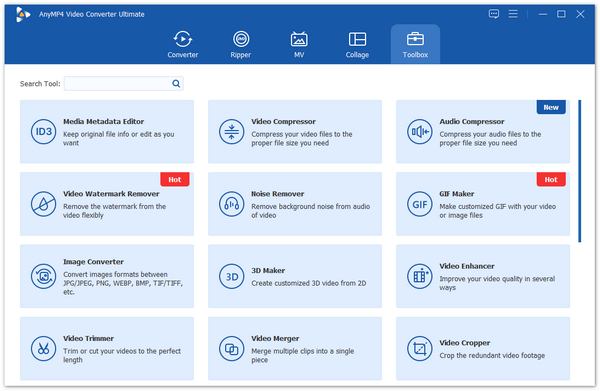
Click on the Toolbox tab at the top.
2. Open Metadata Editor
Select the Media Metadata Editor tool from the list.
3. Add Your File
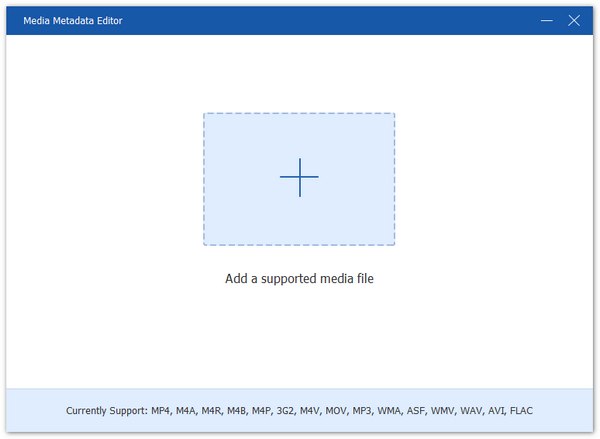
Click the big + button to import the song you want to modify the MP3 tags on.
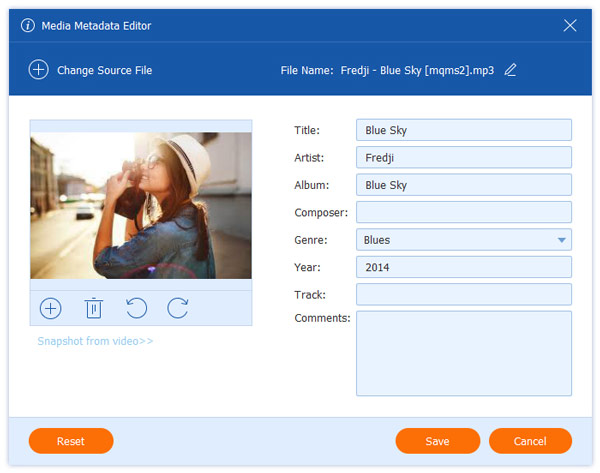
Edit the Info: A window will pop up where you can type in the Title, Artist, Album, Composer, and Year.
Add Cover Art: Click the + icon on the left to browse your computer and add cover art to MP3 files.
Many people find their changes don't show up in certain players because the Title and File Name are different. My advice? Make them match! If the tag is Love Story but the file name is track123.mp3, some older car stereos will still show the file name.
4. Save
Once everything looks perfect, click Save to export the MP3 file with the metadata you want to add.
After that, you can use a metadata viewer to see if it has been changed.
I used this tool to prepare a playlist for my cousin's wedding. I had files from different sources, some of which were oddly named. AnyMP4 allowed me to batch-edit MP3 files and ensure volume and metadata were consistent across the board. It’s a paid tool, but the time it saves you on a large project is well worth it, especially because it doesn't crash even with large 4K video files or heavy audio folders.
If you are looking for a free MP3 tag editor that is specifically designed for music, MP3Tag is the gold standard. It’s incredibly lightweight and doesn't use up much of your computer's RAM. What makes MP3Tag special is its ability to pull information from online databases such as Discogs and MusicBrainz. This means you don't even have to type! If you have an obscure album, this tool can often automatically find the correct ID3 tag editor info. It’s also the best choice if you need to remove MP3 metadata entirely for privacy reasons or to start fresh.
1. Import Folder
Open MP3Tag and drag your entire music folder into the main window.
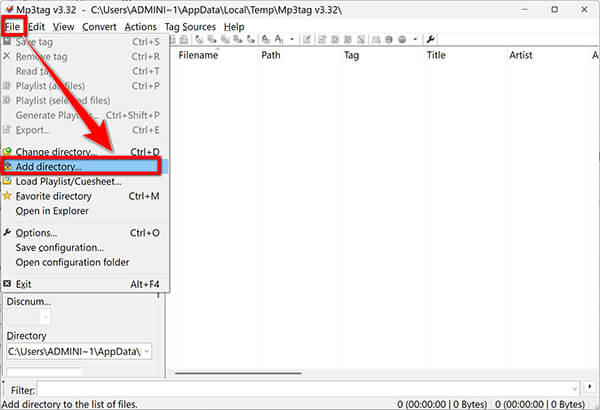
Alternatively, you can click File > Open directory… to put all the MP3 files into this tool.
2. Select Songs
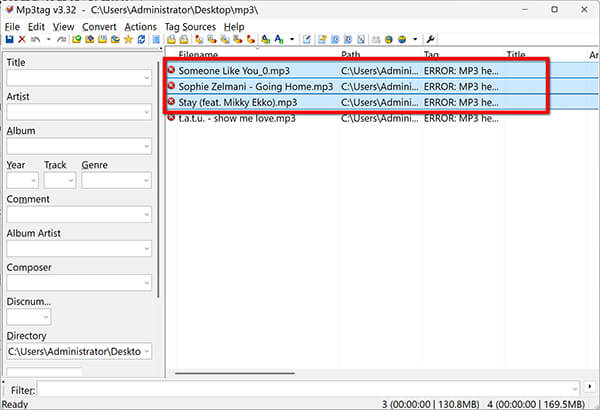
Click a single song or select multiple songs to batch-edit MP3 files.
3. Manual Edit
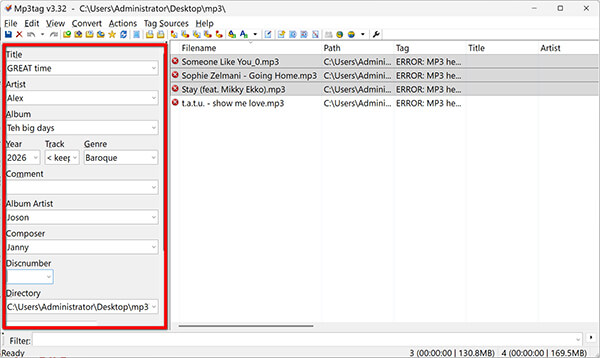
On the left-hand panel, you’ll see fields for Artist, Album, and Genre. Type your changes there.
4. Auto-Tagging
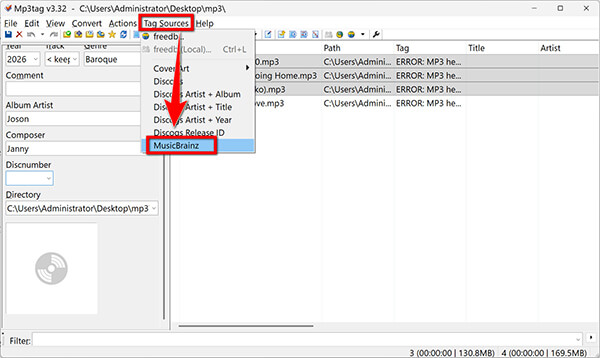
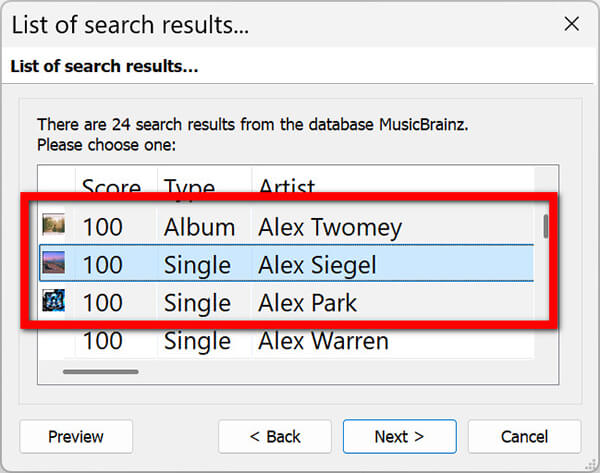
Go to the Tag Sources menu and select MusicBrainz to let the software find the info for you.
5. Add Art
Right-click the square at the bottom left to add cover art to the MP3.
6. Save MP3 files
Click the blue floppy disk icon in the toolbar to commit your changes. The status bar at the bottom will show Formatted tags in X of X files. Your metadata is now exported into the files.
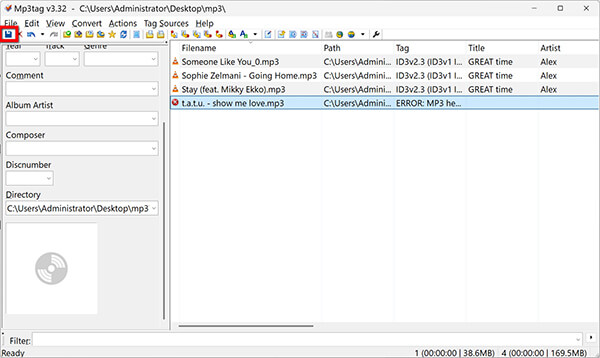
This is the #1 mistake: Forgetting to click the Save icon. Unlike modern apps, MP3Tag does NOT auto-save. If you edit 100 songs and close the window without clicking that blue floppy disk, you will lose everything. Believe me, I've cried over this.
MP3Tag was my go-to when I decided to digitize my dad’s old jazz collection. Since the files were just Track 1, Track 2, I used the Tag Sources feature to identify the songs. It has a bit of a learning curve because the interface looks a little like an Excel spreadsheet, but once you get the hang of it, it's the most powerful way to organize music library data without spending a dime.
Most people think of VLC as just a video player, but it’s actually a secret weapon to change metadata on MP3 files. If you just have one or two songs that need a quick fix, you don’t need to download specialized software. VLC can edit audio metadata directly while you are listening to the track. It’s accessible, fast, and works on almost every platform imaginable. While it isn't great for batch edit MP3 files, it is perfect for those Oh, I need to fix this title real quick moments.
1. Play the Song
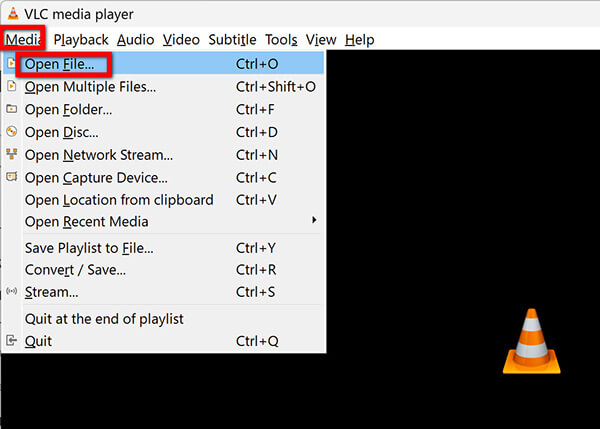
Open your MP3 file with VLC Media Player. Click Media > Open File… or just drag and drop the MP3 file into VLC.
2. Open Media Info
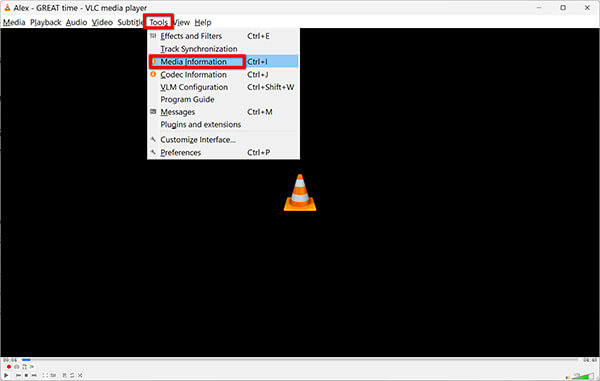
While the song is playing (or paused), go to the Tools menu and select Media Information (or press Ctrl+I).
3. General Tab
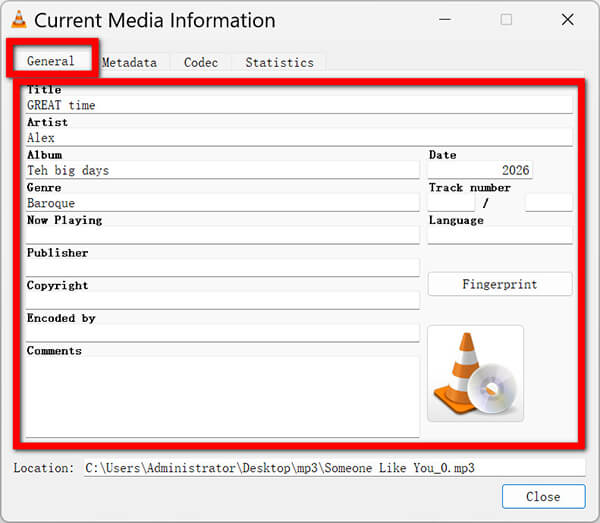
In the window that appears, you will see the General tab with all the metadata fields.
4. Edit Tags
Simply click into the boxes to modify MP3 tags like title, artist, and album.
5. Add Artwork
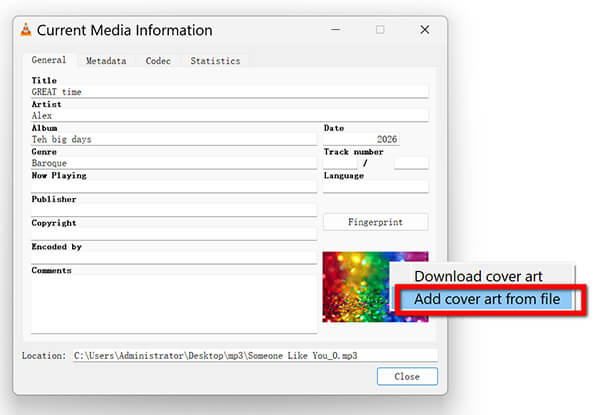
You can right-click the existing album art area to Add cover art from file to change or add album art to MP3.
6. Save Metadata
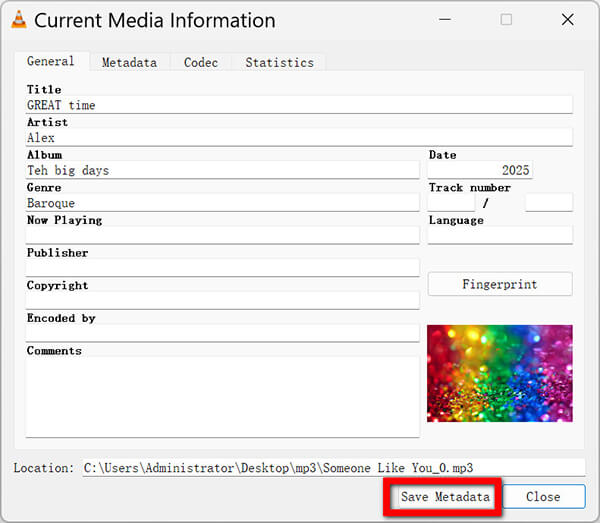
Click the Save Metadata button at the bottom.
Note: This actually writes the info into the file!
If the cover art doesn't update immediately, try clicking Clear cover art, saving, and then adding the new one. This clears the cache and forces the player to recognize the new image.
I use the VLC method almost daily for my voice memos. After I record a quick idea on my phone and move it to my PC, I use VLC to add metadata to the MP3, so I know what the memo was about six months later. It’s simple, no-nonsense, and incredibly convenient since I already use it to watch movies.
Can I edit metadata without installing software?
Yes, you can! You can change MP3 tags online using websites such music tag editors as TagMP3 or MP3Id3Tag. However, be careful with your privacy when uploading personal files to the cloud. For large files or high-quality audio, a desktop tool is usually faster and more secure.
Does editing metadata affect audio quality?
Not at all. When you modify MP3 tags, you are only changing the text and image data stored in the file's header. The actual audio stream remains untouched, so you can clean MP3 metadata as many times as you want without losing any sound quality.
What is the difference between ID3v1 and ID3v2?
ID3v1 is the old-school version that only allows for very short titles (30 characters). ID3v2 is the modern standard that allows for long titles, lyrics, and high-resolution cover art. Most modern ID3 tag editors, such as AnyMP4 and MP3Tag, use ID3v2 by default.
Do I need a tag editor if I use Spotify/Apple Music?
If you only listen to streaming music, the services handle the metadata for you. However, if you have a collection of local files, bootlegs, or your own recordings that you want to upload to your Local Files section on Spotify, you'll need to edit the metadata of those files first, so they appear correctly in your playlists.
Is the MP3 tag free?
The tags themselves are part of the file format, so they don't cost anything. There are many free MP3 tag editors, such as MP3Tag or VLC. Some all-in-one media suites like AnyMP4 require a purchase but offer much faster processing and more features.
Organizing your digital life can feel like a chore, but learning how to edit MP3 metadata is one of the most rewarding small wins you can have. Whether you choose the power of AnyMP4 Video Converter Ultimate, the precision of MP3Tag, or the convenience of VLC, the end goal is the same: a beautiful, searchable, and professional-looking music library.
Before you start a massive batch edit MP3 files session, I highly recommend making a backup copy of your music folder. Every once in a while, a software glitch or a power flick can corrupt a file during the saving process. Better safe than sorry! Also, when you add cover art to mp3, try to keep the image size under 600x600 pixels. Some older car stereos and MP3 players struggle to display huge, high-res images. Now, go forth and clean MP3 metadata!
Secure Download
Secure Download
 Updated by Mark Cristobal to Edit Audio
More readings
 Best 5 Video Metadata Editors for Windows and Mac
Changing the video metadata information can be done easily with the help of third-party programs. Learn the best five Metadata editors we included in our list.
 3 Editors to Add and Change MKV Metadata
Looking for software to use as an MKV tag editor? Then, this article is made for you since we will present three tools that you can use for this purpose.
 5 Simple Ways to Remove Metadata from Media Files
Do you want the information of your files not to be spread before sharing it? Find out how to accomplish it using the Metadata Removal tools listed below.
 How to Add Text in DaVinci Resolve [Easy-to-Follow Guides]
If you want to add text in DaVinci Resolve and don’t know how to accomplish it, don’t stress. Check our post and learn a simple guide for adding text to videos.
 Add your comments to join the discussion here