How to Convert AIFF to MP3 in 2026 (Free, Batch & Lossless)
Quick Summary:
Regardless of the program you use, the quick three-step guide below outlines the workflow for the AIFF-to-MP3 conversion process. To better understand the two formats, we also provide a comparison of the tools based on key features when using such file types.
- Step 1: Import the AIFF file you want to convert.
- Step 2: Select MP3 as the Output Format and set the quality to 320 kbps.
- Step 3: Click on Convert All to begin the format conversion.
To convert lossless but bulky AIFF files into widely compatible MP3s, the most reliable and quality-preserving method is to use professional desktop software (such as AnyMP4 Video Converter Ultimate). To get the desired MP3 files from different devices, you can find 5 of the best solutions in the article. Whether you have an iOS device, Android phone, Windows PC, Mac, or even a tablet, you can find solutions to convert AIFF to MP3 in this article now.
Quick Answer: Best Way to Change AIFF to MP3
| Comparison Factors |
AnyMP4 Video Converter Ultimate |
Apple Music |
VLC Media Player |
FreeConvert |
Zamzar |
| Compression Type |
Lossless Compression |
Lossless Compression |
Lossy Compression |
Lossy Compression |
Lossy Compression |
| File Size |
Very Small |
Medium |
Small |
Medium |
Medium |
| Compatibility |
Windows, Apple |
Apple |
Windows, Apple |
Browser |
Browser |
Method 1. Batch Convert AIFF to MP3 Without Quality Loss (Recommended)
If you want to play an AIFF file on the iPod, you need to use a multimedia format converter, such as AnyMP4 Video Converter Ultimate. In addition to handling video files, it can convert music files to make them playable on devices where AIFF is less supported, such as the iPod, iPhone, and iPad. Moreover, you can trim the audio length as you like or merge several audio files into one.
In our latest tests, AnyMP4 Video Converter Ultimate successfully batch-converted 20 50MB AIFF tracks into extremely high-quality 320 kbps MP3s in just 12 seconds, with no perceivable audio quality loss to the human ear.
In addition to MP3s being easier to listen to, converting AIFF files to the format mentioned will also make them natively accessible in Adobe Premiere Pro for post-editing, helping avoid format errors in multi-track audio projects. Converting them to MP3 will allow AIFF files to be used for professional editing and audio processing workflows.
To learn how to use AnyMP4 Video Converter Ultimate for batch converting AIFF to MP3, you may read our provided step-by-step guide below. Before that, make sure to download it so it's easier to follow our tutorial.
Step-by-Step Guide to Convert AIFF to MP3
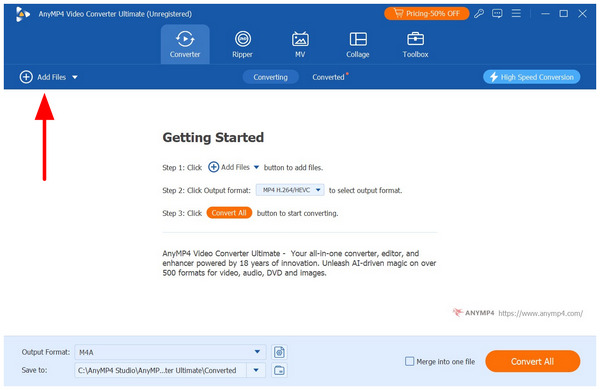
1. Open AnyMP4 Video Converter Ultimate and then select the Add Files option in the Converter tab. Navigate through your files to find the AIFF files you want to convert.
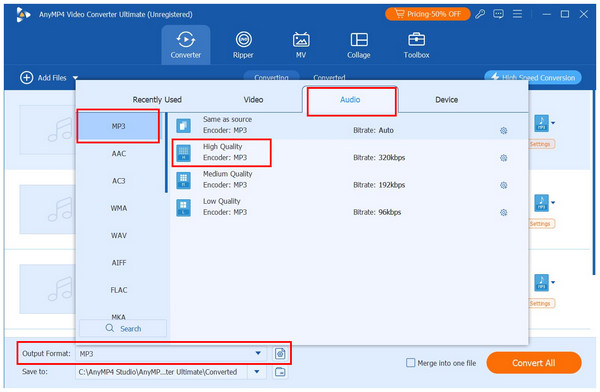
2. Wait for the AIFF files to be uploaded to the Converter tab. Then, select Output Format, go to Audio, and choose MP3. Then, use the High Quality conversion profile to set the bitrate to 320 kbps.
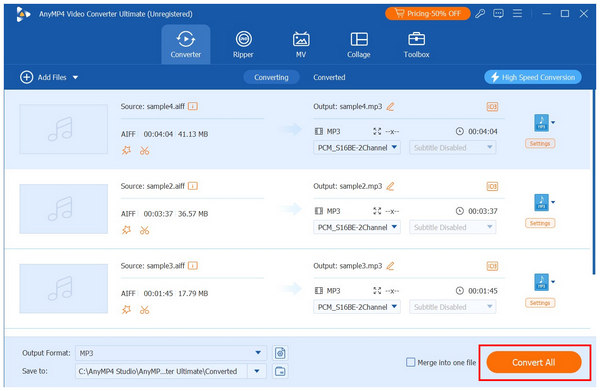
3. Once you have selected your Conversion Profile, return to the Converter tab. There, simply select the Convert All option to start the AIFF-to-MP3 conversion.
Method 2. Change AIFF to MP3 via Free Desktop Alternatives
Using Apple Music (Built-in for Mac)
Since AIFF files are the default file format for Mac, you can use iTunes to convert AIFF files to MP3. As a versatile media transfer, iTunes is also a media converter and a media player. When you use the program to turn AIFF files, you can directly play back the MP3 files on a Mac computer or other iOS devices.
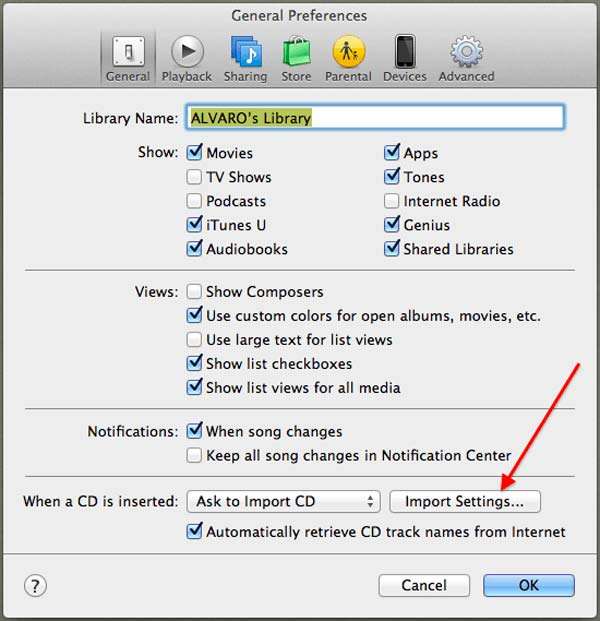
1. Open iTunes on your Mac computer, go to "General Preferences" > "General", then click the "Import Settings…" tab to choose settings. Now click "Import Setting" to load the AIFF files from iTunes before clicking the "OK" button.
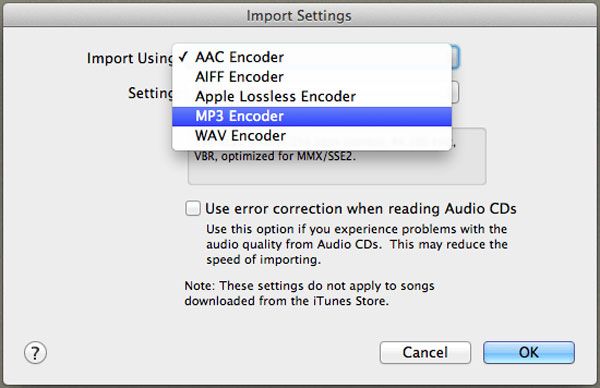
2. Click on the "Import Using" drop-down menu to choose "MP3 Encoder". You can confirm the option in the main preferences panel. Choose the bitrate and other settings for the output MP3 files. The higher rates mean higher quality, but larger file sizes.
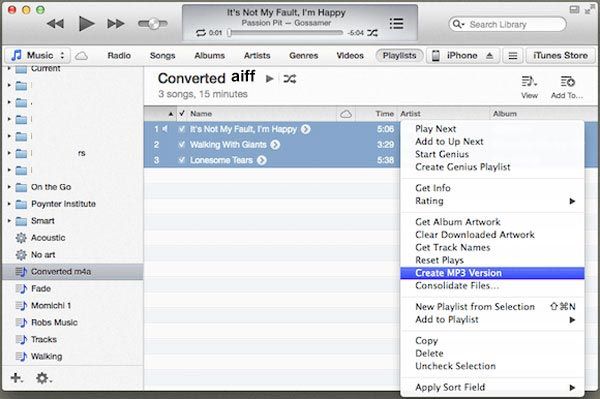
3. To convert multiple AIFF files, place all AIFF files in a single folder for batch AIFF-to-MP3 conversion. Of course, you can also select the AIFF files, right-click the desired ones, and choose "Create MP3 Version".
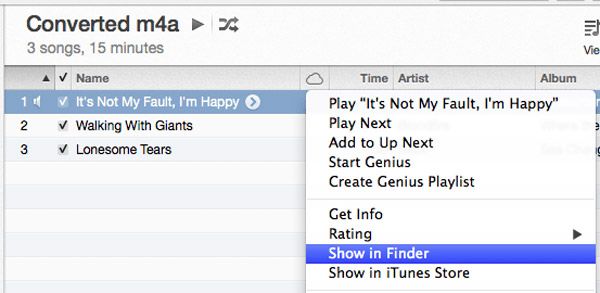
4. After that, you can right-click the AIFF files again, choose the "Show in Finder" option to locate the converted MP3 files on your computer. Just remove the original AIFF files if the data is no longer required.
Using VLC Media Player (Open-Source)
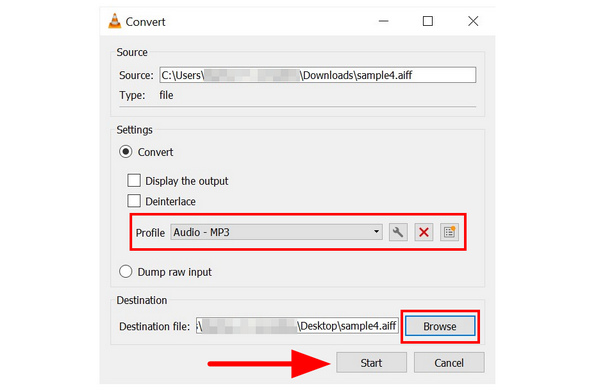
On to the next program, you can also use VLC Media Player as a solid open-source solution for converting AIFF to MP3. This was made possible by the advanced Convert/Save option under its media tab, which can be used as an emergency format converter option. However, keep in mind that although VLC is entirely free, the interface’s conversion logic is not beginner-friendly, and it tends to crash when batch-converting a large number of AIFF files.
1. Open VLC Media Player and click on the Media tab, then select the Convert/Save option.
2. In the Open Media menu, select Add, then navigate to your files to find the AIFF audio you want to convert to MP3. Then, select Convert/Save.
3. Once you are in the Convert menu, click on Profile and choose the Audio - MP3 option. Then, select Browse and choose the save destination of the MP3. Once these are all set up, click on Start to begin format conversion.
Method 3. Turn AIFF into MP3 Free Online (Best for Small Files)
FreeConvert (Up to 1GB Limit)
Whatever device you are using now, an online AIFF-to-MP3 converter should be a good solution for converting files directly on your device. FreeConvert can convert AIFF files online or run limited batch processing. Just learn more about the detailed process for converting AIFF to MP3 below. It also has a significant file size limit of 1GB.
Apart from uncompressed AIFF file conversion, this online converter also supports compressed AIFC conversion to MP3, WAV, WMA, etc.
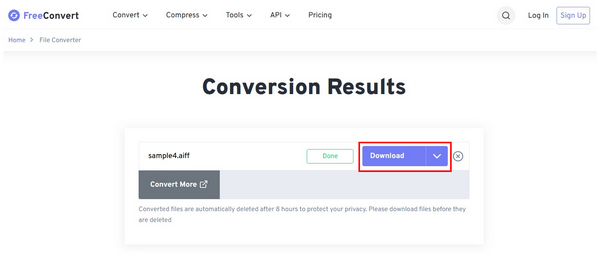
1. Go to FreeConvert’s website and select the Choose Files option to import the AIFF file you want to convert. You may also drag and drop it to the upload box.
2. Once the AIFF audio is uploaded, set the Output to MP3. Fortunately, the online tool uses MP3 as the default output format. Then, click on Convert to proceed.
3. Wait for the conversion process to load. Then click Download to import the converted MP3 file to your computer.
Zamzar (Up to 50MB Limit)
When you have only AIFF files, you might not have to consider the MP3 quality. As for the case, you can use Zamzar instead. It is a popular online file converter site that converts an AIFF file to MP3 audio with ease. But you cannot customize the parameters of the output MP3 file. Both Mono and Stereo channels are available for AIFF-to-MP3 conversion. (Convert Stereo to Mono here)
If you plan to use Zamzar’s free version, remember it has a 50 MB file size limit per upload. Since AIFFs are raw, uncompressed audio files, they can easily exceed 50 MB. The online tool also has a heavy conversion limit of only 2 files per 24 hours.
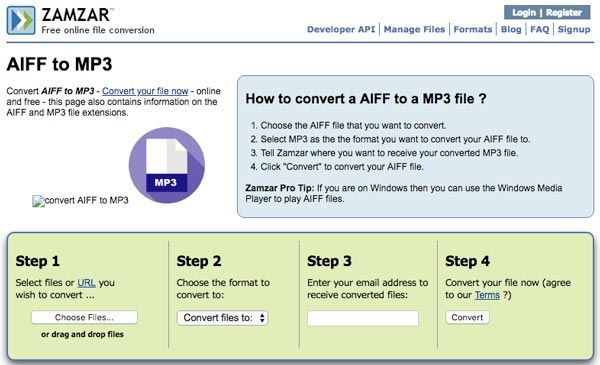
1. Select the AIFF files from your computer or enter the URL of the AIFF file into the online audio converter. Of course, you can also drag and drop the AIFF files into the program to convert them.
2. After that, you can click "Convert files to" to choose the format you want to convert to. You can choose the MP3 format for the music files to convert AIFF files to MP3 instead.
3. Enter the email address you want to receive the MP3 output format. After conversion, you can receive the output MP3 files at your email address.
4. Click the "Convert" button to turn an AIFF file into an MP3. After that, you can check the email address for the output MP3 files. Once you get the MP3 files, you can use them for MP3 players or other devices.
The two online tools above give you great convenience for converting audio files. But the big problems with these types of tools are size limits and security. If your AIFF files exceed the limits of these online tools or if you need to convert dozens of files at once, we strongly recommend downloading AnyMP4 Video Converter Ultimate for free to overcome any network or size restrictions.
AIFF vs. MP3: Which Format is Better for You
To learn which format may suit your needs, we have provided detailed definitions of AIFF and MP3 files. For a quick summary of their strengths, we highly recommend using AIFF for users who prefer extremely high-quality audio and have ample storage space. On the other hand, MP3 is still our recommended tool for daily music consumption and smart storage management.
What's AIFF
AIFF is short for Audio Interchange File Format. It is an audio file format standard used for storing sound data. It is uncompressed and lossless, so it uses much more disk space than lossy audio formats—about 10 MB for one minute of stereo audio at a sample rate of 44.1 kHz and a sample size of 16 bits. Besides, it is most commonly used on Apple Macintosh computers and other electronic audio devices. However, it is not supported by the iPod.
What's an MP3
MP3 is an audio-specific format that was designed by the Moving Picture Experts Group (MPEG) as part of its MPEG-1 standard and later extended in the MPEG-2 standard. MP3 is a patented encoding format for digital audio that uses a lossy compression algorithm designed to greatly reduce the amount of data required to represent the audio recording while still sounding like a faithful reproduction of the original uncompressed audio.
| Feature |
AIFF |
MP3 |
| Compression Type |
Lossless Uncompressed |
Lossy Compressed |
| File Size |
Extremely Large |
Very Small |
| Compatibility |
Optimized for the Mac/Apple ecosystem |
Universal cross-platform compatibility |
FAQs About Converting AIFF to MP3
How do I play AIFF files?
You can play AIFF files directly via Windows Media Player, Apple iTunes, Apple QuickTime, VLC, Media Player Classic, etc. For those devices that do not support AIFF files, you need to convert AIFF to MP3 with the AIFF converters mentioned in this post.
Is AIFF still in use?
Yes. As the uncompressed format for saving original audio files, AIFF is still in use. AIFF files continue to work normally on macOS 12/11/X and in other third-party audio applications and hardware.
Which is better, MP3 or AIFF?
MP3s are compressed audio files, while AIFFs are uncompressed; therefore, AIFFs are better than MP3s. However, AIFF uses much more disk space than the lossy format, MP3. In terms of compatibility, MP3 is more popular than AIFF.
Does converting AIFF to MP3 lose quality?
AIFF is lossless, whereas MP3 is lossy, so there will be theoretical data loss. However, as long as you select the 320kbps bitrate in AnyMP4, the vast majority of listeners will not perceive a difference.
How to batch convert AIFF to MP3 on Mac for free?
You have two options for Mac. You can use Apple Music’s built-in converter feature. For third-party options, AnyMP4 Video Converter Ultimate is another smart choice, especially when batch converting multiple AIFF files.
Can I convert AIFF files on my iPhone?
There are specific apps for format conversion on iPhone. You can also use online tools, as they are accessible in a mobile browser. However, this is not advisable since format conversion is very demanding. It is still recommended to convert AIFF files on a desktop before transferring them to mobile devices.
Conclusion
When you have AIFF files, you can use the above solutions to convert them to MP3 or other audio formats. The article explains methods for converting AIFF to MP3 files on different devices. It should be the ultimate solution for converting MP3 files from AIFF. If you still have other queries about how to convert AIFF to MP3, you can share more detailed information in the comments now.




 Add your comments to join the discussion here