
Have you accessed an older laptop in your home and found a gold mine of nostalgic Windows Movie Maker projects from a few years ago? Read this article to discover how to open these dated editing files by discovering multiple options to open old Movie Maker projects saved in the MSWMM file type. We will explore multiple options to unlock these legacy formats and help you learn how to export the project files into an accessible digital video.
MSWMM files are the video project files saved as backup data from Windows Media Player. They are saved to ensure that you can return to your video editing project without finishing all the editing work in one sitting.
These files save the data you have added to the editing timeline to make sure that you can come back to your project while having the adjustments intact. They act similarly to photo adjustments saved in PSD files of Adobe Photoshop or added subtitles in PRPROJ files of Adobe Premiere Pro.
To learn more about the project files of Windows Media Maker, make sure to learn more about the file by learning how to open it and see if it is hard to convert into digital videos.
Playing media saved in the MSWMM file extension is not possible once you try to open it in media players such as VLC or your smartphone’s gallery. This is because these files are not saved in video format. Instead, they are Movie Maker project files that were saved during the editing process.
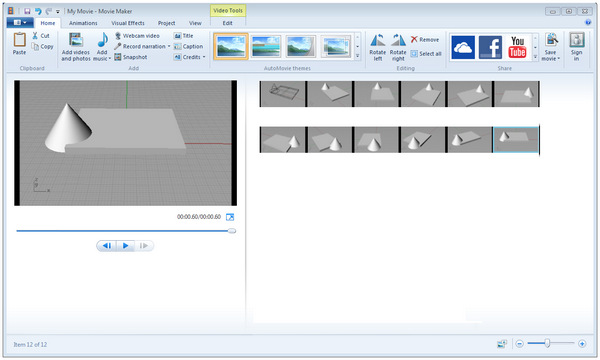
With that in mind, you need to open the MSWMM project file in legacy Windows Movie Maker and then export it to a video format of your choice, preferably MP4. Once done, you can then watch the media file, whether on your desktop or smartphone. When done properly, all adjustments, such as video cuts, effects, or cropping, in Windows Movie Maker will be saved.
Unfortunately, opening MSWMM files on modern computers running Windows 10/11 computers will have a hard time opening these options. First, Windows Movie Maker is not available officially on the modern Microsoft Store anymore. Thus, you cannot legally get a way to open such files on modern hardware.
To open MSWMM project files as videos, we have provided multiple solutions that you can use on modern computers in 2026.
Now that we have explained what MSWMM files are and their access limitations, especially on older hardware, let us now move forward to the options you can use to convert Movie Maker project files into a watchable digital video.
With that in mind, we have provided two potential solutions for your legacy project file issues, as well as a potential troubleshooting solution you can use when facing issues during the export process.
Unfortunately, Windows Movie Maker is not available anymore in the official Microsoft Store. The program has been discontinued since 2017 and was replaced by Microsoft Clipchamp.
With that in mind, the only way to access Windows Movie Maker and files in MSWMM format on modern computers is to search for third-party copies. A good option is to check for an installation copy on the Internet Archive or search for it on online forums.
Although unconventional, especially with the presence of modern computers, you can still use an older laptop, still equipped with Windows Movie Maker, to open the MSWMM file you want to open.
However, be ready to allot enough time during file export since converting MSWMM files into digital videos on Movie Maker using dated hardware will consume a significant amount of time. Fortunately, Windows Movie Maker is still available up to Windows 10, and most hardware in this age will be able to handle the video exporting process with passable speed.
Despite that, the exporting speed may still be affected, especially if you apply heavy video adjustments such as improving the video quality in Windows Movie Maker.
Once you have found access to Windows Movie Maker, you might find errors involving missing media files when you open your MSWMM project. To fix such issues, open the file location of where you installed the Movie Maker copy, then find the folder where projects are automatically saved. Move your MSWMM file inside the folder.
If the issue persists, make sure to also move the media files you used from the editing project back to the location where they are saved when you are doing the video editing work.
To avoid such complex limitations of Windows Movie Maker’s project files, you can instead just use the best modern alternative for beginner-friendly video editing using the program we have recommended as an alternative in the next section of the article.
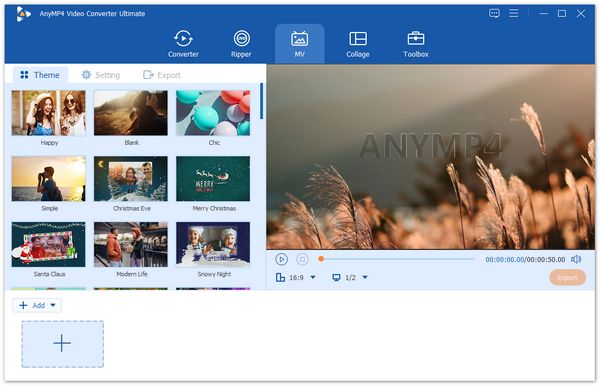
Since Windows Movie Maker was discontinued almost a decade ago, you need to look for an alternative video editor program on your desktop. In this case, AnyMP4 Video Converter Ultimate and its MV Maker feature should be one of the first options you must consider.
Similar to the legacy Windows Movie Maker program, the video editing tools available in AnyMP4 Video Converter Ultimate are also inclined towards beginners. It offers built-in themes that can be set for the video project itself; video filters and effect templates are also available in the program, which can be applied with a single click.
On top of being similar to Movie Maker in terms of the video editing tools, the program also offers a freeware version that you can reliably use for basic video editing and simple video production needs.
If you are looking for a modern video editor program that works similarly to the legacy Windows editor, you have to consider using AnyMP4 Video Converter Ultimate as your top option. It is optimized for modern computers, and it also offers practical multimedia tools such as a format converter, a video compressor, a DVD ripper, and other practical features.
To start using the best Movie Maker alternative for modern Windows desktops, make sure to download it using the link below:
Secure Download
Secure Download
Q: Can I convert MSWMM to MP4 without Windows Movie Maker?
A: No, you cannot. MSWMM files cannot be converted to MP4 using format converter tools since they are not video files. You can make this possible by opening the project file in Windows Movie Maker and then exporting it to a video format. You can even directly select MP4 as the export format of your choice.
Q: Why is my MSWMM file so small (kb)?
A: MSWMM files are small because they are project files saved from Windows Media Maker. The legacy video editor tool of the Windows operating system on older desktops. These files are small because they are meant to be stored indefinitely on your computer’s storage, since video projects are best handled with backup files. They also contain only XML data to save how you applied the adjustment to the video project.
Q: Does VLC play MSWMM files?
A: No, it does not. MSWMMs are not video files, and they cannot be played on multimedia players such as VLC. To make these files watchable, you need to export them to MP4 in Windows Movie Maker using a third-party source or by using an older device with a built-in copy of the product.
Q: Is Windows Movie Maker still available for Windows 11?
A: No, it is not. Windows Movie Maker was discontinued way back in 2017. Now, the built-in video editor tool of Microsoft is ClipChamp, which operates similarly to other traditional video editing tools.
Q: What happens if I move the original photos/videos used in the project?
A: The movie maker project on your video editor will not run properly unless the file has been exported to it. Unfortunately, Windows Movie Maker has no asset importing system, which makes it rely on the editing files saved on your computer’s file manager. If you move the original media files used during editing, the editing project will fail to load.
Now that we have provided the solutions you can use to access legacy MSWMM files on modern computers, we hope that this article has provided you with useful information to make video editing way more practical on modern hardware. To avoid facing a complex exporting process, make sure to use modern video editing software instead, such as AnyMP4 Video Converter Ultimate. Make sure to download it using the link provided below.
Secure Download
Secure Download
 Updated by Alice Thorne to Glossary
More readings
 What Is An MKV File and How to Play It without Quality Loss
Do you have a video in MKV file and want to learn more information about it? You are at the right place since this concrete guide will tell you everything.
 MOV File - How to Open and Convert a MOV File
What is a MOV file? How to open MOV file? Is MOV better than MP4 and carry a better quality? How to convert MOV to MP4? All the answers about MOV are here.
 What Is FLV? Defining the Flash Video and How to Access it
This informative post will focus on what FLV is. Additionally, we will present tools for playing and converting these files. Check the answers you need here!
 What Is M4V and How to Play and Convert this Format
This informative post will provide you with a detailed explanation of what M4V is. Also, we will present you with tools for playing and converting this format.
 Add your comments to join the discussion here