
Summary
A GIF is a digital image file that can store multiple frames to create a short animation. It supports up to 256 colors per frame and transparency. These files are used to express emotions, share reactions, and add humor to online communication.
GIFs have been around for almost four decades, since the early days of the web. Still, to this date, they show up everywhere. With modern video formats offering better quality and much smaller sizes, what exactly are these files, and why have they remained popular? This post explains what is GIF, its pros and cons, how to view and create one. We will also compare GIF with newer formats, so you can choose the right format for different use cases.

What does GIF stand for? Stands for Graphics Interchange Format, a GIF is an image file used on the web. GIFs stack multiple individual image frames inside a single file, creating a continuous looping animation. Each frame uses an 8-bit indexed color palette, which limits each frame to 256 colors. Also, GIFs support binary transparency, meaning they are either completely visible or completely invisible.
PROS:
CONS:
When playing GIFs, there’s no need to use a dedicated GIF player. Web browsers are the native home for GIFs; Chrome, Safari, Edge, and Firefox play them perfectly. The default image viewer apps on computers and smartphones also have built-in support for moving images.
What is a GIF file used for on messaging and social media apps? A GIF is used on messaging and social media apps to express emotion, share reactions, and add humor to conversations. Nearly all apps have a GIF button built into the keyboard to find, view, and send them instantly.
If you’re using a premium media player, such as AnyMP4 GIF Player, as your media hub, you can use it to view and play GIFs. This software can complement your setup for supported digital media and Blu-rays. It can play almost all file types you name beyond Blu-rays.
1. If not yet installed, click the free download and complete the setup.
Secure Download
Secure Download
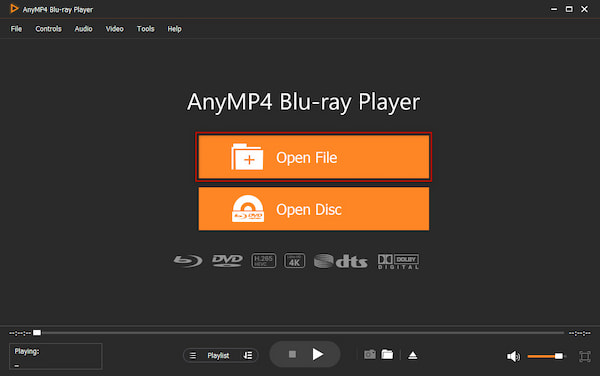
In the home interface, click Open File to import the GIF file you want to view and play.
2. As soon as it loads, it will start playing the animated content. Use the playback controls provided to manage your viewing experience.
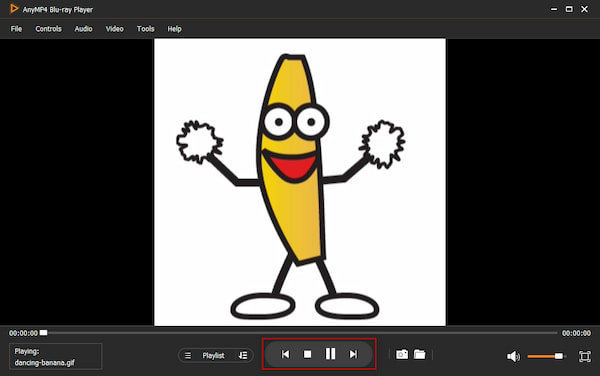
Again, you don’t need to install it just for GIF playback. AnyMP4 Blu-ray Player is an optional media center, just in case you already have it.
AnyMP4 Video Converter Ultimate is, by default, a video-to-video conversion software. Later, it expanded its services by adding editing tools, including the GIF Maker. With it, you can convert a selected video portion into an animated, meme, or reaction GIF. It also includes built-in tools inside to trim the video to the ideal length and set dimension to widescreen, vertical, or square.
Here’s how to make a GIF from a video:
1. Download the AnyMP4 Video Converter Ultimate and complete the installation.
Secure Download
Secure Download
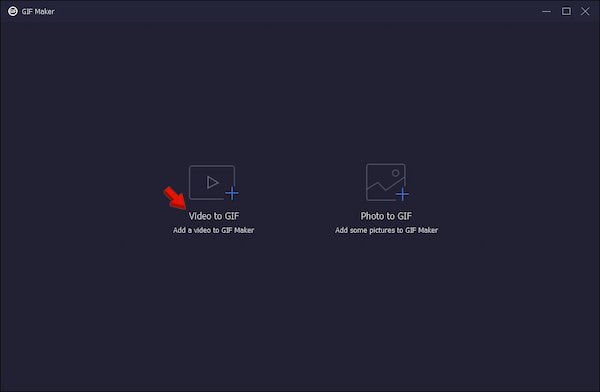
After setup, go to the More Tools tab and select the GIF Maker. Click +Video to GIF to import the source video from your computer.
2. Use the Cut tool to select the exact video portion you want to use as a GIF. Then, click Edit to crop, add filters, insert text, adjust effects, and others.
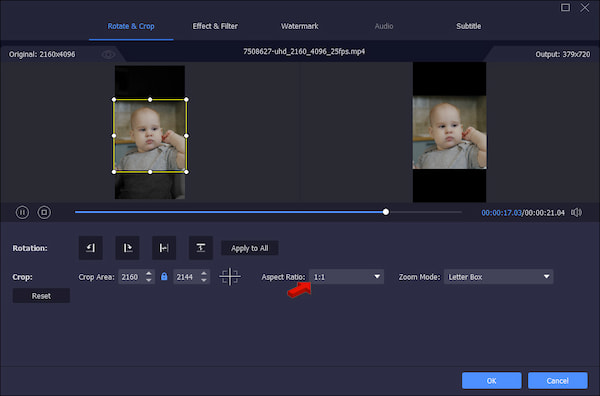
3. Tick the Loop Animation option to make a short sequence of frames repeat endlessly without stopping. Then, click Generate GIF to convert the video to GIF.
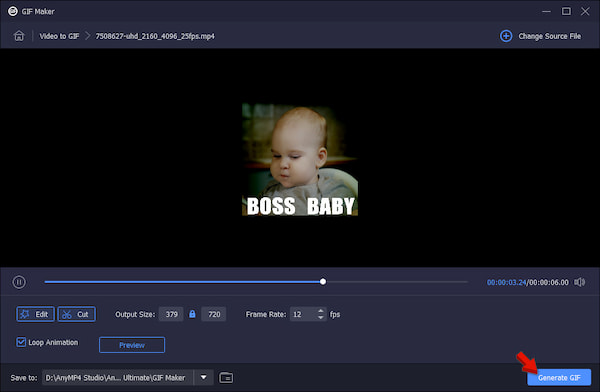
AnyMP4 Video Converter Ultimate isn’t just limited to converting media files. Aside from directly converting a video to GIF, it includes a GIF Maker in the Toolbox. With it, you can create more personalized GIFs that can grab attention on social media and messaging apps.
Ezgif
Ezgif is a long-running online toolset for creating, editing, and converting GIFs. It combines multiple separate images or frames into a single animated GIF.
GIPHY
GIPHY is a search engine and database used for searching, sharing, and creating looping images. This Meme and GIF maker supports GIF creation from videos, images, or URLs.
GIFMaker.me
GIFMaker.me is a tool used to make GIF online for free. Beyond standard animated GIFs, it can also create slideshows and video animations from a series of images.
GIFs are image files that can display short animations, whereas memes are a type of internet content or cultural expression. A meme can be an image, a GIF, a video, or a text post.
| GIF | Versus | Meme |
| Image file format | Type | Internet content or concept |
| Animated sequences of images | Motion | Can be still or animated |
| Images and short animations | Purpose | Humor, reactions, or trends |
| Reused as reaction clips | Content Adaptation | Adapts over time |
| Reactions, expressions, or brief animations | Usage | Takes various forms, including images, videos, and text |
| Feature | GIF | WebP | MP4 |
|---|---|---|---|
| Format type | Raster image | Modern raster image | Multimedia container |
| Animation |  |
|
|
| Color support | 256 colors per frame | 16.7 million colors | Each frame contains millions of colored pixels |
| Transparency | |
|
 |
| Audio | |
|
|
| File size (6-second animation) | 2 to 8 MB | 500 KB to 6 MB | 150 KB to 2.5 MB |
Is GIF better than JPEG?
It depends on your intended use. JPEG is better for images with complex color gradients. For simple graphics and animations, GIFs are better.
Is a GIF a video or an image?
A GIF is a type of image file that can display multiple frames in sequence to create an animation. GIFs loop automatically and play without standard video control bars.
Can a JPG file be converted into a GIF?
Yes, you can convert a JPG to a GIF. If you use a single JPG, it will result in a static GIF. However, combining a sequence of JPG images can create an animated slideshow.
Knowing what is GIF also means understanding where the format still makes sense. GIFs are for short reaction clips, memes, and simple animations. For modern web graphics, WebP is a more efficient option. But if you want a longer animation, MP4s are a better fit. To turn the existing clips into a GIF, use AnyMP4 Video Converter Ultimate. Its GIF Maker allows you to create personalized looping animations for online interactions.
 Posted by Alice Thorne to Glossary
More readings
 What Is ASF File? How to Open & Convert It Fast in 2026
Wondering what the ASF file is? Learn its definition, structure, differences from other formats, and how to play it in this 2026 beginner's guide.
 What Is an AVCHD File and How to Play It Without Quality Loss
Do you want to know what an AVCHD file is? Read this simple beginner’s guide to learn what it is, its folder structure, how to play and convert it losslessly.
 What Is an OGV File? How to Open & Convert It Fast
Got a stubborn .ogv file error? Learn what an OGV file is, why your device rejects it, and how to open or convert OGV to MP4 instantly.
 11 Best GIF Editors to Edit GIF Files on Windows/Mac/Mobile
To edit GIF images on your devices, you will get 11 GIF editors. And you can learn how to process animated GIFs and ordinary GIF files here.

