
Quick Summary:
I will never forget my first week in my high school’s advanced broadcasting club. I was so excited to edit the footage for our morning announcements. The lead videographer handed me an SD card straight from our school’s fancy new professional camera. I plugged it into my laptop, eagerly opened the folder, clicked on a .mxf file, and… absolutely nothing happened. My screen went black, an error message popped up, and panic set in. I remember thinking, What is an MXF file, and why won’t my computer just play it like a normal video?
If you’ve recently encountered an MXF file and found yourself staring at a similar error message, take a deep breath. You haven't broken anything, and your video isn't ruined! You’ve just stumbled into the world of professional video formats. In this comprehensive guide, we are going to break down exactly what the MXF format is, why professional filmmakers absolutely love it, how you can effortlessly open an .mxf file, and how to convert it so you can share your masterpieces with the world.

To put it simply, what is the MXF file format? MXF stands for Material Exchange Format. It is a professional video container format defined by the Society of Motion Picture and Television Engineers (SMPTE). Think of SMPTE as the governing body that makes sure all the expensive video equipment in Hollywood can talk to each other.
While most of us grew up recording MP4s on our phones, professionals needed a format that was tougher, more reliable, and capable of holding a massive amount of extra information. That’s where the MXF file format comes in.
The easiest way to understand the MXF file type is to think of it not as a single video, but as a digital wrapper or a high-tech shipping crate.
When you look at an MP4, it’s usually just one video track and one audio track blended. But an MXF video format acts like a heavy-duty folder. Inside this single file, you can pack:
Because it’s just a wrapper, the actual video inside can be encoded in various ways. The underlying technology that compresses video is called a codec, and many MXF codecs (such as DNxHD or ProRes) determine the video's ultimate quality and size.
Think of the MXF file as a burrito. The MXF is the tortilla, but what really matters is the filling inside (the video, audio, and metadata). If your computer can’t play the file, it usually means it doesn't recognize the filling (the codec), not the tortilla!
You won't typically find an MXF file from an iPhone or a standard point-and-shoot camera. This format is the bread and butter of high-end, professional camcorders.
If you are working with footage from major broadcast cameras, you will almost certainly encounter this format. Some of the most common sources include:
If you are setting up a professional streaming environment or working with broadcast gear, you might even find yourself looking for a dedicated MXF recorder to capture high-quality feeds directly into this reliable format.
So, why do the pros deal with files that are notoriously hard for everyday media players to open? The MXF file offers superpowers that standard consumer formats cannot match. Here are its key features:
If you are wondering whether you should shoot in MXF or MP4, it depends entirely on what you are trying to do. Here is a clear breakdown to help you decide.
| MXF (Material Exchange Format) | VS | MP4 (MPEG-4 Part 14) |
| Professional broadcasting, TV, cinema, and complex editing. | Primary Use | Web streaming, social media, consumer sharing, and playback. |
| Requires professional software or specific media players. | Compatibility | Universally compatible with almost every device, phone, and browser. |
| Holds extensive, complex video metadata (timecodes, camera specs). | Metadata | Holds very basic metadata (date, time, basic file info). |
| Supports multi-channel, uncompressed audio (up to 16+ tracks). | Audio Channels | Usually limited to compressed stereo audio (2 tracks). |
| Extremely large due to high quality and minimal compression. | File Size | Highly compressed, resulting in small, easy-to-share file sizes. |
If you are shooting a TikTok video or a quick YouTube vlog, stick to MP4. If you are shooting a short film, a documentary, or a school news broadcast that requires heavy editing and color grading, shoot in MXF!
Now that we know what an MXF file is, the next logical question is: how do you open the darn thing?
Because the MXF format is built for editors, you generally need specific software to view it. Here is a handy comparison of 7 excellent tools for opening your files.
| Category | Best For | Compatibility | |
|---|---|---|---|
| Adobe Premiere Pro | Professional Editor | Industry-standard video editing and color grading. | Windows & Mac |
| Avid Media Composer | Professional Editor | Major Hollywood films and TV broadcasting editing. | Windows & Mac |
| DaVinci Resolve | Professional Editor | World-class color correction and heavy visual effects. | Windows, Mac, Linux |
| Final Cut Pro | Professional Editor | Professional editing optimized specifically for Apple hardware. | Mac Only |
| AnyMP4 Blu-ray Player | Free Media Player | Playing high-quality MXF files smoothly without stuttering. | Windows & Mac |
| VLC Media Player | Free Media Player | The gold standard for playing almost any obscure video format. | Windows, Mac, Linux |
| 5KPlayer | Free Media Player | Playing 4K/8K media and streaming via AirPlay/DLNA. | Windows & Mac |
If you try to double-click a .mxf file on a brand-new laptop, default players like QuickTime (on Mac) or Windows Media Player (on Windows) will usually fail.
Why? It comes back to the digital wrapper concept. Your default media player might be able to read the MXF wrapper, but it lacks the specific MXF codec (the decoder key) needed to play the high-quality video inside. Many MXF files use professional codecs like MPEG-2 or Avid's DNxHD. Unless you manually install these codecs on your computer, standard media players will display an error screen. That’s why using a robust player like VLC or importing the file directly into Premiere Pro is the safest bet.
Sometimes you don't need to edit the file; you need to send it to your teacher or a client, or upload it to YouTube. In this case, you need to perform transcoding—converting the heavy MXF file into a lightweight MP4 file, usually using the universally accepted H.264 codec.
My absolute favorite tool for this is AnyMP4 Video Converter Ultimate. It is a lifesaver because it supports batch conversion (converting an entire folder of MXF files at once) and ensures lossless quality, so your final MP4 will look just as crisp as the original raw footage.
Here are the simple steps to convert your file:
Download AnyMP4 Video Converter Ultimate and launch the software on your PC or Mac.
Secure Download
Secure Download
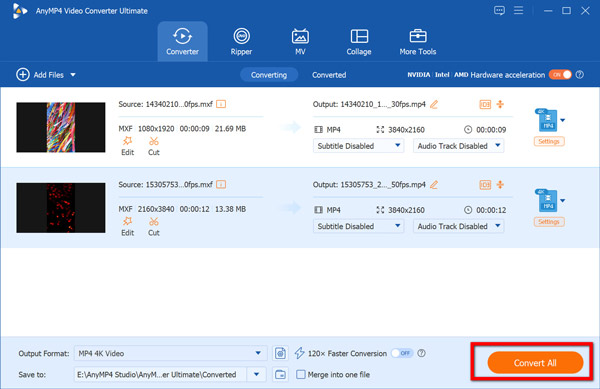
2. Add Your MXF Files
Click the big + button in the center of the screen, or simply drag and drop your .mxf files straight into the program window.

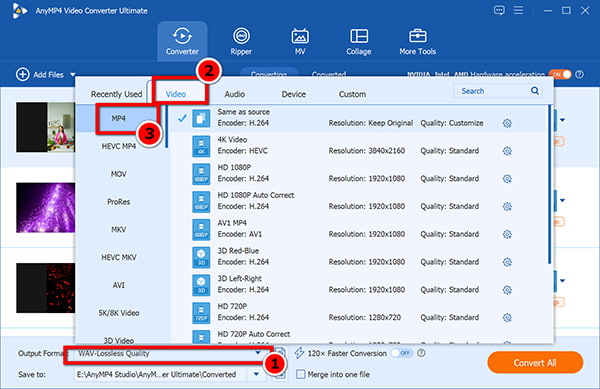
3. Choose Your Output Format
Click on the Output Format drop-down menu in the top right corner.
Go to the Video tab and select MP4. Choose the Same as Source option to retain that beautiful lossless quality.
(Note: If you are an Apple user, you might prefer to convert MXF to MOV for optimal QuickTime playback.
4. Start the Conversion
Select where you want the new file saved on your computer, then hit the big Convert All button.
Thanks to hardware acceleration, your video will be ready in just a few moments!
If you are going to be working with the MXF file format regularly, here are a few pro-level workflow tips I learned the hard way back in my AV club days:
Is MXF better than MP4?
Better is subjective! MXF is better for professional editing, television broadcasting, and color grading because it retains maximum quality and supports multiple audio tracks. MP4 is better for playing on everyday devices, sharing on the internet, and saving hard drive space.
Can VLC play MXF files?
Yes! VLC Media Player is an incredible, free, open-source media player that comes with almost every codec pre-installed. It can easily open and play most MXF files right out of the box without requiring any extra downloads.
How do I open an MXF file on a Mac?
Because default Mac software like QuickTime often lacks the necessary professional codecs, you have three main options: 1) Import the file into Apple's Final Cut Pro or Adobe Premiere Pro. 2) Download a free third-party player like VLC or AnyMP4 Mac Blu-ray Player. 3) Use a converter to transcode the MXF into an MOV or MP4 file. Conversely, if you are working on an older Windows machine, you can easily convert MXF to WMV.)
Will converting MXF to MP4 lose quality?
It depends entirely on the software and settings you use. If you use a high-quality converter (like AnyMP4 Video Converter Ultimate) and set the output to Same as Source using a strong bitrate, the quality loss will be virtually invisible to the naked eye, allowing you to achieve essentially lossless quality.
Why is my MXF file so large?
MXF files are designed to preserve the raw, uncompressed (or lightly compressed) data captured by professional camera sensors. This includes immense amounts of color data, multi-channel audio, and timecode metadata. This lack of heavy compression results in massive file sizes, but it gives editors the maximum amount of detail to work with during post-production.
Encountering an obscure file type can definitely be an intimidating experience at first—trust me, I’ve been there! But once you understand what an MXF file is, you realize it isn't an error or a glitch; it is a powerful tool designed to give creators the highest possible video and audio quality.
Whether you are aiming to become the next big Hollywood editor or you want to know how to turn your school project’s .mxf file into a playable MP4, you now have all the knowledge and tools you need. So next time someone hands you a memory card full of MXF files, you won't panic.
Secure Download
Secure Download
 Updated by Alice Thorne to Glossary
More readings
 What Is AAC and Why It Matters in Audio Technology
This post will highlight what AAC is. Discover the origins, advantages, disadvantages, and versatile applications of the Advanced Audio Coding files.
 What is DTS? Everything You Need to Know About DTS is Here
In this guidepost, you will learn what DTS is and its impact on audio quality. Also, discover how to play and convert DTS files for a richer audio experience.
 What Is FLV? Defining the Flash Video and How to Access it
This informative post will focus on what FLV is. Additionally, we will present tools for playing and converting these files. Check the answers you need here!
 What Is M4V and How to Play and Convert this Format
This informative post will provide you with a detailed explanation of what M4V is. Also, we will present you with tools for playing and converting this format.
 Add your comments to join the discussion here