
Quick Summary:
A friend handed me a disc with a high-quality movie on it, and the file extension was something I hadn't paid much attention to before. That was my first real introduction to the world of DivX format videos. If you've been digging through old hard drives, downloading archived media from the early 2000s, or just trying to figure out why your brand-new smart TV refuses to play a specific video file, you've probably asked yourself: What is DivX exactly? Is it a file type? A software program? A piece of hardware?
In this comprehensive guide, we will dive deep into the world of DivX. Based on my years of experience dealing with video encoding, I’ll walk you through exactly what this format is, how it revolutionized digital video, how it compares to other formats, and—most importantly—how you can smoothly play and convert your DivX videos today. Whether you need a reliable DivX player or want to know how to convert DivX to MP4, you're in the right place. Let's get started!

Before we get into the technical weeds, let's establish a clear foundation. What exactly are we talking about when we say DivX?
To put it in the simplest terms possible, DivX is a brand of video codec. But what is a codec?
Think of a codec (which stands for coder-decoder) as a highly skilled translator. When you record a video, the raw data is massive. The coder part of the codec compresses this raw data, throwing away unnecessary information to shrink the file size so you can store or share it. When you want to watch that video, the decoder part reads that compressed file and reconstructs the images on your screen.
The DivX codec specifically is based on the MPEG-4 Part 2 compression standard. It became incredibly famous because it was the first technology that could compress lengthy, high-quality video segments into relatively tiny file sizes. Because of its incredible compression efficiency, tech enthusiasts quickly dubbed it the MP3 of video.
However, answering what is DivX video format requires us to make an important distinction. DivX is actually a few different things wrapped under one brand name:
Don't confuse the codec with the container! A video file might end in .avi or .divx, which is the container holding the video. The codec (DivX) is the actual method used to compress the video inside that container.
The history of DivX is actually quite fascinating and reads a bit like a tech thriller. The original version wasn't even an official product. It was created in the late 1990s by a French hacker named Jérôme Rota (known online as Gej).
At the time, Microsoft had released an MPEG-4 codec, but it was locked down so it would only work within their proprietary ASF file format. Rota wanted to use it in the more flexible AVI format. So, he and a few others hacked Microsoft's codec, removed the restrictions, and released it online as DivX ;-). (The winking face was part of the original name, a cheeky nod to a failed, unrelated DVD rental system called DIVX).
This hacked version spread like wildfire across the internet because it allowed people to share DVD rips over the slow dial-up and early broadband connections of the era. Realizing the massive potential, Rota eventually went legit. He co-founded DivXNetworks (now just DivX, LLC) and built a brand new, legal, proprietary codec from scratch. This official codec dropped the winking face and became the powerhouse we know today.
So, how does this magical compression actually work without making your movies look like a blurry, pixelated mess? It all comes down to the science of data compression.
Like MP3 audio or JPEG images, the DivX codec relies on something called lossy compression.
Imagine you are packing for a long vacation, and you have to fit a massive wardrobe into a tiny carry-on suitcase. You can't take everything, so you have to decide what is least important. You leave behind the extra sweaters and the fourth pair of shoes.
Lossy video compression works the exact same way. The algorithm analyzes the video frame by frame and decides what visual data the human eye is least likely to notice if it goes missing. For example, if there is a bright blue sky in the background of a scene that doesn't change for five seconds, the codec doesn't save the data for every single pixel of that blue sky for every single frame. It just says, Keep this area blue until I tell you otherwise.
By doing this, DivX was able to maintain stunning visual fidelity while reducing file sizes by a staggering ratio of up to 10:1 compared to standard DVD MPEG-2 formats.
If you are ever encoding your own home videos for archival purposes using older codecs, always prioritize 2-pass encoding. In the first pass, the software analyzes the video to see where the fast-action scenes are (which need more data) and where the static scenes are (which need less). In the second pass, it distributes the bitrate perfectly, ensuring high-action scenes don't look blocky!
If you were part of the early digital video scene, you probably remember the great codec wars. Here is a quick DivX vs Xvid comparison, alongside the modern king, H.264.
| Feature | DivX | Xvid | H.264 (AVC) / MP4 |
|---|---|---|---|
| Origin | Proprietary (Commercial) | Open-Source (Free) | Industry Standard |
| Foundation | MPEG-4 Part 2 | MPEG-4 Part 2 | MPEG-4 Part 10 |
| Encoding Speed | Very Fast | Very Fast | Slower (requires more processing power) |
| File Size / Quality | Excellent for its time | Excellent (Often beat DivX slightly in independent tests) | Vastly superior compression and quality |
| Current Status | Legacy (Mostly) | Legacy | The Global Standard |
The Xvid Rivalry: When DivX went commercial, the open-source community wasn't happy. So, they created a free, open-source alternative. They literally just spelled DivX backward to name it: Xvid. For years, Xvid and DivX were fierce competitors, though they were technically very similar under the hood.
Why DivX Fell Out of Favor: While DivX was a pioneer, technology never stops moving. As high-definition (HD) and 4K video became the norm, MPEG-4 Part 2 codecs couldn't keep up. They weren't efficient enough for 1080p video. The industry adopted H.264 (often found in MP4 containers) because it offered much better quality at even smaller file sizes. Today, H.264 is the global standard for streaming, smartphones, and web video. (Though it is worth noting that DivX, LLC later developed DivX HEVC to stay relevant in the 4K era).
Because the original DivX codec is getting older, you might run into format not supported errors when you try to open these files on your brand-new Windows 11 PC or your modern smartphone. Fortunately, achieving smooth video playback is incredibly easy if you have the right tools.
While you could download the official DivX player from their website, my personal recommendation for almost any playback issue is a piece of software that has saved me countless headaches over the years.
VLC Media Player is a free, open-source media player that is practically legendary in the tech community. Why? Because it has almost every codec imaginable already built into it. You don't need to hunt down and download separate codec packs; VLC just works out of the box.
1. Download and Install
Go to the official VideoLAN website (videolan.org) and download the VLC player for your operating system (it works on Windows, Mac, Linux, iOS, and Android).
2. Open the Software
Launch VLC Media Player on your computer.
3. Load the Video
You can either drag and drop your DivX video file directly into the VLC window, or you can go to the top menu, click Media, select Open File, and browse your computer to find your video.
The video will start playing immediately. No extra plugins required!
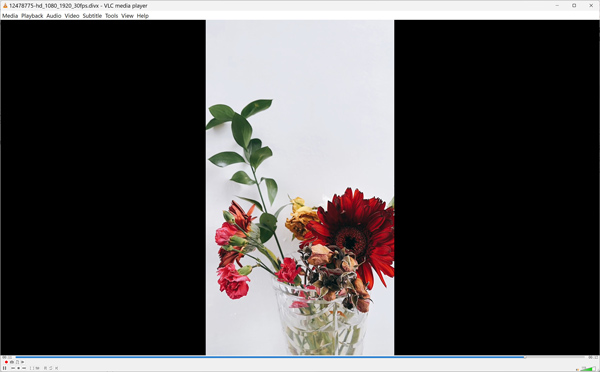
VLC is great, but its interface can feel a bit outdated. If you want a more modern aesthetic with great media management features, the official DivX player software is still a viable, safe option that offers great casting features to smart TVs!
While playing these files on your computer is easy with software like VLC, playing them on your iPhone, Android tablet, or modern Smart TV can be a nightmare. Many modern devices have dropped native support for older MPEG-4 Part 2 codecs.
Therefore, the best long-term solution is to use a DivX converter to change your files into a universally accepted format, like MP4 (H.264). This ensures your memories and media will be playable on any device for decades to come.
Through my personal experience writing about and testing multimedia software, I've found that finding a converter that is both incredibly fast and doesn't ruin your video quality can be tough. I highly recommend AnyMP4 Video Converter Ultimate.
It is a professional-grade yet user-friendly desktop application that can handle virtually any video format you throw at it. It uses hardware acceleration, meaning it utilizes your computer's graphics card to convert files up to 70x faster than standard converters, all without losing original quality.
Here is exactly how to convert DivX to MP4 using AnyMP4 Video Converter Ultimate:
1. Download and Install the Converter
First, visit the AnyMP4 website and download the Video Converter Ultimate software. Follow the standard installation prompts for your Windows or Mac computer.
Secure Download
Secure Download
2. Add Your DivX Files
Launch the program. You will be greeted by a clean, friendly interface. Click the big + icon in the center of the screen, or click the Add Files button in the top left corner. Browse your hard drive and select the DivX format videos you want to convert. You can even add a whole folder at once for batch conversion!

3. Choose MP4 as the Output Format
Look to the bottom-left side of the video you just added and click on the Output Format drop-down menu (it usually looks like a little movie clapperboard icon). In the window that pops up, select the Video tab. On the left sidebar, choose MP4. You will then see several preset quality options. For the best results, I recommend selecting Same as Source to ensure you don't lose any visual quality.
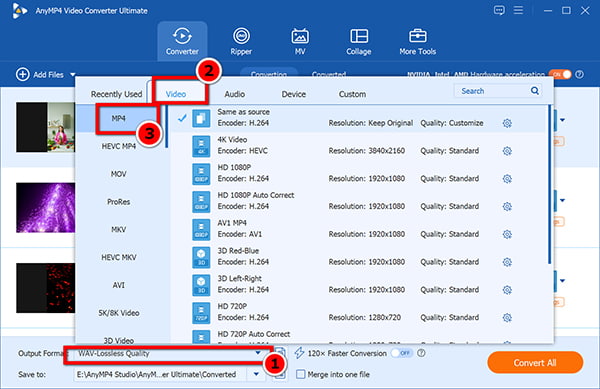
4. Start the Conversion
At the bottom left of the main interface, find the Save to field. Click the little folder icon to choose exactly where on your computer you want the newly converted files to be saved.
Finally, locate the big, orange Convert All button in the bottom right corner of the screen. Click it! AnyMP4 will quickly process your files. Once it's done, a folder will automatically pop open showing your brand-new, universally compatible MP4 videos.
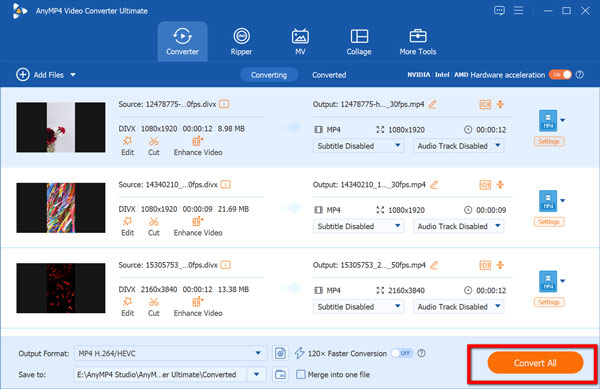
While MP4 is the most popular, you might have specific needs. For example, if you are working with an older Windows machine or specific presentation software, you might want to know how to convert DivX to WMV. AnyMP4 can handle that just as easily using the exact same steps; just select WMV in Step 3!
Can I play DivX on my PS5 or Xbox Series X?
Native support for older DivX AVI files on modern consoles like the PS5 is virtually nonexistent. While the Xbox Series X media player is slightly more forgiving, you will often run into audio sync issues or unsupported codec errors. Your best bet is absolutely to use a converter like AnyMP4 to change the files to MP4 before putting them on a USB drive for your console.
Is DivX still being updated?
Yes and no. The classic MPEG-4 Part 2 DivX codec that made the company famous is largely a legacy product now and isn't actively developed for new use cases. However, the company itself is still very much alive. They have pivoted to modern formats, releasing DivX HEVC (High-Efficiency Video Coding), which is based on the H.265 standard. This is used for streaming stunning 4K and even 8K video at incredibly low bitrates (H.264 VS. H.265).
Is the DivX Player safe to download?
Yes, the official DivX player downloaded directly from the official DivX website is safe and free of malware. However, during installation, always pay close attention. Like many free software programs, the installer often includes optional bundled software (like browser toolbars or antivirus trials). Simply uncheck those boxes during installation if you don't want them.
Understanding what DivX is is like taking a fascinating trip down the memory lane of internet history. From its origins as a rebel hacker project to becoming a legitimate corporate powerhouse that revolutionized how we consume media, DivX played a massive role in shaping the digital video landscape we enjoy today.
While the original format may have given way to H.264 and MP4, those old files still hold immense value, whether they are classic movies or cherished family memories. By utilizing powerful media players like VLC or taking a few minutes to convert your files with AnyMP4 Video Converter Ultimate, you can ensure your classic videos remain perfectly watchable for years to come.
Secure Download
Secure Download
 Updated by Alice Thorne to Glossary
More readings
 MKV vs MP4 – The Difference Between MKV and MP4
The file formats MP4 and MKV are widely used. Do you know the difference between them? The following article will compare MP4 and MKV about their details.
 FLAC: Full Knowledge of Lossless Audio Format
Want to experience the smoothest listening sessions today? Check this article out, where we will answer what is the best FLAC player and FLAC converter to use.
 What Is AAC and Why It Matters in Audio Technology
This post will highlight what AAC is. Discover the origins, advantages, disadvantages, and versatile applications of the Advanced Audio Coding files.
 What Is FLV? Defining the Flash Video and How to Access it
This informative post will focus on what FLV is. Additionally, we will present tools for playing and converting these files. Check the answers you need here!
 Add your comments to join the discussion here