3 Ways to Edit WAV Metadata in Bulk on Windows, Mac, and Online
When it comes to file management and security uses, editing the metadata of files is one of the first steps for users who are getting familiar with the intricacies of digital security. As such, learning how to edit WAV file metadata should be one of your first steps to ensure that your high-quality music files will be easy to organize, find, and keep private. In this article, we will provide a tutorial on three of the most practical tools you can use to edit the metadata of WAV audio files to ensure that your files will be managed well and their information is well hidden.

Part 1. Challenges to Edit WAV File Metadata
High Technical Requirement
The first challenge in editing WAV metadata is the skills and technical requirements to use data editing tools. Since this concept is advanced in nature, the tools that can be used to edit it also follow a similar complexity.
Challenging to Understand for Beginners
Aside from the technical requirement, the concept of metadata itself may also be complicated for beginners. As such, understanding the importance of editing this information might be challenging to grasp for newbie users.
Most Metadata Editors are Hard to Use
Finally, metadata editors are hard to use. This is a significant challenge even for users with intermediate experience when it comes to file management. Fortunately, there are editing tools that are designed to be easy to use. The first option below is an example of one.
Way 1. Bulk Edit WAV File Metadata with AnyMP4 Video Converter Ultimate (Win & Mac)
Best Used For: Beginner-friendly batch metadata editing for efficient file management.
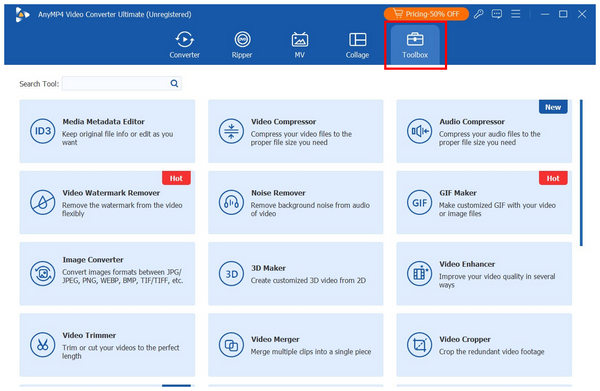
When it comes to metadata editing for both Windows and Mac, the easiest tool you can use is AnyMP4 Video Converter Ultimate’s Media Metadata Editor available on its Toolbox tab
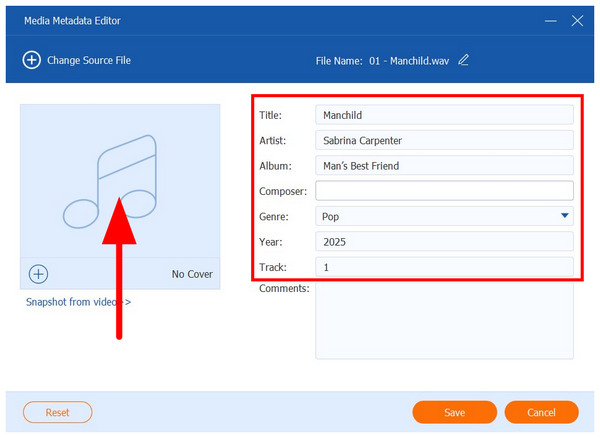
As its name suggests, the tool can be used to edit a WAV file’s Album Art, Title, Artist, Album, Genre, Track Number, Year, and more. Adjusting the mentioned metadata information ensures that your music files will be highly organized on your music player app.
To ensure that your metadata-edited files will be organized, the files will be saved by default in a designated folder of AnyMP4 Video Converter Ultimate. As such, moving the tracks saved in the folder may be done in one go for a better file management workflow.
To learn more about the strengths of AnyMP4 Video Converter Ultimate, make sure to read the features of the program and refer to our three-step guide below to learn how to use the tool.
Do not forget to download it for an easier time following the steps.
Recommendation
- Metadata editor for the album art, title, artist, album, year, and more of audio files.
- It is also equipped with a metadata editor to change the Created, Accessed, and Modified dates of multiple files.
- Offers a file format conversion feature to change WAV files to a more compact format.
- Available for both Windows and Mac computers.
- Equipped with an editing tool, video compressor, and format converter features.
1. Open AnyMP4 Video Converter Ultimate and proceed to the Toolbox tab. Then, select the Media Metadata Editor tool. Add the WAV files you want to edit in the Add File pop-up that will appear.
2. Once the WAV file you want to edit has been imported to the tool, you can now edit the Album Art, Title, Artist, Album, Composer, Genre, Year, and Track Number of the file.
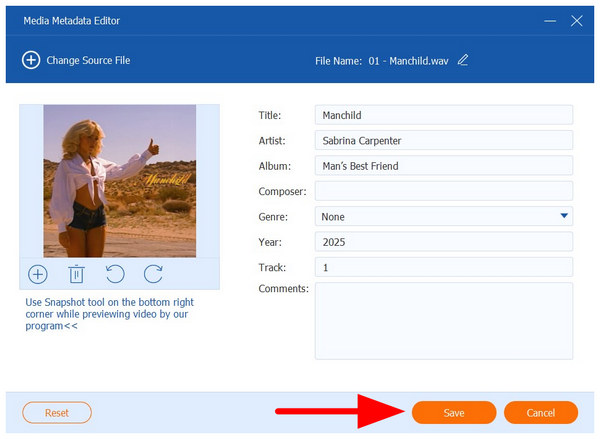
3. With the audio information adjustments applied, simply click on Save, and the source file you have edited will now have its metadata information adjusted.
Although the Media Metadata Editor lacks a bulk editing option, the details available for metadata adjustment are highly commendable. However, if you wish to edit the metadata of videos, such as their Created, Modified, and Accessed dates of the audio files, you can do so in batches using the File Date Changer tool of the program.
Way 2. Precision Bulk Edit WAV File Metadata with ExifTool (Advanced)
Best Used For: Command-based editing of Created, Accessed, and Modified date information of the files.
If you want to learn how to edit metadata on WAV files using command-based options such as ExifTool might be a good choice for you. Since it is completely terminal-based, it is both the most efficient and fastest option for file editing.
Unfortunately, it requires so much technical skills to be used effectively. Since the command lines designed for metadata adjustments are challenging to write.
Recommendation
- Terminal-based metadata editing.
- Adjustment options are very fast to apply.
- Require command line knowledge to be used effectively.
1. Open your computer’s Terminal, then write exiftool.exe file.ext. Change the file.ext to the original name and extension of the audio file you want to convert to a WAV file.
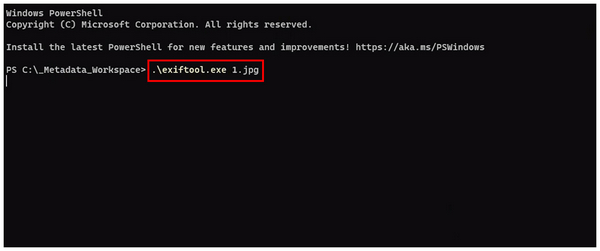
2. Then, write the command line, .\exiftool.exe -CreateDate="2024:02:15 10:00:00" *.wav and change the create date and time to the one you want to use. Make sure to use the “.wav” extension for the file you are editing.
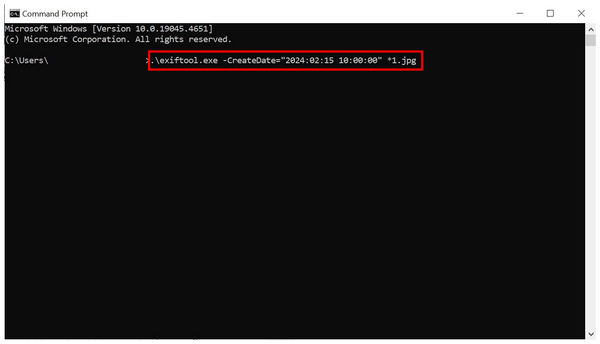
Although faster to use and capable of batch editing, ExifTool’s steep learning curve and required skills are very challenging. You have to be experienced with command lines to use it properly.
Way 3. Free Bulk Edit WAV File Metadata with AudioMass Online
Best Used For: Checking the metadata information online for the files imported into it.
Finally, the last option in this list will be one available for online tool users with AudioMass Online. Unlike the two options, this software does not offer any form of metadata editing, but on audio mixing properties.
Despite that, it can still be used to view the metadata of the files you import into the program.
Recommendation
- Online audio editor software.
- Professional-grade audio editing features for an online tool.
- Equipped with audio editing effects.
1. Open the AudioMass online tool and then select the View option, then click on ID3 Tags.
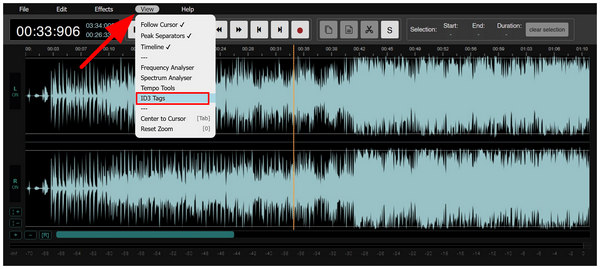
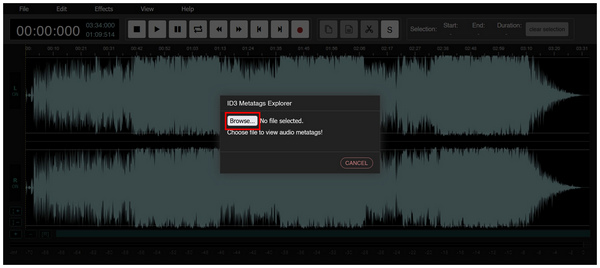
2. After selecting the ID3 Tags, click on Browse in the pop-up menu that will appear. Then, browse your file manager to add the audio file you want to check the metadata of.
3. With the audio file now added, its audio-centered metadata will now be available to view from Artist, Title, Album, and more. Unfortunately, these details may only be viewed, and they cannot be edited.
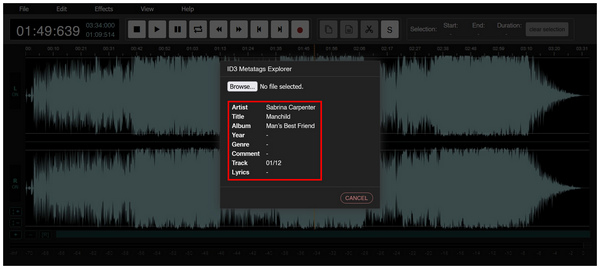
Although AudioMass cannot edit metadata, its features, designed for audio editing and mixing, should be enough for users looking for a quick option to edit their files.
Part 5. FAQs About Bulk Editing WAV File Metadata
Do metadata edits affect audio quality?
No, they do not. Metadata editing will not affect the quality. They will only adjust the internal information on your files.
Can I edit WAV metadata on both Windows and Mac?
Yes, you can. There are metadata editors for both of these operating systems. AnyMP4 Video Converter Ultimate is an example of one.
Are there command-line tools for batch editing WAV tags?
Yes, there are. However, you need prior experience to learn which commands you need to use. Among the tools in this program, ExifTool is an example of a command-line tool for batch editing WAV files.
How to bulk edit WAV file metadata?
Among the options in this article, two options can be used to bulk edit. Both AnyMP4 Video Converter Ultimate and ExifTool can function as such. Among them, the former is easier to use.
Is it hard to edit the metadata of audio files?
No, it is not. Metadata editing of audio files is not complex or challenging. There are dedicated tools that can edit these files easily.
Conclusion
Now that we have provided some of the best options to change the metadata information of WAV files, we hope that this article has provided you with useful information that will greatly benefit both file management and security.





 Add your comments to join the discussion here