How to Convert GIF to WebM Files Using Three Options (2026)
Browser-based media, such as videos, images, and moving graphics, may be considered the backbone of modern social media entertainment. Although not as popular as the latter two options, moving graphics have their niche, especially in comments, where most GIFs are used to supplement opinions. However, these files have significant limitations, especially on their duration limit. With that in mind, this article will share how to convert GIF to WebM using format converters that we have all tested and reviewed. We will teach how to use these tools as well as feature their benefits for page speed, lossless quality, and how they improve the general workflow.
Part 1. Why You Should Swap GIFs for WebM
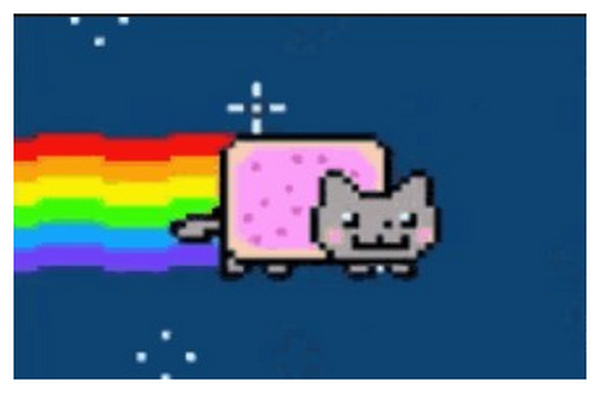
Although GIFs and WebM are both moving graphics, their core elements make their primary uses different from each other.
On one hand, GIFs are often used as social media comments since they simply get the job done of having an animation regardless of the reduced quality, larger file size, and limited color. In contrast, WebM files are more polished since it is a modern video container format that is highly compressed, making them more compact and with better quality.
Simply put, WebM is the more polished version of GIFs. This makes it a smarter choice if you want to convert videos into moving graphics or if you want to share long-form video content on websites. Alternatively, you can also convert GIFs into WebM files to enhance the quality and compression rate of your moving images.
With that in mind, let us now move forward to the GIF to WebM converter tools from a desktop-based solution, online converters, and command-line interface tools.
Method 1: The Professional Choice – AnyMP4 Video Converter Ultimate
With the differences, advantages, and uses of GIFs and WebMs now discussed, let us move forward to featuring the most stable and reliable option for converting media files, with none other than AnyMP4 Video Converter Ultimate for Windows and macOS.
Designed to perform up to 70X faster than other file conversion tools, this program is equipped with a powerful hardware acceleration feature for NVIDIA, AMD, and Intel hardware, which supports its batch conversion feature for processing multiple media files at once.
When converting videos or GIFs to WebM format, it ensures that the process will undergo lossless conversion, which prevents video quality from declining. It can maintain the original 256-color palette of your GIF file or upscale its quality when needed, whether in a single file or when batch converting GIF to WebM.
Since WebM is built for online-streaming, it offers Alpha Channel support to handle transparency data, which is not present on most format converters. You can also use the program to directly trim your video’s duration to cut unnecessary frames and save space.
To learn more about what makes AnyMP4 Video Converter Ultimate a practical GIF to WebM converter, make sure to read our simple tutorial below. Do not forget to download it as well for an easier time following each step.
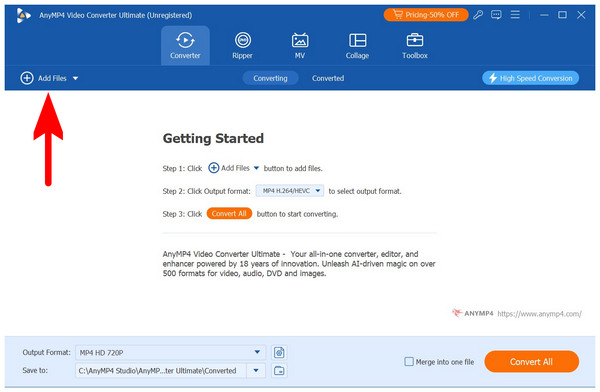
1. Open AnyMP4 Video Converter Ultimate and select the Add Files button in the Converter tab.
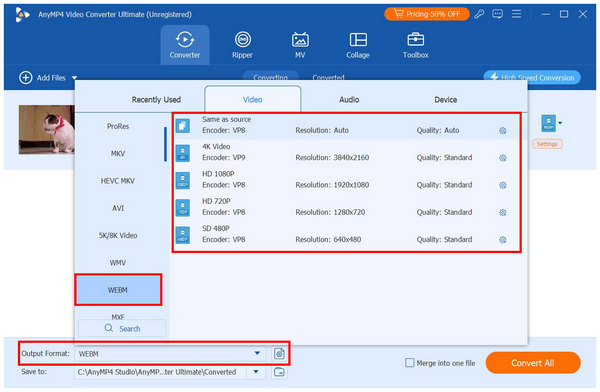
2. Once the GIF you want to convert has been added, select Output Format. Then, find WEBM and select the output profile you want your GIF to be converted into.
3. After selecting the output format you want to use, you will go back to the Converter tab. Select Convert All to begin the GIF to WebM file conversion.
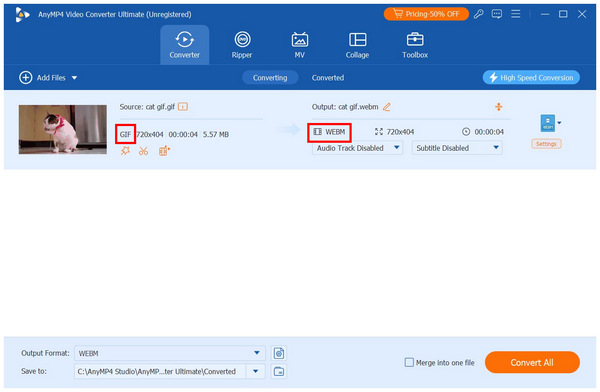
By following three simple steps, you can now convert GIF to WebM as easily as possible. This makes AnyMP4 Video Converter Ultimate the best option on this list based on ease of use, stability, and reliability.
Method 2: Best Online GIF to WebM Converters
Now that we have discussed the best method for professional video format conversion, let us move forward to the best tool when it comes to convenience. This is none other than online video converters such as 123Apps Video Converter.
Capable of supporting most video files from MP4, MKV, and GIF, this online tool offers a free installation service in exchange for stability. Although it is practical, it is far from being reliable. Despite that, it can still get the job done, and it is easy to use.
To learn how to use it, please read our guide on how to use it below.
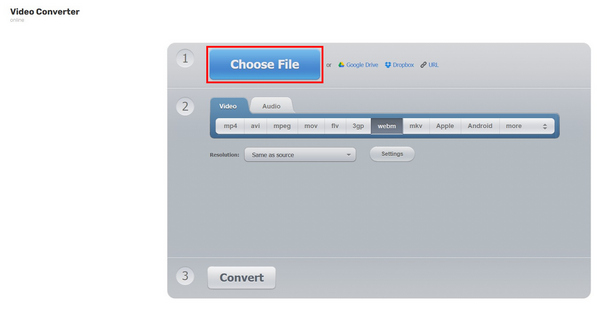
1. Go to your chosen online converter app. In this example, we are using 123Apps Video Converter. On the website, select Choose File, then browse your file manager to find the GIF you want to convert.
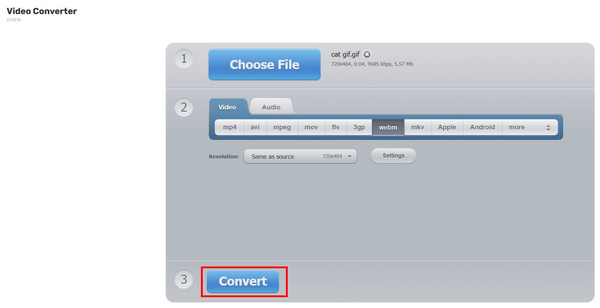
2. Once your GIF file has been uploaded, scroll down to find the Convert button and then select it.
3. Unfortunately, our tutorial screenshot resulted in the conversion process failing. However, if it succeeded, simply select the Download button to save the converted video on your device.
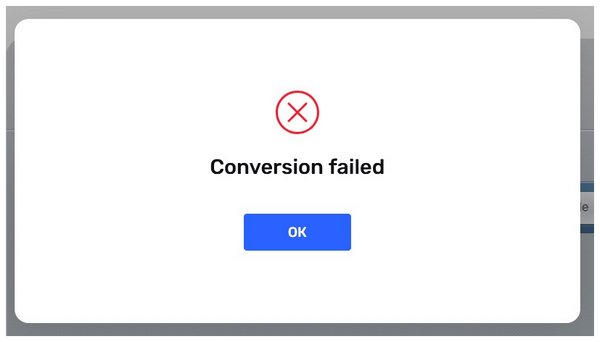
If you are willing to sacrifice convenience for reliability, an online tool may suit your basic needs. However, be mindful that these browser-based options are prone to crashing and conversion failure.
Method 3: Using Command Line (FFmpeg) for Developers
If you are experienced enough with command lines, the practical option is to use it via FFmpeg commands on your computer’s command prompt. However, this requires too much skill to use effectively since installing FFmpeg is not as straightforward as regular software.
This method also requires you to learn the command lines that must be written in the command prompt of your computer. If you added the wrong command line, it may cause errors on your computer itself, not only the file.
To learn the command line for converting GIF to WebM, copy and paste this text to your desktop’s Command Prompt with FFmpeg installed: “ffmpeg -i input.gif output.webm”.
Make sure to change the input.gif to the name of the file you want to convert, then adjust the output.webm as well to set the name of the converted file.
To learn how to use this method, please follow our guide below:
1. Search for Command Prompt on your computer and then open it.
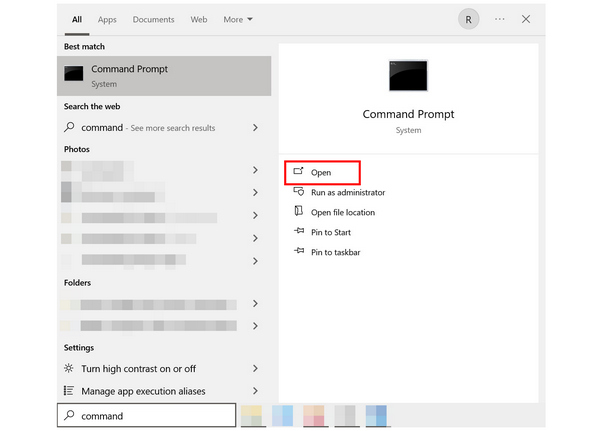
2. In the command window, copy and paste the command line: “ffmpeg -i input.gif output.webm”. Then, press Enter.
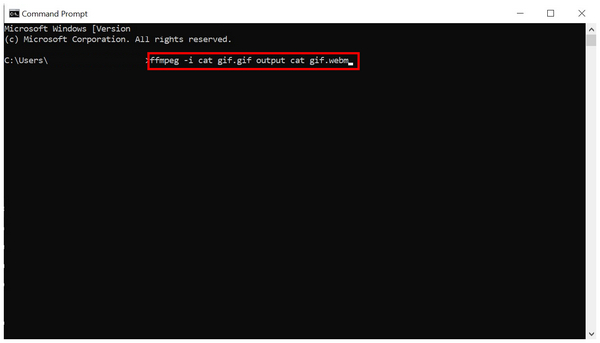
Once you go back to the location of your GIF, you can now see that its file type is WebM. However, you can use more advanced command lines to create a separate file and keep your original GIF.
Part 5. Comparison Table: Desktop vs. Online vs. CLI
| GIF to WebM Converters |
Best Used For |
Conversion Speed |
Max File Size |
Privacy |
Pricing |
| AnyMP4 Video Converter Ultimate |
Converting videos, images, and other media files to 500+ formats. |
70X faster than standard converter tools. |
Unlimited. |
Private and Secured. |
Free - $18.75 |
| Online Tools |
Quick file conversion without installation. |
Reliant on internet connection and stability. |
50 - 100MB |
Unreliable since it involves uploading to online tool servers. |
Free |
| FFmpeg |
Advanced users are confident with command-based file editing. |
Almost instantaneously. |
Unlimited. |
Private and Secured. |
Free |
Part 6. Performance Test: Real-World Results
Now that we have provided full reviews for three of the methods you can use as GIF to WebM converters, this section of the article will provide you with the best uses of each option. These insights are written and summarized based on the experience of converting the GIFs and then using WebM players to watch them from our provided tutorial.
AnyMP4 Video Converter Ultimate: Desktop-based solution for maximum practicality and reliability.
Online Video Converters: Convenience in exchange for reliability and potential failures.
FFmpeg Commands: Fastest format converter method in exchange for a steep learning curve and tricky command lines.
To sum it up, AnyMP4 Video Converter Ultimate is by far the best method among the options we highlighted. In exchange for file downloading and installation, you can now reliably convert GIFs or any other videos and media files to the various media formats available on it.
Part 7. FAQs About Converting GIF to WebM
Does WebM support transparency like GIF?
Yes, it does. WebM supports alpha channels for transparent sections. This makes it essentially a higher-quality GIF.
Will converting GIF to WebM lose quality?
Yes, it does. File conversion usually has a quality decline as a natural side effect. However, there are converter tools that can do conversion losslessly, like AnyMP4 Video Converter Ultimate.
Are WebM files supported by all browsers?
WebM is only supported by most modern browsers. Older versions of Safari and old-school Internet Explorer do not support it. However, this is a non-issue since these browsers are not generally used anymore.
Can I convert WebM back to GIF?
Yes, you can. Simply use file converters for it. However, expect a steep quality reduction if you do this process. Use a GIF player to check whether the converted file is still watchable.
What is the best bitrate for WebM?
It depends on the quality of your WebM video. 2.5 - 8 Mbps should be good enough for 720p to 1080p videos. While 15 - 30 Mbps is advisable for UHD clips.
Conclusion
Now that we have provided a detailed guide on how to convert GIF to WebM using converter tools, we hope that this article has provided you with useful information in learning how to convert your low-quality GIFs into a better-looking WebM clip. To ensure that your file conversions will work properly, we highly recommend using AnyMP4 Video Converter Ultimate, which you can download using the link below.


 Add your comments to join the discussion here