How to Convert MP3 to WebM Fast & Free (2026 Ultimate Guide)
At A Glance:
The fastest way to convert MP3 to WebM while maintaining high audio quality is to use a dedicated desktop tool like AnyMP4 Video Converter Ultimate, which supports batch processing and offline use. For a quick, single-file conversion without installing software, FreeConvert is the most reliable online option. This guide breaks down the top offline, online, and open-source methods to get your files ready for HTML5 playback.
When handling media formats, MP3 is one of the most common media files you may have encountered, as it is the most popular and highly compatible modern audio format. Unfortunately, MP3 files are not the most optimized for online streaming, since WebM videos are usually better supported for this use case. In this article, we will highlight the most practical options you can use to convert MP3 to WebM format. This article will feature three options you can use from a dedicated multimedia software for desktops, open-source solutions, and online tools. These programs are all selected because they offer bulk conversion without sacrificing media quality.
Why Convert MP3 to WebM? (The Hidden Use Cases)
When you look at it for the first time, converting an MP3 audio file to the WebM video format seems quite unconventional and strange. However, WebM files have a unique advantage over MP3 files: they are open-source, royalty-free, and fully compatible with HTML5 for web streaming. Saving audio files as video will also allow you to upload them to platforms that do not support audio uploads, thereby driving demand for MP3-to-WebM converters.
Simply put, although the MP3 format is very useful for audio files, it is not the best option for uploading to most social media platforms, since uploading audio alone is usually unsupported.
Method 1: The Best Way to Convert MP3 to WebM Offline (Batch & Secure)
When dealing with large music libraries or sensitive audio recordings, relying on web-based tools is a recipe for frustration due to file size limits and privacy risks. AnyMP4 Video Converter Ultimate stands out as the premier desktop software for this task. Tailored for users who demand both speed and quality, this tool utilizes advanced hardware acceleration to process files at lightning speed entirely offline. Whether you are prepping audio for a web project or need to combine your MP3 with an image to create a WebM video, this software handles it flawlessly without compromising your data privacy.
On top of that, the program is also surprisingly easy to use. In fact, using the software to convert MP3 files to a WebM video takes only a few simple steps. To learn how to use AnyMP4 for basic format conversion, make sure to read our three-step guide below.
To make it easier to follow our tutorial, make sure to download AnyMP4 Video Converter Ultimate.
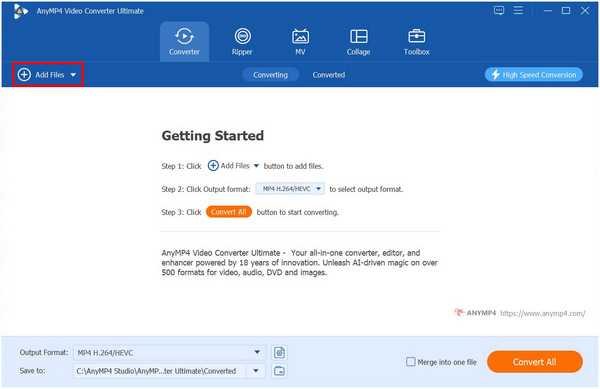
1. Open AnyMP4 Video Converter Ultimate. In the Converter tab, select the Add Files button to import the MP3 file you want to convert.
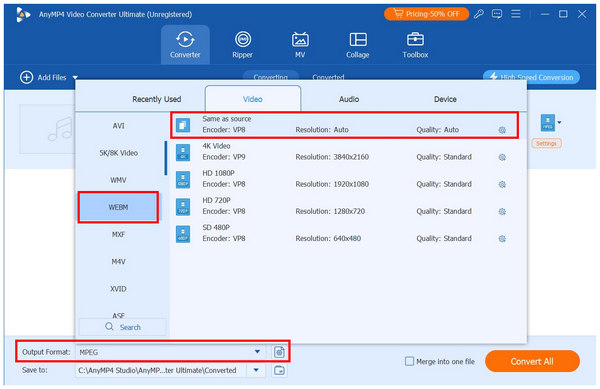
2. With the MP3 media now added to the Converter, select Output Format > Video, and scroll down to select WebM. Select the Conversion Profile you want to use.
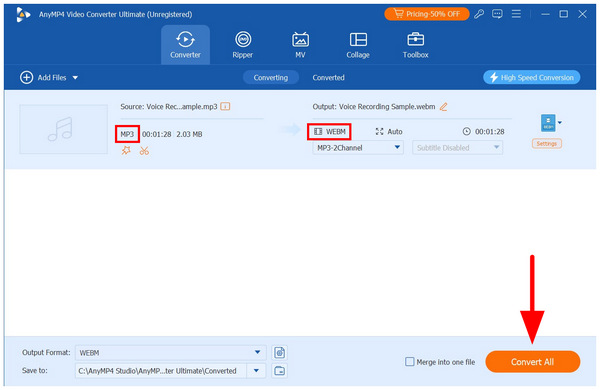
3. Now that you have set your output format to WebM, you will be redirected back to the Converter menu. Select the Convert All option to begin the MP3-to-WebM conversion.
To learn more about the strengths and limitations of the software, make sure to read what we love and the downsides of using the program.
What I Love
100% Data Privacy
Your files never leave your computer. Everything is processed locally, ensuring your personal audio data remains secure. This makes converting personal and private media files safe, since they are processed 100% on your computer.
Unrivaled Batch Processing
You can convert hundreds of MP3 files to WebM simultaneously, saving hours compared to uploading them online one by one. If you are handling a huge library of audio files, batch processing should be the number one feature you should look for.
Lossless Quality Retention
It perfectly preserves your original audio parameters (like Opus or Vorbis codecs within the WebM container) without compression artifacts. This is highly important because MP3 files are already lossy. Quality retention is a good addition to ensure your file always sounds good.
Versatile Media Handling
It easily bridges the gap between audio and video by allowing you to add images to your MP3 tracks before outputting them as WebM files. Since AnyMP4 Video Converter Ultimate offers simple video editing, you can add image slideshows to the MP3 audio you are going to convert.
Downsides
Installation Required
Unlike web tools, it requires downloading and installing desktop software. This is a mandatory setup requirement to enjoy the stability of desktop-based solutions.
Premium Features Locked
While the free trial is robust, accessing the full suite of batch processing and editing features requires upgrading to the premium version. However, the free version of the program can convert files up to 5 minutes long, which is usually enough to handle modern music releases in MP3 format.
Method 2: Convert MP3 to WebM Online for Free
When handling single-file conversions, web-based solutions such as FreeConvert are among the most reliable options. Compared to other online format converters, this one has a much higher file size limit of 1 GB, making it a solid option for converting a small library of MP3 files to WebM.
Among other online solutions, FreeConvert has an innate advantage since its conversion process is generally very lightweight. Its ad presence is also very light, making format conversion much faster in the software since there are no pop-ups or annoying banner ads.
To learn how to use the FreeConverter online tool for MP3 to WebM conversion, make sure to read our quick guide below.
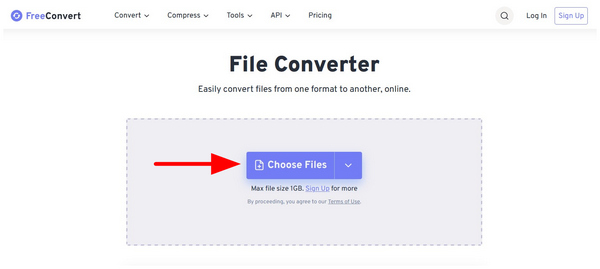
1. Go to FreeConvert’s website and select Choose Files.
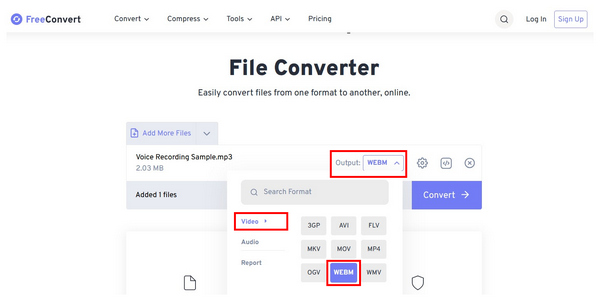
2. Once uploaded, select Output, then Video, and choose the WebM format.
3. With the Output set to WebM, select Convert to begin the conversion.
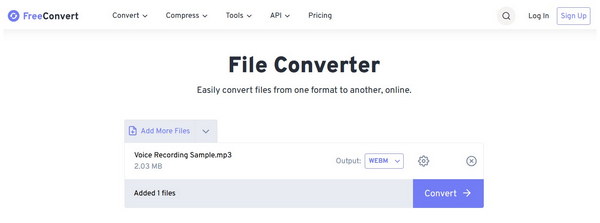
After three simple steps, you can now open your audio file, which is now saved in WebM format. Learn more about the tool’s pros and cons with our guide below.
Pros
- No installation required before conversion.
- Easy-to-use interface design.
- Cross-platform availability for Windows, Mac, Linux, and mobile.
Cons
- It has a file size upload limit.
- Performance is reliant on connection quality.
- It has privacy concerns since it requires media uploads to its servers.
Method 3: The Open-Source Solution for Tech-Savvy Users
If you are using your desktop, there is a high chance that you are using VLC Media Player as your third-party media player of choice. If you want to handle one-off format conversion, your video player can actually get the job done.
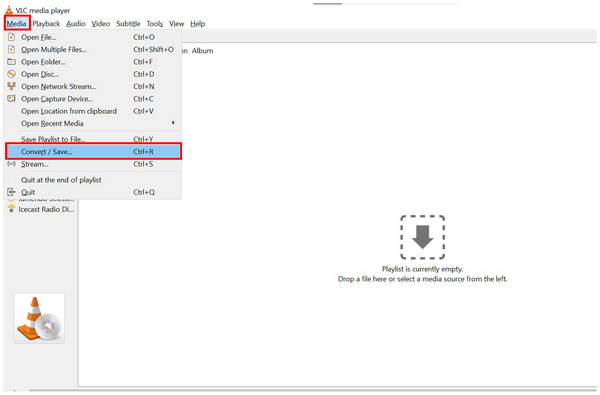
Using the Convert/Save option in the Media tab of VLC, you can easily use the program to import MP3 files into the program and save them in WebM format after a few conversion options. This makes the software a solid open-source solution for both media playback and backup conversion.
1. Open VLC Media Player, select Media, then click Convert/Save in the drop-down menu.
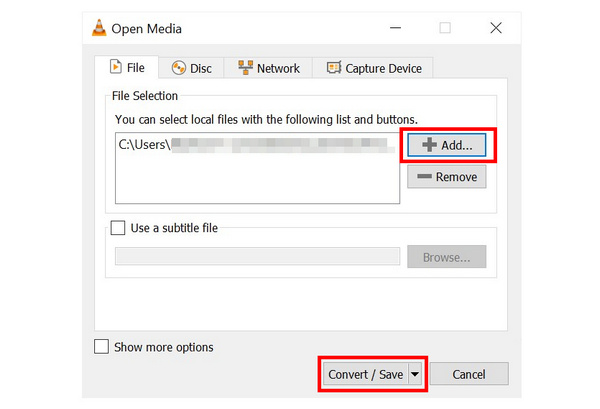
2. In the Open Media settings, select Add to import the MP3 you want to convert. Select Convert/Save to proceed to the conversion process.
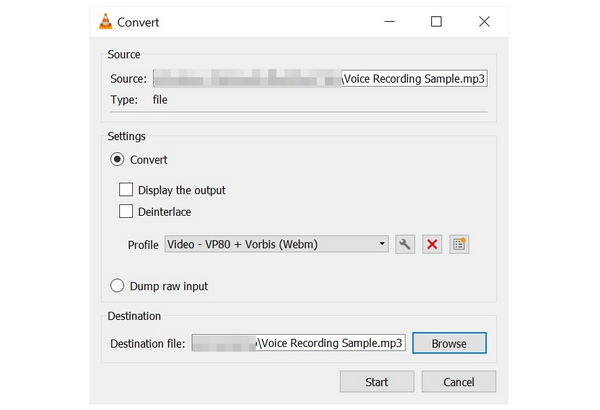
3. In the Convert menu, set the Profile to Video - VP80 + Vorbis (WebM). Click on Browse to set the save destination for your file. Finally, click Start to begin the conversion.
Pros
- Free and open-source solution for multimedia conversion.
- Cross-platform availability for Windows, macOS, and mobile.
- Unlimited file size upload for conversion.
Cons
- Complex interface design for its conversion feature.
- It has limited conversion profiles.
- No batch conversion capabilities.
Desktop vs. Online Converters: Which Should You Choose
Testing Environment Parameters
- • OS (Windows 11 Pro / macOS Sonoma 14.4)
- • CPU (Intel Core i7 / Apple M3)
- • Test Sample (A batch of fifty 320kbps MP3 files, 150MB total)
Evaluation Criterias
- • Conversion Speed
- • Batch Capability
- • Interface Design (UI/UX)
- • Data privacy protection
Legal Disclaimer (User Safety)
If you are hoping to use AnyMP4 Video Converter Ultimate as your program of choice, you can ensure that your data will be highly protected in the program. Any user-uploaded files in AnyMP4 programs won’t be retained on our servers since our desktop software runs locally to ensure 100% privacy.
| Format Converters |
Processing Speed |
Batch Conversion |
Internet Required |
Max File Size |
Privacy/Security Level |
| AnyMP4 Video Converter Ultimate |
Very Fast (Hardware Accelerated) |
Yes |
No |
Unlimited |
High |
| VLC Media Player |
Moderate |
Yes |
No |
Unlimited |
High |
| FreeConvert |
Slow - Moderate |
Yes |
Yes |
1GB |
Low (Upload files to the server) |
FAQs About Converting MP3 to WebM
Is WebM better than MP3 for web development?
Yes, it is. WebM files are especially designed for media files on websites. They will run much more smoothly than MP3s when played in browsers.
How can I add a picture to my MP3 file and save it as a WebM?
You can use video editors or format converters. Fortunately, AnyMP4 Video Converter Ultimate has both. You can use it to simply convert your video to WebM with a black screen or use the MV Editor to add basic slideshows or pictures to your MP3 as a video.
Will converting my MP3 to WebM reduce the audio quality?
No, it will not. Converting MP3 audio to WebM will not affect its quality. The converted file will preserve the original MP3 quality.
Is it safe to use free online MP3-to-WebM converters for personal recordings?
No, it is not. Online tools operate by uploading your files to their servers. Adding personal recordings or files may compromise your security.
Can VLC Media Player batch convert MP3 files to WebM?
Yes, it can. VLC Media Player’s Convert/Save function supports batch converting a handful of media files. However, its reliability is subpar, and conversion errors are quite common.
Conclusion
Now that we have provided our readers with some of the most reliable tools to convert MP3 to WebM videos. As such, keep in mind that our featured solutions have their own uses. For occasional small-file conversions, FreeConvert is the best online choice; however, for professional or heavy users who prioritise Processing Speed, Batch Capability, and Data Privacy, professional desktop software like AnyMP4 Video Converter Ultimate offers irreplaceable advantages. To experience the software’s practicality, download the program using the link below.


 Add your comments to join the discussion here