
Summary
Want to listen to your Blu‑ray concerts or movie soundtracks on your phone? Converting Blu‑ray to MP3 is the easiest way to take that audio anywhere. This guide shows you the fastest and most reliable methods to extract audio from Blu‑ray, choose the right audio track, and get clean, high‑quality MP3 files in minutes - whether you’re using VLC, Leawo, or AnyMP4.
To ensure accurate results, all methods were tested under the following setup:
| Method | Speed | Format Support | AACS Decryption | Ease of Use |
|---|---|---|---|---|
| VLC (Free) | Slow | Limited |  |
Medium |
| AnyMP4 Blu-ray Ripper | Fastest (30× GPU) | 500+ formats |  (Full AACS) (Full AACS) |
Easiest |
| Leawo Blu-ray Ripper | Medium | Good | (Partial) |
Easy |
Converting Blu-ray to MP3 may come from many aspects, and here are some of the main reasons:
1. Wider compatibility.
MP3 is a mainstream audio format compatible with almost all audio players. Converting audio content from Blu-ray to MP3 format enables it to be played smoothly on various devices, thus having wider compatibility.
2. Convenient to transmit and share.
MP3 files are relatively small in size and take up less space. Converting Blu-ray to MP3 makes it easy for people to transfer and share through social media.
3. Optimize storage space.
Blu-ray discs usually contain high-definition video and high-quality audio, so they have large file sizes. While MP3, as a compressed audio format, has a much smaller file size than Blu-ray, so converting Blu-ray to MP3 can save storage space.
4. Play audio content separately.
Sometimes, users may only be interested in the audio content on a Blu-ray disc, such as movie soundtracks, concert recordings, and so on. Converting the Blu-ray video content to MP3 format allows it to be played separately without the need for video playback.
5. Backup and long-term preservation.
Converting audio content from Blu-ray discs to MP3 format can be used to back up the content for long-term preservation, preventing data loss due to damage to Blu-ray discs.
To summarize, the reasons for converting Blu-ray to MP3 format mainly include wider compatibility, storage space optimization, separate extraction of audio content, and backup and long-term preservation.
Before You Start: Bitrate & Sample Rate Recommendations
To get the best MP3 quality:
If you want lossless audio, choose FLAC instead of MP3. Both AnyMP4 and Bluraycopys support FLAC output.
VLC is one of the most popular free media players, and while it’s not a full Blu‑ray ripper, it can extract audio from unprotected Blu‑ray discs or decrypted folders. For users who only need a simple, no‑cost way to turn Blu‑ray audio into MP3, VLC offers a basic but workable solution. However, it cannot bypass AACS protection, and its conversion speed is significantly slower than that of dedicated Blu‑ray to MP3 converters.
Here are the detailed steps to convert Blu-ray to MP3.
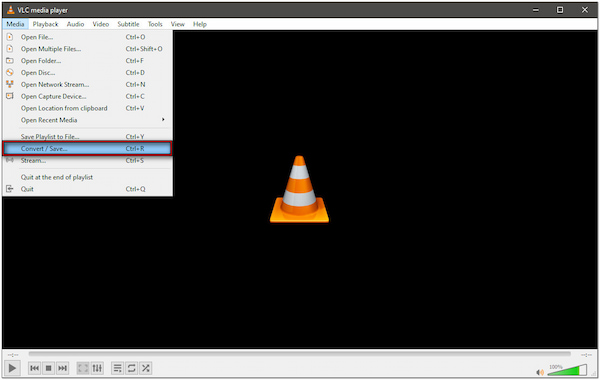
1. Download and install VLC from its official website. Open the software and choose Media > Convert/Save to open the new window.
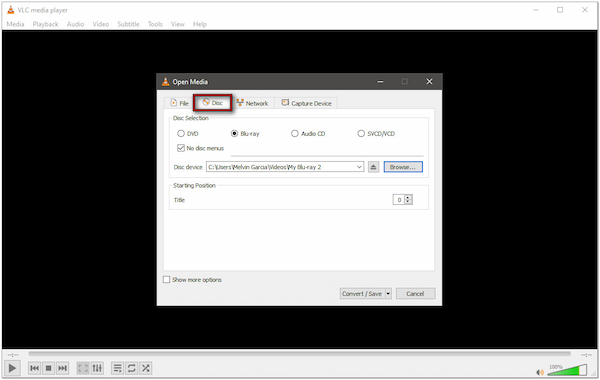
2. Choose the Disc section and check the Blu-ray option. Then, click Browse to import the Blu-ray movies you want to convert. Next, click the bottom Convert/Save to proceed.
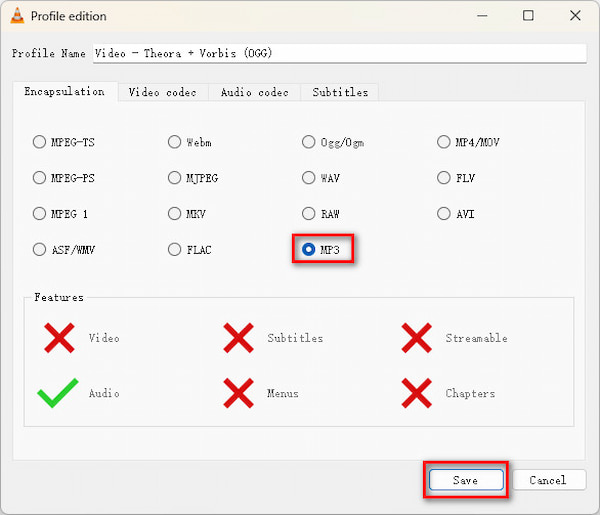
3. Click the Profile to select the MP3 as the output format and click Save to preserve the adjustment. Lastly, click the Browse to set the destination file and then you can select the Start button to begin the Blu-ray to MP3 process.
If your Blu‑ray contains multiple audio tracks (main audio, commentary, foreign language), VLC may not always detect them correctly. For best results, pre‑decrypt the disc using a dedicated tool, then load the folder into VLC to ensure the correct track is selected.
AnyMP4 Blu‑ray Ripper is a professional‑grade converter designed specifically for high‑quality Blu‑ray extraction. It supports full AACS protection bypass, 500+ output formats, and 30× GPU acceleration, making it the fastest and most stable tool for converting Blu‑ray to MP3. It also offers advanced audio controls—bitrate, sample rate, encoder, channel selection—and supports FLAC for users who prefer a lossless alternative. In addition, advanced GPU hardware acceleration can deliver 30 times faster performance than software, and its intuitive interface makes it easy to complete the Blu-ray-to-MP3 process with just a few clicks.
Secure Download
Secure Download
Now, let's see how to use it to extract MP3 audio.
1. Click the Free Download button above to download AnyMP4 Blu-ray Ripper, and follow the instructions to install it on your computer. After installation, run it.
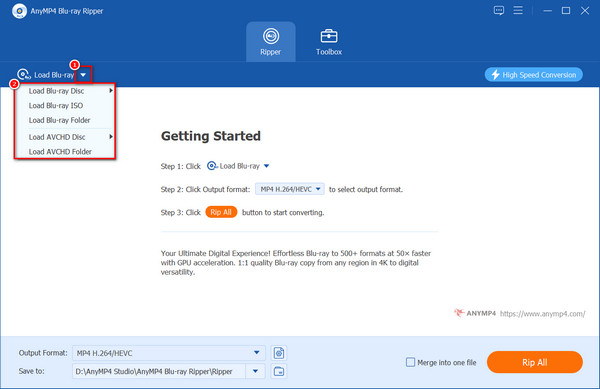
2. Insert the Blu-ray disc into the drive. Then, click the down arrow of the Load Blu-ray button and click Load Blu-ray Disc or Load Blu-ray Folder in its drop-down list to upload the Blu-ray file to be converted to MP3.
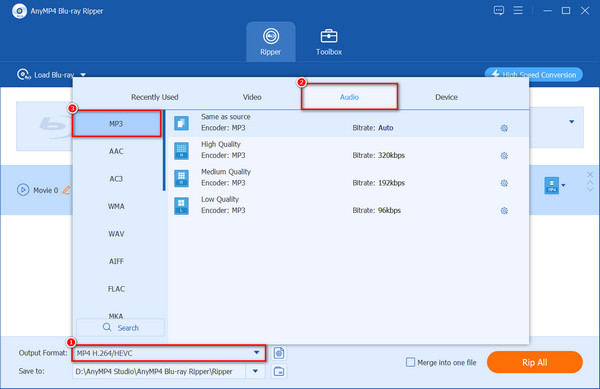
3. Click the Output Format option, and select one from the Audio tab > MP3. These format options have different quality and bitrate, and you can also choose the default option, which keeps the same audio quality as the original Blu-ray file.
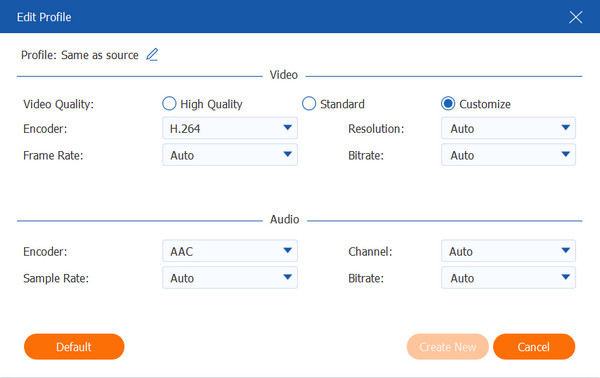
Tip: You can also set some parameters for audio and video, including encoder, channel, sample rate, and bitrate, by clicking the Output Format Settings button next to the Output Format option.
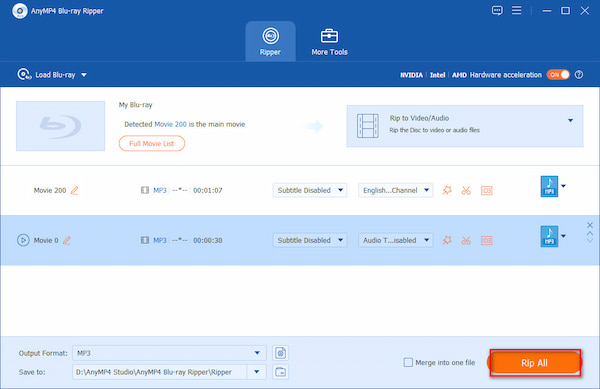
4. After completing the relevant edits and settings for the Blu-ray file, click Rip All to convert your Blu-ray to MP3.
If your Blu‑ray includes multiple audio tracks, choose the primary lossless track (DTS‑HD MA or TrueHD) before converting. This ensures the cleanest MP3 output and avoids commentary or secondary audio tracks.
Leawo Blu‑ray Ripper is a mid‑range solution that offers better format support and more stable ripping performance than VLC. It can convert Blu‑ray to MP3, AAC, FLAC, and other audio formats, and it provides customizable bitrate, sample rate, and channel settings. While Leawo can handle some protected discs, its AACS decryption is not as strong or consistent as professional tools.
For users who want more control over audio quality without jumping to a premium ripper, Leawo is a solid middle‑ground option.
So, how to use it to extract MP3 audio files?
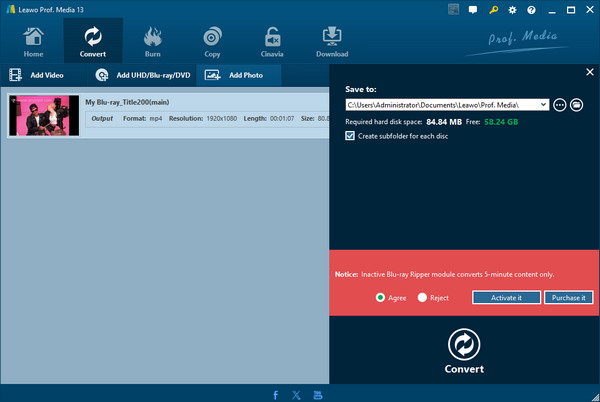
1. Open Leawo Blu-ray Ripper on your computer. Choose the Convert section from the top menu bar.
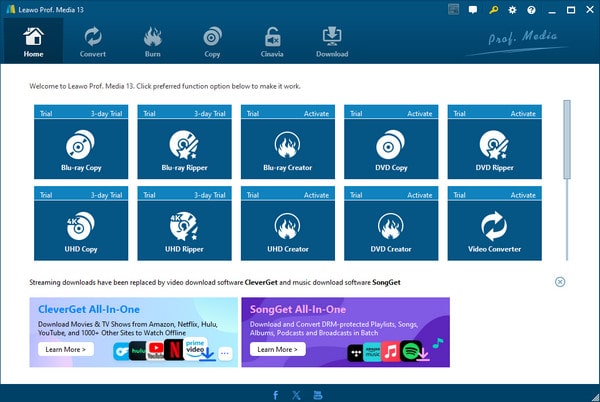
2. In the Convert section, choose Add UHD/Blu-ray/DVD to import the Blu-ray movies.
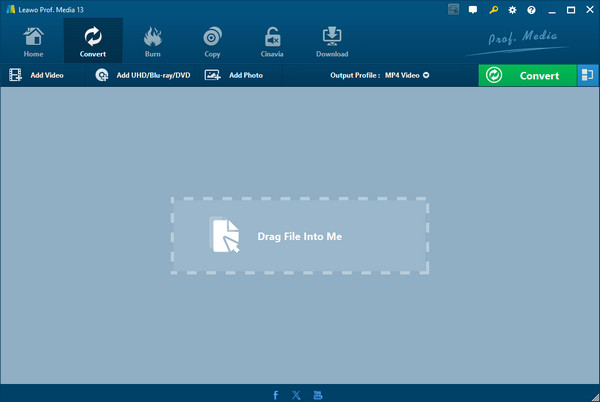
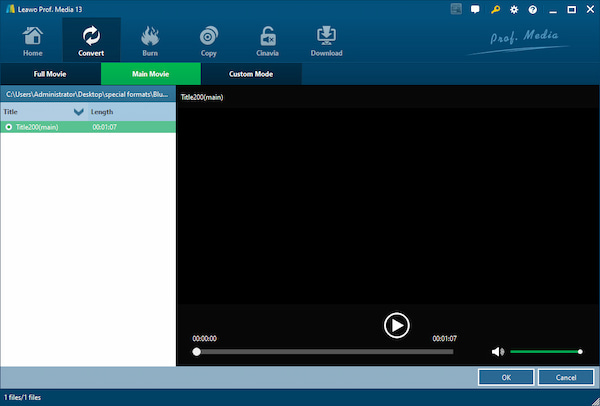
The software will automatically load the Blu-ray in the Main Movie mode, you can manually change the mode to Full Movie or Custom Mode. When it's done, click OK to go on.
3. Click Output Profile > Change to further choose MP3 as the output format, which is under the Format > Common Audio.
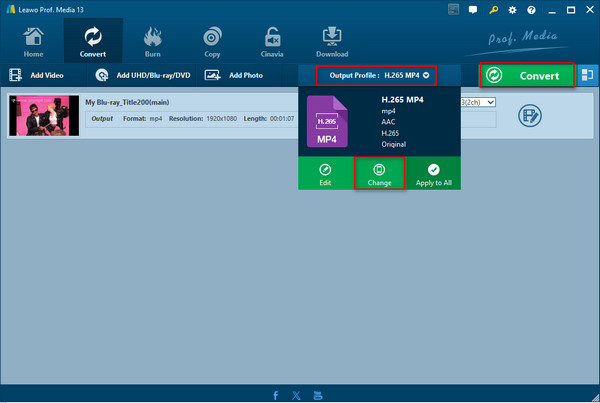
4. Lastly, click the green Convert button, agree to the notice, and click Convert again to begin the conversion.
For the best MP3 quality, choose the DTS‑HD MA or TrueHD track as your source if available. These lossless tracks provide cleaner audio for MP3 encoding and reduce compression artifacts.
Can I convert Blu-ray to MP3 without losing quality?
MP3 is a lossy format, so some quality loss is inevitable. For lossless audio extraction, consider FLAC instead. Both AnyMP4 and Bluraycopys support FLAC output.
Is it legal to convert Blu-ray to MP3?
It depends on your jurisdiction. Ripping Blu-ray for personal backup use is generally considered fair use in many countries, but circumventing copy protection (AACS) may violate the DMCA in the US.
What do I need to convert Blu-ray to MP3 on my computer?
You need a Blu-ray drive (internal or external), compatible Blu-ray ripping software, and a computer running Windows or macOS.
Can I convert Blu-ray ISO files to MP3?
Yes. AnyMP4 Blu-ray Ripper supports loading Blu-ray ISO files and folders in addition to physical discs.
How long does it take to convert a Blu-ray to MP3?
Audio-only extraction is typically much faster than video conversion. With GPU acceleration in AnyMP4 Blu-ray Ripper, a 2-hour Blu-ray can be converted in just a few minutes.
This article introduces 3 easy ways for converting Blu-ray to MP3 format. VLC offers a free and open-source way for easy MP3 extraction. AnyMP4 Blu-ray Ripper, a professional Blu-ray ripper that can achieve fast and high-quality conversion so that you can easily listen to audio from Blu-ray. We hope this article is helpful to you, and you are welcome to download and try the tools mentioned above to extract audio from Blu-ray for free!
 Posted by Ted Klarso to Rip Blu-ray
More readings
 How to Convert DVDs to MP3
Follow us to see the 3 workable ways to convert DVDs to MP3 to enjoy the beautiful DVD audio on multiple portable devices.
 5 Great DVD Audio Extractors for Windows and Mac
A DVD audio extractor is the software that rips audio tracks from DVD and save them in MP3 and other formats for playback on computer or mobile phone.
 7 Powerful Blu-ray Rippers for PCs and Mac Computers
There are many reasons to use a Blu-ray ripper to convert physical media onto your hard drive. Here are the best Blu-ray rippers available to Windows and Mac.
 Best 3 Ways to Extract Audio from Blu-ray
Do you want to convert Blu-ray to digital audio for other devices? Well, you are certainly in the right place! Here we will show you how to do so.
 Add your comments to join the discussion here