
At A Glance:
Need to convert MOV to OGG? For large files and batch processing, desktop software like AnyMP4 Video Converter Ultimate is the fastest and most secure method. For quick, one-off conversions under 1GB, FreeConvert offers a reliable browser-based solution, while VLC Media Player is a great free, open-source alternative.
Need to convert MOV to OGG? For large files and batch processing, desktop software like AnyMP4 Video Converter Ultimate is the fastest and most secure method. For quick, one‑off conversions under 1GB, FreeConvert offers a reliable browser‑based solution, while VLC Media Player is a great free, open‑source alternative.
Are you tired of online converters crashing when you upload a 2GB MOV file? Or worrying about the privacy of your personal videos? This guide will highlight 3 methods for extracting audio from MOV and converting it to OGG without errors or crashes. We will provide three options: a multimedia converter tool, an open‑source converter, and a web‑based alternative for handling smaller MOV files. These tutorials will help you learn how to convert MOV to OGG as simply as possible.
| Tool Name | Platform | Batch Processing | Best For | Speed | Privacy |
|---|---|---|---|---|---|
| AnyMP4 Video Converter Ultimate | Windows, macOS | Yes | Applying video editing adjustments and high‑quality audio conversion. | Very Fast (GPU Accelerated) | Excellent (Offline program) |
| VLC Media Player | Windows, macOS, Linux, Android, iOS | No | Limited or one‑off MOV‑to‑OGG conversion. | Moderate | Excellent (Offline program) |
| FreeConvert | Web Browsers | Yes | Quick format conversion without any installation or setup. | Slow to Fast (Based on Internet Quality) | Weak (Require file uploads) |
When dealing with large video files or bulk conversions, web‑based tools often fall short due to file size limits and frustrating upload times. That’s where AnyMP4 Video Converter Ultimate steps in. As a robust desktop solution, it bypasses server restrictions entirely, making it the premier choice for professionals and everyday users who value efficiency and data security.
Moreover, it was designed exclusively to handle media format conversions, making it a solid choice for users who plan to convert their MOV videos to OGG audio. This made the program capable of handling single or batch conversion, even for complex video‑to‑audio format conversions.
Now that we have explained why exclusive format converter tools such as AnyMP4 Video Converter Ultimate are a solid option for handling MOV‑to‑OGG conversion, you can download the program using the link below to start enjoying the best converter tool for Windows and macOS desktops.
To learn how to use the program, make sure to read the three‑step guide provided below.
Secure Download
Secure Download
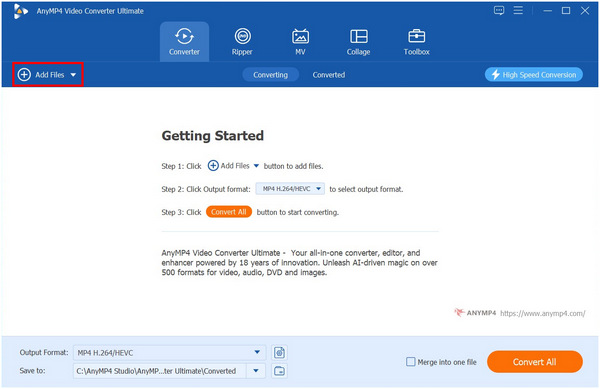
1. Open AnyMP4 Video Converter Ultimate and select the Add Files button in the Converter Tab to import the MOV file you want to convert.
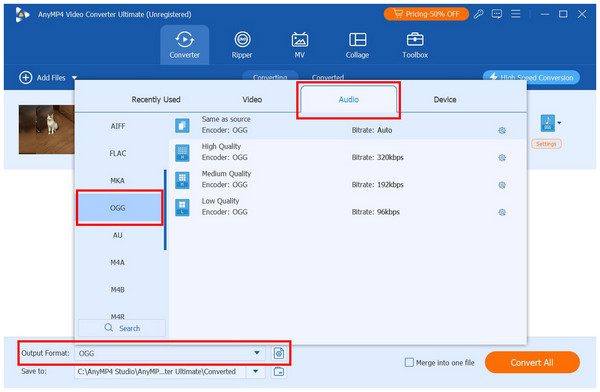
2. Once the MOV file is uploaded, select Output Format and go to Audio. Find the OGG format and choose the conversion profile you want to use.
3. With the conversion profile now set, you will be redirected back to the Converter tab. There, select Convert All to begin converting your uploaded MOV file to OGG format.
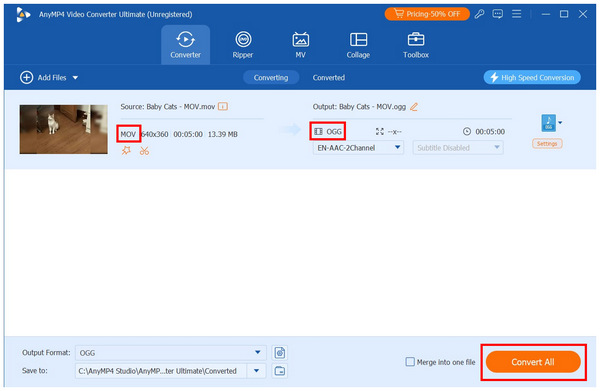
As an exclusive multimedia conversion tool, AnyMP4 Video Converter Ultimate makes the conversion process surprisingly easy. This is another major advantage of using the program.
Blazing Fast Hardware Acceleration:
By utilizing your GPU, it converts massive 4K MOV files into OGG audio up to 70x faster than standard web tools, saving you hours of waiting. This is a huge upgrade over other programs on this list, which rely only on standard computer resources or an internet connection.
Unrestricted Batch Processing
Have 50 videos to convert? Toss them all in at once. It handles high‑volume tasks effortlessly without crashing. This makes the program a solid choice for converting multiple files at once.
100% Data Privacy:
Since everything is processed locally on your machine, your sensitive or personal videos are never uploaded to a third‑party server. If you are looking for a converter option that protects user privacy, AnyMP4 should be one of your top picks.
Audiophile‑Grade Customization:
It lets you tweak Vorbis codec settings to ensure you get the exact bit rate and sound quality you need for your specific project. For users who plan to consume OGG files for premium music, these advanced audio codecs also make the software a great option.
Since it is a desktop‑based option, it requires initial download and installation space on your hard drive. To unlock all the program’s features, you also need to obtain a full license if the free trial is not enough. Once these setup requirements are applied, you can now reliably convert MOV to OGG on Mac/Windows.
When looking for an alternative open-source converter, VLC Media Player’s advanced Convert/Save setting is surprisingly effective. Although it is primarily known as a media player, the program’s advanced conversion settings make it a great backup solution for basic media format handling, such as a simple MOV-to-OGG conversion.
1. Open VLC Media Player and select Media > Convert/Save.
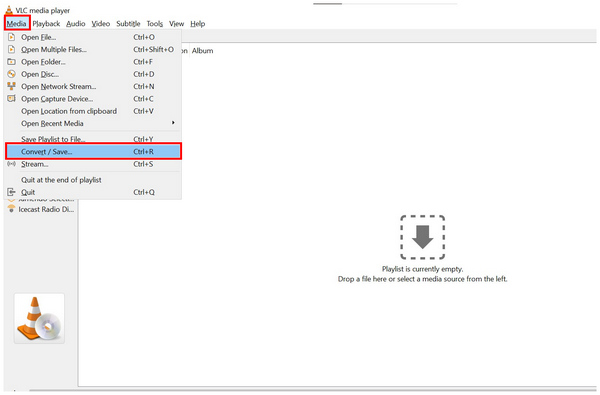
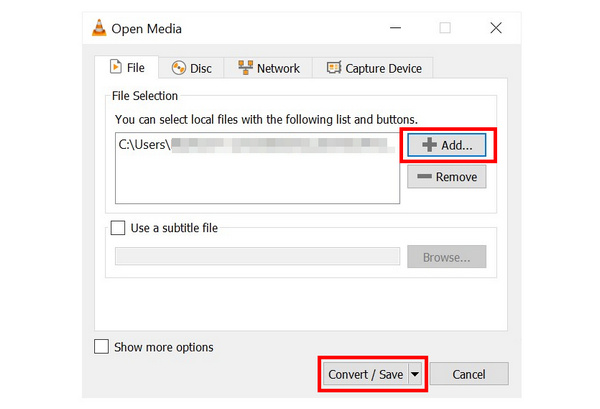
2. In the Open Media menu, select Add to import the MOV file you want to convert. Then, select Convert/Save to proceed to the main converter tab.
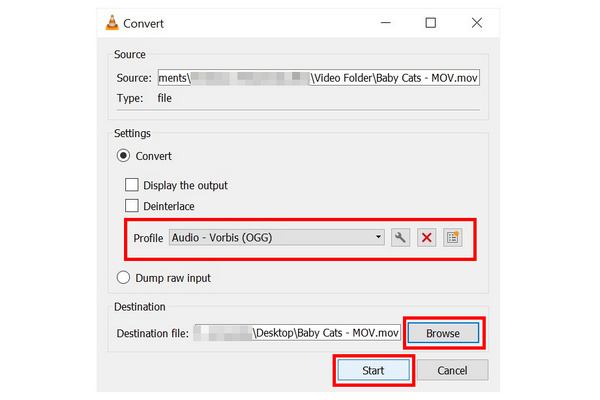
3. Once the MOV file has been added to the Convert menu, set the Profile to Audio‑Vorbis (OGG). Then select Browse to set the destination for saving your file. Finally, click Start to begin format conversion.
Since VLC’s format conversion process is more complex than AnyMP4’s and the web‑based tool we highlight below, the program is not our top recommendation for beginners and users looking for a quick solution.
What we love the most about VLC is that it is open‑source and completely safe to use. On top of that, it is ad‑free, which is rare among freeware programs. Most importantly, the program’s conversion option is processed locally.
Although VLC can handle basic format conversions, it has several downsides, notably the tedious processing steps required when using the Convert/Save feature. Compared to modern programs, it also has an outdated UI and a processing speed that is subpar at best. Since it is a video player program first, format conversion failures are also quite common.
The last method we will highlight is one of the most reliable online MOV‑to‑OGG converters: FreeConvert. The popularity of this option stemmed from its generous 1GB file‑upload limit in the free version. This enables the software to convert even larger MOV videos without issue.
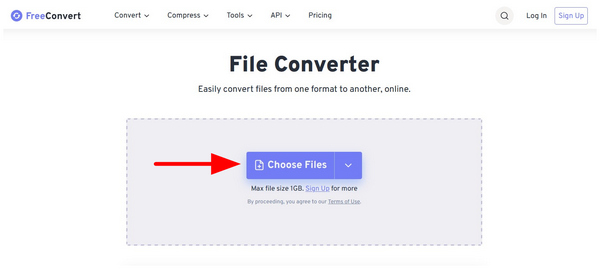
1. Go to the FreeConvert online converter website and select Choose Files to upload your MOV video.
2. Once your video file has been uploaded, select Output, go to Audio, and choose the OGG format.
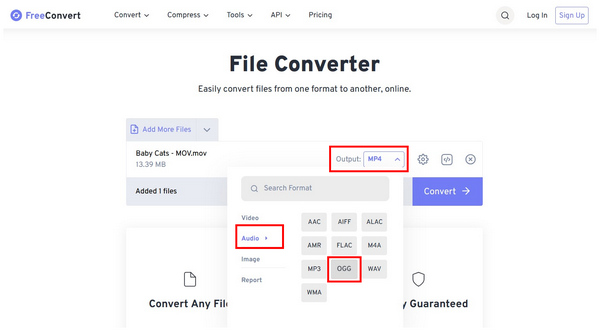
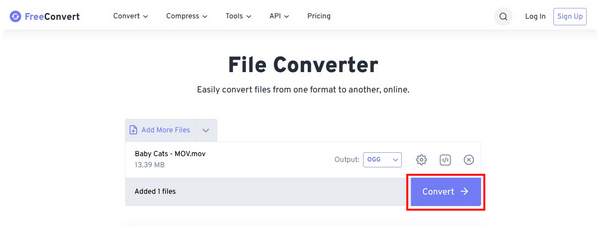
3. With the Output now set to OGG audio, select Convert to begin processing your MOV video to your set output format.
The convenience of no installation requirements and the cross‑platform availability of online tools are the most positive features of using FreeConvert. Both of these factors are based solely on the program’s accessibility. As a bonus, its clean interface is also a big plus, making it highly reliable for beginners.
Unfortunately, the limitations of web‑based tools are also present in FreeConvert. Your internet speed highly limits its performance. The file size limit, although quite large at 1GB, is still a limit. The nature of these programs, which require users to upload videos to their servers, also poses a privacy risk. Make sure to avoid converting personal videos in FreeConvert and other online tools.
With the three conversion methods now discussed, let us now proceed to why converting MOV to OGG is a good step. First, OGG audio is highly compact, and storing a huge batch of the program won’t be an issue. Since most OGG audio is also royalty‑free, it is a great option for multimedia projects such as game development, online videos, and similar projects. Simply put, OGG media files, being open‑source and royalty‑free, make them a better option than the Apple‑developed MOV format. OGG players are also not a problem, since they are supported by most media players.
Does converting an MOV video to OGG audio result in a loss of sound quality?
Yes, it usually does. Unfortunately, OGG is a lossy format. However, this effect may be minimized by converting your files to a higher bitrate.
Can I batch‑convert MOV to OGG for free, without file size limitations?
Yes, some programs can handle batch conversion for free. The free version of AnyMP4 Video Converter Ultimate is a good example. It is also faster than other multimedia programs thanks to its GPU acceleration.
How do I convert MOV to OGG on an iPhone or Android device?
You can use web‑based tools for free online conversions. Our featured FreeConvert option is functional on mobile browsers. Alternatively, you may download video converter apps on Google Play or App Store.
What is the difference between MP3 and OGG when extracting audio from an MOV file?
MP3 and OGG are excellent audio formats when converting MOV videos. All you have to do is select MP3 for universal compatibility. MOV files, meanwhile, are best for higher quality.
With the three easy ways to convert MOV to OGG now discussed, we can recommend the best option based on your preference. For extreme speed, batch processing, and privacy security, AnyMP4 Video Converter Ultimate is the inevitable choice; if just occasionally converting a small video of a dozen megabytes, FreeConvert is up to the task, and geeky users who enjoy tinkering with open‑source software can choose VLC. Now that these are out of the way, we recommend that our readers choose the converter based on their media's file size and current network stability. For general multimedia versatility, we highly recommend AnyMP4 Video Converter Ultimate, which you can download from the link below.
 Updated by Alice Thorne to Convert Video, Convert Audio
More readings
 AVI to MOV for Mac/PC: 3 Ways to Keep Original Quality
Need to play AVI on QuickTime or iMovie? Learn how to convert AVI to MOV on Mac/Windows without losing quality. Try for free!
 Top 5 Ways on How to Convert WMV to MOV Quickly (Free & Paid)
Here we make use of both free and paid WMV to MOV converters to onvert WMV to MOV (QuickTime) for playback on Mac and iOS smoothly.
 5 Ways to Convert MP4 to OGG (2026 Tested: High Quality)
Looking for a fast way to convert MP4 to OGG? Learn how to extract high-quality OGG audio from your MP4 videos using the best tools without quality loss.
 Best 4 Ways to Convert OGG to WAV (Zero Quality Loss)
Need a reliable OGG to WAV converter? Learn how to convert OGG to WAV for CD burning, DAWs, or archiving using desktop tools, online converters, and FFmpeg.
 Add your comments to join the discussion here