4 Easy Methods to Convert FLAC to OGG Format
Summary:
Converting FLAC to OGG gives a seamless conversion with a good balance of quality and file size. Tools like AnyMP4 Video Converter Ultimate offer a high-performance encoder, fast batch processing, and reliable output for large libraries. AnyMP4 Free Online Video Converter provides a quick, no-install option for easy browser-based conversion. Audacity is best for simple editing before export, while FFmpeg is ideal for automation and full control.
FLAC (Free Lossless Audio Codec) is known for preserving every detail of the original audio. Meanwhile, OGG Vorbis/Opus offers efficient compression with impressive quality retention. Through transcoding, you can reduce file size while maintaining high audio fidelity. Since OGG is an open-source container format, many users use it for gaming, streaming, and cross-platform playback. This guide explores multiple methods for converting FLAC to OGG. We will help you choose the best method based on speed, quality, and convenience.
Why Convert FLAC to OGG? (The Benefits of Vorbis/Opus)
FLAC to OGG conversion becomes essential when you need to reduce storage usage without drastically compromising sound quality. Compared to MP3, Vorbis vs Opus codecs deliver better efficiency at similar audio bitrates (kbps). OGG files are also more flexible, supporting sample rate (Hz) adjustments and even 5.1 surround sound preservation. If you're working with limited storage or distributing audio online, OGG offers better performance and quality.
Method 1: The Fastest Professional Way to Convert FLAC to OGG (Desktop)
AnyMP4 Video Converter Ultimate is a reliable FLAC-to-OGG converter for Windows and Mac. This tool uses advanced hardware acceleration to deliver up to 70× faster conversion speed. It can handle large FLAC libraries conversion without any delays. It offers lossless-to-lossy conversion settings, allowing you to fine-tune the audio bitrate (kbps) and sample rate (Hz). In addition, it's built-in Audio Compressor reduces file size while maintaining clarity. Remarkably, its batch audio-processing feature lets you convert multiple files simultaneously. Even better, it preserves metadata/ID3 tags, so your music library stays organized.
Why Choose AnyMP4 Video Converter Ultimate
- Reduce file size efficiently while preserving sound clarity.
- Convert multiple FLAC files simultaneously to save time and effort.
- Keeps artist, album, cover art, and other metadata intact after conversion.
- Quickly converts FLAC to 500+ digital formats, including OGG Vorbis/Opus.
- Maintains audio fidelity during lossless-to-lossy conversion with optimized encoding.
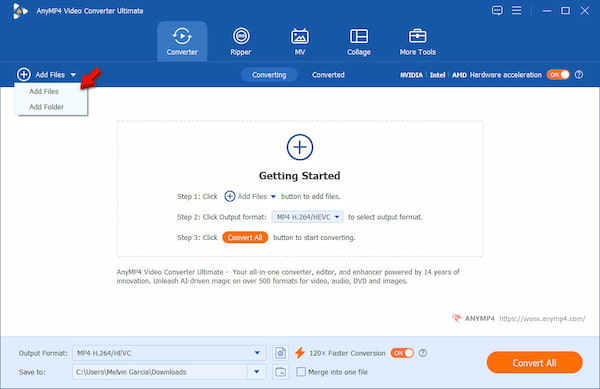
1. Run AnyMP4 Video Converter Ultimate on your system to access its main dashboard. In the Converter tab, click +Add Files to import your FLAC files. If you're working with multiple tracks, select Add Folder to enable batch conversion.
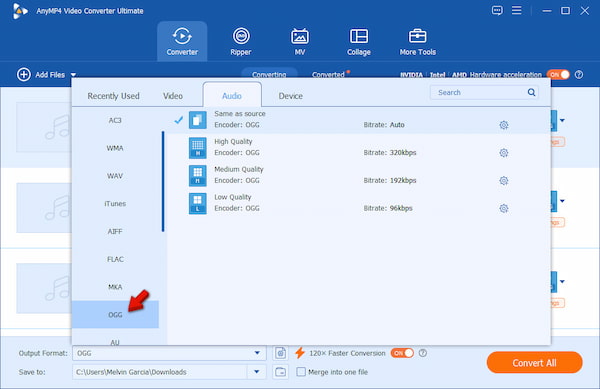
2. Switch to the Output Format selector and navigate to the Audio category. Select OGG as your desired format and choose your preferred quality. Open Profile Settings to customize the Vorbis/Opus codec, bitrate, sample rate, and channel.
3. Proceed to the Save To selector and specify your destination path. Enable 120× Faster Conversion to maximize the tool's performance. Click Convert All to process all files at once while maintaining audio fidelity and preserving metadata.
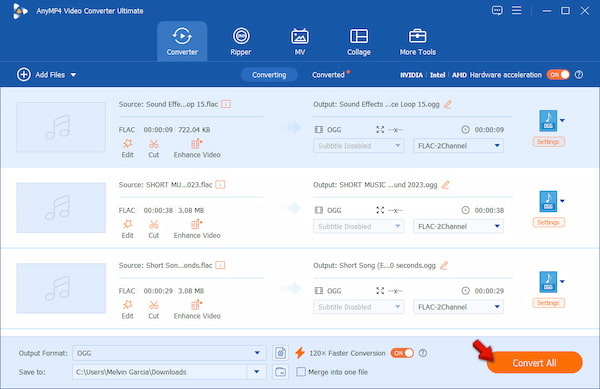
During testing, this tool consistently delivered reliable output with minimal quality loss, even at lower bitrates. It offers consistent results, impressive speed, and full control over output quality. It's exactly what you'd expect from a professional converter, complete with a built-in OGG player so you can preview your audio before you hit export.
Method 2: How to Convert FLAC to OGG Online for Free
AnyMP4 Free Online Video Converter – Convenient & No Installation
AnyMP4 Free Online Video Converter is a web-based tool that requires no software installation to convert FLAC to OGG. Despite being free, it supports batch audio processing, allowing you to convert multiple files. It also allows customization of the encoder, audio bitrate (kbps), sample rate (Hz), and channel. With its clean, ad-free interface, you can focus entirely on converting files without distractions.
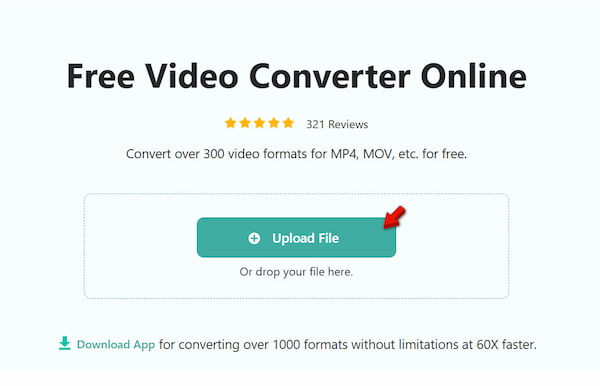
1. Open a browser and navigate to the official AnyMP4 Free Online Video Converter page. On the homepage, click + Upload File to load your FLAC file. You can also drag and drop it into the browser window to quickly prepare your file for conversion.
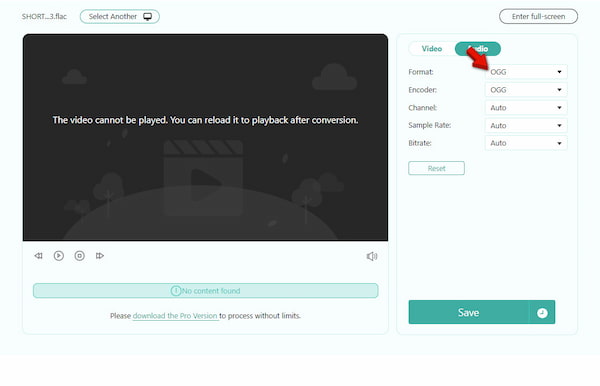
2. In the Format selector, choose OGG as your output. Before converting, customize the encoder, audio bitrate (kbps), sample rate (Hz), and channel. Click Save to process the file and download the converted file afterward.
AnyMP4 Free Online Video Converter is perfect for one-off conversions. It is ideal when you need a fast, no-hassle solution. It's useful for converting a few files without installing software, while still delivering good-quality OGG output.
Method 3: Open-Source Alternatives for Tech-Savvy Users
Audacity
Audacity is a powerful open-source tool you can use as a free FLAC-to-OGG converter. Unlike dedicated converters, Audacity is primarily an audio editor. It means you enhance your files before converting. However, it doesn't offer advanced batch audio processing.
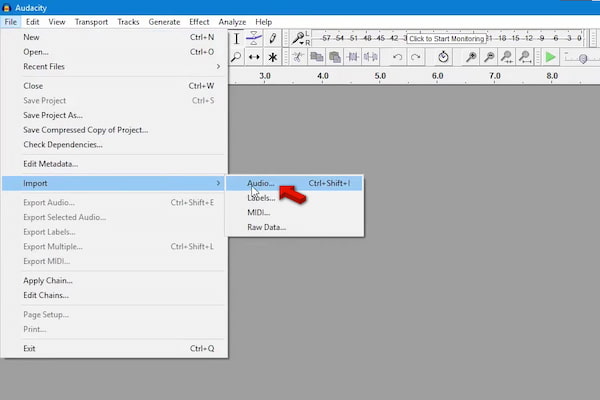
1. In the File menu, click Import and select Audio to import your FLAC file. The waveform will appear in the editor, allowing you to preview and make adjustments if needed.
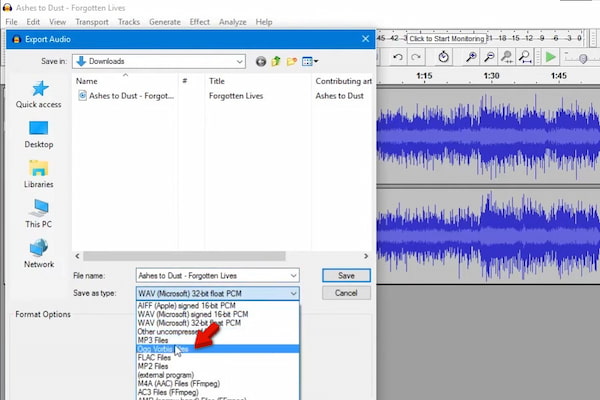
2. Click the File menu again, but this time select the Export Audio option. In the export window, choose Ogg Vorbis Files as your format type.
Audacity is best suited for users who want both editing and conversion in one tool. It may not be the fastest option, but its flexibility makes it highly valuable for detailed audio work.
FFmpeg
FFmpeg is a powerful command-line tool for converting FLAC to OGG. It also supports batch audio processing, allowing you to convert entire music libraries using scripts. Additionally, it preserves metadata and supports high-quality encoding, making it ideal for advanced users.
1. Open your Terminal or Command Prompt and navigate to the folder containing your FLAC file. Use the ffmpeg -i input.flac -c:a libvorbis -qscale:a 6 output.ogg command.

2. Sometimes OGG files lose their album art during simple conversions. To keep the metadata and ensure the cover art is handled correctly, use ffmpeg -i input.flac -map_metadata 0 -c:a libvorbis -q:a 6 output.ogg.
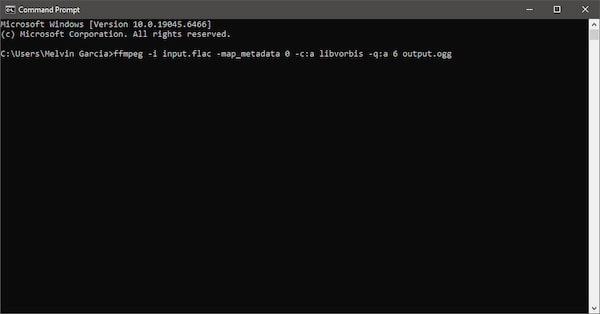
FFmpeg is incredibly efficient once you get used to it. While it lacks a graphical interface, its speed and customization options make it the best tool for large-scale or automated FLAC-to-OGG conversions.
Pro Tips: How to Maintain Audio Quality During Conversion
Maintaining high audio fidelity during conversion is essential when using any FLAC-to-OGG converter. While some quality loss is unavoidable, the right settings and practices can minimize degradation and preserve the listening experience.
- • Convert FLAC to OGG directly, avoiding re-encoding already-compressed files and preventing cumulative quality loss.
- • Use 192–320 kbps for OGG Vorbis/Opus codec to maintain near-transparent quality while keeping file sizes efficient.
- • Adjust the bitrate and codec (Vorbis vs. Opus) based on whether the goal is streaming, storage, or compatibility.
- • Keep the same sample rate (Hz) as the source file to avoid resampling artifacts that can degrade sound quality.
- • Ensure metadata/ID3 tags and audio channels remain intact for a complete listening experience.
FAQs about Converting FLAC to OGG
Q: Is OGG better than MP3?
A: In terms of compression efficiency and sound quality, OGG is better than MP3. It can deliver clearer audio with fewer artifacts, making it a strong choice for modern applications. However, MP3 still offers wider device and platform compatibility.
Q: Will I lose quality converting FLAC to OGG?
A: Yes, you will lose some quality. FLAC preserves all original audio data, while OGG compresses it by removing less noticeable details. That said, using higher bitrates can make the quality loss nearly unnoticeable for most listeners. You may also want to know why FLAC files are so big.
Q: What is the best bitrate for OGG?
A: The best bitrate depends on your needs, but 192–256 kbps is ideal. For near-lossless listening, 320 kbps is recommended. Lower bitrates like 128 kbps are suitable for saving space but may result in noticeable quality loss.
Q: Can I convert OGG back to FLAC?
A: Yes, you can convert OGG back to FLAC, but you cannot restore the original quality. Since OGG is a lossy format, the removed audio data is permanently lost. It means converting it back to FLAC only changes the format, not the quality.
Q: Is OGG supported by iPhones?
A: No, iPhones do not support OGG. iOS devices prefer formats like AAC and MP3. To play OGG files, you'll need a third-party media player or convert them to a compatible format.
Conclusion
In conclusion, converting FLAC to OGG provides a seamless conversion experience that balances quality and efficiency. It delivers the best audio balance between file size and sound clarity, making it a space-saving solution for modern users. With a high-performance encoder, you can preserve strong audio detail while still achieving efficient compression. Additionally, it offers a reliable output suitable for music libraries, gaming, and streaming. For the easiest workflow, you can use AnyMP4 Free Online Video Converter for quick browser-based tasks. For faster batch processing and professional results, download AnyMP4 Video Converter Ultimate to enjoy advanced features and optimized conversion performance.

 Fully Supported
 Add your comments to join the discussion here