
At a Glance: The Ultimate WAV to OGG Shortcut
Need a quick fix instead of reading a massive guide? Here is what our hard testing proved:
Are giant, uncompressed WAV files clogging up your hard drive or game engine? Do not worry, you are in the right place. You try to fix it by dropping a massive folder into an online converter, only for your browser to freeze, crash, or spit out a distorted, muddy track. That is where OGG Vorbis comes in. OGG, as the lightweight champion of audio, gives you the tiny file footprint of an MP3 but keeps the crisp, high-frequency clarity of your original WAV. It is the gold standard format for saving space in Unity/Unreal engines and web streaming.
In this guide, we are breaking down the top 4 methods for converting WAV to OGG quickly without losing quality, freeing up storage space without losing an ounce of quality.
If you are a game developer working in Unity or Unreal Engine, or if you build modern web apps, OGG Vorbis is your absolute best friend. Why? Because the Vorbis codec is vastly superior to the old MP3 standard. At the exact same audio bitrate settings (like 192kbps or 320kbps), an OGG file delivers much cleaner high frequencies and tighter bass than an MP3.
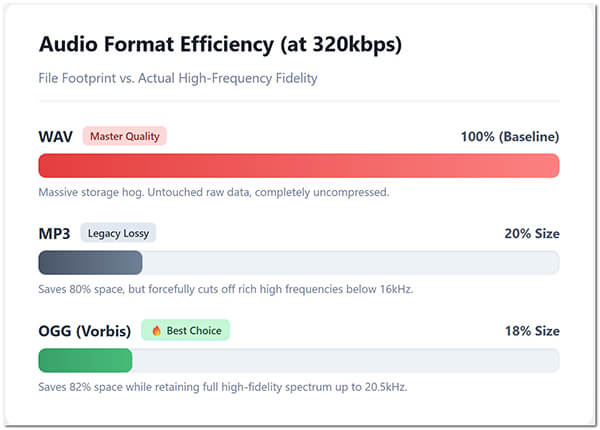
WAV files are uncompressed linear PCM audio. They sound perfect, but they are completely impractical for distribution. OGG uses a smart variable bitrate structure. It gives you lossless vs lossy compression that tricks human ears perfectly. An OGG file takes up only about 15% to 20% of the storage space of a WAV file, yet it keeps the sound pristine. This is why streaming giants like Spotify use OGG Vorbis for their desktop apps. It saves bandwidth without making the music sound cheap.
How We Tested the Best WAV to OGG Converters
| Processing Location | GPU Acceleration | Free Limit Restrictions | Best For | |
|---|---|---|---|---|
| AnyMP4 Video Converter Ultimate | Local Desktop (Offline) | Yes (NVENC / QSV) | None (Unlimited local processing) | Professional batch conversions and heavy asset libraries |
| Audacity | Local Desktop (Offline) | No (CPU Only) | None (Completely open-source) | Audiophiles and sound editors who want precise control |
| AnyMP4 Free Online Audio Converter | Web Browser (Hybrid) | No | None (No file size caps) | Fastest casual browser option without registration |
| VLC Media Player | Local Desktop (Offline) | No | None (Built-in free player) | Emergency offline conversions without installing new apps |
Real Test Results:
If you want to batch convert WAV to OGG offline without dealing with technical headaches or software crashes, this is the gold standard. AnyMP4 Video Converter Ultimate solves the two biggest complaints people have with audio conversion: size limits and speed. Instead of making you wait hours to upload gigabytes of heavy audio to a distant cloud server, it processes everything locally on your machine. Because it integrates native hardware acceleration, it chews through heavy batch conversions up to 70x faster than old, CPU-only utilities. Furthermore, it provides incredible control over your output settings. Many basic converters compress OGG files down to a low-quality default. This tool gives you granular dropdowns to lock in your sample rate (44.1kHz / 48kHz) and push your bitrate to a true 320kbps.
1. Load Your WAV Files
Download and open AnyMP4 Video Converter Ultimate on your Windows or Mac computer.
Secure Download
Secure Download
Click the big Add Files button in the top left corner, or simply drag and drop your entire folder of WAV files directly into the main window.

2. Select OGG Format & Customize
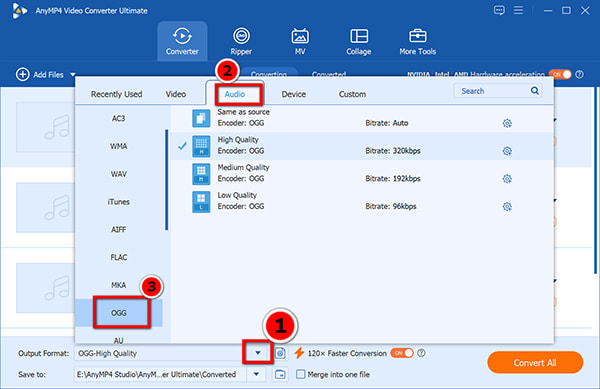
Click the format icon on the right side of your file list. Navigate to the Audio tab and select OGG.
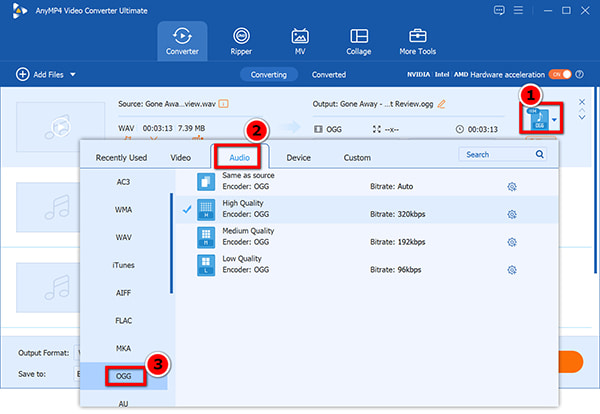
To get the absolute best quality, click the gear icon (Custom Profile). Change the Audio Bitrate to 320kbps and match your source sample rate (usually 48000Hz or 44100Hz).
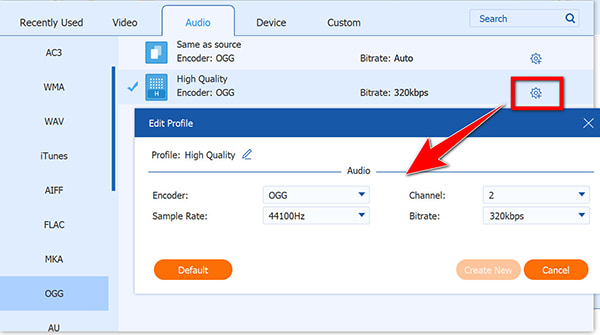
If you want to convert batch WAV to OGG files, and set all the output format in the same settings, just find the Output Format drop-down list on the bottom-left side, and find Audio > OGG.
3. Convert WAV to OGG
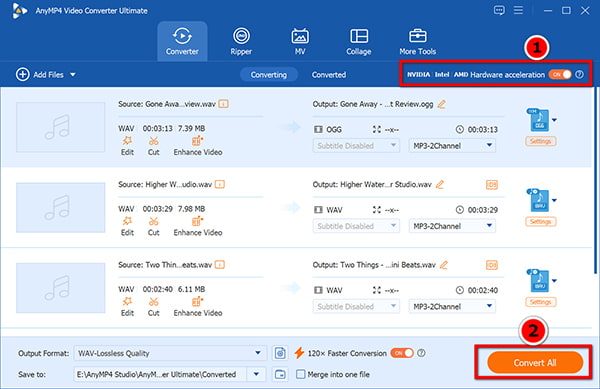
Before starting WAV to OGG conversion, Make sure the hardware acceleration icons (NVIDIA, Intel, or AMD) are enabled on the top-right corner.
After that, choose your destination output folder where you want your new, click the Convert All button in the bottom right corner. Watch the progress bars fly across the screen. Once finished, the app will automatically open your target folder.
We love this tool because it is completely foolproof. If you are a professional content creator or game designer who needs to convert large WAV files fast without your computer sounding like a jet engine taking off, this is your best bet. It saves hours of production time.
Real Test Results:
Audacity is the Swiss Army knife of audio editing. It is free, open-source, and has been a staple on community hard drives for decades. If you want deep control over the actual audio waveform before you export, Audacity is unmatched. It does not cost a penny, and it handles the OGG Vorbis format to OGG natively. Instead of selecting a traditional flat bitrate, Audacity uses a quality slider from 0 to 10. Setting it to 10 targets with a high variable bitrate that often clears 320kbps, keeping your tracks crisp.
1. Import Your Tracks
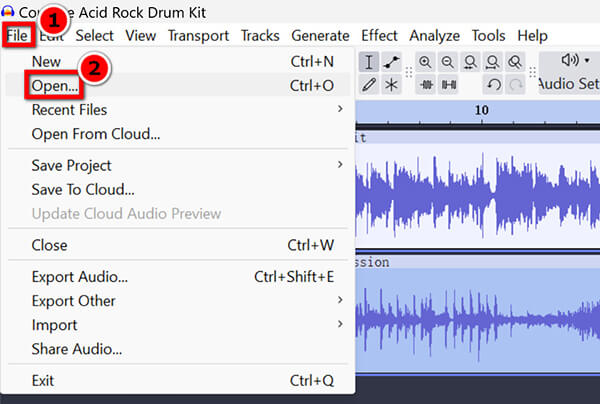
Launch Audacity. Go to File > Import > Audio and select your WAV files. If you are only doing a single file, it will show up as a visual track on your screen.
2. Set Up Batch Macro (Optional)
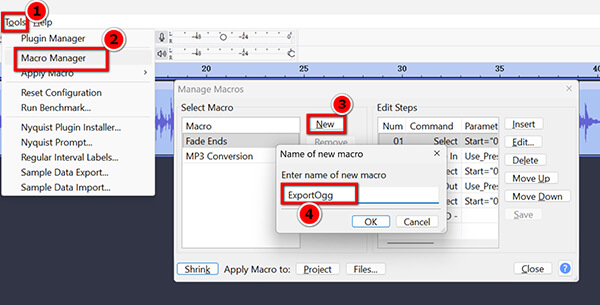
If you have multiple files, do not export them one by one. Go to Tools > Macro Manager. Click New to create a macro, add the command ExportOgg, and save it. This lets you run the process across dozens of files at once.
3. Configure OGG Quality
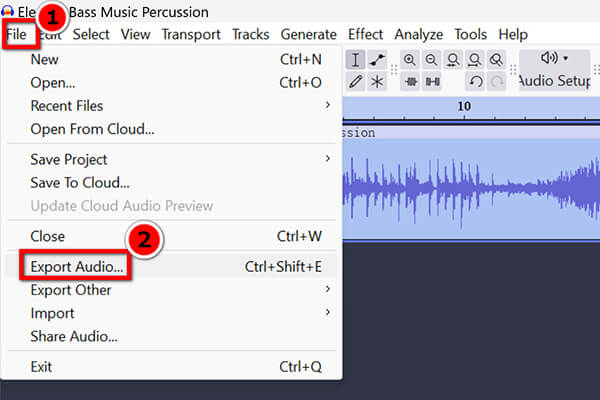
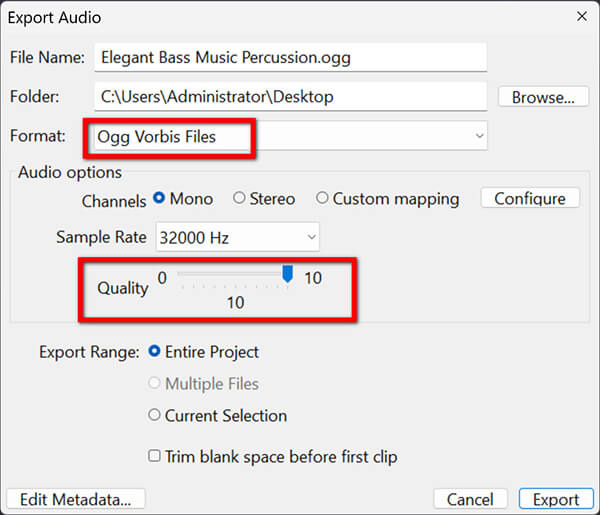
When exporting (File > Export audio), a dialog box will appear.
Under the OGG export options, drag the Quality slider all the way to 10. This ensures your high-frequency details are fully preserved.
4. Export
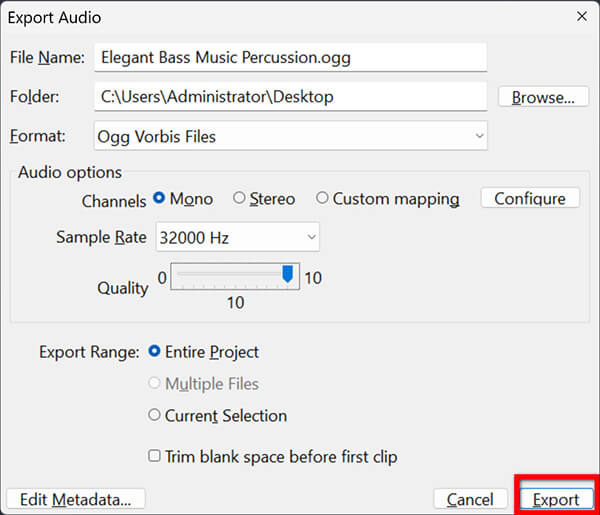
Choose your output directory and hit Export. If you are doing a single file, you can edit the metadata tags (Artist, Track Title) before the final save.
Audacity uses a variable bitrate (VBR) engine for OGG. Don't freak out if your media player reports a bitrate like 280kbps instead of a flat 320kbps. VBR automatically lowers the bitrate during silent parts of the audio to save even more space, then spikes it back up during complex musical sections. It is incredibly efficient!
Audacity is perfect for audio engineers and hobbyists who already use it for editing. The interface looks a bit old-school, and setting up batch actions takes a few extra clicks, but the price (free) and output quality are fantastic.
Real Test Results:
If you want the speed of an online tool but hate dealing with strict daily file limits or forced account registrations, this web app is built for you. AnyMP4 Free Online Audio Converter is the best WAV to OGG converter without size limit, running directly in a web browser. Most free online tools cap your uploads at 50MB or 100MB to force you into buying a premium subscription. This tool removes those roadblocks. It provides a clean, lightweight experience that lets you throw multiple large files into the queue at once.
1. Add WAV to the Online Tool
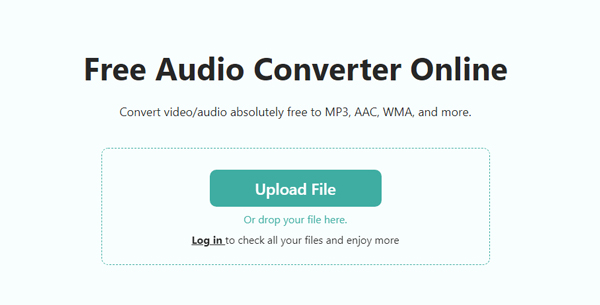
Navigate to AnyMP4 Free Online Audio Converter webpage. Click the large Upload File button. select your raw WAV tracks from your hard drive. They will display beautifully in a clean list right on your screen.
2. Output OGG
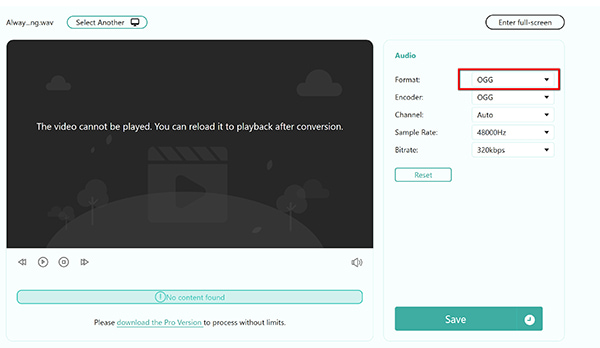
Look at the right of the window and click the audio output format drop-down list. Select OGG from the list. Under the format, you can adjust your bitrate to its highest preset.
3. Convert WAV and Save OGG
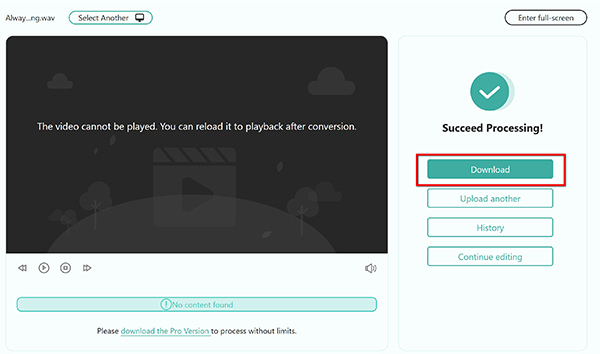
Hit the Save button, and this software will process the conversion. Once the process is done, you can click the Download button to save the converted OGG file on your computer, and open them in your OGG player.
This web tool is incredibly fast and efficient. It completely skips the annoying fluff, registrations, and watermark tricks common on other free conversion sites. It is perfect to keep bookmarked in your browser for daily use.
Real Test Results:
Most people think VLC is just a video player that can play literally any file format on earth. Surprise! It actually contains a powerful, hidden transcoding engine built right in. You almost certainly already have VLC installed on your machine. If you are stuck offline without an internet connection and need to convert a file immediately, you don't need to download anything new. VLC can convert your files entirely locally.
1. Open the Hidden Conversion Menu
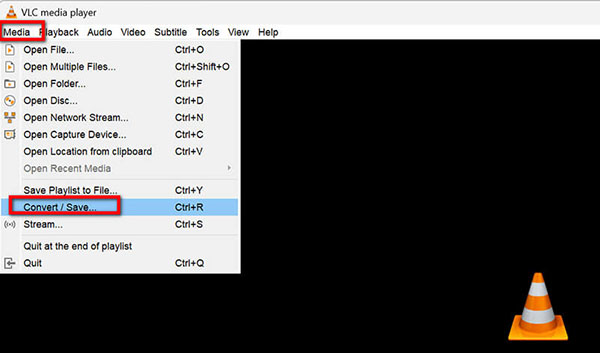
Open VLC Media Player. Do not drag your file into the player. Instead, click on Media in the top menu bar and select Convert / Save (or press Ctrl + R).
2. Add Your WAV Files
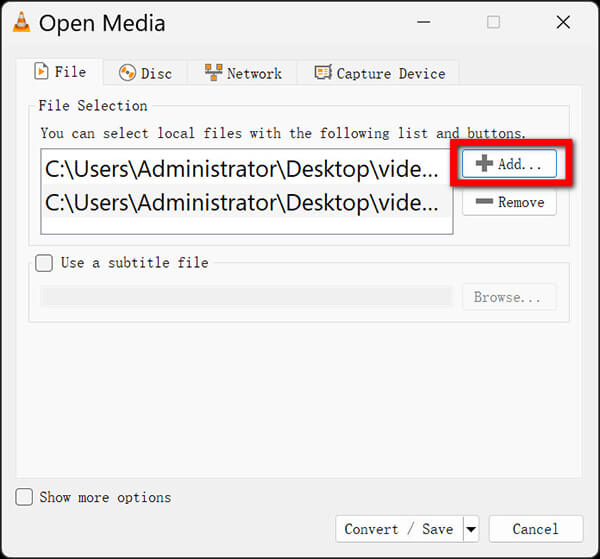
Click the Add button to browse and select your source WAV files. Once they show up in the file selection box, click the Convert / Save button at the bottom.
3. Create an OGG Profile
In the Profile dropdown menu, look for Audio – Vorbis (OGG) profile.
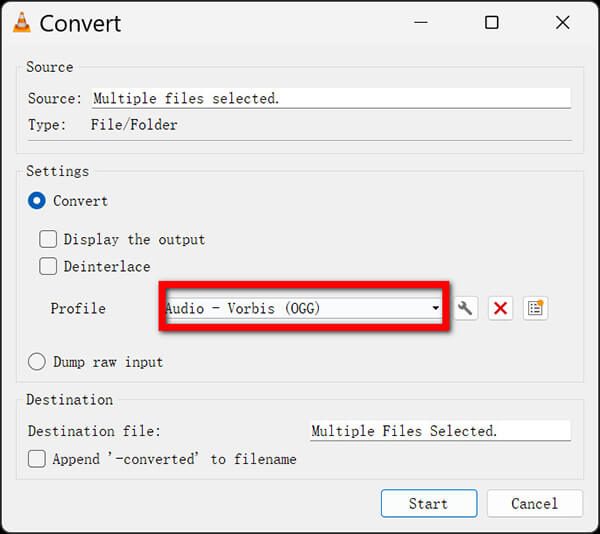
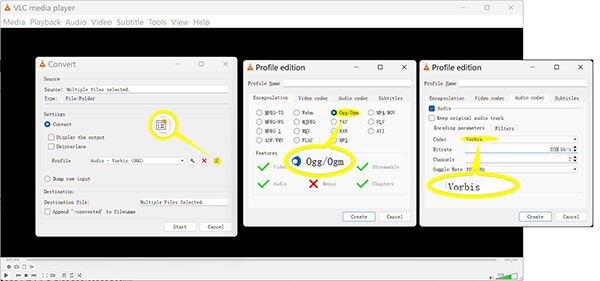
If you don't see a clear OGG option, click the wrench icon to create a new profile. Set the encapsulation to Ogg/Ogm and under the Audio codec tab, choose Vorbis and type in 320 kbps.
4. Specify Destination & Transcode
Select your target destination directory. Click Start. The timeline bar at the bottom of VLC will slide across the screen like it's playing a song at super speed—that is your file encoding!
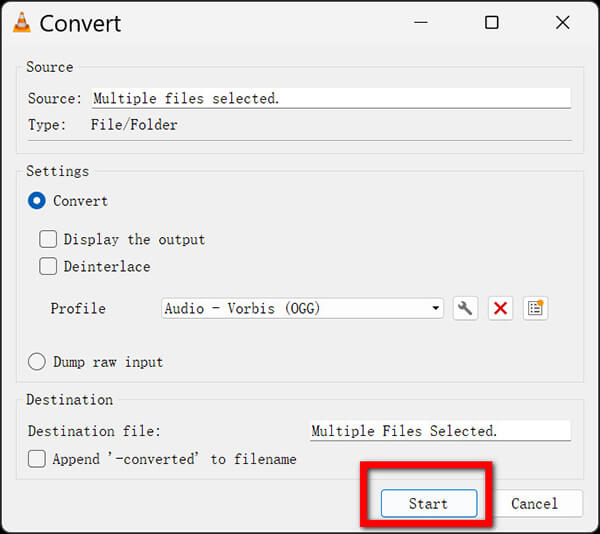
When using VLC for batch conversions, make sure you don't accidentally check the "Dump raw input" box. Doing that skips the compression entirely and outputs an identical, massive file with a broken extension name. Leave that setting alone!
VLC is an awesome backup plan. The interface is definitely clunky and feels like a 2010 design, but it operates completely offline, costs absolutely nothing, and handles conversions reliably.
How much hard drive space can I save by converting a 100MB WAV file to OGG Vorbis?
On average, you will save 80% to 85% of your hard drive space. A typical uncompressed 100MB WAV file compressed down to an OGG file at a high-quality 320kbps setting will end up around 15MB to 18MB. That frees up a massive amount of room across large projects!
Does converting uncompressed WAV to OGG result in a noticeable loss of audio quality?
Technically, OGG Vorbis is a lossy format, meaning it discards data that human ears cannot naturally perceive. However, if you keep your settings at 320kbps and match your original sample rate, the output file is acoustically indistinguishable from the source WAV file during regular listening. Your listeners or players will never tell the difference.
What is the optimal bitrate (e.g., 192kbps vs. 320kbps) when exporting OGG files for game engines like Unity?
For standard background music tracks and voice lines, 192kbps is the sweet spot because it balances a tiny file footprint with great stereo sound. For high-impact, complex sound effects like explosions, mechanical clangs, or ambient soundscapes where crisp high frequencies matter, always push it to 320kbps. Do not worry, even if you output the bitrate that is not what you need. You can also use a bitrate converter to change them easily.
Why does my browser crash when trying to batch convert multiple large WAV files to OGG online?
Most cheap online conversion websites use basic server setups or poor web layouts. When you upload multiple uncompressed gigabyte files at once, your browser quickly runs out of available RAM, causing a memory leak that crashes the entire tab. If you need to process large batches, stick to a local desktop tool.
Can Audacity convert WAV to OGG without installing additional audio encoders?
Yes, absolutely! Unlike MP3 formats which historically required downloading an external LAME encoder framework, Audacity has a native, built-in OGG Vorbis export engine. You can import your WAV files and export them as OGG right out of the box without any extra configuration.
When you are trying to clean up your storage drive or optimize assets for uncompressed WAV files, converting WAV to OGG Vorbis can shrink your audio footprint by over 80% while keeping high quality. Let’s look at a quick, actionable decision tree to get you moving forward immediately:
Secure Download
Secure Download
 Updated by Alice Thorne to Convert Audio
 More readings
 AVI to MPEG/MPEG to AVI – Top 5 Free and Professional Video Converters
Which AVI to MPEG converter does a good job? If you are looking for the best AVI to MPEG or MPEG to AVI file converter, you can check this review.
 How to Convert FLAC to OGG in 4 Easy Ways
Discover 4 reliable ways to convert FLAC to OGG while keeping audio quality. Follow our guide using desktop software, online tools, and free solutions.
 10 Ways to Convert between WAV and MP3 on Computer & Mobile
Looking for the best WAV to MP3 converter? We tested 10 methods on desktop, online, and mobile. From AnyMP4 (top pick) to free tools, find yours here.
 10 Best MP4 to WAV Converters for Lossless Audio Extraction
We tested the 10 best MP4 to WAV converters for computers and mobile devices. Get expert tips on PCM and bit rates to extract WAV without losing quality.
 Add your comments to join the discussion here