
If you need to convert FLAC to AIFF without losing audio quality, the most efficient solution in 2026 is using professional desktop software like AnyMP4 Video Converter Ultimate. This tool supports batch conversion, preserves original lossless quality, and avoids file size limits or upload delays. This is especially important if you work with large, high-fidelity audio libraries, studio recordings, or professional editing software such as Adobe Premiere Pro, Final Cut Pro, and Logic Pro. In our tests, converting 50 FLAC tracks totaling 2.5GB took less than 45 seconds while maintaining 100% original audio quality. This makes it the best audio converter for Windows 11 and macOS users who need fast, reliable, and lossless audio conversion.
If you regularly work with high-resolution audio, AnyMP4 Video Converter Ultimate is more than just a basic FLAC-to-AIFF converter. It functions as a complete productivity tool for digital workers who need fast, stable, and lossless audio processing. It supports batch conversion, GPU acceleration, customizable audio parameters, and high-fidelity export settings.
In our tests, converting 50 lossless FLAC tracks totaling 2.5GB to the 24-bit/192kHz AIFF format in batch took less than 45 seconds. Notably, CPU usage remained extremely low during the process. It also preserved 100% of the original audio quality, without distortion or bitrate degradation. These aspects make the tool the most reliable tool for high-quality AIFF solutions.
Secure Download
Secure Download
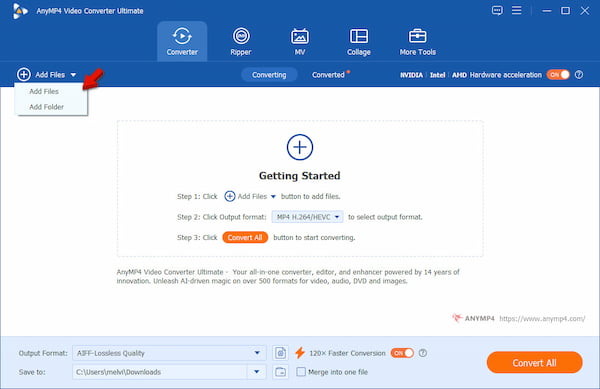
1. Open AnyMP4 Video Converter Ultimate to enter the Converter tab. Click +Add Files to import individual FLAC tracks. To convert an entire album or music collection simultaneously, select Add Folder instead.
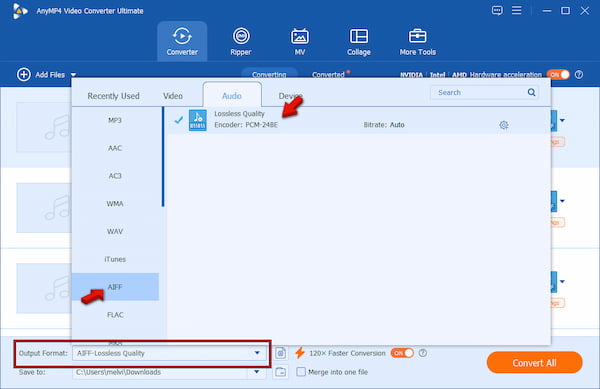
2. In the Output Format menu, navigate to the Audio category. Select AIFF as the target format and choose Lossless Quality as quality preset. Choose the original sample rate and lossless settings to maintain the quality.
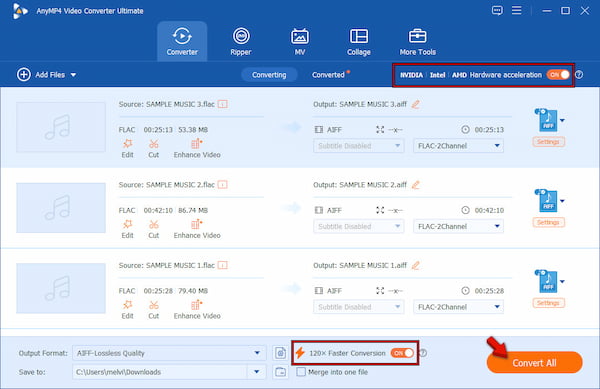
3. Proceed to the Save To selector and set the output directory. Before starting the conversion, enable 120× Faster Conversion to improve processing speed. Now click Convert All to batch-convert FLAC to AIFF at full audio quality.
Editor's Note: Beyond converting files, AnyMP4 Video Converter Ultimate also includes useful editing tools. You can trim audio clips, adjust metadata, or merge multiple tracks into a single file using the Audio Joiner.
Audacity is a well-known free and open-source audio editor. It allows you to convert FLAC to AIFF for playback on Apple devices. Additionally, it offers basic audio editing features, including trimming, noise reduction, and waveform editing.
Here's how to change FLAC into AIFF in Audacity:
1. In the File tab, select Import, and click Audio to import FLAC files. It will load the audio waveform into the editor for processing. If needed, you can make a basic audio adjustment.
2. Return to the File tab, then click the Export option. In the Export Format selector, choose AIFF (Apple) signed 16-bit PCM.
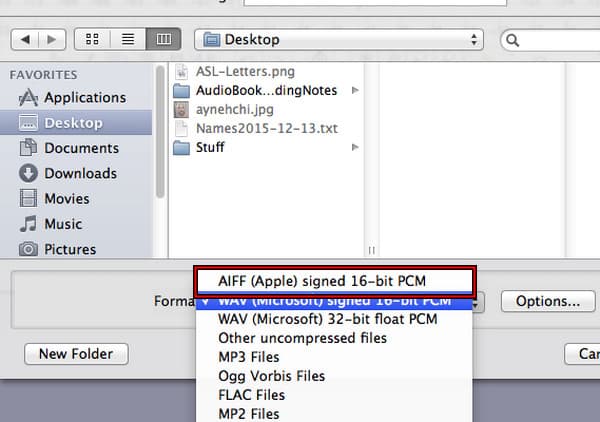
Editor's Note: Audacity's main advantage is that it is completely free, open-source, and offers powerful audio editing capabilities, including format conversion. However, its biggest limitation is its batch-processing approach. Converting multiple FLAC files requires setting up Macros or manually repeating the export process.
Apple Music is a built-in Mac application that can also serve as a FLAC-to-AIFF converter. By changing the import settings to AIFF Encoder, you can create AIFF versions of compatible audio files directly inside the Music app.
1. In the Apple Music app, navigate to Music, select Settings, then Files, and click Import Settings. In the Import Using dropdown menu, select AIFF Encoder, then click OK.
2. Click File and select Import to add the FLAC file to your library. Once imported, select the track in your library. Move to File again, select Convert, and click Create AIFF Version. It will generate a new AIFF copy of the track in your music library.
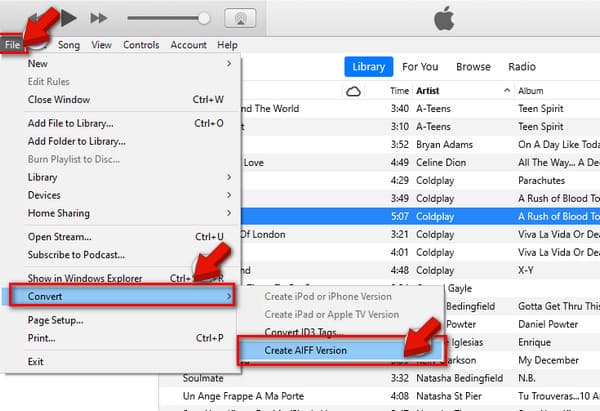
Editor's Note: Apple Music is best for die-hard Apple users who prefer native macOS applications and basic audio management. However, it requires changing global import settings each time you convert formats.
FreeConvert is a FLAC-to-AIFF converter that supports quick uploads and simple format selection. You can upload FLAC files, select AIFF as the output format, and start the conversion within seconds. It also supports cloud imports like Google Drive and Dropbox.
1. On the FreeConvert homepage, click Choose Files to upload your FLAC audio. You can also import audio from cloud services or paste a FLAC URL.
2. Set AIFF as the target format and adjust optional audio settings if needed. After that, click Convert, then download the AIFF file once processing is complete.
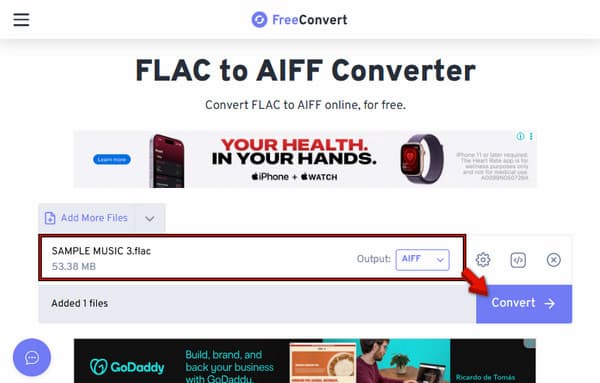
Editor's Note: FreeConvert currently has a maximum file size limit of 1GB, which a few lossless albums can easily exceed. The free version is also ad-heavy, which may affect usability.
Zamzar is another online converter that can convert FLAC to different formats, including AIFF. It is ideal to use for small files and quick format conversions. You can also use this tool to convert AIFF to Apple Lossless and M4A formats.
1. Navigate to the Zamzar page and click Choose Files to import your FLAC track. In the Convert To selector, choose AIFF from the list of available output formats.
2. Click Convert Now and adjust the output parameters if needed. Then, wait for the system to process your file. You need to enter your email to receive the download link.
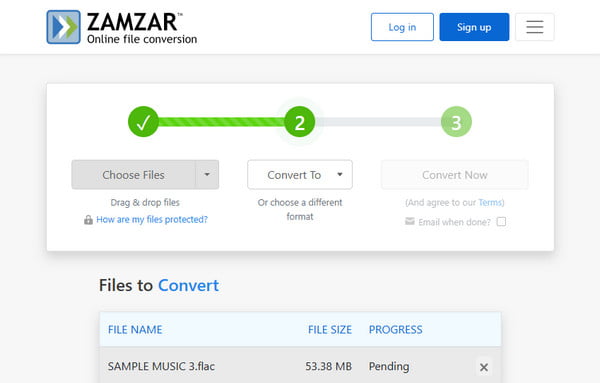
Editor's Note: Zamzar's free plan supports files up to 50MB, so a single high-quality FLAC track often exceeds that limit. It also requires queuing, which can slow conversions during peak usage.
Conversion Guide: If your FLAC files are more than 50MB, or you need to convert an entire album, we recommend using AnyMP4 Video Converter Ultimate to bypass all network delays, file size restrictions, and batch conversion limitations.
Choose FLAC if:
Choose FLAC for efficient storage without sacrificing quality. It is a lossless compression format that preserves original sound quality while reducing file size. It is ideal for music archiving, personal libraries, and devices where storage space matters.
Choose AIFF if:
You should choose AIFF if you work in professional audio or video editing environments. It is an uncompressed lossless format that delivers full audio quality with no compression. It is supported by macOS, iOS, Logic Pro, Final Cut Pro, and Adobe Premiere Pro, making it ideal for production workflows.
| FLAC | VS | AIFF |
| .flac | Filename Extension | .aiff, .aif |
| Free Lossless Audio Codec | File Fullname | Audio Interchange File Format |
| Lossless | Type of Format | Lossless |
| Compressed | Compression Type | Uncompressed |
| Fully open-source | Open-Source Status | Open |
| 20MB to 60MB for a standard 3-4 minute song | File Size | 10MB of storage per minute of stereo audio |
| Windows, Linux, and Android | Platform Compatibility | macOS, iOS, Logic Pro, Final Cut Pro, and Adobe Premiere Pro |
| Storage and archiving | Main Application | Editing and production |
Does converting FLAC to AIFF lose audio quality?
No, it does not degrade audio quality because both formats are lossless. FLAC is a compressed lossless format, while AIFF is uncompressed lossless. Use AnyMP4 Video Converter Ultimate to remain the audio data intact during conversion.
Which format is better for Mac and iOS: FLAC or AIFF?
AIFF is better for Mac and iOS. These formats are natively supported on Apple devices and editors like Logic Pro and Final Cut Pro. FLAC is not supported on Apple devices and must be converted before playback or editing.
How can I batch convert FLAC to AIFF for free?
For larger libraries or full album conversion, a professional tool like AnyMP4 Video Converter Ultimate is more efficient. Additionally, it supports true batch processing without loss of quality or file-size restrictions. With it, you can also batch-convert FLAC to WAV quickly.
Converting FLAC to AIFF ensures lossless audio quality with better compatibility for Apple devices and professional editing tools. FLAC is ideal for storage, while AIFF is best for production workflows. If you handle large audio or need batch conversion without quality loss, use AnyMP4 Video Converter Ultimate. It provides a fast, stable, and lossless way to convert FLAC to AIFF formats.
 Updated by Alice Thorne to Convert Audio
More readings
 4 Simple Ways to Convert M3U8 to MP4
You may need to convert M3U8 to MP4 or other popular formats to share with friends.
 10 Best Methods to Extract Audio from MP4 Video
You can easily extract audio from MP4 with some useful tools and methods.
 How to Convert MP3 to MP4 Step by Step
Do you want to convert MP3 to MP4? You can follow the guides to change audio to video.
 3 Simplest Ways to Convert WRF to MP4
If you want to share your WRF file, you may need to check out methods to convert WRF to MP4.
 Add your comments to join the discussion here