FLAC to MP4: The Ultimate Guide for Lossless Audio-to-Video
Summary:
To convert FLAC to MP4 without quality loss, you need a tool that handles high-bitrate audio transcoding into a video container. Professional software like AnyMP4 Video Converter Ultimate allows you to merge FLAC audio with images/videos for YouTube. Meanwhile, AnyMP4 Free Online Video Converter offers a quick, no-install solution for simple format changes. This guide explores the best methods to ensure your 24-bit audio remains crystal clear in an MP4 wrapper.
Converting FLAC to MP4 may sound unusual. FLAC is known for lossless compression, preserving every detail of your audio. However, it isn't always compatible with platforms that require a video container, such as MPEG-4 (MP4). To make your audio playable on more devices or upload-ready for YouTube, you need to combine it with a visual layer and encode it with an audio codec (AAC/ALAC), while maintaining a high bitrate (320 kbps+) and the original sample rate. The goal is to ensure metadata preservation, YouTube compatibility, and efficient processing with hardware acceleration, all without compromising sound quality.
Why Convert FLAC to MP4? (Common Use Cases)
Many users convert FLAC to MP4 to make the audio usable for platforms that require video formats. YouTube and Instagram do not accept pure audio files, so pairing FLAC files with an image or video becomes necessary. Another reason is multimedia playback compatibility, as some mobile devices struggle to decode FLAC. From personal testing, converting FLAC to MP4 helps optimize file size when using the H.264 video codec with AAC audio.
Method 1: The Professional Way – AnyMP4 Video Converter Ultimate (Best for Batch & Editing)
AnyMP4 Video Converter Ultimate is a powerful FLAC-to-MP4 converter that combines speed, flexibility, and top-tier quality. It utilizes 70× faster hardware acceleration powered by NVIDIA, AMD, and Intel. These capabilities make AnyMP4 ideal for converting large FLAC albums to MP4 in seconds. Unlike basic converters, it lets you add images or video clips as the background for your audio, which is mandatory for YouTube uploads. Notably, it supports high-resolution output and maintains the FLAC file's original sample rate.
Key Features: Why It Stands Out for Audiophiles
- Convert multiple FLAC files simultaneously while preserving folder structure and metadata.
- Easily add album covers, static images, or video backgrounds to make audio YouTube-ready.
- Customize the audio codec (AAC), bitrate, channel, and sample rate, with the option to choose the H.264 video codec.
- Export videos in HD, 4K, or even 8K resolution, ensuring compatibility with modern platforms and devices.
Step-by-Step: Converting FLAC to MP4 with High-Quality Visuals
Here's how to convert a FLAC file to MP4:
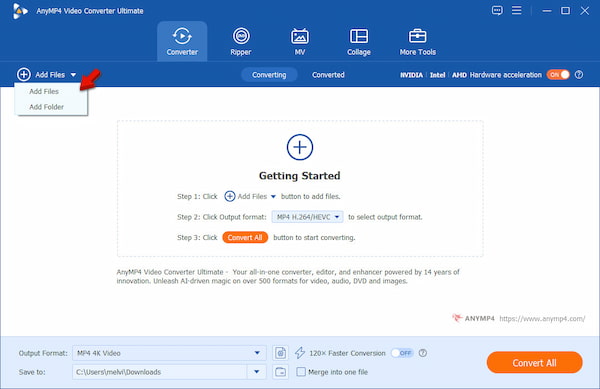
1. Launch AnyMP4 Video Converter Ultimate to access the main dashboard. In the Converter tab, click +Add Files and select Add Files to import your FLAC files. For batch conversion, choose Add Folder instead.
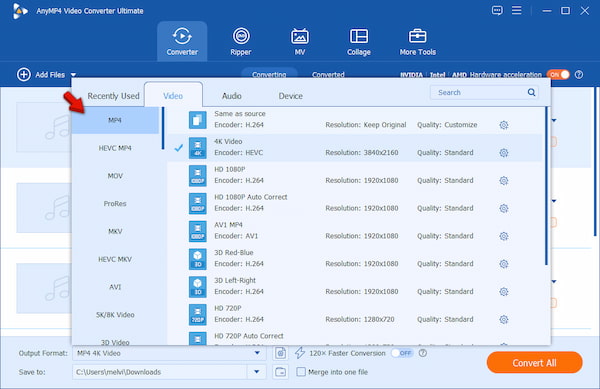
2. Proceed to the Output Format selector and navigate to the Video category. Choose MP4 as your output format and select your preferred quality. Then, open Profile Settings to configure the video codec to H.264 and audio encoder to AAC.
3. Move to the Save To selector and set your destination folder. Then, enable 120× Faster Conversion to maximize speed and efficiency. Click Convert All to convert all files simultaneously while preserving metadata and maintaining high-quality output.
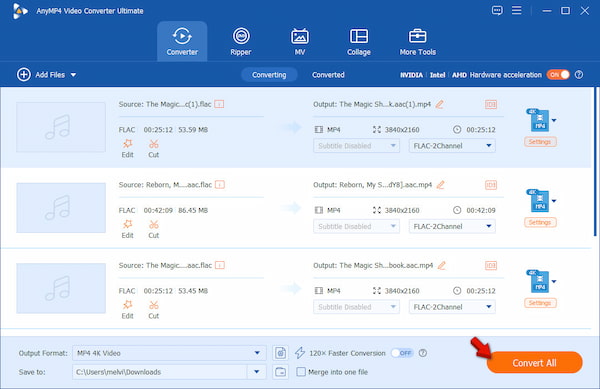
AnyMP4 Video Converter Ultimate stands out for its ability to retain the original sample rate during AAC encoding. During testing, even high-frequency audio details remained intact. The drag-and-drop interface and consistent, reliable performance make it suitable for both beginners and advanced users.
Method 2: The Quick Solution – AnyMP4 Free Online Video Converter
AnyMP4 Free Online Video Converter is a web-based tool that delivers a fast solution to convert FLAC to MP4 for free. It eliminates the need for installation, making it highly accessible on any device. Whether you're using Windows or Mac, you can instantly start converting files. Unlike other online tools, it supports long audio files with no file-size limit. Additionally, it delivers reliable results with standard codecs like AAC, ensuring good multimedia playback and compatibility.
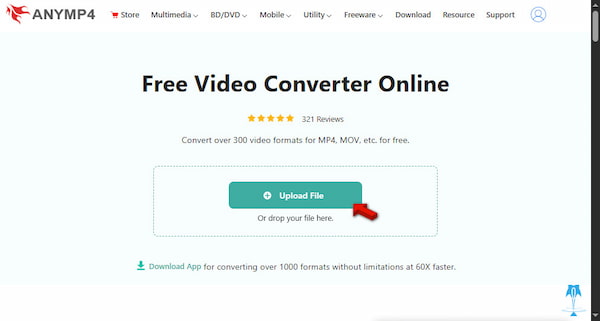
1. On a browser, reach the official page of AnyMP4 Free Online Video Converter by clicking the provided link. On the homepage, click + Upload File to import your FLAC file. Alternatively, drag and drop it into the browser window.
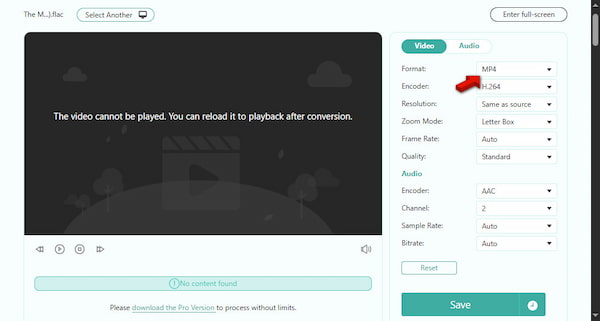
2. Navigate to the Format selector and choose MP4 as your output. You can also adjust encoder, resolution, frame rate, quality, channel, sample rate, and bitrate. Click Save to begin the conversion process. Afterward, it will automatically download the MP4 file to your device.
AnyMP4 Free Online Video Converter is ideal when you're in a hurry or using a shared device. The absence of file-size limits is a major advantage over other web tools. However, conversion speed depends on your internet connection.
Method 3: Alternative Tools
VLC Media Player
VLC Media Player is a free and widely available solution to convert FLAC to MP4 in Windows, Mac, and Linux. Aside from being a FLAC player, it supports basic transcoding and allows you to convert audio into a video container using H.264 video codec and AAC audio.
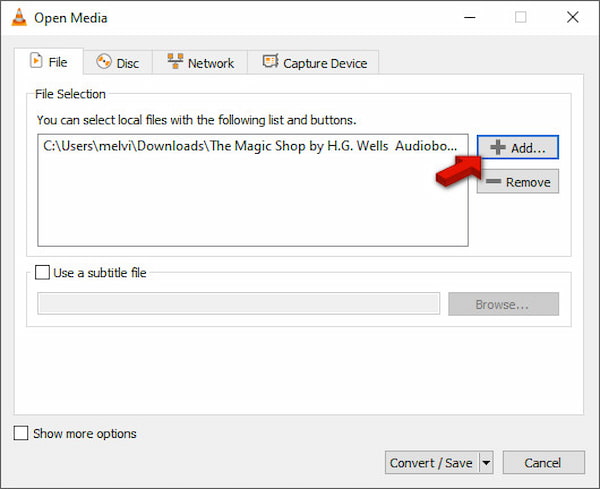
1. In VLC, click Media and select Convert/Save to open the conversion window. In the File tab, click Add to import a FLAC file, then hit Convert/Save to proceed.
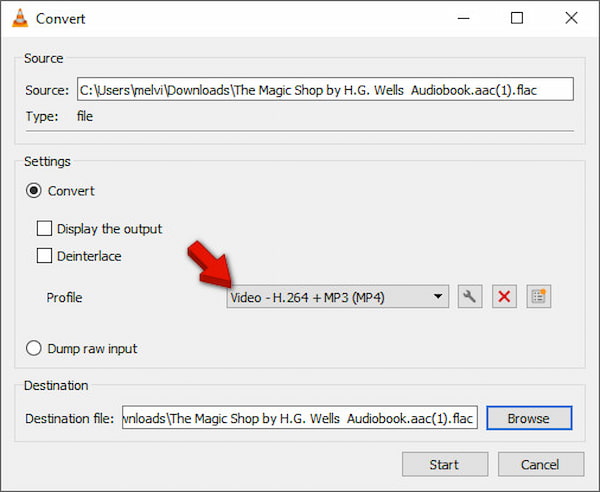
2. In the Profile dropdown, select the Video – H.264 + MP3 (MP4) option. Then, move to the Browse selector and choose your output folder. Click Start to begin the process.
VLC is best suited for quick, offline methods without installing specialized software. However, maintaining high-fidelity audio requires careful selection of settings. From experience, VLC works well for basic tasks, but the interface can feel limited compared to dedicated converters. In addition, it does not support editing. If you need one, check out the best free video editing software here.
FFmpeg
FFmpeg is the best FLAC-to-MP4 software with full control over transcoding settings. If you want to change the container without adding a picture, use this command. Note that we usually convert the audio to AAC because it is the native audio standard for MP4.
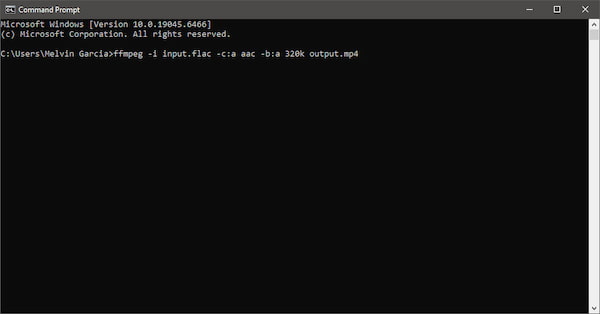
The Command:
ffmpeg -i input.flac -c:a aac -b:a 320k output.mp4
Breakdown of Steps:
- • -i input.flac: Specifies your source file.
- • -c:a aac: Tells FFmpeg to use the AAC encoder (standard for MP4).
- • -b:a 320k: Sets the bitrate to 320kbps for high-quality audio.
- • output.mp4: The name of your new file.
Pro Tip
If you want to keep the audio lossless inside the MP4 container, use -c:a alac (Apple Lossless). Most modern players support ALAC inside an MP4 wrapper.
FAQs about Converting FLAC to MP4
Q: Does converting FLAC to MP4 reduce audio quality?
A: It can, depending on the settings you use. If you convert using a lossy codec, some audio detail is compressed and reduced. However, if you choose a high-bitrate AAC setting, the quality loss is minimal.
Q: How do I convert FLAC to MP4 for YouTube?
A: You need to use a converter that supports adding audio to a video container format. For this purpose, you can use AnyMP4 Video Converter Ultimate. Import your FLAC file, choose MP4 as the output format, and set the audio codec to AAC with a bitrate of 192 kbps or higher.
Q: Is there a free way to convert FLAC to MP4?
A: Yes, options include VLC Media Player, FFmpeg, and AnyMP4 Free Online Video Converter. These tools offer basic conversion at no cost, though they may have limitations such as fewer customization options, slower processing, or file-size restrictions.
Q: Can VLC convert FLAC to MP4?
A: Yes, VLC can convert FLAC to MP4. You can use the Convert/Save feature, select MP4 as the output format, and choose an audio profile. While VLC is free and reliable, it offers fewer advanced settings than professional converters.
Q: Why is my MP4 file so much larger than the FLAC?
A: If your MP4 file is larger than your FLAC file, it is due to encoding settings or added video content. FLAC is highly compressed but lossless, while MP4 size depends on bitrate, codec, and whether it includes video or images. Using a high bitrate AAC setting or embedding video elements can easily make the MP4 larger than the original FLAC audio file. You may also want to know why FLAC files are so big. Check here to learn more.
Conclusion
Converting FLAC to MP4 is a way to combine high-fidelity audio with a widely supported video format. With the right tool, you can achieve seamless integration between audio and video workflows. Modern converters offer a user-friendly experience, reliable performance, and fast processing. These tools make the conversion process simple even for beginners. This ensures your files remain compatible across multiple platforms, helping you future-proof your audio library. Ultimately, the choice of method depends on your needs. Whether you want a simple format swap for playback or a YouTube-ready video with optimized output settings. For professionals, AnyMP4 Video Converter Ultimate delivers a user-friendly, high-speed experience. For simpler needs, AnyMP4 Free Online Video Converter offers a hassle-free alternative. Choose based on your workflow and start transforming your audio into shareable MP4 files today.



 Fully Supported
 (Audio only)

 Add your comments to join the discussion here