Top 3 FLAC CUE Splitter to Separate into Individual Audio Tracks on Windows and Mac
Quick Summary:
To split a single large FLAC file with a CUE sheet losslessly, use AnyMP4 Video Converter Ultimate for professional, rapid batch processing on both Windows and Mac. If you prefer a completely free, lightweight legacy desktop tool for Windows, use Medieval CUE Splitter. For quick, single-file extractions directly inside your web browser without installing any software, opt for Aspose Audio Splitter.
If you have ever downloaded a high-fidelity CD rip online, you know the immediate frustration of getting one massive, 60-minute .flac file paired with a tiny, cryptic .cue sheet. You can't easily skip to your favorite song, mobile media players refuse to index the tracks, and your car stereo treats the entire album as a single unmanageable block.
To fix this, you need to split it into multiple standalone tracks and extract the FLAC tracks for direct playback with the FLAC player. Below, we will share our hands-on test of the top 3 FLAC CUE splitters available today to help you clean up and modernize your individual lossless music library.

How We Tested These FLAC CUE Splitters
- To deliver a completely transparent, fluff-free review, our team set up a dedicated testing workflow. We tested across identical rigs running Windows 11 Pro and macOS Sequoia.
- Our test pool consisted of 15 distinct FLAC albums (ranging from standard 16-bit rips to massive 24-bit/192kHz audiophile studio masters, between 200MB and 1.8GB in size). Crucially, we included a mix of older ANSI encoded CUE sheets and modern UTF-8 layouts to see how each tool handled character mismatches. We graded each splitter on 3 unyielding metrics: sector-alignment frame accuracy (ensuring zero chopped intros or pop artifacts), ID3 tag/album art preservation, and batch conversion speed under heavy loads.
|
AnyMP4 Video Converter Ultimate (Best Choice) |
Medieval CUE Splitter (Classic Free) |
Aspose Audio Splitter (Online) |
| Best For |
Professional batch splitting & Hi-Res audio. |
Legacy Windows users & tech-savvy geeks. |
One-time tasks with small files. |
| Installation |
Required (Desktop App) |
Required (Desktop App) |
None (Web-based) |
| System Support |
Windows 11/10/8/7 & macOS |
Windows only (Older versions) |
Any browser (Win, Mac, Mobile) |
| Processing Speed |
Ultra-Fast (Hardware Acceleration) |
Moderate |
Slow (Limited by upload/download) |
| File Size Limit |
Unlimited |
Unlimited |
Limited (Usually < 150MB) |
| Audio Quality |
100% Lossless Preservation |
Lossless |
Potential compression loss |
| Batch Processing |
 (Split multiple albums at once) (Split multiple albums at once) |
|
 |
| Metadata Support |
Auto-preserves & edits ID3 tags/covers. |
Preserves basic tags. |
Very limited. |
| Update Status |
Regularly updated for 2025 compatibility. |
Discontinued (May have bugs). |
Maintained online. |
Method 1: AnyMP4 Video Converter Ultimate - The Ultimate FLAC CUE Splitter for Mac & Windows
The easiest and most professional way to split FLAC CUE files is with AnyMP4 Video Converter Ultimate. As the industry-leading FLAC CUE splitter and converter for Windows and Mac, it goes far beyond simple cutting.
Unlike legacy tools such as Medieval CUE Splitter, the 2026 version of AnyMP4 integrates AI-Powered Audio Enhancements. This allows you to not only extract individual tracks but also use AI Noise Reduction to remove background hiss and Volume Booster to normalize audio levels across an entire album, and features that traditional splitters simply don't offer.
Recommendation
- Smart CUE Extraction: Automatically parses CUE sheets to separate tracks with 100% frame accuracy.
- AI Audio Toolkit: Clean up old recordings with AI-driven noise removal and clarify vocals with one click.
- Lossless Conversion: Save your split tracks into MP3, M4A, AAC, AIFF, or maintain high-resolution quality with WAV, ALAC, and WMA.
- Universal Compatibility: Optimized presets for the latest iPhone, iPad, high-end Audiophile players, and gaming consoles (PS5/Xbox Series X).
- Metadata Preservation: Automatically transfers all ID3 tags (Artist, Album, Year, Genre) and high-resolution album art to every individual track.
Overall, AnyMP4 Video Converter Ultimate provides the most stable, modern, and feature-rich solution for splitting FLAC CUE files while enhancing the overall listening experience through cutting-edge AI technology.
PROS
- Lossless Accuracy: Splits files with 1:1 original quality.
- High Performance: Up to 70x faster splitting speed with hardware acceleration.
- AI Audio Tools: Unique features like AI Noise Removal and Volume Booster to improve old recordings.
- Batch Mode: Split dozens of albums simultaneously.
- Full Metadata: Automatically keeps or edits ID3 tags and high-res album art.
- Cross-Platform: Full support for both Windows 11 and macOS Sequoia.
CONS
- Requires a download and installation.
- Full features are available in the Pro version.
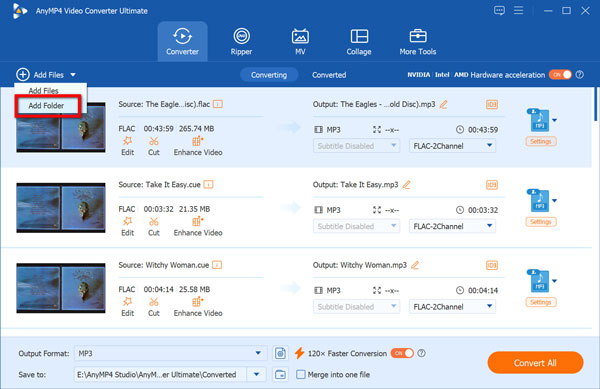
1. Add FLAC CUE file
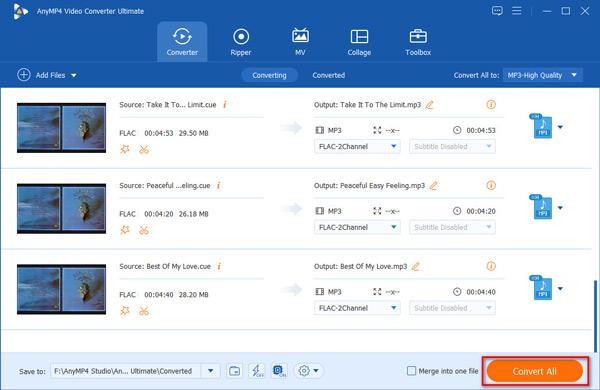
After installing AnyMP4 FLAC CUE splitter software, you can launch the program and open the main interface, then click "Add Files" drop-down list to add the FLAC CUE file as one folder to the program.
2. Select the output format
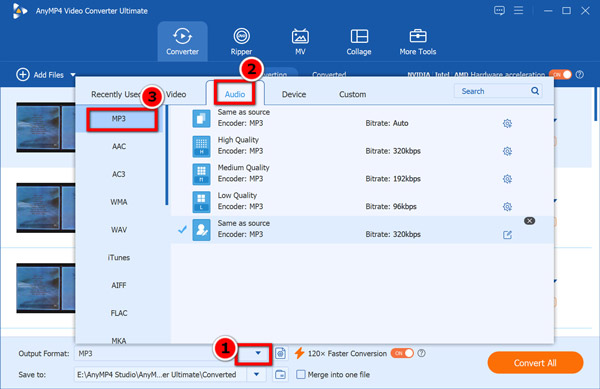
Click the drop-down arrow of "Output Format" and choose "Audio" section to select one output format like MP3, M4A, MP2, WAV, and WMA and other.
Select FLAC to guarantee a 1:1 lossless studio copy, or select MP3 if you are optimizing space for a mobile device.
3. Split FLAC CUE tracks
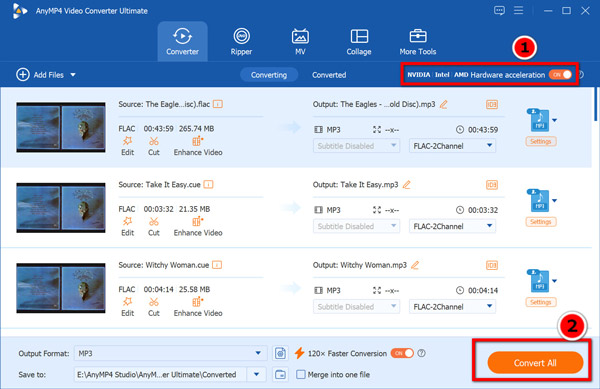
This FLAC CUE splitter and converter software highly supports batch conversion, click "Convert All" button and all your FLAC files would be converted to your wanted audio format in a short time.
To split your FLAC CUE file faster, do not forget to toggle on the GPU acceleration at the top-right corner.
Tips
Additionally, the desktop toolkit features built-in AI audio utilities,like an AI Noise Remover to clean up vintage vinyl rips and a Volume Booster to normalize uneven track volumes across compilation albums.
Method 2: Medieval CUE Splitter - Classic Windows CUE Splitter Portable Freeware
Medieval Cue Splitter is a freeware that efficiently splits large FLAC CUEs into separate audio tracks based on CUE sheet information. Besides FLAC, it supports MP3, APE, OGG, WAV, WMA, and many other popular lossless or lossy audio formats without decoding/re-encoding any audio data. Before the popularity of modern media players and audio converters, it was very common to process single-file albums with CUE sheets. Medieval Cue Splitter provides a reliable and straightforward way to break these large files into individual manageable tracks for easy organization and listening.
PROS
- It is a portable and free-to-use tool.
- Split FLAC CUE files without decoding or re-encoding.
- Designed specifically for splitting audio files using CUE sheets.
CONS
- Not actively updated with the latest features.
- Focus on splitting, no audio/video format conversion.
- Limited functionality, only supports splitting FLAC CUE.
Now, let's check how this FLAC CUE splitter works to split the CUE file.
Steps of Using Medieval Cue Splitter to Split FLAC Files
1. Firstly, you should download this CUE splitter from its official page to your Windows computer. Follow the onscreen instructions to install and run it.
Note: You should agree to be bound by the terms of the Medieval Freeware License. Otherwise, you cannot use it.
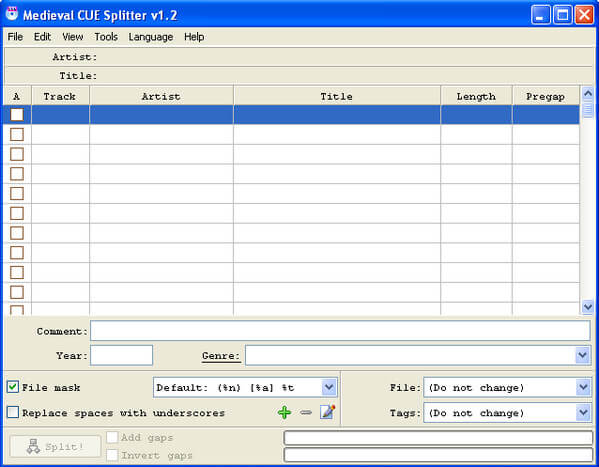
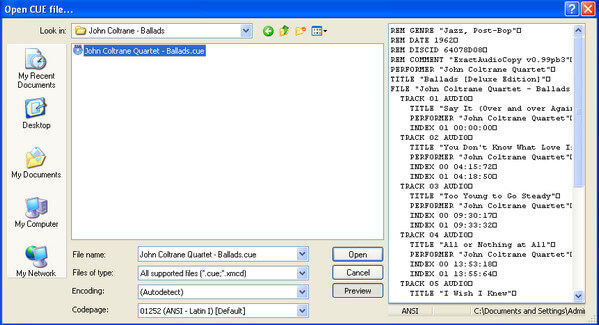
2. Click "File" > "Open CUE file…" from the top menu to open and select the CUE files that you want to split. This FLAC CUE splitter supports batch files split, and you are allowed to add more than one FLAC CUE files into this software.
3. When you're ready to split the large .flac file into individual tracks, click the "Split" button in the bottom right corner of the window.
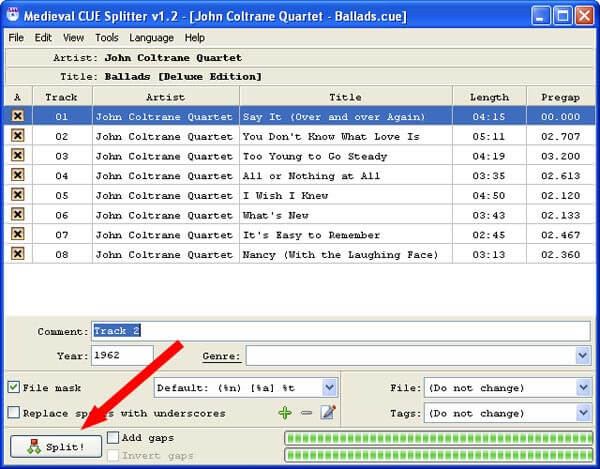
Once completed, a small pop-up window will appear and click "OK" to complete the whole splitter. At last you will have each track on the album as an individual .flac file, and you could play the split FLAC files with the FLAC player directly.
Note: There are the limits you should know:
- MPC engine can cause a bit of jitter at the beginning/end of tracks.
- MD5 checksum is not calculated for generating FLAC files.
- There is a tag in FLAC CUE splitter.
Troubleshooting: how to fix common medieval cue splitter errors
Although Medieval CUE Splitter is a classic tool, many users encounter errors on Windows 10 and 11 because the software hasn't been updated in years. Here are the most common issues and how to fix them:
Problem 1: "External Exception E06D7363" or "File Not Found"
This is the most frequent error. It usually happens because the CUE file cannot correctly "locate" the corresponding FLAC file.
The Fix: Open the .cue file with Notepad. Look for the line that starts with FILE. Ensure the filename inside the quotation marks matches your FLAC file's name exactly (including the extension).
Example: FILE "album-audio.flac" WAVE
Problem 2: "Floating point division by zero" Error
This often occurs when the software tries to process a corrupted CUE file or one with non-standard time formatting.
The Fix: Check if the CUE file uses UTF-8 encoding. Medieval CUE Splitter works best with ANSI encoding. Open the CUE in Notepad, click "Save As," and change the encoding to ANSI before trying again.
Problem 3: Software Freezes During Splitting
On modern Windows systems, the software may lack the necessary permissions to write files to protected folders.
The Fix: Right-click the Medieval CUE Splitter icon and select "Run as Administrator." Additionally, try setting the Compatibility Mode to "Windows 7" in the file properties.
Tips
Because the tool has been completely discontinued and unmaintained for years, it lacks any formatting or encoding conversion options, does not support Mac, and struggles heavily with modern system permissions. If you try running Medieval CUE Splitter on a modern Windows 11 machine, you will almost certainly get smacked with cryptic "External Exception" or "File Not Found" errors. It is incredibly frustrating to waste half an hour opening a .cue sheet in Notepad just to force an old app to recognize a filename that modern software opens instantly. If your time is valuable, using a modern alternative like AnyMP4 Video Converter Ultimate is highly recommended.
Method 3: Aspose Audio Splitter - Split FLAC CUE Online Without Installation
For users who only have a few small files or prefer not to install any software on their computer, using an online CUE splitter is a viable solution. Currently, Media.io and Aspose Audio Splitter are the most reliable web-based tools for this task.
Here, we will take the online tool, Aspose Audio Splitter, as an example to show you the steps.
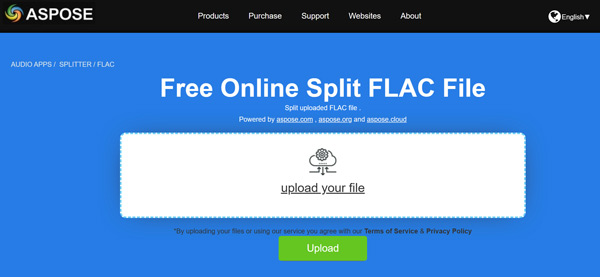
1. Go to the Aspose Audio Splitter official webpage.
2. Click inside the file drop area to upload your FLAC file.
Note
This tool only supports a FLAC CUE file at the maximum file size of 150MB.
3. Select the output format (keep it as FLAC for lossless quality or choose MP3 for better compatibility). Choose the split mode based on the CUE sheet timestamps.
4. Click the SPLIT button. Once the processing is finished, click the DOWNLOAD link to get your split tracks in a ZIP archive.
Why choose Aspose?
- • Safety: Uploaded files are automatically deleted from their servers after 24 hours.
- • No cost: It is free to use for files within their size limits.
Limitations to consider:
- • Stability: Large FLAC albums (e.g., 24-bit/192kHz) can be several gigabytes, which often causes online browsers to time out or crash during the upload.
- • No batch editing: You cannot edit ID3 tags or album art for all tracks at once like you can in AnyMP4 Video Converter Ultimate.
Our recommendation:
Use an online tool for a quick, one-time task with small files. However, for a high-quality, stable, and unlimited splitting experience, a desktop FLAC CUE splitter is always the superior choice.
FAQs: Common Questions About Splitting FLAC Files with CUE Sheets
How do I split a FLAC file with CUE on Mac?
To split a FLAC file with a CUE sheet on macOS, you must avoid outdated Windows emulators and use a native multi-platform application. AnyMP4 Video Converter Ultimate for Mac offers full optimization for latest macOS. Simply drag your album file into the Mac interface, choose your preferred target format (like lossless FLAC, WAV, or high-bitrate MP3), and click Convert All instantly to separate the image into standalone songs with all ID3 metadata and album covers perfectly intact.
How to split APE files with CUE?
Medieval Cue Splitter is also the software that can be used to split APE files with CUE on your computer. Click File to choose Open CUE file to import the APE with CUE files. After that, click Split to split the APE files with CUE immediately.
How to split FLAC files without CUE?
Without CUE, you can easily split the FLAC files with the third-party software. AnyMP4 Video Converter Ultimate is the software that can split the FLAC files directly. Just click Add File to import one or more FLAC files, and click the clip feature to split one file into parts.
Can I split a FLAC file without a CUE file?
Yes, you can. If you don't have a CUE sheet, you cannot split the file automatically by tracks. However, you can use the manual clipping feature in AnyMP4 Video Converter Ultimate. You can listen to the audio and set the "Start" and "End" times for each segment yourself to extract specific parts of the song or album.
Will splitting a FLAC file reduce the audio quality?
No. As long as you use a professional splitter and set the output format to FLAC (Lossless), the audio quality remains identical to the original file. The splitting process simply "cuts" the data container at specific timestamps without re-encoding or compressing the actual audio data.
How to fix the Medieval CUE Splitter "File not found" error?
This is a common error caused by a mismatch between the .cue and .flac file names. To fix it:
1. Open the .cue file with Notepad.
2. Find the line starting with FILE.
3. Ensure the filename inside the quotes matches your .flac file name exactly (e.g., FILE "album.flac" WAVE).
4. Save the CUE file and try again. If it still fails, consider using a modern alternative like AnyMP4 as Medieval is no longer updated for Windows 11.
Conclusion
Choosing the best FLAC CUE splitter depends on your specific needs.
• The Audiophile Choice: If you are managing large high-resolution audio libraries, need batch processing, require metadata editing, or operate on macOS, Method 1 (AnyMP4 Video Converter Ultimate) is the superior, error-free automated option.
- • The Vintage Choice: If you are on an older Windows 7 or 10 machine and simply want a lightweight, completely free tool for a single legacy album, Method 2 (Medieval CUE Splitter) will do the job perfectly—provided you don't mind editing a few text files to fix encoding bugs.
- • The Temporary Choice: If you are on a restricted work computer, don't have administrative installation rights, and need to split a small, single audio file immediately, Method 3 (Aspose Online Splitter) serves as a reliable temporary fallback.






 Add your comments to join the discussion here