
Quick summary:
iPhones can play FLAC files, but only in a limited way. You can open them using the Files app or third-party music apps, but they won’t work inside Apple Music. If you want everything to run smoothly on Apple devices, it’s better to convert FLAC to ALAC.
You have spent years building a clean FLAC music library for its perfect sound quality, only to discover it doesn’t work smoothly on an iPhone. That leads to a common question: can iPhone play FLAC? The short answer is yes, but it depends on how you do it. iPhones can play FLAC files using the Files app or third-party music apps, but it won’t work fully in Apple Music.
This guide shows how FLAC works on iPhone, the limits of built-in support, and other app options you can use. It also explains why converting FLAC to ALAC is often better for Apple devices, since it keeps the same sound quality while improving compatibility. You’ll also learn about an easy tool to convert large FLAC libraries without hassle.
Many users who ask whether iPhones play FLAC are surprised to learn that iOS has finally supported FLAC playback since iOS 11. However, the iPhone can play FLAC files natively only in the Files app. It lacks the library integration available with standard Apple-supported formats.
A major reason users search for Apple Music support for FLAC is that FLAC files do not appear in the Apple Music library. Apple's ecosystem is heavily centered around ALAC, its own lossless format. It offers similar audio quality and integrates with iTunes and Apple Music.
Users researching how to play FLAC on iPhone should also understand hardware limitations. Modern iPhones can decode high-resolution FLACs, including 24-bit/192kHz audio. However, the built-in Lightning or USB-C audio output does not always deliver the full resolution cleanly. For a true hi-res playback, you can use an external DAC to bypass internal audio limitations.
The Files app is the simplest built-in method to play FLAC on iPhone. You can transfer FLAC files through iCloud Drive, AirDrop, or other cloud storage services and play them instantly. For a better listening experience, you can use a third-party FLAC player, such as VLC. It can play FLAC files without converting them to ALAC.
What You'll Like:
What to Consider:
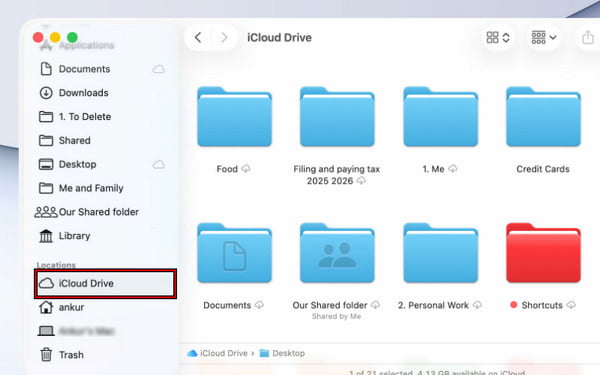
1. Upload your FLAC files to iCloud Drive from your Mac or PC. On your iPhone, open the Files app and navigate to the folder containing the FLAC tracks.
2. Tap the FLAC file you want to play. iOS will use its built-in audio support to play the FLAC track directly. Use the standard playback controls to pause, skip, or adjust volume.
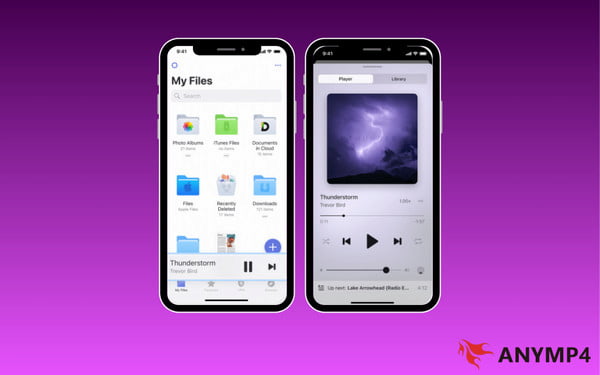
The Files app is the most straightforward way to play FLAC on iPhone. It works well for quick access and preserves original audio quality. However, it operates outside the Apple Music app, meaning library integration and smart syncing features are not available.
Can an iPhone play FLAC? Yes. Converting FLAC to ALAC is the most reliable solution to ensure error-free playback.
ALAC is Apple's equivalent of FLAC. It delivers the same lossless audio quality but is fully supported within the Apple ecosystem. This format integrates perfectly with the Apple Music app, Siri, and Apple Watch. AnyMP4 Video Converter Ultimate is a powerful tool for converting entire FLAC libraries to iPhone-compatible formats. It can turn FLAC to ALAC and 500+ other formats without losing a single bit of data. It supports batch conversion, allowing you to process more than 50 files simultaneously. It uses advanced acceleration technology to speed up conversion by up to 120×.
Secure Download
Secure Download
What to Expect with AnyMP4 Video Converter Ultimate:
What You'll Like:
What to Consider:
1. Open AnyMP4 Video Converter Ultimate to access the main dashboard. In the Converter tab, click + Add Files to import FLAC audio files. If you are working with multiple audio, use Add Folder instead.
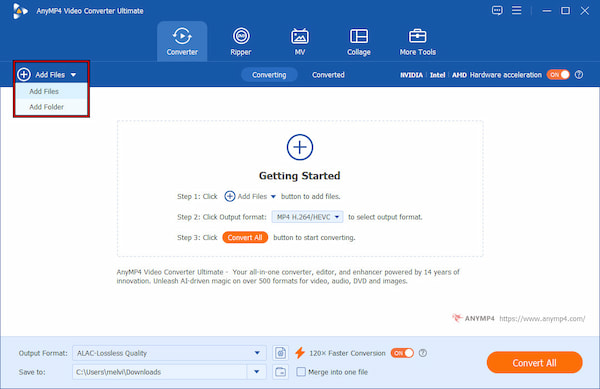
2. Move to the Output Format section and select the Audio category. Choose ALAC-Lossless Quality as your output format. If needed, the Custom Profile option allows adjustments to bitrate, sample rate, encoder type, and channel configuration.
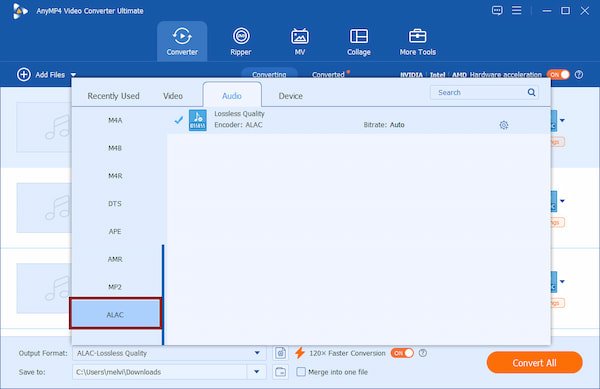
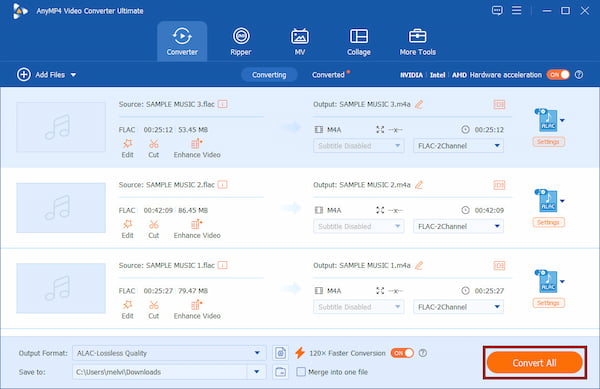
3. In the Save To selector, set the output directory of your converted file. Next, enable 120× Faster Conversion to speed up processing. After setting the configurations, click Convert All to convert FLAC to Apple Lossless or M4A.
Important Note: If you prefer not to convert files, Google Drive or Dropbox lets you stream FLAC files without an iPhone FLAC player. For advanced users, use Plex or a home NAS server to stream FLAC libraries to the iPhone.
A DAC, or digital-to-analog converter, helps improve sound quality when playing high-resolution audio files. While iPhones already have built-in audio hardware, an external DAC can produce cleaner and more detailed sound. This is useful for people using lossless formats like FLAC or ALAC who want a better listening experience.
Headphones also make a big difference in audio quality. Cheap earbuds does not fully show the detail of lossless music files. Wired headphones or high-quality wireless models give better sound. Choosing comfortable headphones can help you enjoy FLAC, ALAC, and other high-quality music formats more.
Lossless audio files take up much more space than MP3 files. Because of this, storage can fill up quickly. Keeping music organized, deleting unused files, or using cloud storage can help manage large music libraries while still keeping your favorite songs available anytime.
Why FLAC files so big? Find out the real reason behind their high-quality, lossless audio here.
Does iPhone play FLAC natively in 2026?
Yes, iPhone can play FLAC files natively through the Files app. However, FLAC files do not integrate with the Apple Music library. It means playback is limited to file-based access rather than full music app organization and syncing features.
Does converting FLAC to ALAC reduce quality?
No, it does not reduce quality because both formats are lossless. It only changes the container format, but not the audio data. It ensures identical sound quality while improving compatibility with Apple devices.
Why can't I see my FLAC files in iTunes/Music?
FLAC files are not supported in the Apple Music or iTunes library system. Apple uses ALAC as its preferred lossless format, so FLAC files are not included in the library. You can still play them via the Files app, but they won't appear in the main Music app interface.
What is the best format for iPhone audio: FLAC, ALAC, or MP3?
ALAC is the best audio format for iPhone because it keeps full sound quality. FLAC also sounds great, but support is limited. MP3 is best for saving storage space, though it loses some audio quality compared to ALAC and FLAC.
Yes, iPhone can play FLAC files, but not always directly in the default Music app. You can still listen to FLAC using supported apps or by converting the files. For the best and most reliable setup on iPhone, many people convert FLAC to ALAC. It keeps the same lossless sound but works better with Apple devices. If you want an easy way to manage this, tools like AnyMP4 Video Converter Ultimate can help you convert your FLAC files quickly so they play smoothly on your iPhone.
Secure Download
Secure Download
 Updated by Alice Thorne to Convert Audio
More readings
 How to Convert M4A to MP3 in 2026 (High Quality & Batch)
Learn 5 fast ways to convert M4A to MP3 on Windows/Mac and Online. Video conversion with zero quality loss and custom bitrate (up to 320kbps).
 Fastest Ways to Convert Videos from MXF to WMV (Batch Conversion)
Here’re 2 easy ways to convert MXF to WMV videos on Windows, Mac, and online. The online MXF converter also supports the MXF batch conversion with zero cost.
 A Concrete Guide to Convert MOV to WMA for Free on PC/Mac
Need to extract audio from MOV videos and save as WMA? You are at the right place because we share the best methods to achieve the task on PC and Mac.
 Convert M4V to MOV - How to Change M4V to MOV on Mac and PC
Is M4V the same as MOV? How to play an M4V file? How to convert M4V to MOV on Mac? This post tells 3 effective ways to convert M4V to MOV on Mac or Windows.
 Add your comments to join the discussion here