
Quick Answer:
For manual FLAC-to-AAC conversion, HandBrake is best for video-embedded audio. Meanwhile, AnyMP4 Video Converter Ultimate offers high-quality, batch conversion with fast processing, customizable AAC settings, and metadata support. If you require no installation, Convertio is a browser-based option that offers quick, one-off conversions.
You’ve built a high-quality FLAC music library; lossless, rich, and detailed. But then reality hits: your phone doesn’t support it, your car struggles to read it, and your storage fills up fast. That’s where AAC steps in. Converting FLAC to AAC lossless isn’t about downgrading; it’s about optimizing. With the right settings, AAC can deliver near-lossless listening while dramatically reducing file sizes. In this guide, we’re going to bridge the gap between archival perfection and everyday portability.
The FLAC (Free Lossless Audio Codec) file format is the gold standard for those who want absolute fidelity. It preserves every bit of the original recording, making it bit-perfect and ideal for archiving. However, FLAC files are larger than those in compressed formats, often consuming 3-5× the storage space. Additionally, native support on mobile devices is still limited.
Learn more through the link provided to understand why FLAC files are so big.
AAC (Advanced Audio Coding) represents the evolution of lossy audio compression. It was designed to outperform MP3, delivering better sound quality at lower bitrates. Today, it’s the default format for major devices and platforms. At around 256kbps, AAC achieves psychoacoustic transparency. It means most listeners cannot distinguish it from the original FLAC in real-world listening conditions.
Actionable Tip: Don’t think AAC is low quality. When encoded properly, it offers an excellent balance between fidelity and file size.
Converting FLAC to AAC is less about compromise and more about practicality. AAC is optimized for real-world use, where storage, compatibility, and streaming efficiency matter:
Actionable Tip: Always keep your original FLAC files as a Master Gold Copy on an external drive. Use AAC versions as your “Daily Driver” files for portable devices.
Choosing the Right Encoder (The Secret Sauce)
When converting, the encoder plays a bigger role than most people realize. The difference between a good and a poor encoder can directly affect clarity, detail retention, and artifact levels.
FDK-AAC vs. Apple AAC:
Both are considered high-quality encoders, but they differ in tuning and optimization. Apple AAC is well-integrated into its ecosystem, while FDK-AAC is favored in open-source workflows for its consistency and efficiency.
The Sweet Spot Settings for Peak Audio:
Actionable Tip: Avoid upsampling. Converting a 44.1kHz FLAC to 96kHz AAC doesn’t improve quality. It only increases file size with no audible benefit.
HandBrake is a highly popular open-source video transcoder that is used for video processing. However, it also allows you to convert FLAC to AAC. While it’s not a dedicated audio tool, it works well for converting FLAC files to AAC.
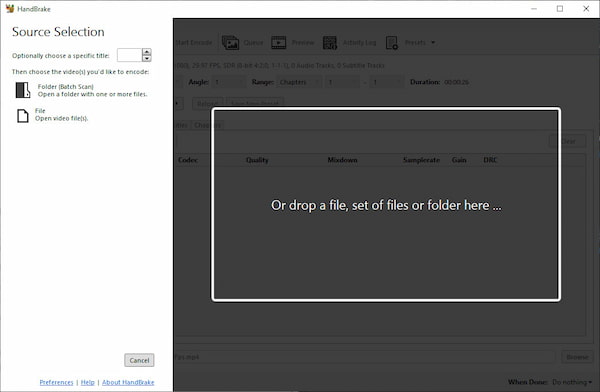
1. In HandBrake, drag your source file containing FLAC audio tracks into the main interface. After you add it, HandBrake will scan the file and prepare it for conversion.
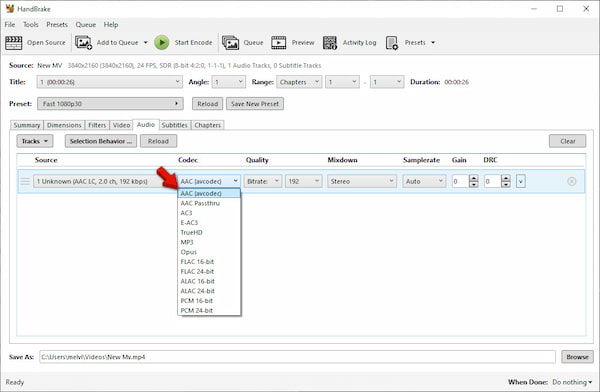
2. Navigate to the Summary tab and choose MP4, which is the best compatibility for AAC playback. In the Audio tab, select AAC (avcodec) as your codec.
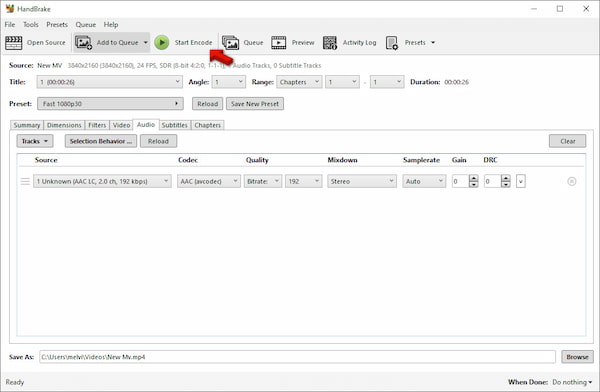
3. At the bottom of the interface, click Browse to specify the destination path. Then, click Start Encode to convert the audio stream into AAC format.
In testing, HandBrake performed reliably during conversion, especially with video-embedded audio files. The AAC output at 256 kbps was clean, with no noticeable distortion. However, the interface feels less intuitive for pure audio workflows.
AnyMP4 Video Converter Ultimate is an all-around media software designed for high-quality audio and video conversion. It supports batch conversion, allowing you to process multiple files simultaneously. It uses advanced hardware acceleration to deliver up to 120× faster conversion speed. Additionally, it allows deep customization of audio parameters, which is ideal for managing large FLAC libraries. This software provides a stable, fast workflow for converting FLAC to AAC while preserving audio fidelity and metadata integrity.
Here’s how to batch convert FLAC to AAC format:
Secure Download
Secure Download
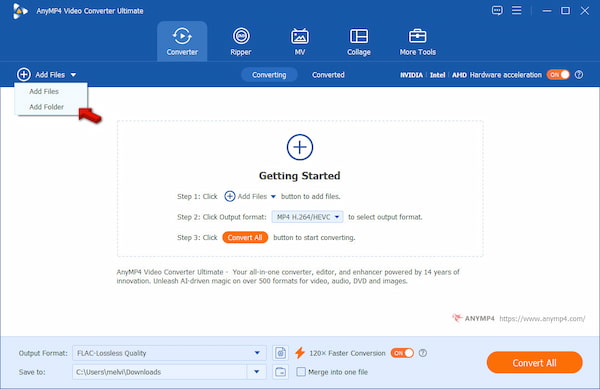
1. As soon as AnyMP4 Video Converter Ultimate starts, it opens the Converter tab by default. Click +Add Files and select Add Files to load individual FLAC tracks. If you want to process an entire music directory, select Add Folder instead.
2. Select the Output Format selector, then navigate to the Audio category. From here, select AAC as your target format and choose your preferred quality. Open Profile Settings to fine-tune the encoding parameters such as encoder, bitrate, sample rate, and channel.
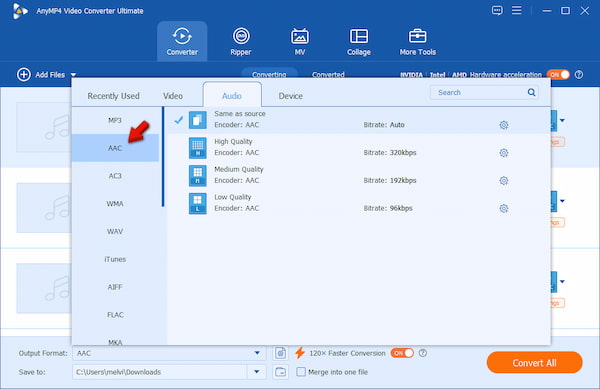
Actionable Tip: Use 256 kbps AAC with a matched sample rate to ensure near-lossless perceived quality while minimizing file size.
3. In the Save To selector, set the output destination. Before starting, enable 120× Faster Conversion to improve processing speed, especially for batch jobs. Click Convert All to convert from FLAC to AAC while preserving audio quality and metadata.
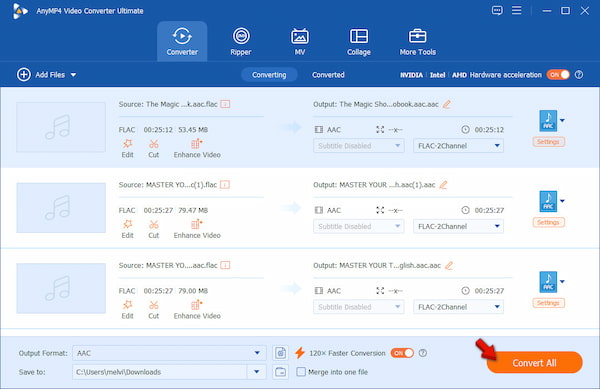
During my testing, AnyMP4 Video Converter Ultimate delivered the most consistent conversion experiences. Its batch processing worked smoothly even with large folders. Also, the hardware acceleration reduced conversion time without compromising quality. The AAC output at 256 kbps VBR retained excellent clarity, with no audible compression in normal playback. I also use this tool to convert FLAC to Apple Lossless and M4A, and it works perfectly.
Convertio is a browser-based file converter that allows you to convert FLAC to AAC lossless. It’s designed for quick, lightweight tasks and works directly from your web browser, requiring no software installation. However, it lacks advanced audio controls compared to desktop tools.
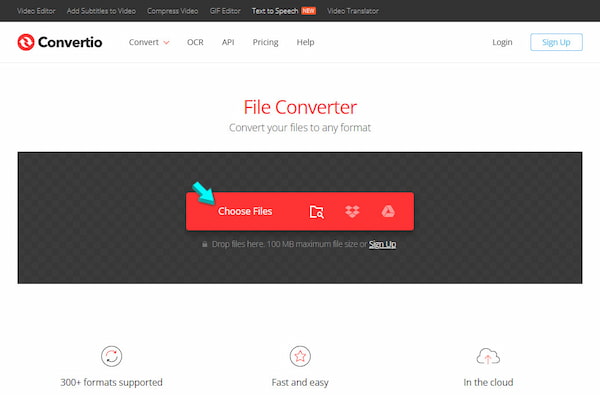
1. On the Convertio homepage, click Choose Files to upload your FLAC audio. You can upload files directly from your local drive, Google Drive, or Dropbox.
2. After uploading, open the output format dropdown menu and select AAC. Click the Convert button to initiate the conversion of your audio files.
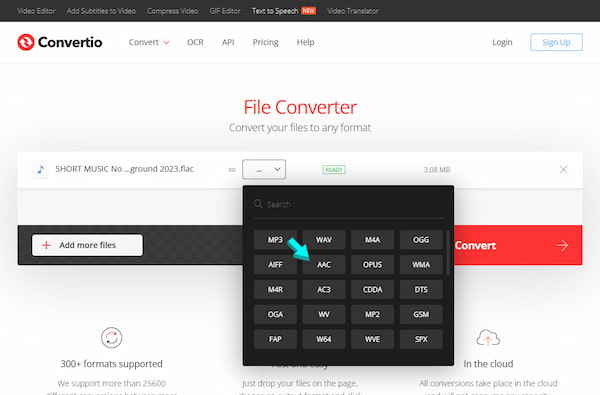
Convertio delivers a fast and convenient solution for small conversions. The upload-and-convert process was straightforward, with minimal setup required. However, Convertio automatically applies a default compression profile.
Though FLAC-to-AAC lossless conversion is widely used, there are still misunderstandings about what actually happens during the process. Let’s break down the most common myths so you can avoid poor settings and unrealistic expectations:
Myth 1: Converting FLAC to AAC Makes the Music Sound Tinny
It is only true when you have done the conversion poorly. AAC is a highly efficient codec that, when properly encoded, preserves most of the audible detail in music. The tinny sound people sometimes hear usually comes from very low bitrates, outdated encoders, and aggressive compression settings.
Myth 2: AAC is Only for Apple Users
It is outdated thinking. AAC is now a universal audio standard, used far beyond Apple devices. It is the default format for streaming platforms, music services, Android devices, smart TVs, and car infotainment systems.
Myth 3: Converting Back to FLAC Will Restore the Quality
It is one of the most common misconceptions. After you convert FLAC (lossless) audio to AAC (lossy), data is permanently removed during the compression process. Re-saving it as FLAC does not restore the original details. It only wraps the already-compressed audio in a lossless container.
Is 320kbps AAC better than 320kbps MP3?
Yes. At the same bitrate, AAC is more efficient than MP3. It means it preserves more audio detail and produces fewer compression artifacts. A 320 kbps AAC file sounds cleaner, with better clarity in the high frequencies and smoother stereo separation than MP3.
Will I lose my playlists when converting FLAC to AAC?
Yes, in most cases, playlists are not automatically preserved during conversion. It is because playlists reference file paths and formats, not the audio content itself. When you convert FLAC files to AAC, the file extensions and locations change, so existing playlist links may break.
Can I convert Hi-Res FLAC (24-bit)?
Yes, you can convert Hi-Res FLAC (24-bit) to AAC. However, the output will be downsampled because AAC does not support true 24-bit lossless quality. During conversion, the audio is reduced to a lossy format, at 16-bit equivalent perceptual quality, depending on settings.
Conversion shouldn’t feel like a compromise. It should feel like an upgrade in usability. By moving your FLAC to AAC lossless, you’re not losing the essence of your music. Rather, you’re adapting it for modern life, where portability, compatibility, and efficiency matter just as much as fidelity. With the right settings, AAC preserves excellent sound quality while dramatically reducing file size. For users who want a reliable workflow, AnyMP4 Video Converter Ultimate offers a strong balance of speed, batch processing, and customizable audio settings. It simplifies the entire conversion process while maintaining consistent, high-quality AAC output.
 Updated by Alice Thorne to Convert Audio
More readings
 5 Best MOV to MP3 Converters (2026): Pro Quality & Speed Tested
Extract 320kbps MP3 from MOV files with our top 5 tested tools. Features detailed reviews, batch guides, and expert tips for lossless audio extraction.
 Convert WMA to MP3 (Free & Fast) - Windows, Mac & Online
Learn 3 easy ways to convert WMA to MP3 on Windows 10/11 and Mac without losing quality. Here is the step-by-step guide for you to use.
 5 Ways to Convert MP4 to OGG (2026 Tested: High Quality)
Looking for a fast way to convert MP4 to OGG? Learn how to extract high-quality OGG audio from your MP4 videos using the best tools without quality loss.
 4 Ways to Convert WMA to WAV for iTunes, Spotify, Tidal
Learn four methods to convert WMA to WAV for lossless, high-quality audio. Discover the best methods and tools to perform the conversion effortlessly.
 Add your comments to join the discussion here