How to Convert and Play FLAC in iTunes/Apple Music (2026)
Although FLAC is beloved by music enthusiasts for its pristine lossless audio quality, its incompatibility with iTunes and Apple Music has frustrated Apple users for years. Whether you're a hi-fi purist or a casual listener who just wants your songs to play smoothly on an iPhone, this guide reveals the six most effective ways to play FLAC in iTunes in 2026. From zero-loss ALAC conversion techniques to fast one-click import tools, you’ll learn how to break format barriers and seamlessly rebuild your lossless music library within the Apple ecosystem.
Part 1. Why iTunes Doesn’t Support FLAC & the Best Alternatives
When it comes to lossless audio, the Free Lossless Audio Codec (FLAC) is usually the most popular, as it is playable on most media players and operating systems. Unfortunately, FLAC is not supported on Apple devices and software such as iTunes, since they use their own lossless audio format, Apple Lossless Audio Codec (ALAC).
Since ALAC is Apple’s native lossless format, it is the best choice for importing audio files into iTunes or for saving them to Apple Music. As such, converting your FLAC audio to ALAC is required to make it playable on your Apple device.
To learn the best methods for conversion, make sure to read our three proposed solutions below.
Scenario 1 — The Best Way to Batch Convert FLAC for iTunes (Lossless & Fast)
The best way to convert FLAC to iTunes in high quality is by using AnyMP4 Video Converter Ultimate. It has a powerful audio conversion function to convert FLAC to MP3, M4A, AAC, and WAV for playback in iTunes, storage in iCloud with iTunes Match, and playback on any iPhone, iPad, iPod touch, Apple TV, or PC.
It also offers batch conversion features, making it a solid choice for processing large media libraries. It also excels in conversion efficiency thanks to GPU acceleration and offers ALAC as an output format. Due to these features, the program is one of the best choices for common and professional use.
To learn how to use the program, make sure to read our three-step guide below. Download it as well for an easier time learning how to use the program.
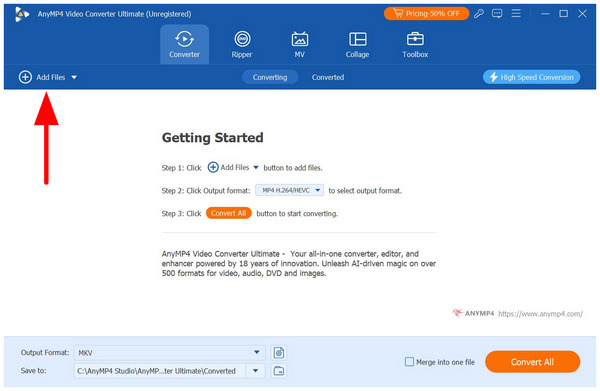
1. Open AnyMP4 Video Converter Ultimate and select Add Files to import the FLAC you want to convert.
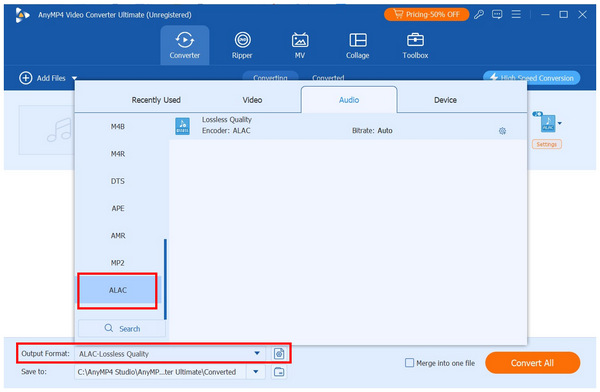
2. With the FLAC format now uploaded, select Output Format and choose the audio format you want to convert to. ALAC is a safe choice, as it is Apple's counterpart to FLAC.
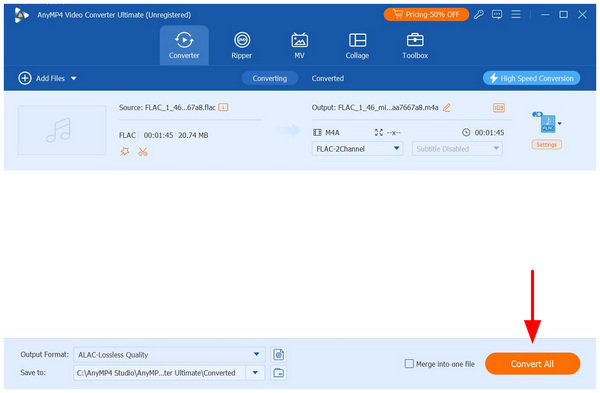
3. Now that you have set the Output Format of your uploaded FLAC, you will return to the Converter Tab. There, select Convert All to begin conversion.
Among the options on this list, AnyMP4 Video Converter Ultimate is the best solution for batch converting a large library of media files. This is thanks to its background as stable desktop-based software.
Pro Tip:
If you want to keep your ID3 tags intact, make sure to use reliable metadata editor tools and converters. Fortunately, both of these options are available in AnyMP4 Video Converter Ultimate’s Toolbox.
Scenario 2 — Free Online Way to Convert Small FLAC Files
If you want to use online converter tools, we can recommend CloudConvert as your first option. Among other online tools, this option is one of the most reliable solutions for audio file management.
It also enjoys the perks of being an online tool, as it is beginner-friendly and requires no installation. However, it is limited by file size constraints and excessive reliance on internet speed.
Make sure to read CloudConvert’s pros and cons and check our guide on how to use it.
PROS
- No installation.
- Simple interface.
CONS
- File size limits.
- Dependent on the internet speed.
- Not ideal for large libraries.
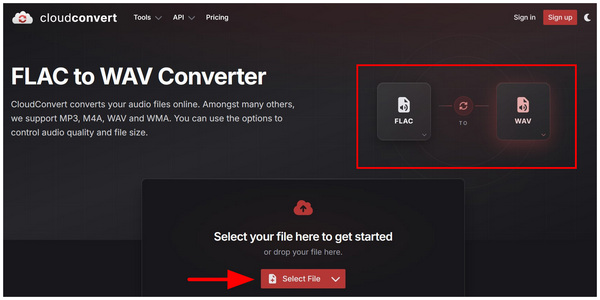
1. Go to the CloudConvert official website, set the converter to FLAC to WAV, and click Select File to upload.
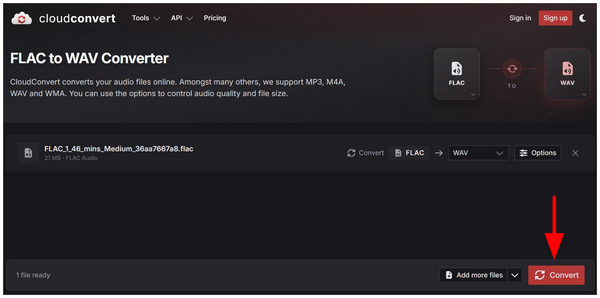
2. Once the FLAC file has been uploaded, select Convert to begin format conversion.
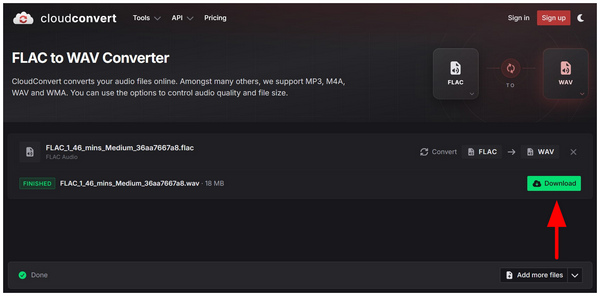
3. After the conversion is complete, select Download to save your audio as a WAV file, which is an iTunes-friendly format.
CloudConvert is one of the more reliable online tools for audio conversion. Unfortunately, selecting FLAC as the input format removes the ALAC option from the conversion choices.
Pro Tip:
Once your music files are converted for iTunes compatibility, you can batch-edit the file’s metadata to make file organisation easier. To do this, open iTunes and select the audio files you want to convert. Then, select Ctrl + I (Windows) or Cmd + I (Mac) to open the multiple files menu. Then, you can now edit the Artist, Album, Genre, Year and other details of the file.
Scenario 3 — Play FLAC Directly in iTunes Without Conversion (Legacy Tools)
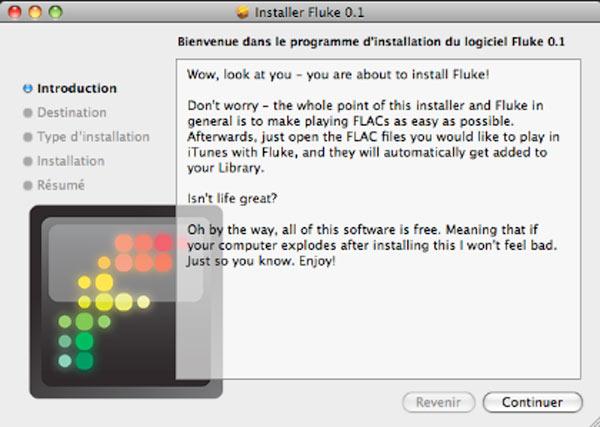
Fluke is a small FLAC player for Mac that lets you play FLAC files in iTunes. You can enjoy 16-bit/44.1 kHz playback, multiple file and folder handling, and track number and count support. Fluke plays FLAC in iTunes by running at the same time as iTunes and working hand in hand with it. But it is a pity that the FLAC iTunes player does not work for iOS devices or Apple TV now.
1. Download the Fluke plug-in on your computer.
2. Open iTunes, select File, then choose Add to Library.
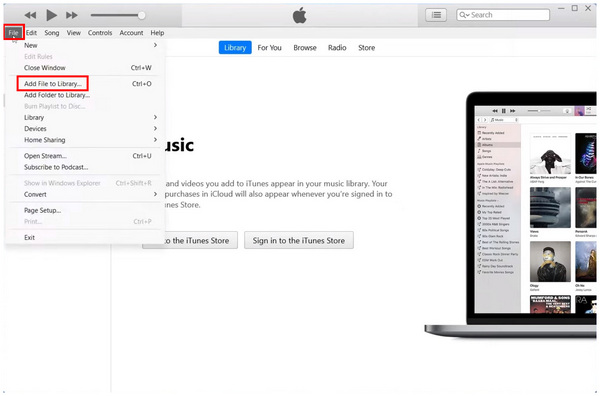
3. Once your FLAC file has been added to the library, you can now listen to your FLAC saved in iTunes.
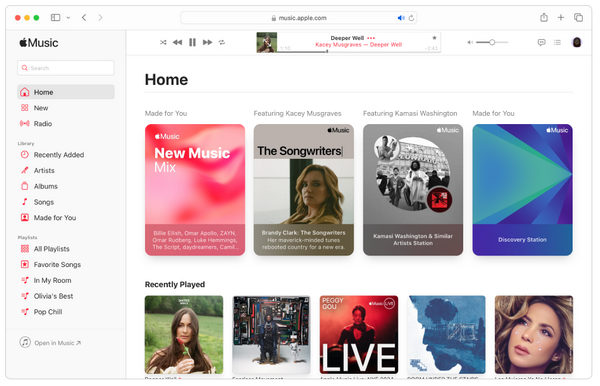
If you trust third-party plugins, Fluke may be a good option for you. This solution completely bypasses format conversions and allows you to play FLAC directly on iTunes. However, it has several limitations you should consider, including those listed below.
Caution:
- • Only works on older macOS versions
- • Not recommended for modern systems
- • May cause instability or library issues
Part 5. Pro Tip — How to Import Converted Files into iTunes Properly
Once you have converted your FLAC audio files to an iTunes-supported format, all you need to do is import the converted files into your iTunes library.
1. Go to your macOS files and create a folder to store all the audio files you want to import.
2. Open iTunes, select File, then choose Add Folder to Library, and navigate to the folder you created.
3. Wait for iTunes to read the content of your selected library. Keep in mind that iTunes only supports these formats: MP3, AAC, ALAC, AIFF, and WAV.
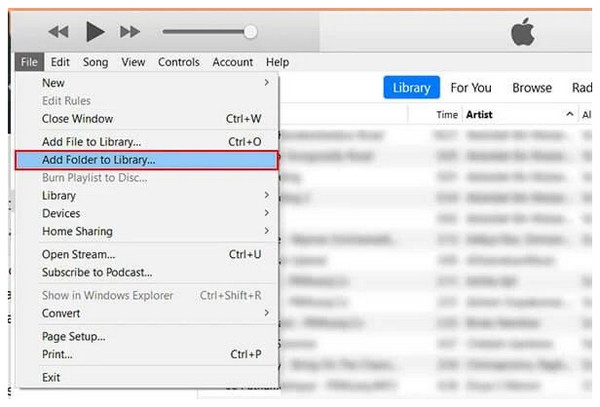
Since these files are usually downloaded as third-party audio, they likely lack embedded metadata. You have to manually write these yourself.
Part 6. FAQs About FLAC and iTunes Compatibility
What is the best lossless format for iTunes: ALAC or AIFF?
ALAC is usually the better option. Although both these files are good. However, ALAC is lossless and way better.
How to import FLAC to Apple Music on Mac without losing metadata?
Make sure to convert it to a format supported by Apple Music that also supports metadata. A good option is ALAC. This format is essentially the same as FLAC but optimized for Apple.
Does converting FLAC to ALAC reduce sound quality?
No, it does not. Converting from FLAC to ALAC will not affect its quality. These two formats are lossless.
Is there a free FLAC-to-iTunes converter that supports batch conversion?
Yes, there are. The most prominent solution is AnyMP4 Video Converter Ultimate. This program is the best since its features are made for batch conversion.
Why won’t my FLAC files appear in my iTunes library after I drag them in?
This is because iTunes does not support FLAC. FLAC is an open-source format. Fortunately, Apple has a lossless audio counterpart in ALAC.
Does iTunes support 24-bit FLAC audio?
No, it does not. iTunes does not support FLAC at all. You have to use the ALAC format as an alternative.
Conclusion
With some of the most reliable solutions for playing FLAC on iTunes, we hope you can now bypass this small compatibility issue. As such, all you need to do is select the program that best fits your needs. For batch conversion, AnyMP4 Video Converter Ultimate is the best. For the easiest workflow, CloudConvert is solid. To preserve lossless quality, Fluke is good for older macOS units. However, if you prefer balance, AnyMP4 Video Converter Ultimate is the best choice.



 Add your comments to join the discussion here