- Convert video, audio, and DVD over 500 formats.
- GPU acceleration to speed up the conversion process at 70X faster.
- More than 16 editor tools in the toolbox (Updating).
- Create videos for TikTok, YouTube, Facebook, etc.

Free Download100% Clear & Secure
Free Download100% Clear & Secure
WAV to AAC
Back to main page
Setting
Custom resolution:
| Core Features | Web Version | Pro Desktop |
| Max File Size | 50MB (Login: 100MB) | No Limit |
| Daily Limit | 2 Files (Login: 10 Files) | Unlimited |
| AI Video Upscaling | No | Yes (Up to 4K/8K) |
| GPU Acceleration | No | Yes (70X Faster) |
| Batch Processing | No | Yes |
Failed to upload media file! Please try again, or use AnyMP4 Video Converter Ultimate for Desktop.(Error code: 20015)

The original video resolution is higher than 1080p. If you want to output the original high resolution, you need to download the Pro Version. Or would you like to output the default 1080p resolution?

Summary:
Converting WAV to AAC is easy with many tools. You can do it with iTunes (freemium), AnyMP4 (premium), VLC (free), and CloudConvert (completely free online).
You’ve recorded the perfect track, but there's a problem. It’s a 5-minute WAV file that is consuming 50MB of space on your phone. In actuality, WAV is the gold standard for a lossless audio format. However, in the age of streaming and mobile devices, where everyone wants more space in their cloud storage, it may be unnecessary. AAC has been developed as a successor to MP3 and offers better sound quality than MP3. The process of converting WAV to AAC will help you to save up to 90 percent of storage space. To learn more about the process, keep reading for a complete breakdown.
| WAV | VS | AAC |
| Waveform Audio File | File Fullname | Advanced Audio Coding |
| Uncompressed (Lossless) | Compression | Lossy (High Efficiency) |
| 30 to 50 MB for a 3-minute audio | File Size | 2.9 to 5.8 MB for a 3-minute audio |
| Original Studio Quality | Quality | Near-CD Quality |
| Recording, Mixing, and Archiving | Best Use | Streaming, Smartphones, and iTunes |
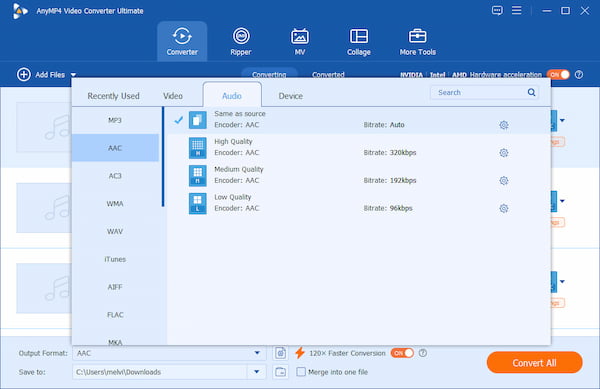
When you need to convert WAV to AAC in batches or require specific bitrates, AnyMP4 Video Converter Ultimate is your professional choice. It uses the most advanced hardware-accelerated media processing to achieve lossless conversion of up to 120×. You can import up to 100+ WAV files and convert them simultaneously without lags and crashes. You can also adjust the encoder, bitrate, sample rate, and audio channels to match your requirements. Aside from audio conversion, it includes tools for editing and organizing the file. It features an Audio Compressor to reduce file sizes and an ID3 Tag Editor to organize metadata.
Key Features
PROS
CONS
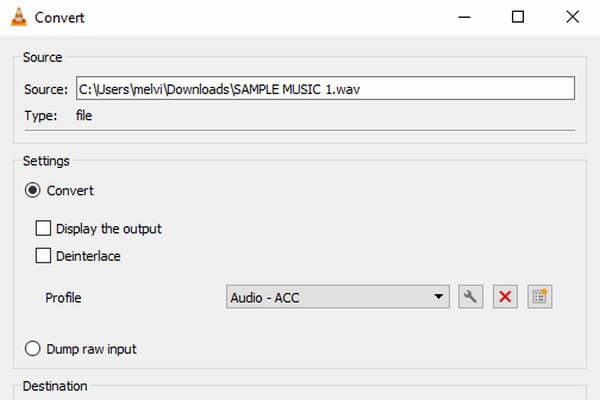
VLC isn't just for listening to music and watching videos. Many didn’t know it has a hidden WAV-to-AAC conversion tool in its menu. The Convert/Save tool is a built-in feature that lets you change audio files to another format. You can also extract audio from videos and save them as streaming media to your local storage.
PROS
CONS
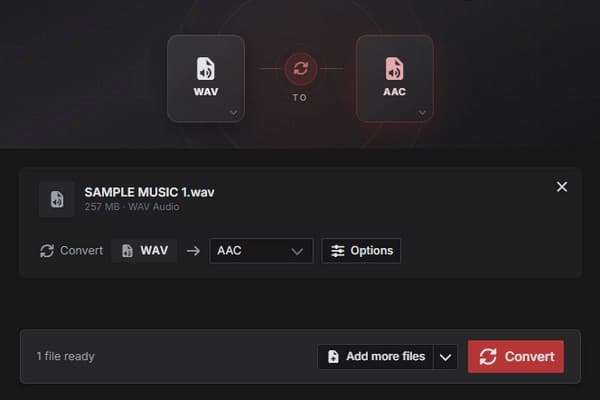
If you don’t want to install software, CloudConvert is worth trying. It allows you to convert WAV to AAC for free, provided your files are under 1 GB. Also, it provides 10 free credits per day, with up to 5 concurrent conversions. But be cautious with sensitive or unreleased audio you upload to public servers, as they store it on their server.
PROS
CONS
Converting WAV to AAC requires matching the parameters to prevent losing source quality. AAC uses a highly efficient psychoacoustic model. Encoding it at maximum settings can make it identical to the original studio master.
1. Download AnyMP4 Video Converter Ultimate and complete the setup. After installation, the software will open automatically. Click +Add Files to import your WAV sources from your computer. If you have multiple audio files saved in a single folder, use Add Folder instead.
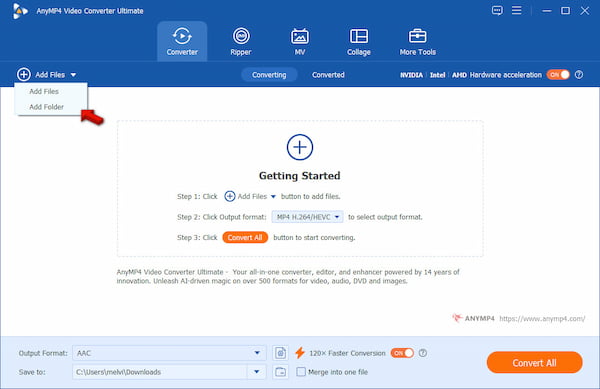
2. Click the Output Format picker and choose AAC under the Audio category. Then, choose a quality preset that matches the source's quality. For instance, if your source audio is high-quality, select the High Quality preset.
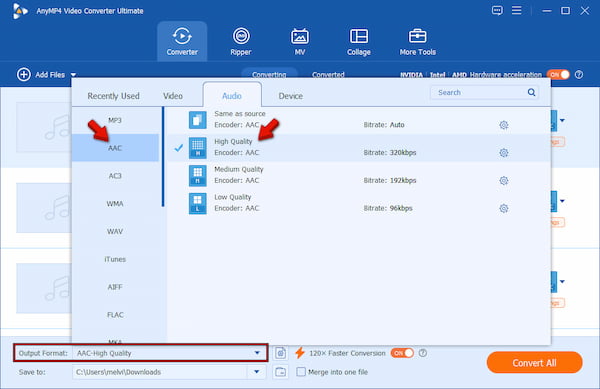
Go to Custom Profile by clicking the Gear button to optimize the audio settings. Adjust the bitrate to 320 Kbps for near-lossless audio quality. Then match the sample rate to your original WAV file to avoid resampling the audio.
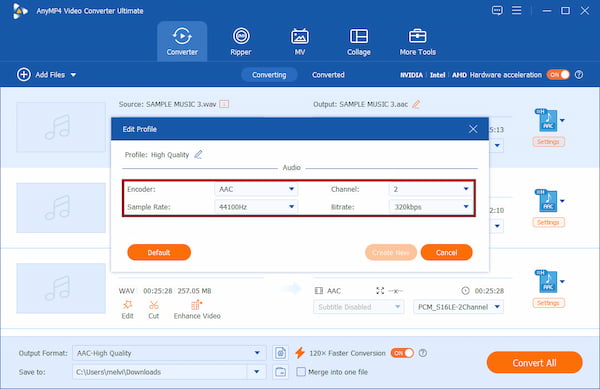
3. Return to the main interface, then turn on Hardware Acceleration and the 120× Faster Conversion button to accelerate the conversion. Go to Save To and set the output destination, then click Convert All to transcode WAV to a lossy audio format.
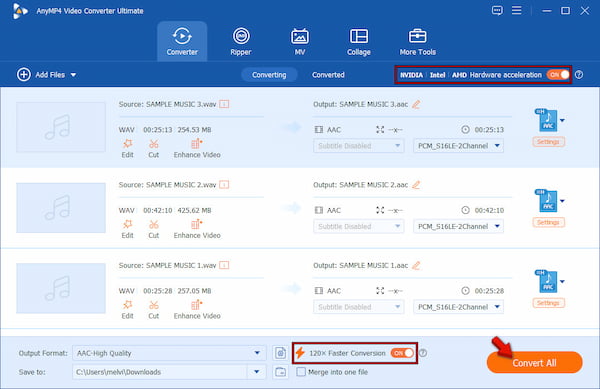
We conduct a hands-on test to evaluate AnyMP4’s capabilities in terms of quality, speed, and batch processing. In our test, we use a 1.92 GB file, totaling 100 WAV files. The 30 hours and 52 minutes of WAV files were converted to AAC using the High Quality preset in just 2 minutes and 34 seconds. In terms of quality, there is no zero-quality issue across all files upon auditing.
If you have access to iTunes or Apple Music, you can use them for converting WAV files. The encoder included in Apple's software creates audio of high quality that is fully compatible with Apple hardware. Unfortunately, neither of these applications has the batch conversion option.
Here’s how to convert WAV to AAC in iTunes:
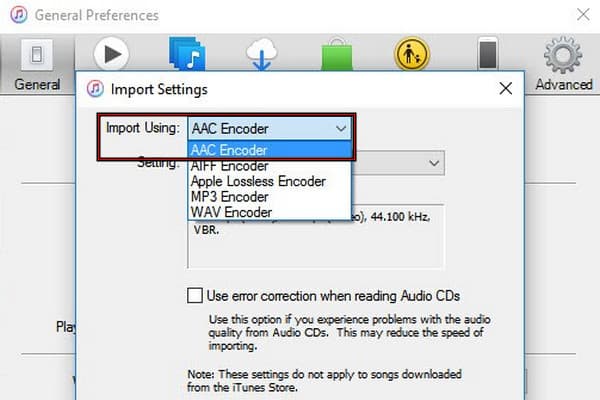
1. On iTunes, go to Preferences, select General, and click Import Settings. Inside the Import Using picker, select the AAC Encoder option.
2. Select the WAV files from your library, then go to File. Select Add to library, double-click the selected song, and click Create AAC Version.
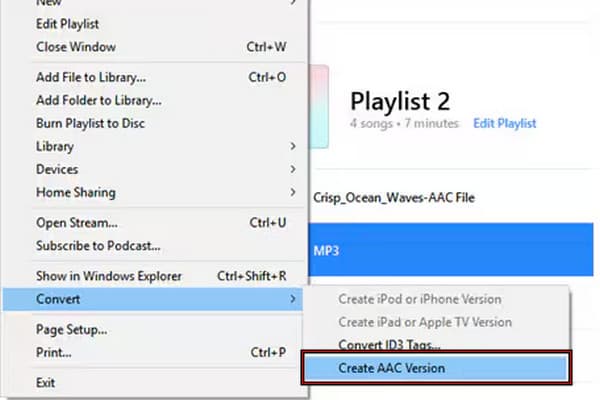
To be real, iTunes is straightforward and delivers consistently good audio quality. In our testing, the AAC files have clear sound and are smaller than the source WAV. However, you have to explore it since the conversion process is a bit confusing because the settings are hidden.
Does AAC sound better than MP3?
Yes. Even at the same bitrate, AAC sounds better than MP3. It is because AAC captures higher frequency detail and transparency than MP3s.
Will I lose quality converting WAV to AAC?
Yes, you will lose quality when you convert WAV to AAC. It is because AAC is a lossy format, which discards inaudible frequencies to save space. However, if you set the bitrate to 256 kbps, you will hear no difference.
Can I play AAC files on Android?
Yes, you can play AAC files on Android using your default music player or file manager. However, if the AAC file won’t play on either the default music player or file manager, you can install a third-party music player. If the issue persists, we suggest converting AAC to MP3.
Converting WAV to AAC is the smartest move to optimize space without sacrificing the listening experience. It doesn’t matter whether you prefer the convenience of AnyMP4 Video Converter Ultimate or any other web tool. You can do everything effortlessly.
Ready to clean up your drive? Download AnyMP4 Video Converter Ultimate today and batch-convert your WAV files in minutes!
 Updated by Alice Thorne to Convert Audio
Related Articles
 5 Best Ways to Convert M4A to WAV (Free, Online & Pro) - 100% Quality
Learn how to convert M4A to WAV on Windows, Mac, and Online by using AnyMP4, iTunes, VLC, and Audacity to ensure lossless audio quality.
 10 Best MP4 to WAV Converters for Lossless Audio Extraction
We tested the 10 best MP4 to WAV converters for computers and mobile devices. Get expert tips on PCM and bit rates to extract WAV without losing quality.
 3 Best Ways to Convert MP3 to AAC Without Quality Loss
Learn how to convert MP3 to AAC on Windows, Mac, and online. Compare MP3 vs AAC quality, bitrate tips, and step-by-step guides for 3 conversion methods.
 AAC to MP3 – Convert Audio Files from AAC to MP3 Format in Batch
This article collects top 10 AAC to MP3 converters on multiplatform. Thus, you can convert AAC file to MP3 online and offline based on your need freely.
 Add your comments to join the discussion here