
Quick Method of Converting OGG to AAC:
Got some audio files ending in .ogg and realized your iPhone or iTunes won't touch them? You are definitely not alone in this frustrating spot. Apple devices love AAC, but they won't open Ogg Vorbis files directly. To fix this compatibility roadblock, you need to convert OGG to AAC quickly and cleanly. In this guide, we share 4 ways to change OGG to AAC without losing quality on Mac, Windows, and online, so that get your favorite tunes playing on any device in no time.
| Platform | Installation | Batch Conversion | Bitrate Control | Trim / Merge / Volume | Privacy | Price | Best For | |
|---|---|---|---|---|---|---|---|---|
| AnyMP4 Video Converter Ultimate | Windows / Mac | Required |  Up to 8 files at once Up to 8 files at once |
Up to 320 kbps |
Trim + Merge + Volume 0–199% |
Local processing |
Paid (Free trial available) | Large music libraries + easy workflow |
| AnyMP4 Free Audio Converter Online | Browser (Any platform) | None |  Single file in free version Single file in free version |
Adjustable output parameters |
|
Server processing, auto-deleted |
100% Free (≤50 MB/file) | Quick small files, zero installation |
| FFmpeg | Win / Mac / Linux | Required | Script loop |
Full control |
Command required | Local processing |
Free | Developers / Command line |
| Audacity | Win / Mac / Linux | Required | Limited |
|
Full editing |
Local processing |
Free | Editing and converting combined |
Ever tried playing downloaded music on your iPhone, only to see an error message pop up? That's because Apple's ecosystem (iPhone, iPad, iPod, and iTunes) relies entirely on AAC (Advanced Audio Coding) as its default audio standard. OGG files, powered by the Xiph.Org Foundation, are amazing for open-source projects and gaming, but they just won't play on Apple gear unless you install a sketchy third-party app.
When you convert OGG to AAC, you unlock total compatibility. AAC works smoothly on iPhones, iPads, iTunes, PlayStation 3, PS Vita, Wii, and most modern car stereo systems like Pioneer AVIC units.
When it comes to audio quality, numbers don't lie. According to industry tests cited by platforms like Convertio and Xiph.Org, a 96 kbps AAC file matches the listening quality of a 128 kbps MP3. Meanwhile, Vorbis files shine brightly in the 96 to 192 kbps range.
Before you start converting, let's look at how these formats stack up. An OGG to AAC conversion is a lossy-to-lossy process. That means you are taking a compressed file and compressing it again. You can't regain lost data, but you can keep sound quality high by choosing the right settings.
| Feature | OGG (Vorbis) | AAC | MP3 |
|---|---|---|---|
| Developer | Xiph.Org Foundation (Open source, royalty-free) | ISO/IEC (MPEG-2/4 Standard) | Fraunhofer / ISO |
| Release Year | 2000 | 1997 | 1993 |
| Compression Type | Lossy (Optional FLAC lossless layer) | Lossy | Lossy |
| Typical Bitrate | 96–192 kbps optimal range | 128–320 kbps | 128–320 kbps |
| Apple Ecosystem | Not supported |
Native (iPhone/iTunes/YouTube) |
Supported |
| Gaming / Streaming | Common in gaming (no licensing fees) | Streaming & digital broadcast standard | Universal |
If you have a large music library and need a reliable OGG to AAC converter, AnyMP4 Video Converter Ultimate is your best choice. It runs entirely on your local Mac or Windows computer, keeping your personal OGG files secure. The software supports batch conversion and lets you process multiple OGG tracks all at once, saving your time. You also get full control over your output settings, including bitrate up to 320 kbps for maximum quality. Plus, the built-in editing tools let you trim long audio track, merge multiple sound clips into a single file, and boost audio volume without introducing distortion.
1. Free download, install, and open AnyMP4 Video Converter Ultimate on your Windows 11 or Mac computer.
Secure Download
Secure Download
Click the large Add Files button in the top left corner to select your target OGG audio tracks from your local storage.

2. Open the Output Format drop-down menu located at the top right, navigate to the audio tab, and choose AAC as your primary output format.
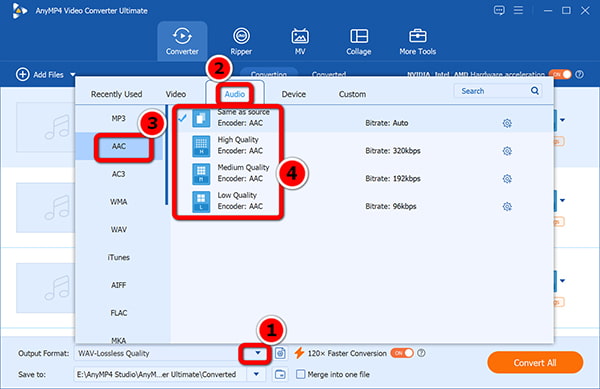
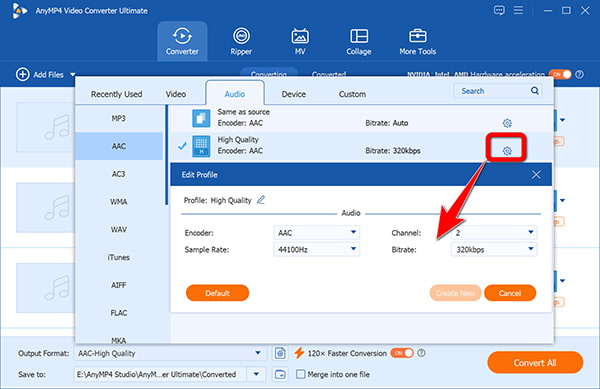
Click the custom profile gear icon right next to your chosen format to adjust your sample rate, channels, and push the bitrate up to 320 kbps for OGG to AAC high quality results.
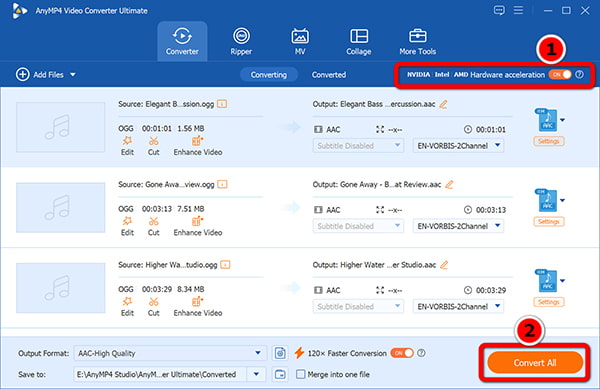
3. Click the Convert All button in the bottom right corner to let the software process your entire batch in a matter of seconds. To speed up the conversion process, you can enable GPU acceleration support before clicking the Convert All button.
Avoid setting your bitrate lower than 128 kbps if you want to keep your high notes sounding crisp. If your source files sound strange before you even start converting, you can check them first using a dedicated OGG player
AnyMP4 Video Converter Ultimate is regarded as the most powerful desktop solution for massive media tasks. It combines fast hardware acceleration, reliable batch processing, and customizable options into a single user-friendly interface, which enables you to manage and organize your OGG and AAC files conveniently.
If you just have one or two quick OGG files to convert and do not want to install heavy software on your computer, then AnyMP4 Free Audio Converter Online is an easy web-based solution. It is 100% free to use, and requires no account registration, so that you can convert OGG to AAC directly inside Chrome, Safari, or Edge on computer or mobile phone. The freeware handles your uploads securely over an encrypted connection and automatically deletes your data shortly after conversion to protect your privacy.
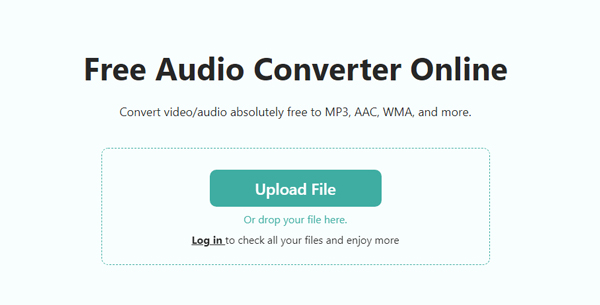
1. Open your web browser and navigate to the official AnyMP4 Free Audio Converter Online on your computer or mobile phone.
Click the Upload File button to launch your browser window, then choose the OGG audio clip you want to change.
Remember that the free online version has a file size limit of around 50MB to 100MB per file, so do not try to upload massive DJ sets or multi-hour podcasts.
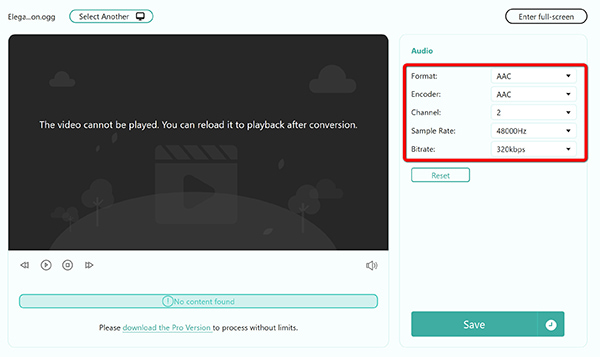
2. Look at the right audio format toolbar and select AAC as your desired target file extension.
If you need to tweak sample rates or channel settings before running the conversion job, just select the ideal one you want.
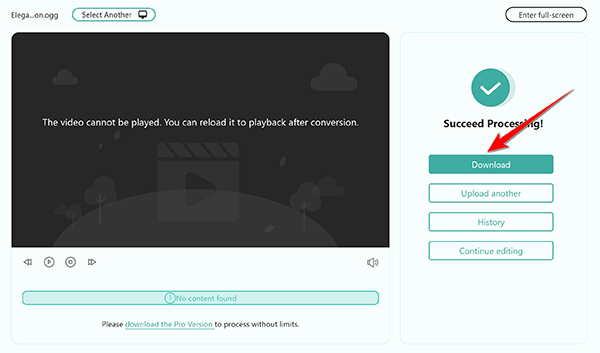
3. Click the Save button, then this freeware will convert OGG to AAC. Once the conversion is done, just save the converted AAC file to your computer by clicking Download Audio button.
AnyMP4 Free Audio Converter Online lets you complete the OGG to AAC conversion instantly. It is a lifesaver when you need a quick file swap on a shared office computer or library PC where installing new apps is locked down. While it won't handle massive batch folders all at once, its raw speed and zero price tag make it a handy bookmark to keep around for quick, everyday conversions.
If you like the the command line and want a free, scriptable tool, FFmpeg is will be you No.1 option for turning OGG into AAC. It runs smoothly on Windows, Mac, and Linux, giving you total control over every single encoding option.
1. Open your Command Prompt (Windows) or Terminal (Mac) app and ensure FFmpeg is added to your system environment variables.
2. Navigate to the folder containing your target music using the cd command followed by your folder path.
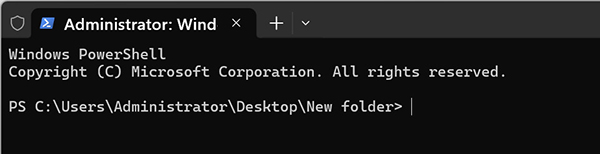
3. Type the following command to run a basic convert OGG to AAC batch sequence:
ffmpeg -i input.ogg -c:a aac -b:a 192k output.m4a
You need to replace the OGG file name (input) with your real name.

4. Press the Enter key on your keyboard and let the command-line script finish processing your audio track. Your converted M4A file with AAC codec will be stored in the same folder as the source OGG file.
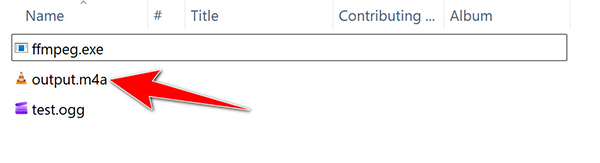
FFmpeg is the gold standard for developers and power users who love automation. It provides unmatched speed, script flexibility, and deep parameter control without bloating your system with unnecessary user interfaces. Once you learn basic command strings, processing hundreds of files takes only a few keystrokes.
Audio editor lovers must have heard Audacity. Here, it can work as the OGG converter for transcoding OGG files to M4A with AAC codec. Besides conversion, it runs smoothly on Windows, Mac, and Linux to clean up background noise, tweak equalization, and splice multiple clips together with exact control.
1. Launch Audacity on your desktop and drag your source OGG file directly into the empty workspace timeline.
Stock Audacity opens basic OGG Vorbis files right out of the box. But if your game audio uses the newer OGG Opus format, Audacity will pop up an ‘Unrecognized File Type’ error. To open any OGG variant without a hitch, just go to Edit > Preferences > Libraries and install the FFmpeg Import/Export Library.
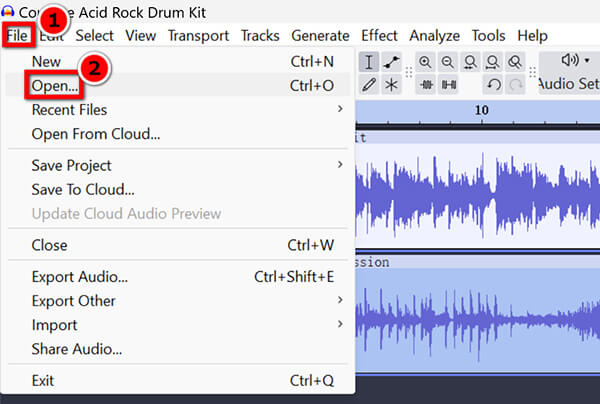
2. This is an optional step: Use the selection tool and editing controls to cut, trim, or polish your audio track as needed.
3. Locate the top menu and select File > Export Audio > Select M4A (AAC) Files (FFmpeg).
Choose your desired output quality profile, fill in your ID3 track metadata tags, and save the file to your computer.
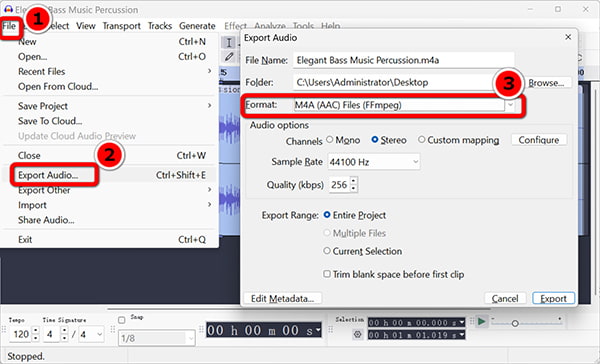
Finally, click Export to save your new AAC file to your computer.
Audacity is a totally free solution for converting OGG to AAC. It is best for podcasters, musicians, and hobbyists who want to clean up background noise or fix audio quality before changing file types. However, the software's interface remains unchanged, so it is not easy to use for beginners.
| Use Case | Recommended Method | Reason |
|---|---|---|
| Import OGG music to iPhone / iTunes | AnyMP4 Video Converter Ultimate | Batch processing, high bitrate, and local privacy all in one tool |
| Convert 1–2 files quickly without installing software | AnyMP4 Free Audio Converter Online | Zero installation, 100% free, direct browser conversion (≤50 MB) |
| Developers / Batch script automation | FFmpeg | Programmable, fully controllable audio quality |
| Zero budget with audio editing needs | Audacity | Free, open-source, and all-in-one editing plus export |
| Game audio / Podcast material archiving | FFmpeg / AnyMP4 Video Converter Ultimate | Local processing for privacy, efficient merging and batching |
Is converting OGG to AAC lossy?
Yes. Both OGG Vorbis and AAC use lossy compression. When you convert a file from one to the other, some high-frequency audio data is permanently discarded to keep the file size small.
Can I convert OGG to AAC without losing quality?
Not entirely. Since both formats use lossy compression, a tiny bit of quality loss is bound to happen when you switch from one to the other. You can keep that drop to an absolute minimum by bumping up your AAC output bitrate to 256 kbps or 320 kbps.
Why won't OGG files play on my iPhone or iTunes?
Apple's iOS operating system and iTunes software do not include built-in native decoders for the Ogg Vorbis container format. They are hardcoded to favor Apple-standard AAC or MP3 files.
What is the best AAC bitrate for OGG to AAC conversion?
A bitrate between 192 kbps and 320 kbps gives you crystal-clear sound quality without making your final file sizes excessively huge or difficult to sync. If you get an AAC file with the bitrate you do not want, just follow this guide to change it with a bitrate converter.
Can I batch convert OGG to AAC?
Yes! Desktop programs like AnyMP4 Video Converter Ultimate or a quick FFmpeg terminal script let you convert dozens of audio files all at once.
Got some audio files ending in .ogg and realized your iPhone won't touch them? Apple devices and iTunes love AAC, but they flat-out refuse to open Ogg Vorbis files on their own. To fix this compatibility roadblock, you need to convert OGG to AAC quickly and cleanly.
Use AnyMP4 Video Converter Ultimate to process your whole library right on your desktop, safely and without any hassle.
Secure Download
Secure Download
Or you can find a fast OGG to AAC online browser tool for a quick fix, or a smart terminal trick. Pick the method that fits your workflow and get your favorite tunes playing on any device in no time!
 Posted by Alice Thorne to Convert Audio
More readings
 How to Convert OGG to MP3 Fast & Without Loss
OGG files won't play on your iPhone or car stereo? Here is how to batch convert OGG to MP3 online and on a desktop in 5 converters with hands-on notes.
 Best 4 Ways to Convert OGG to WAV (Zero Quality Loss)
Need a reliable OGG to WAV converter? Learn how to convert OGG to WAV for CD burning, DAWs, or archiving using desktop tools, online converters, and FFmpeg.
 AAC Audio Compression: Reduce AAC File Size to Save Space
The AAC compression process is more straightforward if we have these reducing audio tools for online and offline usage. You can check out this post to see it.
 AAC to MP3 – Convert Audio Files from AAC to MP3 Format in Batch
This article compiles the top 10 AAC-to-MP3 converters across desktop and online platforms. All of which are reviewed with vital data and actual testing.
 Add your comments to join the discussion here