
Summary
Converting FLV to MP4 is essential because Adobe Flash Player is no longer supported.
In 2020, Adobe officially stopped supporting Flash Player and ended updates. Because of this, the FLV format is no longer supported by browsers, media players, and OS. To keep your old Flash videos playable, you need to convert them to MP4. To help you find the best option, we tested the top-rated FLV-to-MP4 converters on Windows, Mac, and online using the same criteria. We will introduce you to 6 notable tools, each with a quick guide to help you make your old videos playable, editable, and shareable.
How We Tested
| Platform | Speed | Batch Conversion | File Size Limit | Output Quality | |
|---|---|---|---|---|---|
| AnyMP4 Video Converter Ultimate | Windows and Mac | 120× speed |  |
No limit | High |
| VLC | Windows, Mac, and Linux | Normal speed | |
No limit | Good |
| HandBrake | Windows, Mac, and Linux | Normal speed | |
No limit | High |
| FreeConvert | Web | Depends on the server | 5 concurrent conversions |
1 GB | Same as source |
| Zamzar | Web | Depends on the server | 2 concurrent conversions |
50 MB | Same as source |
| AnyMP4 Free Online Video Converter | Web | Depends on the server |  |
50 MB for guest users and 100 MB for logged-in users | High |
| FLV | VS | MP4 |
| Adobe Systems | Developer | Moving Picture Experts Group |
| A 3‑minute 1080p video ranges from 50 to 300 MB. | File Size | A 3‑minute 1080p video ranges from 90 to 350 MB. |
| Websites and archived online videos | Compatibility | Supported by most devices and platforms. |
| Streaming and video editing | Usage | Streaming and video editing |
You can rely on AnyMP4 Video Converter Ultimate is a video-to-video conversion software that lets you convert FLV to MP4. It can decode discontinued formats to MP4 encoded in H.264 and HEVC (H.265) and 500+ other formats. Better yet, it supports converting hundreds of FLVs simultaneously without lag or crashes. It is because it uses the most advanced hardware-accelerated media processing to achieve a 120× conversion speed.
Secure Download
Secure Download
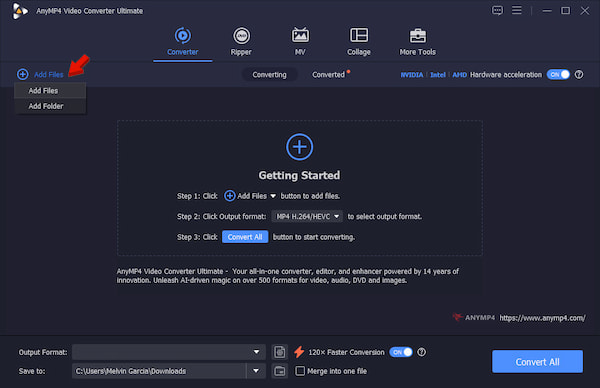
1. Download AnyMP4 Video Converter Ultimate and finish the installation. After setup, the software opens to the Converter tab. Then, click +Add Files to import the FLV sources.
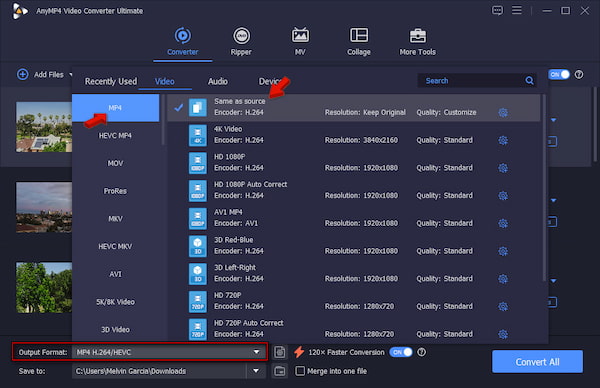
2. Go to Output Format and select MP4 under the Video category. Next to it, select Same as Source as your quality preset to match the source and avoid degrading the original pixels.
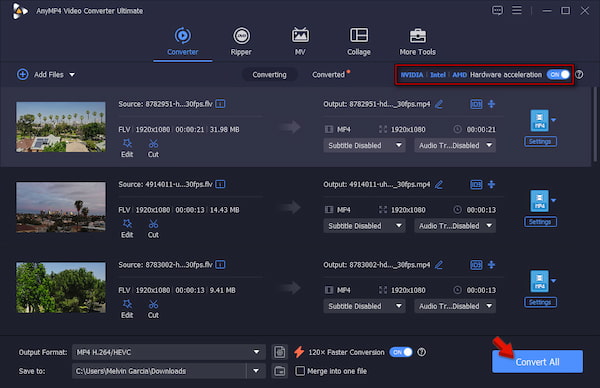
3. Activate the Hardware Acceleration button to speed up the conversion. Set the output destination, then click "Convert All" at the bottom right corner to start batch processing FLV to MP4 for Premiere Pro editing.
Before we conduct a hands-on test, we first play FLV videos with an FLV media player software to ensure we’re not converting broken files. In our test, we converted 50 short HD FLVs, totaling 2.5 GB, into MP4 format in just 1 minute and 48 seconds. During video quality assessment, the exported MP4 looked identical to the source FLV, even at 100% zoom.
VLC Media Player, known by many as a media player, isn’t just for playing media files. It has a secret Convert/Save tool hidden in the Media tab. You can use it as an FLV-to-MP4 converter for transcoding media files.
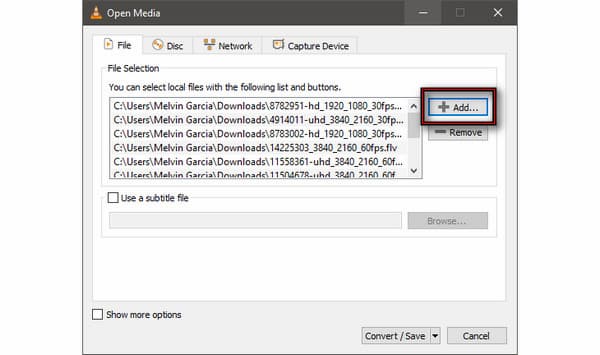
1. Go to the Open Media window by pressing the Ctrl+J keys. Click +Add to load the FLV sources, then click Convert/Save to proceed.
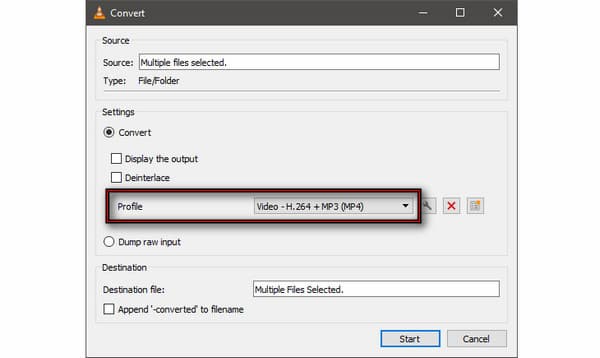
2. In the Convert window, click the Profile picker and select Video - H.264 + MP3 (MP4). After you set the new profile, click Start to begin the conversion.
To evaluate VLC fairly, we tested it using the same collection of FLV videos. During our testing, around the 10th queued, VLC stopped converting the files and suddenly crashed.
HandBrake is a legendary open-source video transcoder that has been around for years. With it, you can convert FLV to MP4 on Windows 11/10, macOS, and Linux. You can also convert AVI to MP4 with this free tool.
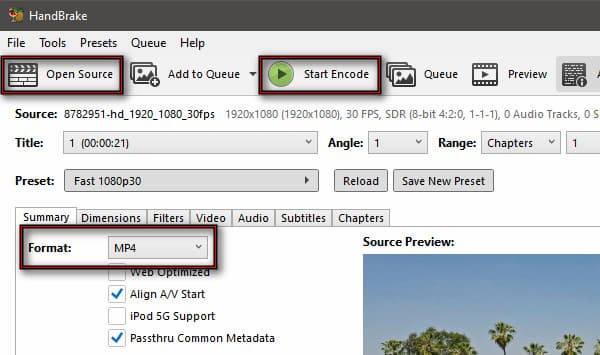
To convert: Drag the FLVs or click Open Source to upload them. Set the default format to MP4 in the Summary tab, then click Start Encode to re-encode the source file to MP4.
To compare HandBrake, we use the same 50 short HD FLVs, totaling 2.5 GB. The transcoding completed in 6 minutes and 52 seconds without any lags or crashes, unlike with VLC.
FreeConvert is, as the name suggests, a free FLV-to-MP4 converter that runs entirely online. You can upload FLV from your local files or import them from the cloud or via URL. It also includes built-in tools that let you trim, resize, rotate, and crop video.
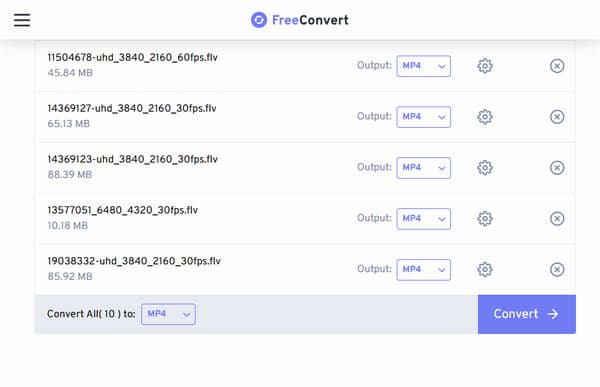
To convert: On FreeConvert, click Choose Files to upload the FLV videos. Make sure the output format is set to MP4. Click Convert to start the conversion, then download to save.
FreeConvert is free to use, but it has a restriction for free users. The maximum upload size is only 1 GB, and you’re capped to 20 minutes of conversion time per day.
Zamzar is one of the longest-running online file conversion services, supporting hundreds of media and file types. Although the free version cannot batch-convert FLV to MP4, it ensures lossless quality.
To convert: Open Zamzar on a browser and click Choose Files to add the FLV video. In the Convert To section, select MP4, then click Convert Now to convert and download the new MP4.
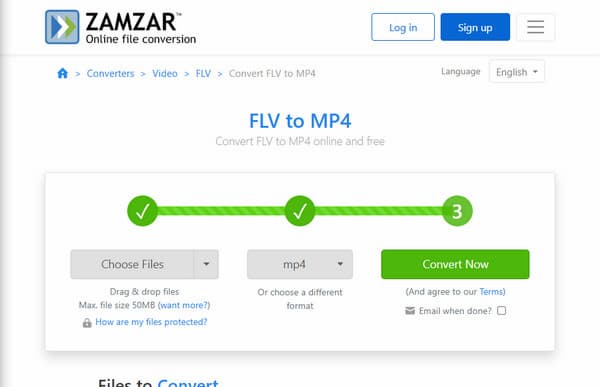
Zamzar is recommended to use if you only need to convert one or two FLVs under 50 MB. Also, free users can only convert 2 files per 24-hour period.
AnyMP4 Free Video Converter Online is a single-file online video conversion tool. It can re-encode FLV to MP4 and 300+ other formats without downloading anything on your computer. Before conversion, you can adjust the default encoder, resolution, zoom mode, frame rate, and quality. Best of all, it exports a watermark-free, converted MP4 for free.
To convert: Navigate to AnyMP4 Free Video Converter Online and click Upload File to import the source FLV. Select MP4, then click Save to begin the conversion, and download it right after.
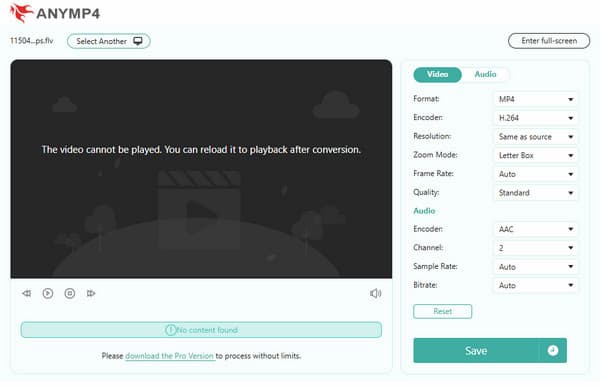
You can import a file up to 100 MB, provided you are logged in. However, if your files exceed the limit, we recommend using the AnyMP4 desktop version.
Why can’t I play FLV files on my Mac?
You cannot play FLVs because the default QuickTime Player does not support the format. The best thing you can do is re-encode the FLV to MP4 on a Mac, so it’s playable. Besides, you can also download a FLV player to watch FLV files on your Mac.
Does converting FLV to MP4 reduce video quality?
No, as long as you choose the same quality preset as the source. Changing the default preset to a higher one won’t make an old video clearer. It just makes the file size bigger.
How can I convert large FLV files to MP4 for free without watermarks?
You can convert FLV files to MP4, free of watermarks, using AnyMP4 Free Video Converter Online. This tool lets you export the converted MP4 file without a watermark.
Converting old Flash videos to a modern format ensures they remain compatible with today’s devices, media players, and video editing software. If you frequently convert large FLV videos, AnyMP4 Video Converter Ultimate is our top recommended FLV-to-MP4 converter. It offers unlimited file conversion and offline processing for better privacy. But if you only need to convert a few small FLV files, AnyMP4 Free Online Video Converter is an excellent alternative. It requires no installation and delivers high-quality MP4 conversions.
 Posted by Alice Thorne to Converter, Convert Video
More readings
 4 Best Ways to Convert FLV to MP4 Without Quality Loss
Still stuck with old Flash Video files? Learn how to convert FLV to MP4 from the guide for lossless conversion, batch processing, and AI upscaling tips.
 5 Best Ways to Convert FLV to MP3 Without Quality Loss
How to extract audio from FLV? Get the top 5 FLV to MP3 converters (free, online, and desktop) for batch processing and 320kbps high-quality extraction.
 Top 3 Approaches to Convert FLV Video Files to AVI Format in 2026
Looking for the best FLV to AVI converter? Here we share three best methods to convert FLV videos to AVI on Windows, Mac OS 12/11/X without losing quality.
 3 Best Ways to Convert FLV to GIF (Free & Online) in 2026
Convert FLV files into high-quality GIFs without losing frames. Follow our 2026 guide to use the best FLV to GIF converters for Windows, Mac, and web browsers.

