
Free Download100% Clear & Secure
Free Download100% Clear & Secure
Quick Summary:
If you’re looking to convert FLV to MP4 quickly and without quality loss, here is the breakdown:
It happened last weekend. I was digging through an old external hard drive from my high school days—around 2012—and I found a folder labeled Gaming Memories. Inside were dozens of .flv files. For those who weren't around then, FLV (Flash Video) was the king of the internet. It powered YouTube and every cool website we visited. However, my MacBook wouldn't open them, my 8K Smart TV didn't recognize the format, and even my cloud storage was giving me the file format not supported shrug.
If you’re reading this, you’re probably in the same boat. You need to convert FLV to MP4 so you can actually watch your videos again. Whether it’s a Flash Video migration for your business archives or just a trip down memory lane, I’ve spent the last week testing every FLV format to MP4 converter on the market. In this guide, I’m going to share the professional tools and the free hacks I used to get my videos back into the modern world.
| Primary Use | Speed | Quality Loss | Ease of Use | Batch Support | OS Support | Extra Tools | |
|---|---|---|---|---|---|---|---|
| AnyMP4 Video Converter ultimate | Professional/Batch Conversion | Ultrafast (Hardware Accel) | None (Lossless Remuxing) | High (Beginner Friendly) |  High-speed Processing High-speed Processing |
Windows & macOS | AI Enhancer, Trimmer, GIF |
| Handbrake | Expert Transcoding | Medium (CPU Intensive) | Slight (Always Re-encodes) | Medium (Steep Curve) | Queue Management |
Win, Mac, & Linux | Advanced Video Filters |
| VLC Media Player | Quick Playback & Convert | Slow (Re-encoding) | Slight (Re-encoding) | Low (Hidden Settings) |  Complex / Scripted Complex / Scripted |
Win, Mac, & Linux | Media Player |
| CloudConvert | Small, Quick Tasks | Slow (Upload-based) | Variable (Compression) | High (No Install) | Limited by File Size |
Any (Web Browser) | None |
The tech landscape has moved on completely from the Adobe Flash era. Here is why you absolutely need to transfer FLV to MP4:
1. Universal Compatibility
While FLV was great for web browsers in 2010, it is now a legacy format. Modern devices—from the latest iPhone 18 to Windows 11 tablets—are optimized for MP4. MP4 acts as a container for high-efficiency codecs like H.264, HEVC (H.265), and the newer AV1. By converting, you ensure your videos play on everything without needing a specialized player.
2. Superior Compression and Quality
FLV files are often bulky and use outdated compression methods. When you convert .flv to .mp4, you can actually reduce the file size while improving the visual clarity, especially if you use lossless FLV conversion techniques.
3. Future-Proofing with AI Upscaling
Most old FLV files are low resolution (360p or 720p). Modern converters now include AI video upscaling features. This means you can take that grainy old video and use AI to fill in the gaps, making it look crisp on a 4K monitor. You simply can't do that with the raw FLV file.
If you have a large library of files or you care about keeping every single pixel perfect, AnyMP4 Video Converter Ultimate is the heavy lifter. I call this the Pro Choice because it doesn't just swap the file extension; it rebuilds the video using hardware acceleration (utilizing your GPU's power to make the process 70x faster). I used this to batch FLV to MP4 my entire 50GB archive in under twenty minutes. It supports the latest AV1 codec, which is the gold standard for video streaming.
How to Use AnyMP4 to Transform FLV to MP4:
1. Load FLV Videos
Free download this FLV to MP4 converter on your Windows or Mac computer. Then launch it after successful installation.
Secure Download
Secure Download
Open the software on your Windows 11 or Mac. Click the Add Files button or just drag your .flv files directly into the window.

2. Select MP4 Profile
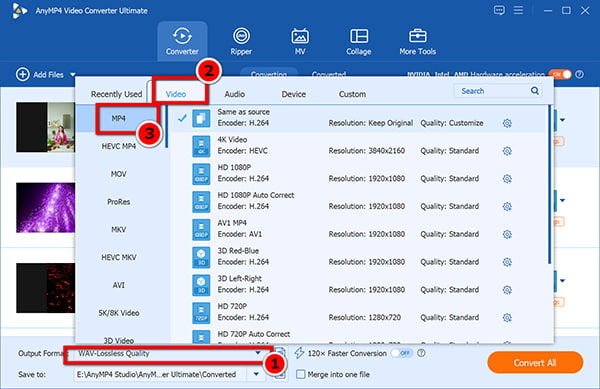
In the Output Format dropdown, select MP4 under the Video tab. You can choose Same as Source for lossless FLV conversion or select a 4K/8K preset if you want to upscale.
3. Convert FLV to MP4
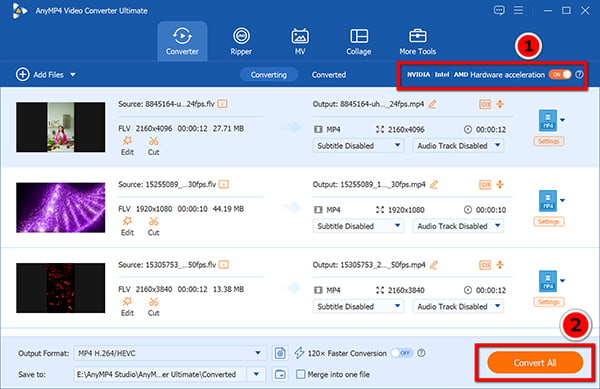
Look for the little Hardware acceleration icon at the top-right corner. Make sure it's toggled on so the software uses your graphics card for speed.
Finally, click Convert All and let this tool transform FLV to MP4.
4. Enhance with AI (Optional)
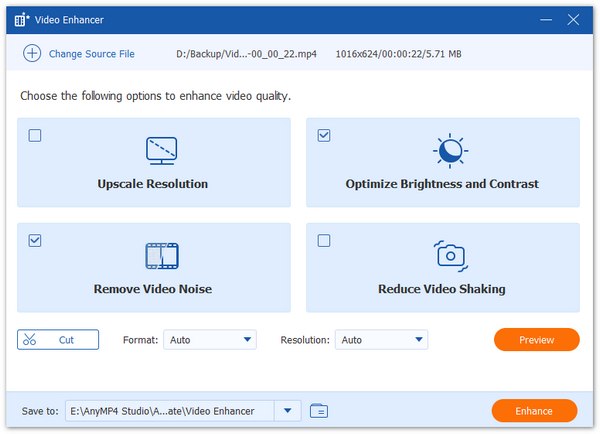
Click on the Toolbox tab and select Video Enhancer. Here, you can check Upscale Resolution to make your old Flash videos look modern.
My Personal Experience: AnyMP4
What I Love
The Downside
If you’re on a budget and don't mind a slightly steeper learning curve, you can't go wrong with these two legends. I’ve used both for years, and they are still the best FLV to MP4 for Mac/Windows 11 that won't cost you a dime.
While primarily known as a universal, open-source media player, VLC also includes a hidden video conversion feature. It is a fantastic zero-cost solution for users who already have it installed and just need to convert a few short FLV clips to MP4 without downloading dedicated conversion software.
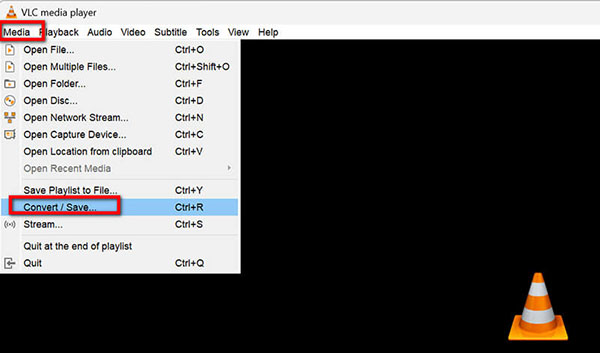
1. Open the Converter
Launch VLC, click Media in the top menu bar, and select Convert / Save.
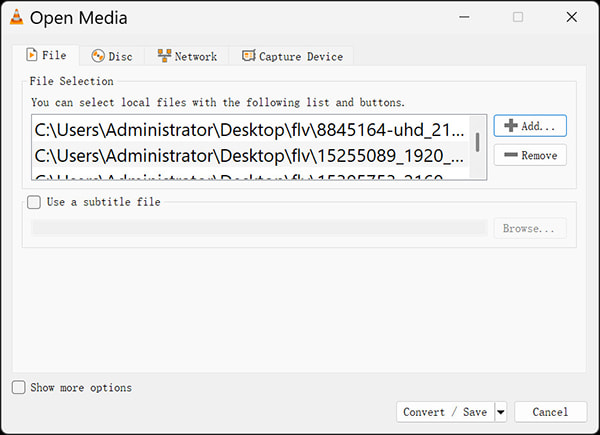
2. Add Your File
Click the Add button to import your FLV file, then click the Convert / Save button at the bottom.
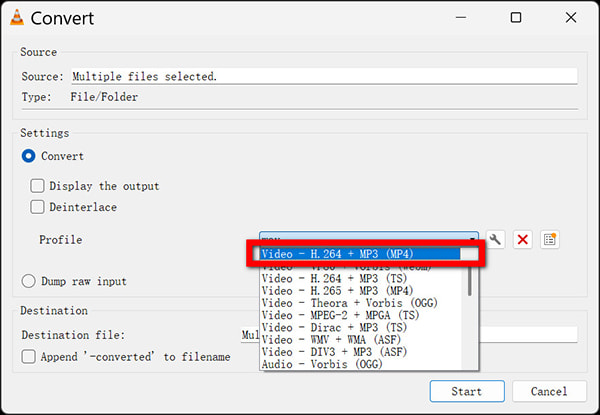
3. Choose the Profile
In the Settings section, open the Profile dropdown menu and select Video - H.264 + MP3 (MP4).
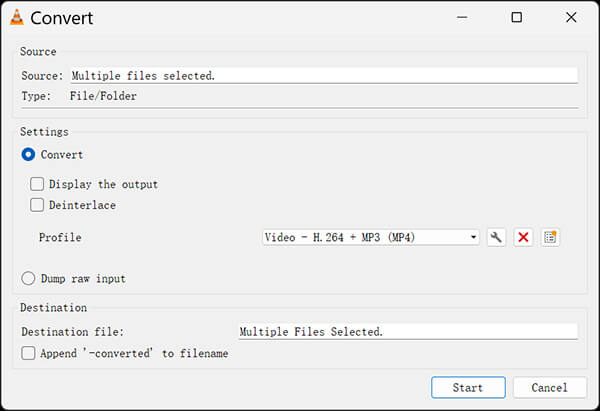
4. Export
Click Browse to choose a destination folder, name your new file (ensure it ends with .mp4), and click Start.
My Personal Experience: VLC
What I Loved
The Downside
HandBrake is a legendary, open-source video transcoder favored by professionals and tech enthusiasts. It is designed to give you granular control over your video files, making it the perfect tool if you want to compress a large FLV file into a highly optimized, smaller MP4 without sacrificing too much visual quality.
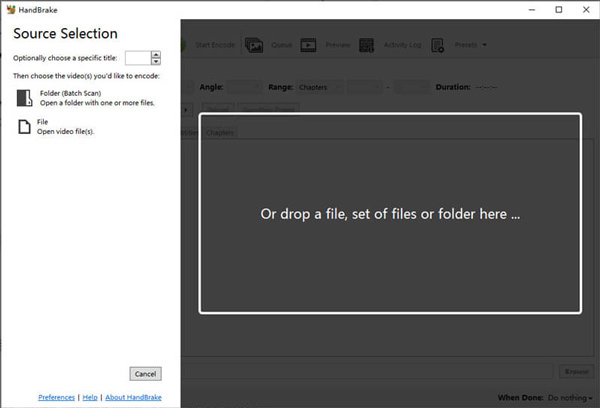
1. Load the FLV Videos
Open Handbrake and drag and drop your FLV file into the main window.
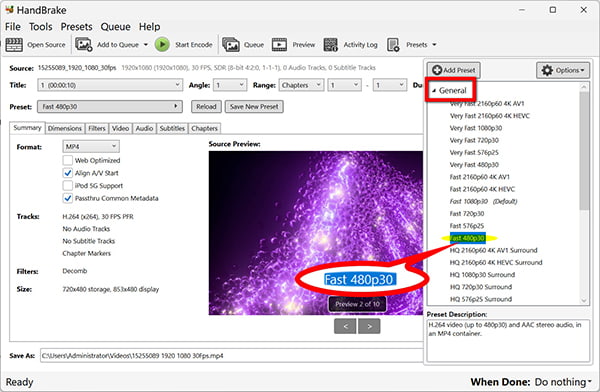
2. Select a Preset
Go to the Preset dropdown. For a good balance of speed and quality, select General > Fast 1080p30.
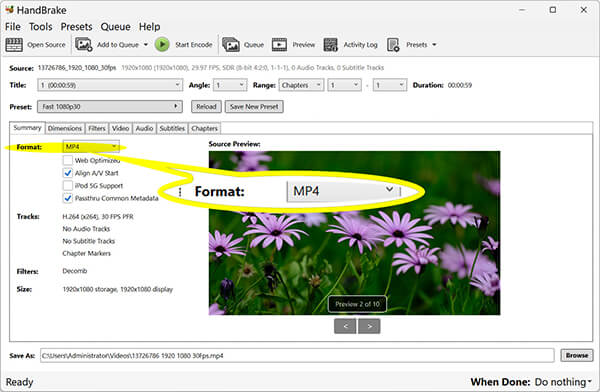
3. Set the Format
In the Summary tab, ensure the Format is set to MP4. (Optional: Check the Web Optimized box for better online playback).
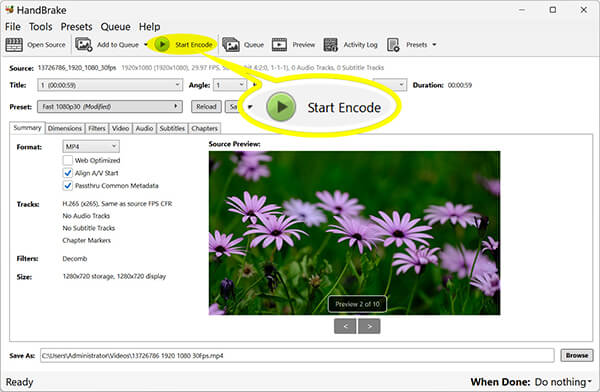
4. Start Encoding
Choose your output destination at the bottom, then click the green Start Encode button on the top toolbar.
My Personal Experience: HandBrake
What I Love
The Downside
Sometimes, you just don't want to install anything. Maybe you’re on a public computer at the library, or you’re using your friend’s Chromebook to show them an old clip. In these emergency moments, I usually turn to an FLV format to MP4 converter that lives entirely in the browser. My go-to for years has been CloudConvert. It’s one of the few online FLV converter tools that has survived without becoming a mess of pop-up ads and Download Now traps. It’s super handy when you have a tiny .flv file and you need to how to turn FLV into MP4 in literally sixty seconds.
1. Navigate to the Site
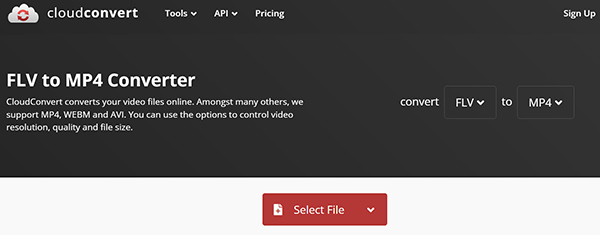
Go to CloudConvert.com (https://cloudconvert.com/flv-to-mp4).
2. Upload Your File
Click Select File and grab that legacy Flash video from your local folder or even your Google Drive.
3. Adjust MP4 Parameters (Optional)
In the output settings, MP4 is selected as the target format by default.
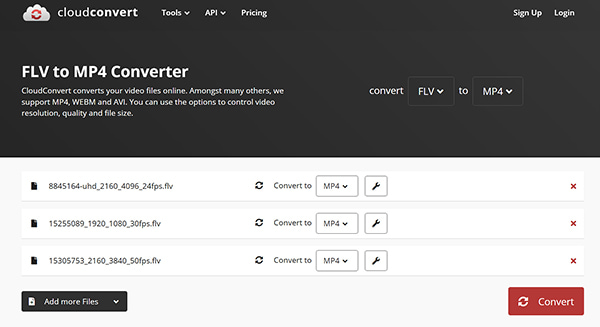
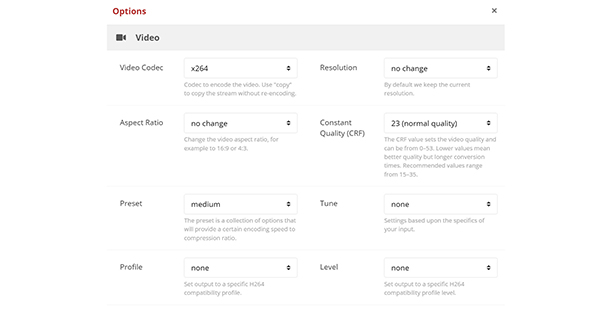
Click the little wrench icon if you want to change the bitrates or resolution, though I usually leave it on Auto.
4. Convert and Download
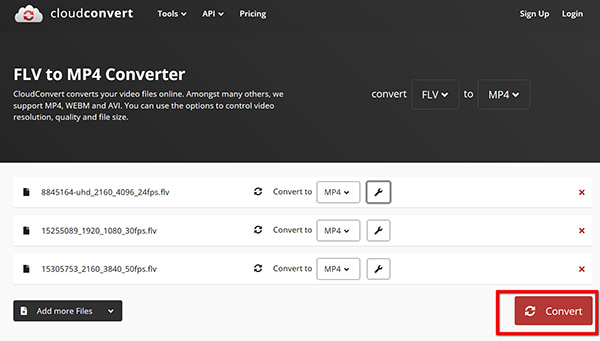
Hit the big red Convert button. Once the cloud servers finish the transfer .flv to .mp4 process, a download link will pop up.
My Personal Experience: CloudConvert
What I Love
The Downside
Q: Is FLV still used in 2026?
A: Technically, no. Adobe officially killed Flash at the end of 2020. However, millions of hours of video content still exist in the .flv format in archives, old servers, and personal backups. To view them today, you almost always need to convert FLV to MP4.
Q: How can I convert FLV to MP4 without losing quality?
A: To achieve lossless FLV conversion, you should use a method called remuxing. Tools like AnyMP4 or FFmpeg can take the video stream out of the FLV container and put it into an MP4 container without re-encoding the actual video. This is instantaneous and keeps the quality 100% identical.
Q: Can I convert FLV to MP4 on a Mac?
A: Yes! Both AnyMP4 and HandBrake have native versions for Apple Silicon (M1/M2/M3/M4/M5 chips). In fact, Mac hardware is excellent at handling H.264/HEVC encoding, making the process very smooth.
Whether you choose a powerhouse like AnyMP4 Video Converter Ultimate for its AI video upscaling and speed, or a classic free tool like HandBrake, the most important thing is to start the Flash Video migration now.
Data rot is real. Old formats become harder to support every year. By taking the time to how to convert FLV to MP4 today, you’re ensuring that your old gaming clips, family videos, or professional archives are ready for the next decade of technology.
Secure Download
Secure Download
 Updated by Alice Thorne to Convert Video
More readings
 5 Ways to Convert FLV to MP3 [Online&Desktop Converters]
How to convert FLV to MP3? This post shares 5 great FLV to MP3 converter apps including free ones to help you exact MP3 audio from FLV video.
 Top 3 Approaches to Convert FLV Video Files to AVI Format in 2026
Looking for the best FLV to AVI converter? Here we share three best methods to convert FLV videos to AVI on Windows, Mac OS 12/11/X without losing quality.
 FLV to GIF: How to Convert FLV to Animated GIF
Want to convert FLV files to GIFs? In this article, we shall share the best FLV to GIF converter and other 3 free tools to export animated GIF from flash video.
 Best 5 AVI to MP4 Converter 2026 Without Quality Loss
Looking for the best AVI to MP4 converter? Check this review of AnyMP4, Movavi, VLC, etc. Compare speed, quality, and ease of use to find your perfect tool now.
 Add your comments to join the discussion here