How to Record Games on PC: The Ultimate 2026 Guide to High-FPS Capturing
Quick Answer:
To record games on PC with zero lag, we recommend AnyMP4 Screen Recorder for its dedicated Game Recorder mode and low CPU impact. For a free built-in option, use Windows Xbox Game Bar (Win + G). Professional streamers should use OBS Studio, while NVIDIA GPU owners can utilize ShadowPlay for hardware-level encoding.
Capturing your most epic gaming moments should not mean sacrificing performance. To record high-FPS games on PC without delay, the right settings are crucial for avoiding annoying frame drops. In 2026, recording technology has advanced significantly compared with before: with AI noise reduction and support for high-performance codecs like AV1, enabling clear, smooth image quality without delay. This guide will show the four best ways to record games on PC, from the powerful AnyMP4 Screen Recorder to built-in Windows shortcuts and professional-grade OBS configurations. So, let's get started!
Why You Should Trust Our Recommendation
- How We Tested: We spent 40+ hours testing these tools on both high-end (RTX 50-series) and budget rigs.
- Our Metrics: We measured Frame Rate Delta (FPS drop during recording), File Size Efficiency, and UI Intuition.
- Technical Expertise: Our team includes veteran gamers and video editors who understand the importance of bitrates and hardware acceleration (NVENC/QSV).
Method 1: The All-in-One Professional Solution (AnyMP4 Screen Recorder)
AnyMP4 Screen Recorder is the most recommended choice, bridging the gap between the simplicity of Windows tools and the complexity of OBS. Unlike standard screen capture, its Dedicated Game Recorder Mode locks onto the game process, preventing desktop notifications or private windows from being recorded. Powered by Hardware Acceleration 3.0, it utilizes your GPU (NVIDIA, AMD, or Intel) to ensure 0% impact on in-game latency. Moreover, 4K lossless and AV1 support can capture the highest fidelity without massive file sizes.
Here is how to record games on PC using AnyMP4 Screen Recorder:
1. Download and install AnyMP4 Screen Recorder on your computer. After installation, it will launch automatically.
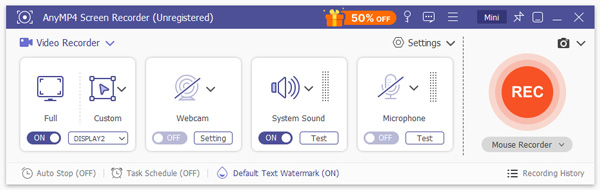
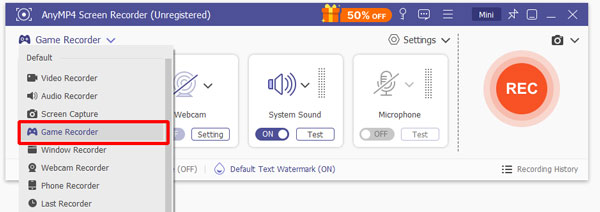
The Screen Recorder option is selected by default. Click this option and select Game Recorder from the dropdown list.
Note
The Game Recorder mode requires administrator privileges to start. Continue by checking the Always Run as Administrator box. Then click OK to run AnyMP4 Screen Recorder as an administrator.
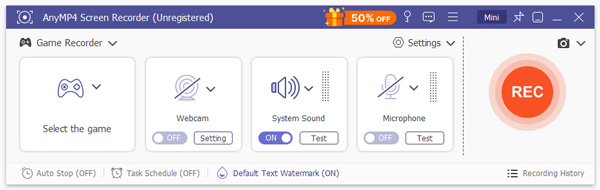
2. Click the first button on the left to select the game you want to record. Next, toggle System Sound to capture in-game audio.
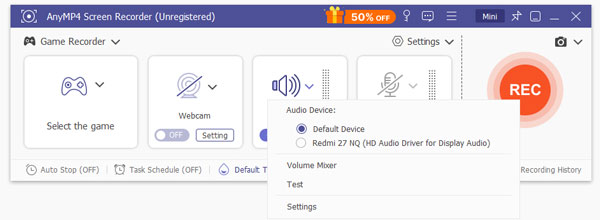
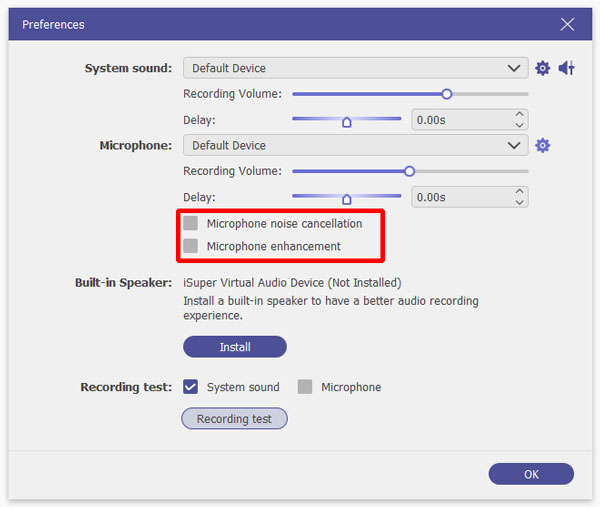
Also, you can enable the Microphone to capture your voice and use the Microphone Noise Cancellation feature to keep your commentary crisp.
3. When all the settings are ready, click REC. Then, the window you chose will pop up. Notice that you cannot adjust the window's range when recording.
Use the hotkeys to take snapshots, capture highlights, etc., during play if you need. To end the recording, click the red square button to stop it.

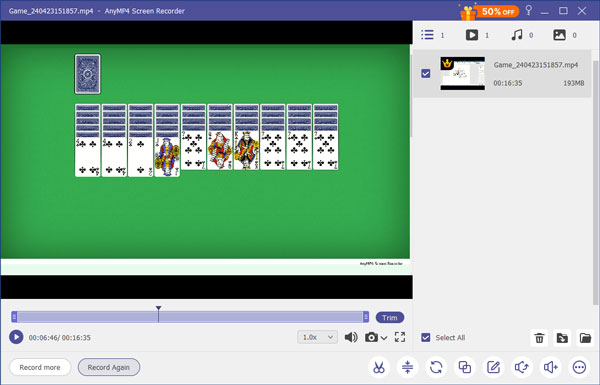
4. The recording will be saved to your local folder, and you will be taken to the preview window to trim unwanted footage, adjust the volume, and more.
AnyMP4 Screen Recorder provides the best way to record games on a PC. Besides, it lets you record any gameplay with no lag or interruptions.
Method 2: The Built-in & Free Quick-Fix (Windows Xbox Game Bar)
The Windows Xbox Game Bar is best for casual gamers who require zero installation. It is built into Windows 10/11 and is perfect for capturing a clutch moment when it happens. But it is limited to 60 FPS and lacks advanced editing or overlay features, making it not ideal for lengthy, high-quality video recordings.
Here is how to record games on PC using Xbox Game Bar:
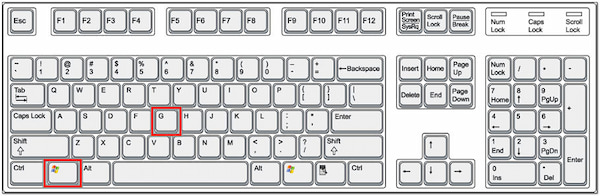
1. Go to Settings > Gaming > Xbox Game Bar and ensure it is toggled On. While in-game, you can also use the Windows + G key to launch it.
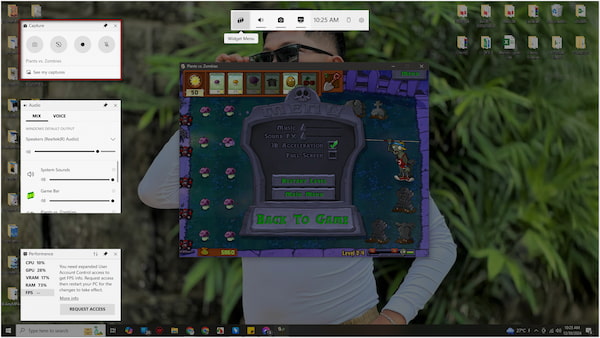
2. Click the camera-shaped Capture button, and then you can see the recording options: Take Screenshot, Record Last 30 Seconds, Start Recording, and Turn Mic on While Recording.
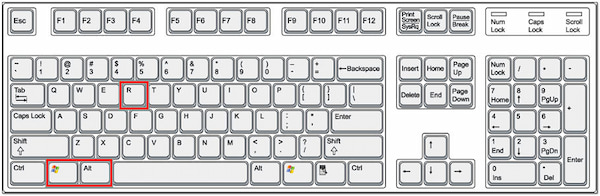
3. Play your games as usual, then click the Start Recording button in the Capture tab (or press Win + Alt + R) to start capturing your gameplay.
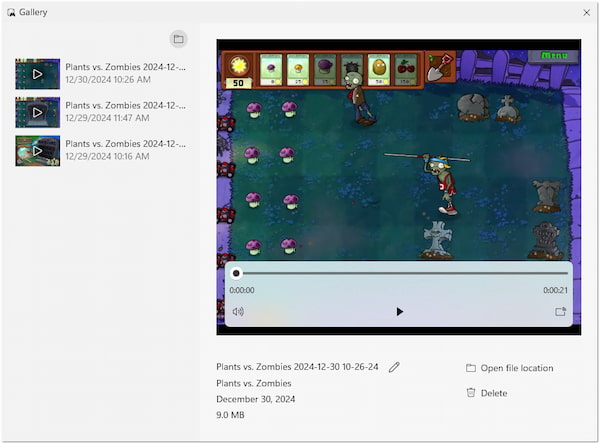
4. Press the same keys/click Stop Recording to end and save the file to your Videos/Captures folder. You can access the recorded gameplay there.
Undoubtedly, it is a user-friendly option for beginners and non-tech-savvy users. But if you prefer more editing functions, consider the third-party game recording software like AnyMP4.
Method 3. The No-Install Web Solution (AnyMP4 Free Online Screen Recorder)
This no-install web solution is the perfect choice for users on a locked PC (like a library or work computer) or for those who want a zero-footprint capture tool for browser-based or light indie games. It is web-based, totally free, and leaves a light footprint on the system. However, this web recorder is better suited for 1080p indie or browser games rather than AAA titles that require heavy GPU usage.
Here is how to record games on PC using AnyMP4 Free Online Screen Recorder:
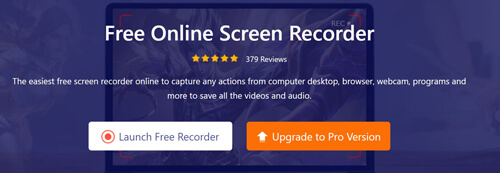
1. Visit the website and click Launch Free Recorder. Then, it will prompt you to install the recorder launcher. After that, you can see the main interface.
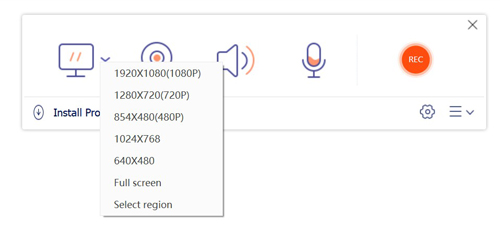
2. Select the recording game area, turn the webcam on or off, and select the recording audio from the microphone or system sound.
3. Click REC to start recording. Once you stop, the file will be automatically processed and saved to your computer without watermarks.
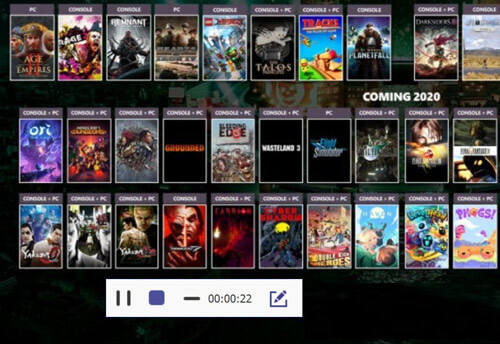
This online recorder has no screen recording limit. Besides, it is ad-free and safe to use. However, compared with the desktop version, it is based on web pages, and the browser uses more resources, so it is not suitable for recording large games.
Method 4: Best for Advanced Users & Streamers (OBS Studio)
OBS Studio is still the best game recorder available on PC for streamers. It uses Vulkan and DirectX hooks to capture game data directly from the GPU. This software lets you record games in high quality, with additional features such as audio mixing and streaming. While it is best suited for multi-scene setups and live streaming, it requires significant technical expertise and manual configuration. Its steep learning curve makes it not ideal for beginners.
Here is how to record games on PC using OBS Studio:
1. Open OBS Studio, click +, and select Game Capture in the Sources tab. Name it and select Capture Specific Window to record a specific game.
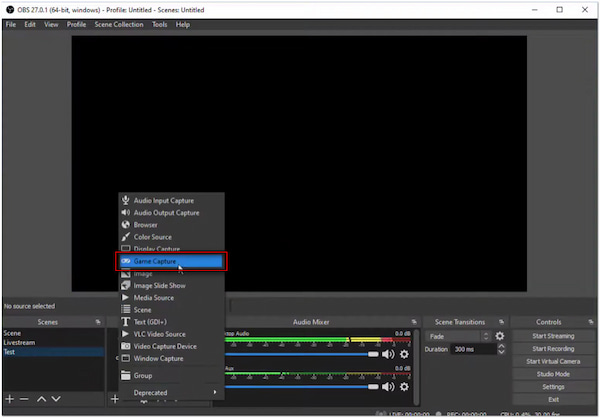
2. Add Audio Input Capture and Audio Output Capture to record game clips with your voice. Then, click Start Recording, and it will capture everything in the background.
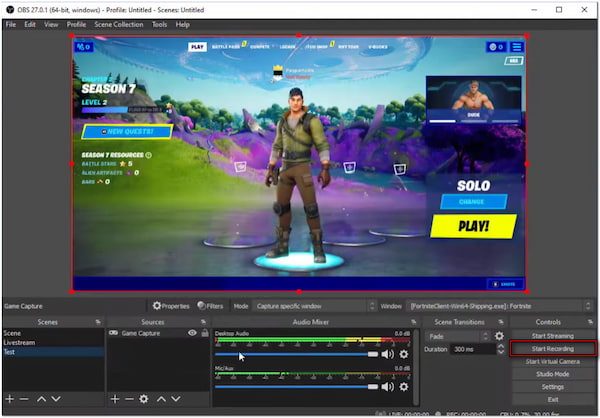
3. Once you have finished gaming, return to OBS Studio and click Stop Recording. The recorded game will be saved to the default location or in the specified destination.
OBS Studio provides a free solution for recording games and live streaming. However, although it is good for recordings, OBS Studio is somewhat difficult to operate due to its GUI.
FAQs
Does recording gameplay reduce my FPS?
Yes, but using hardware-accelerated tools like AnyMP4 reduces the hit to less than 5%.
How do I record my screen on a PC for free?
Use AnyMP4 Free Online Screen Recorder for a no-download solution, or Windows Game Bar for built-in capture.
What is the best format for game recording in 2026?
MP4 with AV1 codec is the best balance of high quality and low file size.
Can I record gameplay on a low-end PC?
Yes, but you must use a tool that supports hardware acceleration to avoid crashing your CPU.
How do I record internal audio only?
Professional tools like AnyMP4 allow you to toggle System Sound on and microphone off for clean game audio.
Conclusion
To wrap up, the best way to record games on PC depends on your goals. For a seamless, lag-free experience with professional features, AnyMP4 Screen Recorder remains our top recommendation for 2026. If you are a streamer needing total control, OBS is the standard. Regardless of your choice, always test your settings with a 30-second trial clip before starting your main session to ensure audio and video are perfectly synced.