
Secure Download
Secure Download
A robust Valorant clip recorder will make your tasks easier, whether you want to capture the highlights or show off your amazing talents when playing Valorant. Here, we'll introduce you to some of the best screen capture programs/online tools and show you how to record your Valorant gameplay.
Get the best game recording software to record your Valorant gameplay if you enjoy the game and want to show off your prowess on YouTube or other social media sites to gain more followers. Yet, it's harder than you might expect to record Valorant gameplay without the frame rate dropping. Given that, this article is helpful. This page will discuss some excellent Valorant clipping programs and show you step-by-step how to record Valorant gameplay without lag. Let's get started now!

When using NVIDIA GPUs, you have the option to use NVIDIA ShadowPlay to capture gameplay recordings using your GPU software. Since it is designed for gameplay captures, it will work great for Valorant recordings. As such, choosing whether to use ShadowPlay vs OBS for Valorant is a common topic online for NVIDIA users.
To learn how to use it, please follow our three-step guide below:
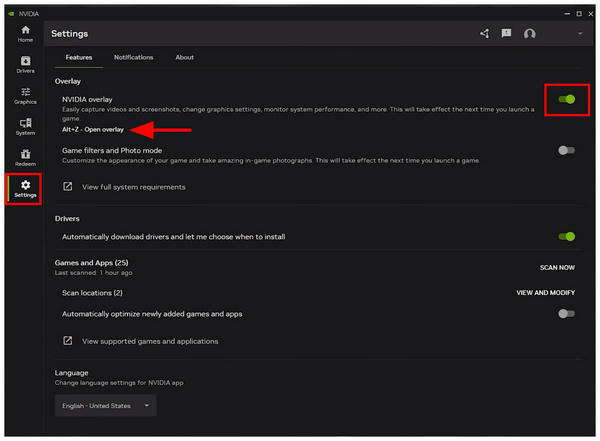
1. Open NVIDIA Shadowplay and then proceed to the Settings tab. Then, toggle the NVIDIA Overlay button on. By default, it can be turned on by pressing Alt + Z. Go to the game you want to record.
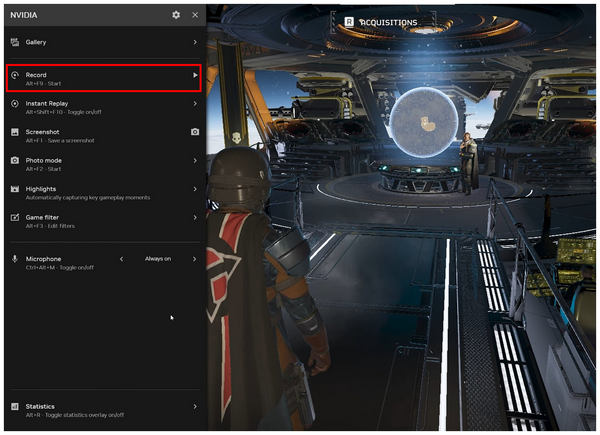
2. Inside the game you want to capture, press the Alt + Z buttons to open NVIDIA Overlay. Then, check the button combination for Record set by default to Alt + F9. Press it to start recording.
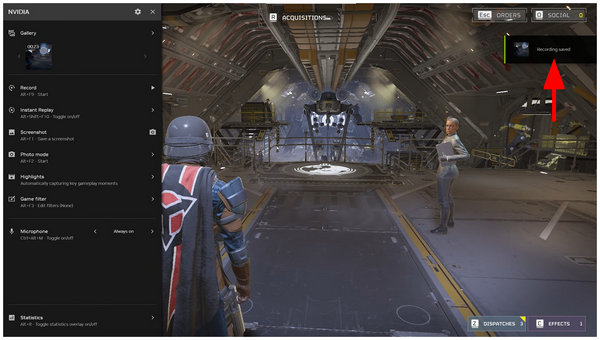
3. While the recording is active, continue playing, then press the Alt + F9 combination again to stop recording. Once done, a Recording Saved notification will appear in the upper right portion of your screen.
By following these steps, you can capture a smooth Valorant 60 FPS recording. However, be aware that this option is only compatible with PCs equipped with an NVIDIA GPU.
Moving forward to AMD computers, the AMD Software also offers a built-in screen recording tool for its users. It performs practically the same as NVIDIA ShadowPlay. With that in mind, it performs well as one of Valorant’s best clipping tools, especially since it can function with keyboard shortcuts.
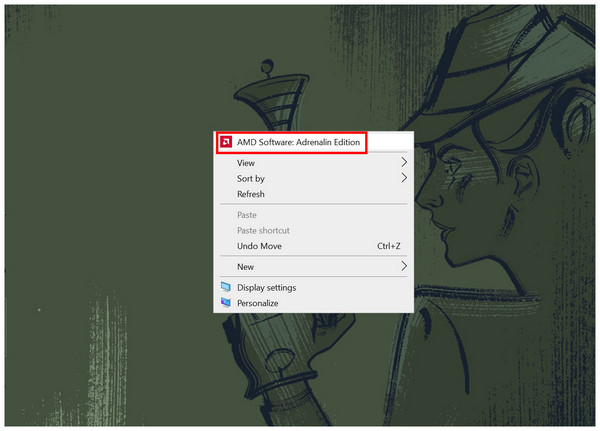
1. Go to your desktop and then right-click on your mouse. Then, click the AMD Software in the right-click menu.
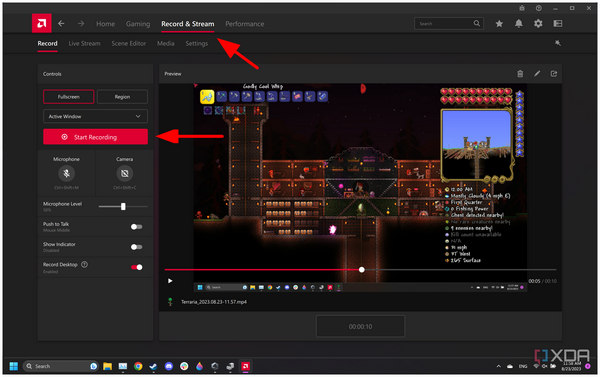
2. In the AMD Software interface, go to the Record & Stream tab. There, you may click on Start Recording. Once done, open Valorant and start playing.
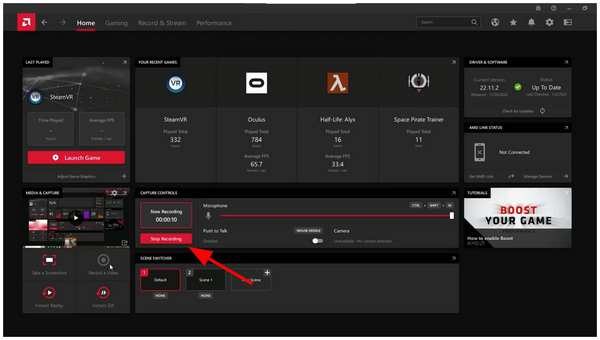
3. When you are done playing a game of Valorant, go back to AMD Software and then click on the Stop Recording option.
With these two screen-recording tools now discussed, we can ensure that you will be able to record high-quality gameplay of your Valorant games. This will greatly help improve your competitive performance, as rewatching your replays can be done from your local recordings.
With two high-performing screen recorders now featured, let’s move forward to an alternative designed for better customization and ease of use with AnyMP4 Screen Recorder. Unlike the two built-in GPU options, this alternative works better for users who are concerned about easier setup requirements, thanks to its one-click recording option.
In addition to an easier setup, it also performs well since the program is GPU-accelerated and equipped with an exclusive Game Recorder mode, which allows it to compete with other game-centered screen recording options.
With these features in mind, users who are looking for a high-quality paid solution for their Valorant recordings should definitely consider AnyMP4 Screen Recorder, which can be downloaded using the link below.
Secure Download
Secure Download
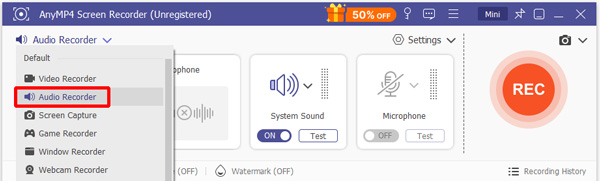
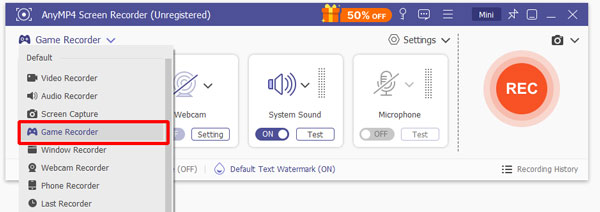
1. On your PC, start AnyMP4 Screen Recorder, then select Game Recorder from the main menu.
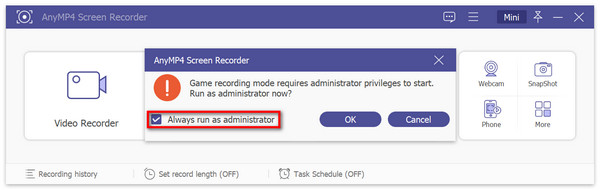
2. A window will appear. To begin, Screen Recorder requests administrator rights. We recommend selecting the 'Always run as administrator' checkbox to ensure proper operation. The software will restart after that.
3. Choose the game you wish to record from the drop-down menu by clicking the Arrow symbol on the left. In this case, please click the incredible Valorant.
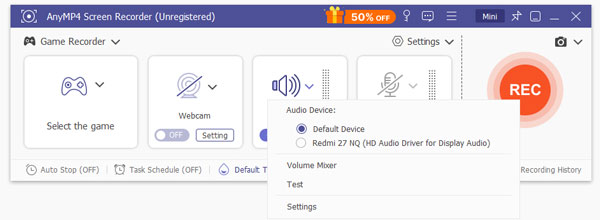
4. System Sound can be enabled at your discretion. You can select Change sound source, Volume Mixer, and Soundcheck, and set the volume. You may also activate the microphone to capture an external sound while playing.
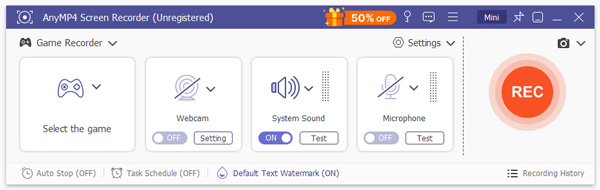
5. You can select REC on the right once all settings are ready. You'll also be shown the hotkeys. And you can alter them as you see fit.
6. The chosen software's window will then appear. The range cannot be modified, and the window is captured. Clicking the red square will stop the recording if you want to. Choose the location where the recorded video will be kept by clicking Save.
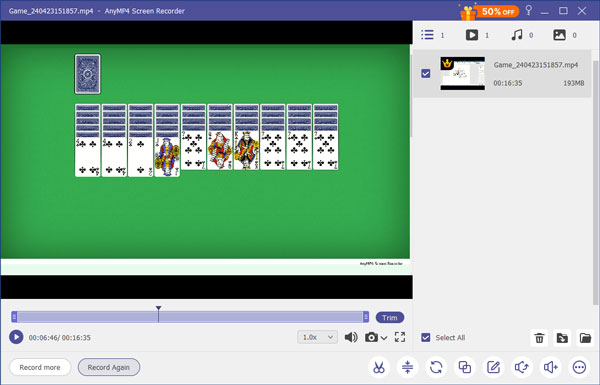
That proves why it became the best game recording tool! Use it now and expect a great outcome.
Other than installing a recording program on your computer, you can also use different online tools to capture your Valorant game as you're about to share it with other people. Here are a few incredible online recording tools for Valorant.
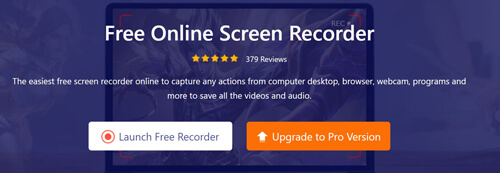
The free software AnyMP4 Free Screen Recorder allows you to record what is displayed on your computer screen. It can quickly grab them, regardless of where you want to capture them on your desktop. This free screen capture program can easily record desktop games and supports HD. It does not matter if you are playing desktop games like Cyberpunk, DOOM Eternal, Halo Infinite, and Valorant. Moreover, thanks to the webcam recording functionality, you can record games in picture-in-picture mode. Here are the steps on how we can use it.
1. When you click Start Free Recorder, it will ask you to install the recorder launcher. You will then view the primary interface.
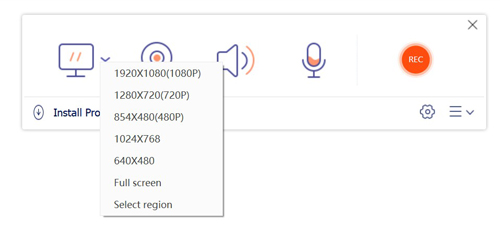
2. Choose the recording area where Valorant is running, turn on or off the webcam depending on your preference, and choose whether to record with a microphone or the system sound.
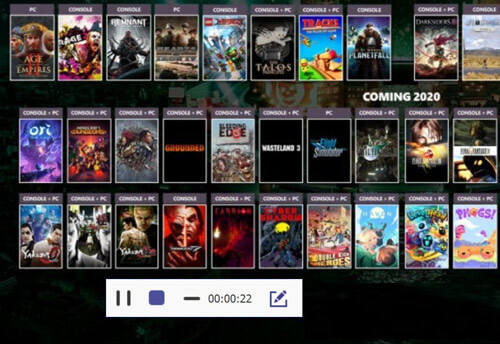
3. The recording will begin after you click REC. When you press the stop button, the recording file is automatically downloaded and saved to your computer.
A free online screen recorder is one of the best tools for quickly and easily recording a screen; no need to install any program. Use our internet video recorder as often as you'd like without paying anything. Let us see how this online tool will capture your Valorant gaming experience.
1. Access ScreenCapture's official website and see its main interface online.
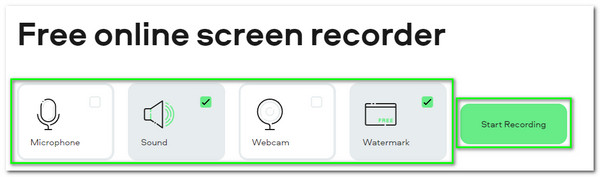
2. Then on the interface, we can see its minimalist design. We all need to customize the pre-settings before we begin recording. You can select the Sound, Webcam, and Microphone.
3. It is now when we need to click the Start Recording and take a screenshot of your Valorant screen to start capturing the moment.
Those are two of the best online recording tools. They might be limited in features, but they are still effective.
Although black screen issues could be caused by multiple reasons, the most obvious cause of it is Vanguard Anti-Cheat measures. To fix this problem, a good first step is to use a Vanguage-compatible recorder or to open Valorant in administration mode.
Yes, it does. As such, you have to use Vanguard-compatible screen recording software. Fortunately, the programs presented in this article are all supported by the anti-cheat system of Valorant.
Does an online gameplay recorder decrease the FPS when recording gameplay?
Yes. Online recording tools are very limited. That is why we often expect a low-quality output when using an online tool to record your gameplay, like Valorant. Unlike screen recorder programs, they support a higher FPS, giving us a much clearer video output. Many users suggest using a screen recording program rather than an online recording tool.
Can I record Valorant gameplay on a mobile phone?
To record and share your games, use the Google Play Games app. As you play, you can also record your voice or your responses. Only devices running Android 5.0 or higher and compatible devices can record games. We've compiled a list of the top clipping programs for Valorant to make recording and capturing those fantastic clips easier for gamers. The following suggestions for game clipping software are RecExperts by EaseUS, Studio OBS, Fraps, and Bandicam for mobile applications.
Why does my Valorant game recording display a dark screen?
Full-screen video games are impossible to record since they completely take over your computer's video card, interfering with TinyTake's ability to capture video. The game must be run in windowed mode to be recorded.
Why does my ping increase when recording Valorant?
This is because screen recorders consume significant network and CPU load from your computer. Although not inherently online, they can still affect your game stability. Ping increase is an example of one.
Can Vanguard flag me when using OBS to capture gameplay?
Yes, it may. Vanguard is highly sensitive and optimized to detect cheaters. Although OBS is not cheating software, it may be detected as a third-party background app that may be flagged.
How do I show the FPS counter in the final recording output?
You may simply add the FPS counter to Valorant’s settings. Then, use a recorder that captures your entire screen. Just make sure to use Vanguard-supported software.
What is the best low-latency recording codec for Valorant clips?
The H.264 codec is way better for capturing Valorant clips. They are considered more stable and more reliable. If your PC can handle it, the higher quality of H.265 may also be a good choice.
In conclusion, we can now have an amazing experience playing and recording your Valorant gameplay. Above this article are the proper methods to make the recording smooth and easy. We can see the best programs and online tools for it. However, many users trust the best program since it can provide a much clearer and smoother output than online tools. The choice is yours to make now, which one you will use.
Secure Download
Secure Download
 Posted by Alice Thorne to Record Video
More readings
 Two Proven Ways to Record Gameplay on Play Station 4 for 2026
In this tutorial, we will show you how to record PS4 gameplay either using the built-in digital video recorder or with a professional PS4 game recorder.
 3 Best Ways to Record Games on PC in Higher Quality
Looking to record games on PC? Get into this post and discover the best tools to record games in high quality. Plus, we include tips to avoid lags and drops.
 The Ultimate Guide to Record Xbox 360 Gameplay Video with Ease
How to capture and record high quality gameplay videos from Xbox 360? Just learn more about the ultimate guide to capture a satisfied gameplay video here.
 Record NFL Games on YouTube TV and Never Miss a Fumble
Check this and learn how to record NFL games on YouTube TV. Save your money and watch on your own schedule. Learn about limitations and explore alternatives.
 Add your comments to join the discussion here