
Summary
Need to extract audio from MOV? When file sizes are large and batch processing is involved, use AnyMP4 Video Converter Ultimate, which enables offline conversion without uploading to the server. For occasional, small files, use VLC Media Player or FreeConvert.
Many people want to extract audio from MOV files rather than keep the entire video. If you want to convert an iPhone video to audio for later listening, converting MOV to M4A is a smart solution. However, choosing the wrong conversion method is frustrating. Uploading large MOVs to online converters can take a long time. Also, many users are concerned about uploading personal videos to third-party servers. In this post, you will learn three reliable ways to convert QuickTime videos to lossless M4A format. We will help you extract high-quality audio from MOV files efficiently and securely, with minimal to no loss in sound quality.
Testing Device: Windows 10 Pro (64-bit), powered by AMD Athlon 3000G with Radeon Vega Graphics processor, 12 GB RAM, and an AMD Radeon(™) Vega 3 Graphics.
Test Sample: 50 MOVs, totaling 1.06 GB.
Evaluated Metrics: Processing speed, sample rate retention, privacy/security, and batch conversion.
| Conversion Speed | Batch Processing | Privacy | Max File Size | |
|---|---|---|---|---|
| AnyMP4 Video Converter Ultimate | 120× | ✅ No concurrent conversions limit | Offline | No file size limit |
| VLC Media Player | Normal speed | ✅ 5 concurrent conversions | Offline | No file size limit |
| FreeConvert | Depends on the server | ✅ 5 concurrent conversions | Online | 1 GB |
AnyMP4 Video Converter Ultimate is a video conversion software that supports audio extraction. With it, you can convert MOV to M4A and encode it with ACC compression. This software processes audio conversion and extraction locally, so there are zero cloud uploads. It ensures a 100% data privacy while preserving the lossless quality of the Apple codec source. It uses the most advanced hardware acceleration media processing to achieve 120× conversion speed. To ensure your audio plays smoothly, you can adjust the audio bitrate, channel, encoder, and sample rate. Better yet, you can simultaneously run hundreds of files without lag/crashes.
1. Download AnyMP4 Video Converter Ultimate and complete the installation. Right after the setup, the software will run automatically on your computer.
Secure Download
Secure Download
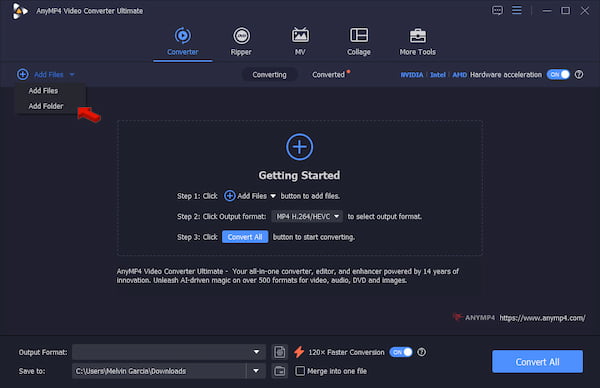
By default, it opens to the Converter tab. Click +Add Files to load the QuickTime video source. Remember, there are no file-size limits, meaning you can import one or more videos at a time.
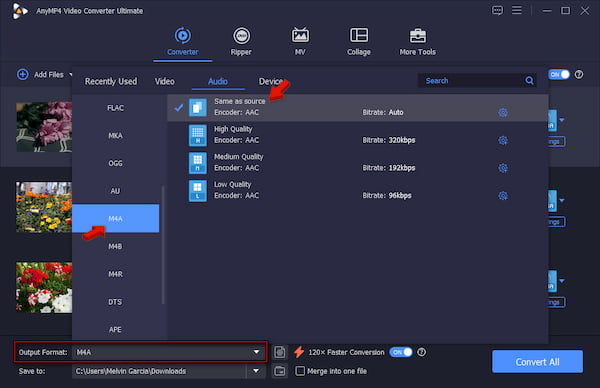
2. Go to Output Format, click the Audio category, and select M4A. To preserve the original sound, we recommend using the Same as Source quality preset.
3. Activate the Hardware Acceleration and 120× Faster Conversion to speed up conversions. Set the destination path, then click Convert All to batch-convert MOV to M4A offline.
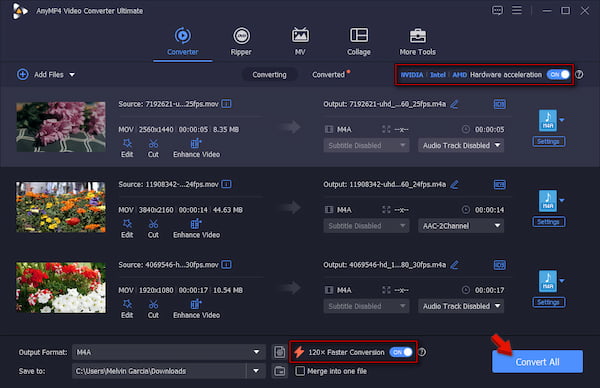
In our hands-on test, we assess AnyMP4’s capabilities in terms of output quality, speed, and batch conversion. We use 50 MOVs with varying resolutions (1080p, 2K, and 4K), totaling 1.06 GB. It took only 1 minute and 22 seconds to extract the audio and convert it to M4A. During our audit, we used the built-in M4A player and heard no degradation in quality or muffled sounds.
We only use VLC as a free media player for watching videos or listening to music. Because many users don't explore it, they don't know that it has a surprising feature. It has a Convert/Save tool that you can use as a free MOV-to-M4A converter for Windows/Mac.
1. In VLC, go to Media, then click Convert/Save to open the Open Media window. Click +Add in the File tab to import the MOV source. Then, click Convert/Save to continue.
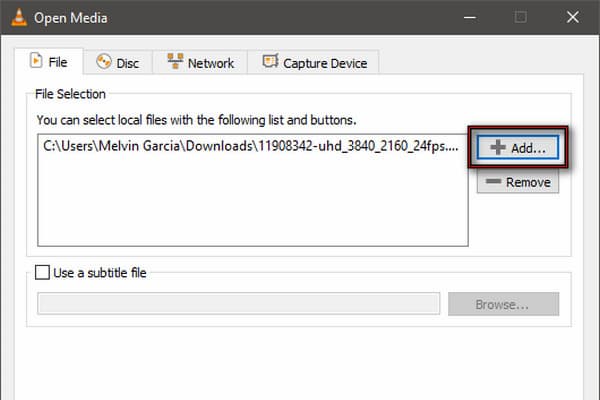
2. Click Create a New Profile to create an M4A profile manually. After creating the M4A profile, select it in the Profile picker, set the destination folder, and click Start.
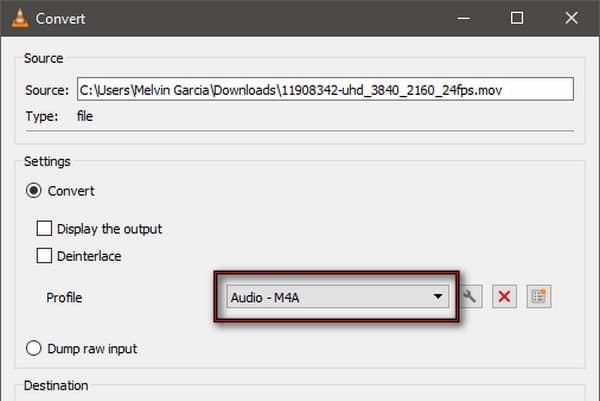
VLC is more than just an MOV player. It can also rip audio from standard MOV files. The catch is that it doesn’t support the M4A profile by default. You have to create it manually and use the correct settings to output an M4A-compatible file.
If you want a free MOV-to-M4A converter and don’t mind uploading files online, then FreeConvert is a convenient option. You can import a file below 1 GB and convert it to M4A. Since it runs entirely on a browser, there’s no need to install anything on your computer.
To convert: Go to FreeConvert and click Choose Files to select the MOV source from your computer. Choose M4A in the Output picker, then click Convert to begin the conversion. Right after the conversion, download the converted file to your computer.
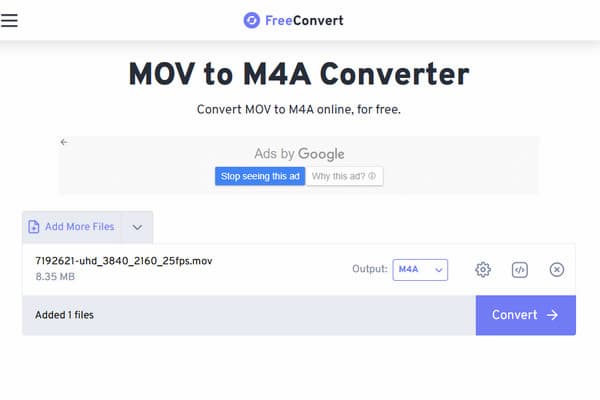
FreeConvert is an excellent tool if you only convert small files occasionally. But as a free tool, you should expect it to have its own limitations. You are limited to 20 conversions per minute, per 24 hours. In other words, you have to wait another 24 hours to convert .mov to .m4a.
MOV file is a container format that can contain multiple streams, including video, audio, subtitles, timecode, metadata, etc. M4A is an audio-only container based on the MPEG-4 standard. It can only save audio, so it's much smaller and easier to share.
| MOV | VS | M4A |
| Multimedia container | Format Type | Audio-only container |
| .mov | File Extension | .m4a |
 |
Contains Video |  |
|
Contains Audio | |
| AAC and PCM | Audio Codecs | AAC and ALAC |
Can I convert an MOV file to M4A on my iPhone without downloading third-party apps?
Yes, you can use the built-in Shotcuts to convert MOV to M4A on an iPhone without downloading third-party apps. Here, you can encode MOV files to audio only.
Does extracting M4A from an MOV video reduce the original audio quality?
It depends. If you use a passthrough method, it won’t reduce the source quality. It will only copy the raw audio into a new container without re-encoding it.
What is the difference between converting MOV to M4A versus MOV to MP3?
Converting MOV to M4A extracts the audio from the video source and compresses it with AAC. Conversely, converting it to MP3 uses an old compression method to guarantee universal playback.
How can I batch convert multiple large MOV files to audio format simultaneously?
To batch-convert multiple large MOV files to audio formats simultaneously, use AnyMP4 Video Converter Ultimate. This software allows you to convert hundreds of files at once without lag or crashes.
Is it safe to use free online converters for my personal MOV home videos?
No, it is not safe to use free online converters for personal MOV home videos. Using such tools does not guarantee that your uploaded files will be completely deleted. Servers retain copies or backups of uploaded data.
FreeConvert and VLC are the best tools for converting MOV files under 1 GB. However, if you need to convert MOV to M4A in batches, AnyMP4 Video Converter Ultimate is our recommended tool. This software supports batch processing, customizable audio settings, and 100% offline processing.
Secure Download
Secure Download
 Updated by Alice Thorne to Convert Video, Convert Audio
More readings
 3 Easy Ways to Convert MP3 to MOV in 2026 [Batch & Fast]
Need to upload audio to video platforms? Learn how to convert MP3 to MOV effortlessly. Compare the best desktop and online tools and keep 100% original quality.
 A Concrete Guide to Convert MOV to WMA for Free on PC/Mac
Need to extract audio from MOV videos and save as WMA? You are at the right place because we share the best methods to achieve the task on PC and Mac.
 How to Convert M4A to MP3 in 2026 (High Quality & Batch)
Learn 5 fast ways to convert M4A to MP3 on Windows/Mac and Online. Video conversion with zero quality loss and custom bitrate (up to 320kbps).
 Simplest Solution | Convert AVI to M4A Online & Offline
How to convert video to audio? Sometimes you may need to convert AVI files to M4A. Don’t worry. We will tell you the simplest solution to convert AVI to M4A.
 Add your comments to join the discussion here