
Summary
The fastest and most reliable approach to convert MOV to MPEG is AnyMP4 Video Converter Ultimate. It processes files locally to avoid slow uploads, file size limits, and privacy concerns. If you're looking for a free desktop alternative, VLC has a Convert/Save feature to perform the conversion. Meanwhile, FreeConvert is a convenient option for files under 1 GB.
Need to convert MOV to MPEG? Well, the best method depends on which MPEG format your device supports. If you’re playing videos on DVD players, MPEG-2 is usually the right format. For Video CDs, use MPEG-1; MPEG-4 offers the best compatibility with modern devices. For large 4K iPhone videos, a desktop MOV-to-MPEG converter keeps your files private by processing them locally. iDevices and professional cameras use QuickTime MOV format because of its excellent video quality. However, the Apple QuickTime format is large and isn’t always compatible with legacy players, older Windows, and DVD players. In this post, you’ll learn what MPEG format to use for your playback device, how MOV differs from MPEG, and the best ways to convert them.

Testing Device: Windows 10 Pro (64-bit), powered by AMD Athlon 3000G with Radeon Vega Graphics processor, 12 GB RAM, and an AMD Radeon(™) Vega 3 Graphics.
Tools Tested: 12 different tools using 50 MOVs, totaling 1.26 GB, shot on an iPhone 15 Pro.
Trust Badge & Legal Disclaimer: Tested by Video Encoding Experts.
| Platform | Conversion Speed | Batch Processing | Privacy | Max File Size | |
|---|---|---|---|---|---|
| AnyMP4 Video Converter Ultimate | Desktop | 120× |  No concurrent conversions limit No concurrent conversions limit |
Offline | No file size limit |
| VLC Media Player | Desktop | Normal speed | 5 concurrent conversions |
Offline | No file size limit |
| FreeConvert | Web | Depends on the server | 5 concurrent conversions |
Online | 1 GB |
The MOV file is a multimedia container that can contain video, audio, subtitles, and metadata. It can handle modern video codecs, such as H.264, HEVC, or Apple ProRes. But the thing is, DVD players, legacy media systems, and devices don't support the file.
Meanwhile, MPEG is a highly compressed international format developed for broad compatibility. MPEG-1 is primarily used for VCDs and low-res videos, MPEG-2 is the standard for DVDs, while MPEG-4 is the standard format for modern devices.
AnyMP4 Video Converter Ultimate is the best MOV-to-MPEG converter offline, especially when speed and large files are your priorities. It can convert Apple QuickTime video format to MPEG-1 and MPEG-2 codecs for DVD player compatibility. It supports simultaneous conversion, allowing you to batch-process hundreds of files without lag or crashes. This software uses the most advanced hardware acceleration media processing to achieve 120× conversion speed. Better yet, you can adjust the video bit rate, sample rate, and resolution.
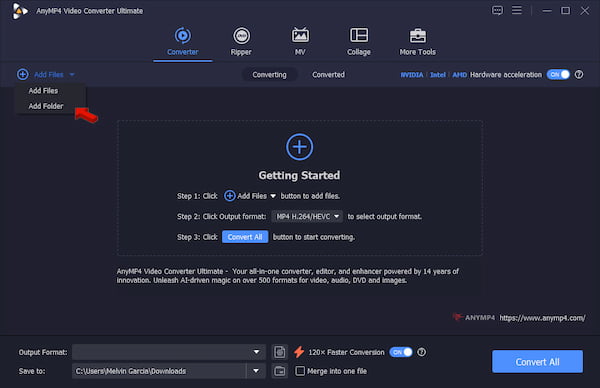
1. Download AnyMP4 Video Converter Ultimate and complete the setup. Right after the installation, it opens to the Converter tab by default.
Secure Download
Secure Download
Click +Add Files to import the MOV video source. You can also drop an entire folder to batch convert MOV to MPEG-2 for DVD. The software imposes no file-size restrictions, so you can import files of any length.
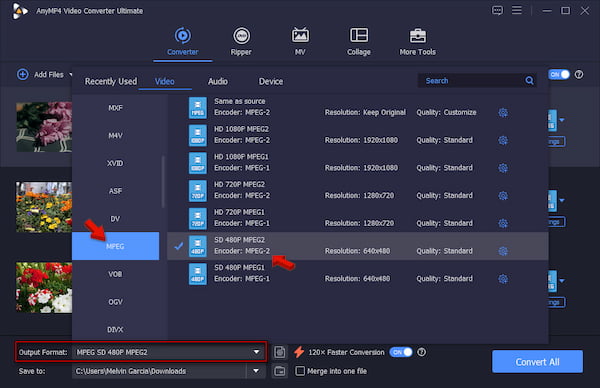
2. Go to the Output Format picker and select MPEG under the Video category. We recommend using the SD 420p MPEG-2 preset, since DVDs have limited resolution and data rate.
3. Toggle on the Hardware Acceleration and 120× Faster Conversion to speed up conversions. Set the destination folder, then click Convert All to convert files in batches.
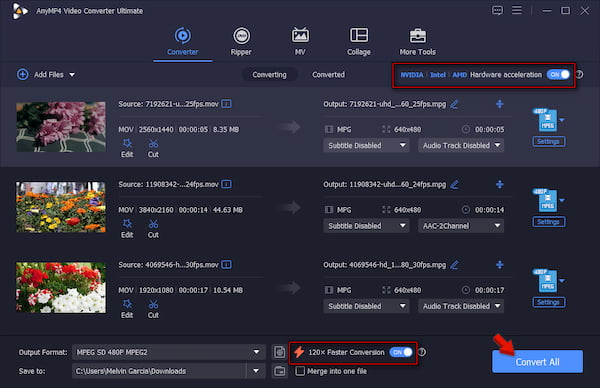
We conduct hands-on testing to evaluate AnyMP4’s output quality, speed, and batch conversion capabilities. We used 50 MOV test files with varying resolutions (1080p, 2K, and 4K), totaling 1.26 GB. AnyMP4 completed the entire batch conversion in just 1 minute and 22 seconds. When we play it on an MPEG player for video quality assessment, the video is clear, and there’s no desync issue.
Many of us only know VLC as a media player that has been around for many years. Still, many users do not explore it, overlooking the hidden conversion feature. The Convert/Save tool sits quietly in the Media tab, ready to convert MOV files to MPEG.
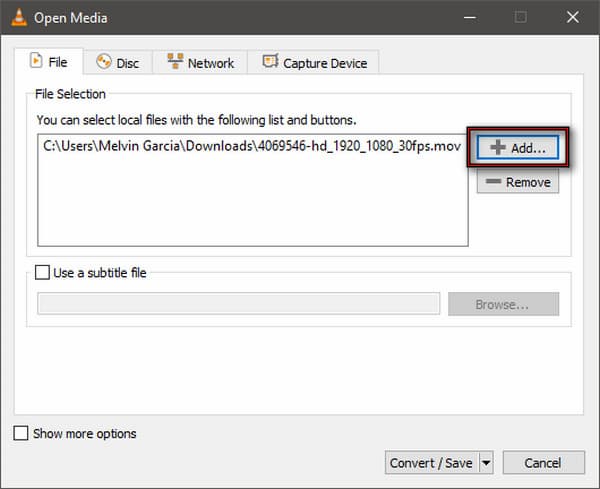
1. Run VLC, go to the Media tab, and click Convert/Save to open Open Media. Click +Add in the File tab to load the MOV source. Then, click Convert/Save to continue.
2. In the Convert window, click the Profile picker and select Video - MPEG-2 + MPGA (TS). After that, specify the destination folder and click Start to convert QuickTime videos.
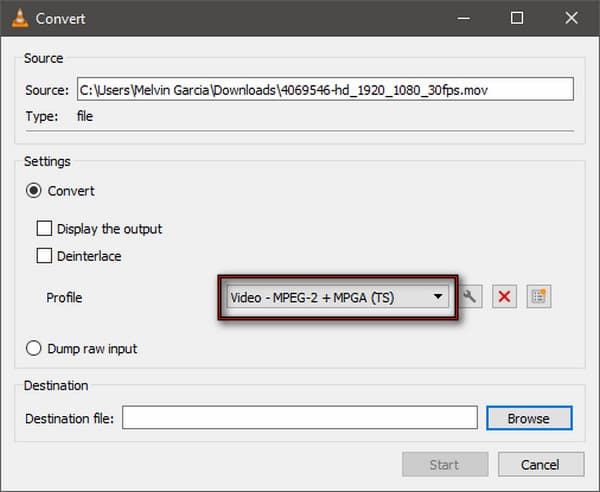
VLC is not just an MOV player; you can also use it to re-encode QuickTime videos to MPEG format. Apart from the MPEG-2 profile, it also offers Video for MPEG4 720p TV/device and Video for MPEG4 1080p TV/device.
If you’re processing common assets and don’t mind uploading files to the server, then an online MOV-to-MPEG converter is a convenient option. In the free version, you can import and process files below 1 GB. Most importantly, there’s no need to install anything, since it runs entirely in the browser.
To convert: Navigate to FreeConvert and click Choose Files to select the MOV source from your computer. Select MP4 (MPEG-4) in the Output picker. Immediately after, click Convert to start the conversion. Then, download the converted file to your computer.
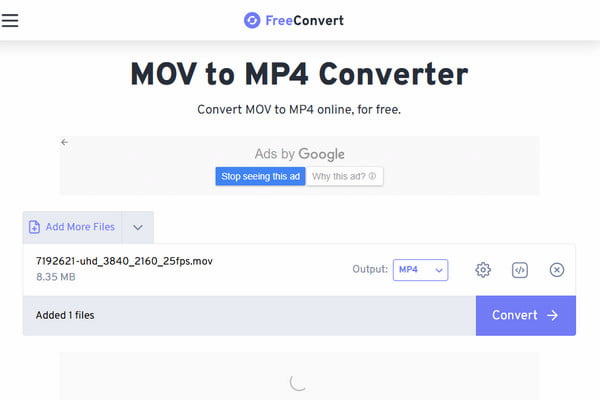
FreeConvert is an average tool if you only need to convert a few small files. However, it can only output MPEG-4 or MP4, meaning MPEG-1 and MPEG-2 aren’t supported. Also, you should be aware that the free version is limited to 20 conversions per minute, per 24 hours. If you need to do the reverse, check this: Convert MP4 to MPEG.
Is there a difference between MPEG-4 and MP4 when converting from MOV?
When you change MOV to MPEG-4 or MP4, you’re actually referring to the exact same file. However, they can mean different things depending on your settings. MPEG-4, particularly Part 2, is an older video compression method. Today, MP4 uses H.264 and AVC.
How can I convert MOV to MPEG-2 specifically for an older DVD player?
You can use AnyMP4 Video Converter Ultimate for older DVD player compatibility. After selecting the MPEG format, choose SD 420p MPEG-2 as your quality preset so the player can correctly recognize the disc.
Why do online MOV converters frequently crash when I upload iPhone 4K videos?
Online MOV converters frequently crash when uploading iPhone 4K videos due to their large file sizes. Most online tools have processing limits, meaning that uploading and processing gigabytes of data can overload the server's temporary memory.
Does converting a video from MOV to MPEG reduce the visual quality?
Yes, it can reduce the source quality. It is because MOV is lossless, whereas MPEG uses lossy compression. To convert MOV to MPEG-4 in high quality, use AnyMP4 and select the appropriate preset.
Can I batch convert hundreds of MOV files to MPEG at the same time?
Yes, you can batch-convert hundreds of MOV files to MPEG with AnyMP4 Video Converter Ultimate. You can even convert MOV files to MPEG-1, MPEG-2, and MPEG-4 formats concurrently.
All MOV-to-MPEG conversions above have been tried out using Windows 10 Pro to confirm their compatibility, output quality, and security. The best program to use if you have to work with 4K videos shot on iPhones, perform batch conversions, or convert private videos is AnyMP4 Video Converter Ultimate. If you only need to convert a small MOV file occasionally, FreeConvert provides a quick online solution. Meanwhile, VLC is an excellent free option if you’re okay with manually configuring conversion settings.
 Updated by Alice Thorne to Convert Video
More readings
 7 Best GIF to MOV Converters in 2026 (Free & Fast)
Need to convert a GIF to MOV without losing quality? Discover the 7 best free GIF-to-MOV converters for Mac and Windows. Fast, easy, and no watermarks.
 FLV to MOV - How to Convert FLV to MOV Without Quality Loss
What is FLV? What is MOV file format used for? How to convert FLV to MOV? This post gives you a detailed FLV vs MOV and 3 ways to convert/change FLV to MOV.
 AVI to MPEG/MPEG to AVI – Top 5 Free and Professional Video Converters
Which AVI to MPEG converter does a good job? If you are looking for the best AVI to MPEG or MPEG to AVI file converter, you can check this review.
 The Best MKV to MPEG Converter to Transcode MKV to MPEG Files
When you want to convert MKV to MPEG for DVDs, you can learn more about the most efficient method to transcode the MKV files with ease from the article.
 Add your comments to join the discussion here