How to Record High-Quality Voiceovers in YouTube Create (Step-by-Step Guide)
With the rise in popularity of short-form content, the trend towards producing mobile-based videos has remained. This made most mobile-based editors capable of making videos optimized for modern smartphones. With that in mind, I tested YouTube Create by using it as my main editor for my latest project. As such, I was able to fully test its voice-over capabilities, and this article will contain my experience in using it as well as a detailed guide on how to add voice-over on a YouTube video using their mobile-based editor. We will explore how to use the tool for acquiring studio-quality sound on a budget.
Part 1. Getting Started with YouTube Create Voiceovers
Without further ado, let us now move forward to the tutorial on how to use YouTube Create to add voiceovers to your video editing projects. This guide will consist of three steps since YouTube has managed to make voiceover recording simple to apply.
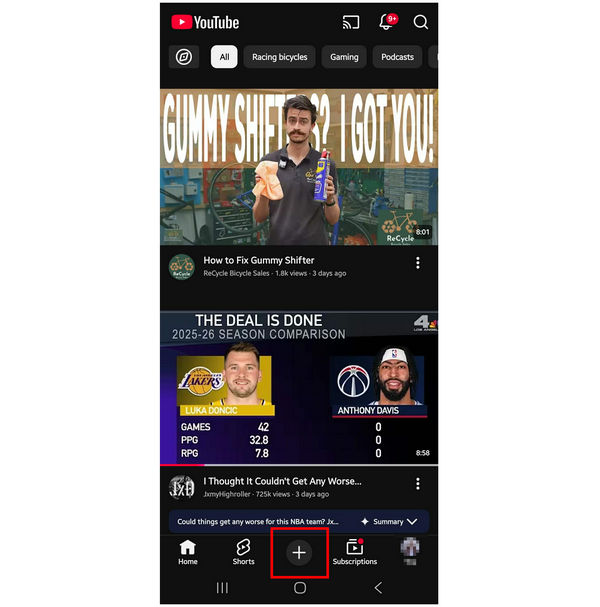
1. Open YouTube Create by tapping on the Add button in YouTube’s main menu.
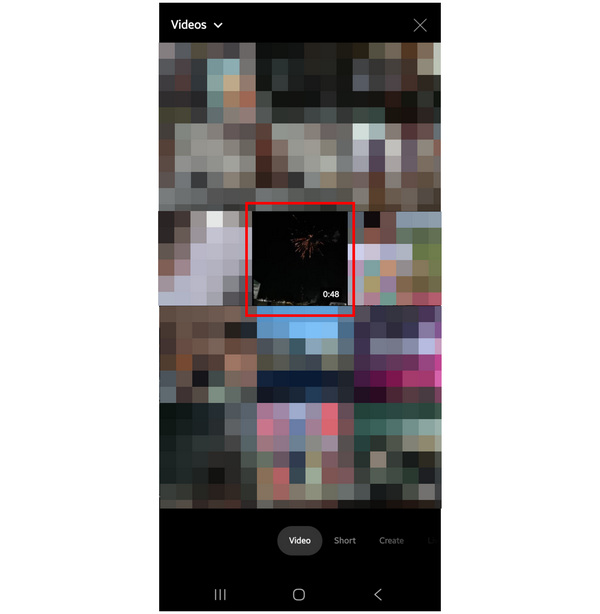
In YouTube Create’s main menu, go to Video and then select the file you want to add a voiceover to.
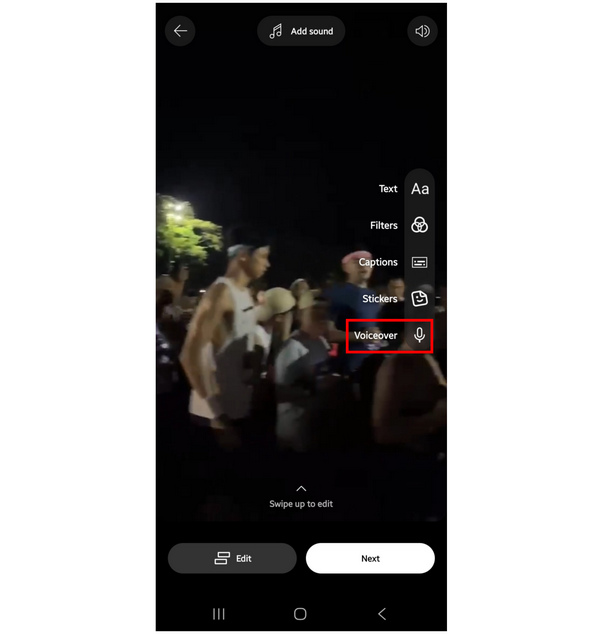
2. Once the video has been added to the YouTube Create editor, select Voiceover.
3. To start recording, simply tap the Record button to begin the process. You may also hold it to only start recording while your finger is holding the Record button. Tap on the Check button to confirm the voiceover.
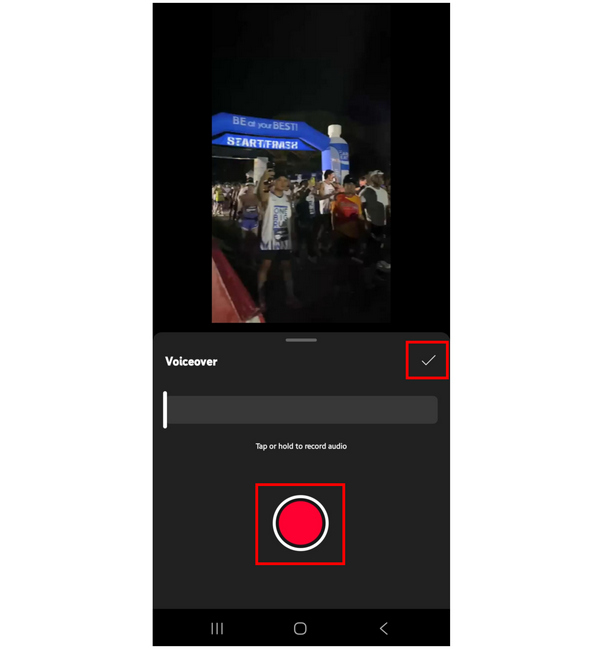
Now that you have learned how to add a voiceover to a YouTube video, this method might be one of the most accessible solutions. This makes YouTube Create a reliable enough tool for adding voiceovers to videos and short-form content.
Part 2. Pro Tips for 'Clean' Mobile Audio
Now that you have learned audio recording, let us now proceed to the guide on learning how to clean your mobile-recorded audio file. Unfortunately, this tutorial only features the AI-prompt option in YouTube Create since the one-click audio cleaning feature in the editing window of YouTube Create has been removed.
1. Go to the Create tab and then select the Create Video option.
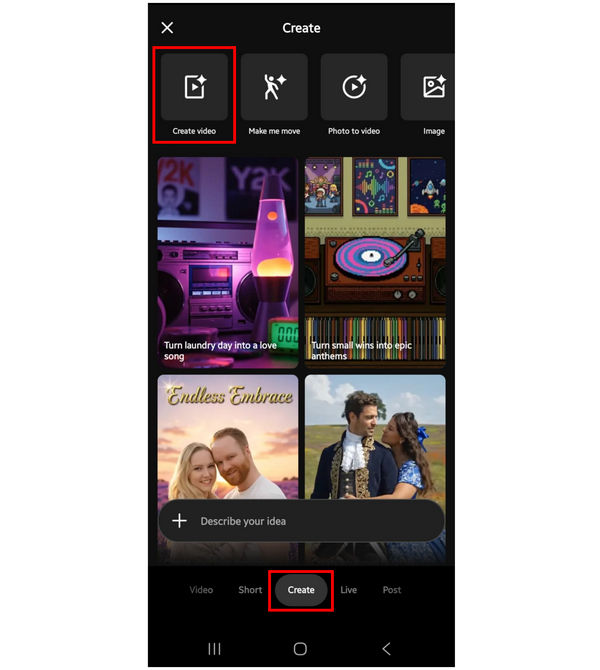
2. In the Create Video menu, tap on the Add button beside the prompt text box.
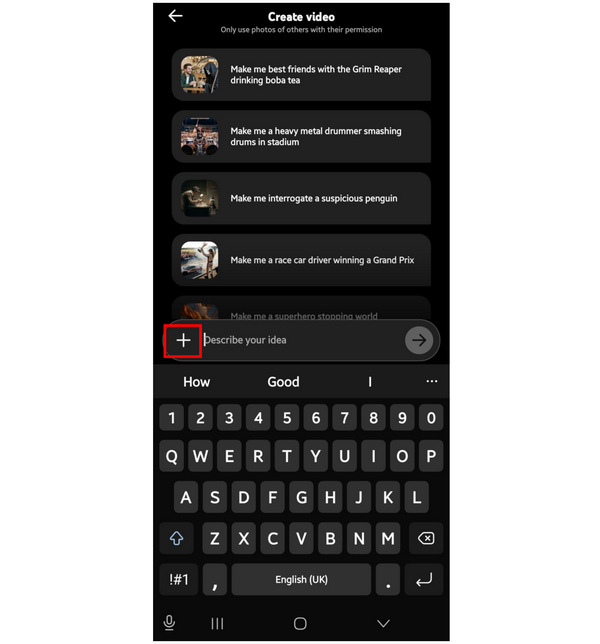
3. Once the video you want to enhance the audio of has been added, simply write the AI prompt you want to apply with the main messaging as audio cleanup. Tap on Send to begin the process.
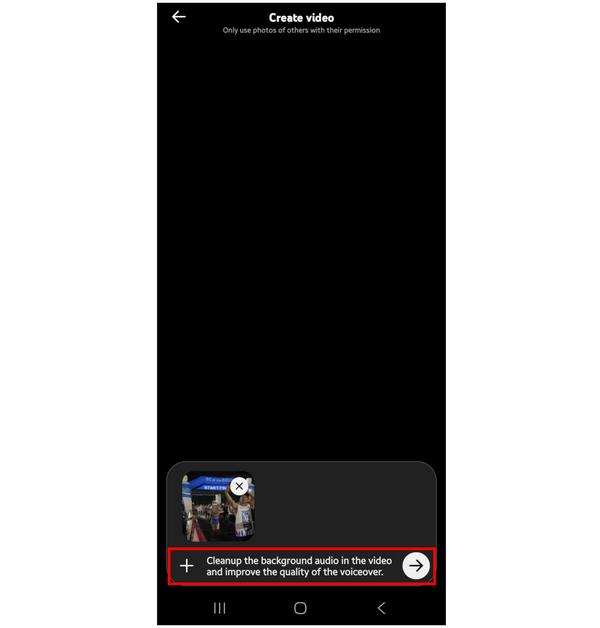
After the AI audio cleanup is done, you will now be able to watch your video with a much more polished audio quality. Based on your prompt, you may change how you apply your audio enhancement regardless of whether you recorded the audio on an iPhone or an Android.
Part 3. Advanced Solution: Recording Voiceovers via PC with AnyMP4 Screen Recorder
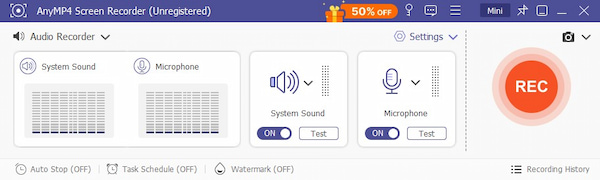
Although YouTube Create’s voice recorder feature gets the job done, it is limited by its platform, since smartphone screens are not enough for precise editing. With that in mind, we recommend using the best desktop-based tool you can use for higher-quality voice recording and precise editing, with none other than AnyMP4 Screen Recorder.
Equipped with multiple recording modes, the software can be used to record your device via its Phone Recorder mode and phone mirroring. It can also be used to record voice-overs directly on your computer since it is equipped with an Audio Recorder mode.
To support high-quality audio recording, the program offers dual-channel audio, which allows its users to capture sound from the microphone, system, or both sources simultaneously. This feature is a great addition for post-production since the microphone capture and the system audio are on separate tracks.
When recording video, you can also ensure that AnyMP4 Screen Recorder will capture media files with no lag, which is a big upgrade compared to mobile recording, which can heat your device. This was made possible by its hardware-acceleration feature.
To enjoy all these practical features during audio or video recording, you may download AnyMP4 Screen Recorder using the download link provided below.
Part 4. YouTube Create vs. AnyMP4 Screen Recorder: Which is Right for You
For a quicker comparison of the two featured voice recording options, we have provided a simple table below, which you can use to compare both programs using key measurements that you must consider when choosing a voiceover software.
| Voiceover Tools |
Primary Platform |
Primary Use Case |
Audio Processing |
Multi-track Recording |
Pricing |
| YouTube Create |
Android
iOS |
Simple post-production. |
AI-assisted audio editing.
Audio cleanup. |
Basic audio recording.
None. |
Free to use on YouTube. |
| AnyMP4 Screen Recorder |
Windows
macOS |
Live recording of the system and microphone audio. |
Microphone enhancement.
Noise cancellation.
Audio gain. |
Microphone recording.
System recording.
Simultaneous recording. |
Free - $12.45 |
Part 5. FAQs About Common YouTube Create Audio Issues
Does YouTube Create support external mics?
Yes, it does. YouTube Create can capture audio from external microphones. These are recommended if you want to record higher-quality audio when recording audio on Android or iPhone devices.
Can I edit the voiceover after recording?
Yes, you can. Most multimedia editing tools can also edit audio files. This includes recorded audio files or the sound from videos.
Why is my voiceover out of sync?
There are numerous reasons why it happens. The most common is that it could be during the recording process. However, an issue during editing may also cause this problem.
Is it hard to remove background noise?
No, it is not. Numerous programs can reduce background noise easily. One example is AnyMP4 Screen Recorder, which has a reduce background noise option before recording.
Can I use YouTube to capture voice recordings?
Yes, you can. YouTube Create, which is the video editor mode of YouTube, has a voiceover feature. It can be used to capture recordings.
Conclusion
Now that we have provided a detailed guide on using YouTube Create for recording voiceovers, we hope that the information in this article is sufficient enough to help you decide which voiceover tool suits your needs. For more accurate recording, make sure to consider AnyMP4 Screen Recorder, which we recommended as an alternative program. You may download it with the link below.




 Add your comments to join the discussion here