How to Use YouTube Create to Adjust Video Speed Control
Over the past weeks, I have been testing the capabilities of the YouTube Create app as a quick-and-easy mobile editor and have found out that it is reliable enough for basic editing work. In this article, we will focus on featuring one of the features available in the program by providing a detailed guide on how to change the speed on YouTube Create editing projects. We will review the program's playback speed editor to assess its practical use and where it falls short. We will also provide a pro-level desktop alternative for time-lapse, slow motion, and other video speed editing with AnyMP4 Video Converter Ultimate.
Part 1. How to Adjust Speed in the YouTube Create App
Accessing the Speed Tool on Mobile
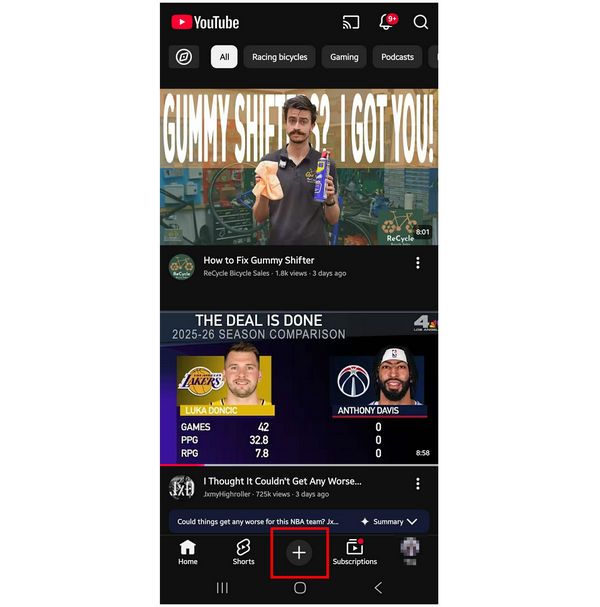
1. Tap on the YouTube Create button in YouTube’s main interface.
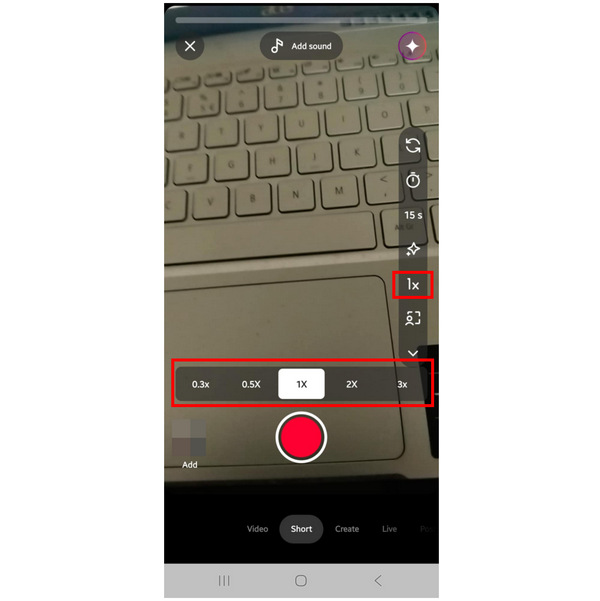
2. In YouTube Create’s main menu, go to the Short option. Then, select the speed multiplier button labeled as 1X.
3. Choose the speed multiplier you want to use for the video you will record, and then you can start the recording process.
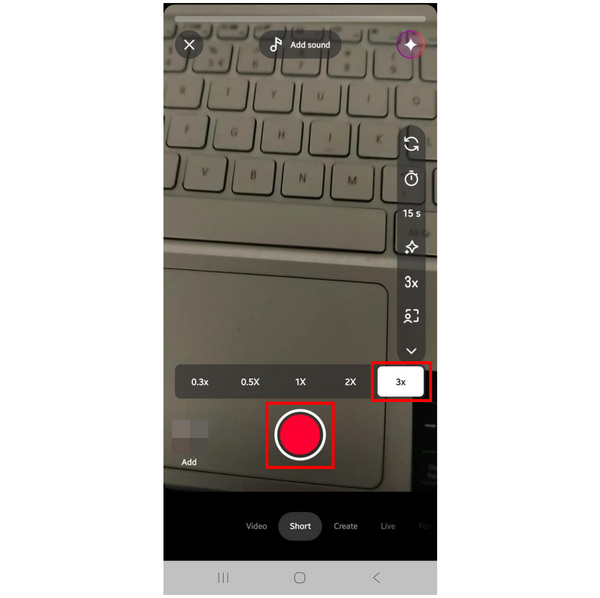
Although YouTube Create has a video editing tool, it does not offer a tool to change video speed. Thus, you can only edit the speed control of your video if you record a Short on YouTube Create from your camera.
Creating Slow Motion vs. Fast Forward Effects
To create a slow-motion effect, set the playback speed to either 0.5X or 0.3X. To speed up your video, you can select either the 2X or 3X options. If you are unfamiliar with how speed multipliers work, YouTube Create made sure to keep it labeled, as the speed options are named as Slow, Very Slow, Fast, and Very Fast.
Part 2. The Limits of Mobile Editing: Why Precision Matters
Now that we have discussed the solutions on how to speed up videos on YouTube Create, we can now conclude that it is inherently limited, as the video speed changer is only limited to the Shorts option during video capturing. You cannot edit the video speed in the video editor option.
With the limitations in using YouTube Create now out of the way, let us now move forward to the best desktop-based alternative for speed ramping videos.
Part 3. Pro Alternative: Using AnyMP4 Video Converter Ultimate for Speed Ramping
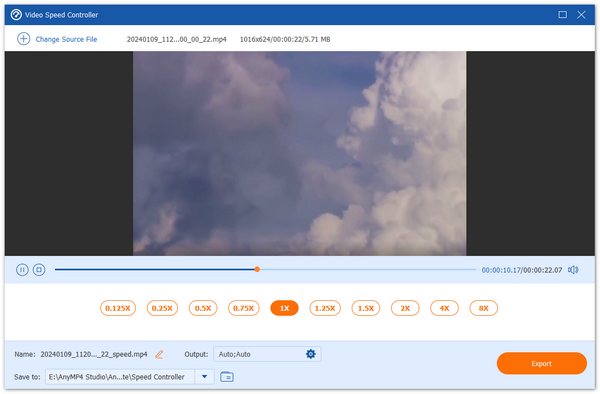
Since YouTube Create’s speed multiplier options are not available in the editing tool of the program, applying video speed adjustment to videos requires you to use a different software. In this case, AnyMP4 Video Converter Ultimate’s Video Speed Controller tool will get the job done.
This desktop-based solution works great if you want to enjoy more accurate speed adjustments since you can select from a wider range of speed options from 0.125X to 8X. It will also give you more control since the speed presets are partitioned in increments of .25X.
Moreover, the video speed adjustments done in the program will not cause any audio quality loss to the file you are editing. This is a big upgrade since most mobile apps that edit audio will compress files and thus cause quality decline.
Finally, the Video Speed Controller Tool of the program offers two unique features that greatly boost its reliability. It can preserve the audio pitch of videos with an adjustable speed to keep the natural tone of the video. It can also batch process 10+ files at once for more practical audio editing.
To begin enjoying the practicality of AnyMP4 Video Converter Ultimate for editing your video speed, make sure to download it using the link below.
Part 4. Comparison: YouTube Create vs. AnyMP4 Video Converter Ultimate for Video Speed Editing
For a quick comparison of the features available in YouTube Create and AnyMP4 Video Converter Ultimate as video speed editors, we provided a table below containing the best measurements to assess the performance of the programs when they are used as apps for speeding up videos.
| Video Speed Editors |
Primary Platform |
Speed Range |
Speed Increments |
Best Use Cases |
Format Support |
| YouTube Create |
Android
iOS |
0.3X to 3X |
0.3X, 0.5X, 1X, 2X, 3X |
Quick mobile editing work. |
MOV, MP4 |
| AnyMP4 Video Converter Ultimate |
Windows
macOS |
0.125X to 8X |
0.125X, 0.25X, 0.5X, 0.75X, 1X, 1.25X, 1.5x, 2X, 4X, 8X |
Accurate video or audio speed editing. |
MP3, MP4, WAV, MOV, MKV, and 500+ other formats. |
Part 5. Tips for Using Speed Effects Without Losing Quality
When editing video speed using multipliers, losing video quality is a common problem. However, it can be avoided if you use the right tools for the editing process. One example is AnyMP4 Video Converter Ultimate, which uses its built-in AI support to preserve the quality of edited files. Make sure to also save the file in a lossless format to avoid over-compressing, which will cause more severe video and audio quality reduction.
Part 6. FAQs about YouTube Video Speed
Does YouTube Create allow speed ramping?
Yes, it does. Unfortunately, it can only be applied when using YouTube Create to shoot. There is no video speed tool in the editing menu of the program.
Will changing speed affect my video quality?
Yes, it generally does. However, there are multimedia tools that can preserve quality through lossless editing. One example of this is AnyMP4 Video Converter Ultimate.
Can I speed up a video more than 2x?
Yes, you can. Traditional video editors can offer speed changing of more than 2X the original speed. There are also multimedia editing tools that can apply a speed multiplier automatically.
Is it hard to edit audio and video speed?
No, it is not. Editing audio speed is a simple adjustment. You can usually edit it using a single tool on most media editors.
Should I change the speed of my video file?
It depends on how you will use it. If you plan on editing videos creatively, speeding it up is good. Slow down also works great for creative video editing.
Conclusion
Now that we have provided the detailed guide on using YouTube Create for speed control, we hope that you will now be able to decide whether using the program is good for your media editing needs. For more accurate speed control, make sure to consider using AnyMP4 Video Converter Ultimate, downloadable on the link below.





 Add your comments to join the discussion here