How to Get Royalty-Free Music on YouTube Create for Editing
Are you looking for a solution to solve the issue of constant copyright claims when sharing content on YouTube? To avoid such issues, make sure to learn how to use YouTube Create to use legal soundtracks when editing videos on mobile. In this article, we will explore how to apply royalty-free music for YouTube Shorts when editing videos on the Create feature. We will provide a guide on how to access these files available via native integration in the YouTube Audio Library. Make sure to read the article below to enjoy a much smoother mobile workflow.
Part 1. What is YouTube Create and Why the Music Library Matters
What is YouTube Create
YouTube Create is the built-in video editing feature integrated in the YouTube app for Android and iOS. It functions similarly to other video editing tools for mobile devices and is optimized to be as beginner-friendly as possible. This makes it a viable editor for YouTube videos.
Solving the Copyright Headache for Mobile Creators
Since it is integrated into the YouTube app itself, using the music files available in the YouTube library will instantly solve your headache towards copyright claims on your videos. This makes using royalty-free music much more accessible on YouTube Create.
Part 2. Step-by-Step: How to Access the Music Library in YouTube Create
Browsing by Genre, Mood, and Sound Effects
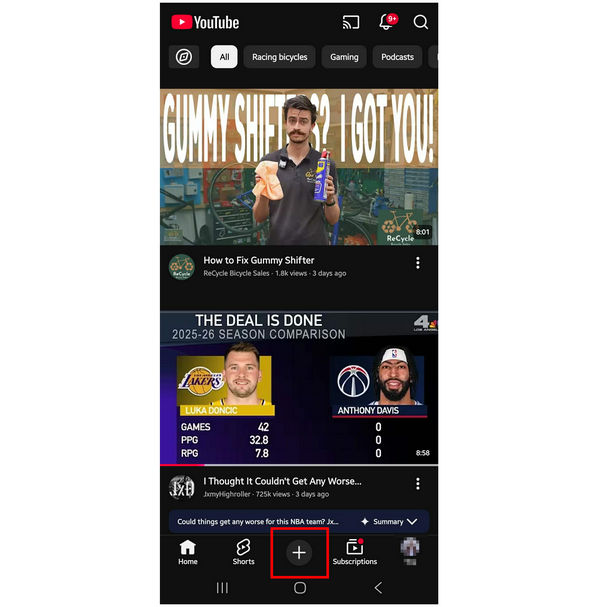
1. Open YouTube Create by selecting the Add button in the YouTube app’s main interface.
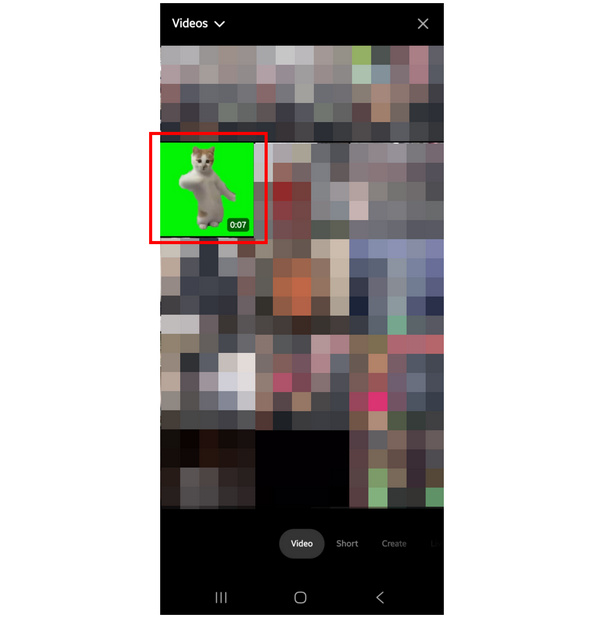
Go to Video on YouTube Create, and then select the file you want to edit.
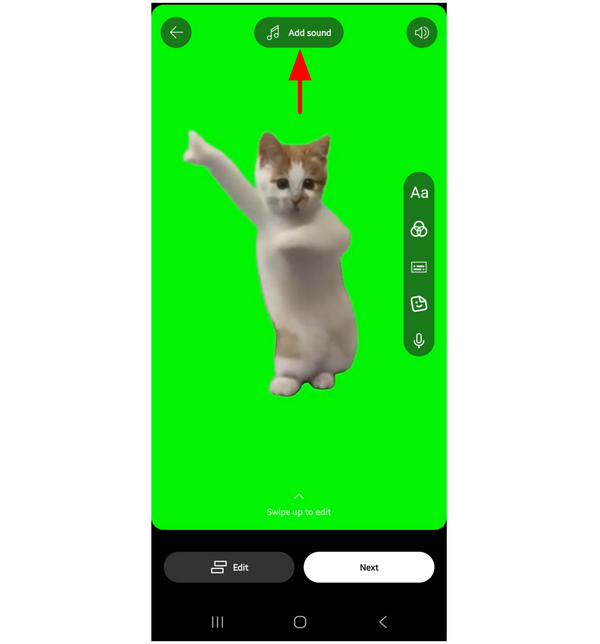
2. In the video editing menu, select Add Sound.
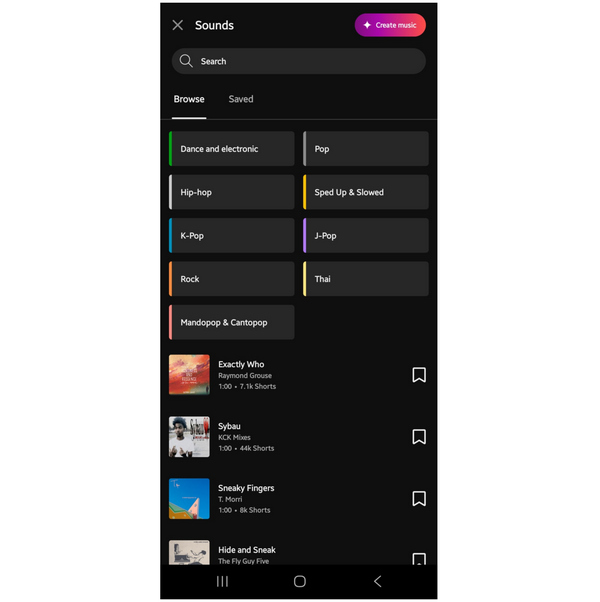
In the Sounds tab, scroll down to find the Genres available in YouTube Create.
3. To look for royalty-free music, simply search Royalty Free in the search bar of the Sounds menu.
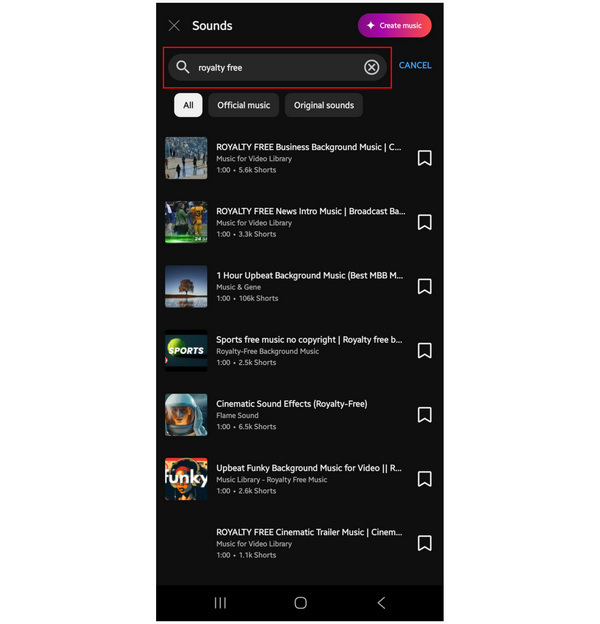
After choosing the royalty-free background music for your YouTube video, you can now continue editing and sharing content in peace since YouTube will not flag your audio with any copyright claims. However, be mindful when using these audio since YouTube compresses audio files.
Using 'Beat Match' to Sync Music Automatically
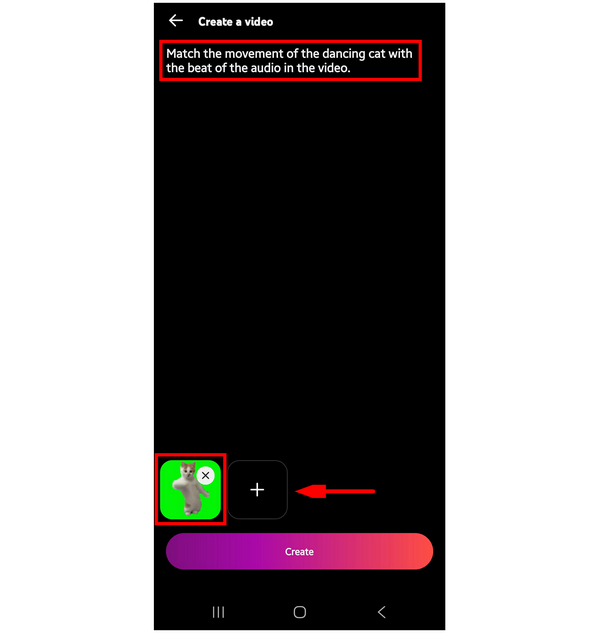
To further improve the quality and viewer appeal of your video, you can also improve its audio-video sync by adding beat matching to it using the AI features of YouTube Create. Simply import the video you have edited in the Create tab of the feature, and then write an AI prompt specifying you want to add beat matching to your video.
Part 3. Beyond Mobile: Why You Might Need Desktop Solutions
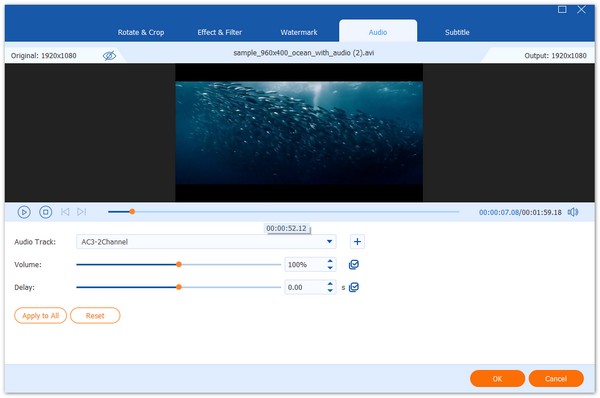
Although YouTube Create may be good enough for quick mobile editing, the need for a desktop-based solution still has its own niche since it is way better for professional-grade results. In this case, you should consider using AnyMP4 Video Converter Ultimate.
Equipped with a beginner-friendly MV Editor tool, AnyMP4 Video Converter Ultimate offers a much more customizable audio track menu, which you can use to easily add, remove, or replace multiple audio tracks from the library of the program or your local files.
The software also excels in terms of format flexibility since it can read and support high-fidelity audio formats such as FLAC and WAV, which are optimized for YouTube content, ensuring no quality loss will happen to your audio file.
To make audio processing more practical, AnyMP4 Video Converter Ultimate offers flexible tools that can be used for AI noise removal and video enhancement. Both of these options greatly improve the quality of your media file, way better than mobile apps.
Finally, all these features and multimedia editing options all support batch processing. This makes the software perfect for creators who need to produce multiple shorts at once.
To enjoy the practicality of AnyMP4 Video Converter Ultimate, make sure to download the program using the link below.
Part 4. Comparing Mobile vs. Desktop Audio Editing
To have a better idea of the features available on mobile and desktop-based editors, make sure to read our table below, which compares YouTube Create and AnyMP4 Video Converter Ultimate when it comes to their audio editing features.
| Audio Editing Tools |
Primary Platform |
Noise Reduction |
Audio Library |
Audio Syncing |
Pricing |
| YouTube Create |
Android
iOS |
AI audio cleanup feature for BG noise removal. |
YouTube Audio Library |
Manual dragging in the video editing timeline. |
Free |
| AnyMP4 Video Converter Ultimate |
Windows
macOS |
Noise Remover toggle for automatic cleaning of audio and videos. |
Local files |
Automated slider tool for audio and video syncing. |
Free - $18.75 |
Part 5. How to Test Your Audio for Copyright Before Publishing
To check audio copyrights when uploading on YouTube, the easiest option is to upload the video as Unlisted or Private first. Then, wait for YouTube to automatically detect the content of your video. The site will then check your upload for copyrighted music, and you will be notified if it detects something. Videos with copyrighted music will face playback problems, such as your YouTube video having no sound.
Part 6. FAQs About Royalty-Free Music on YouTube Create
Is the music on YouTube Create really free?
Yes, they are. YouTube Create’s audio library is free to use. They can be added to your videos for free.
Can I use these songs on TikTok or Instagram?
You may use them. However, using copyrighted audio on your video may be flagged by TikTok or Instagram. As such, make sure to use royalty-free audio if you plan on cross-posting videos.
How do I find a specific song?
Use the search bar in the YouTube audio library. Find the song you want to use. You may also search for artists to find multiple songs.
Does YouTube detect copyrighted music?
Yes, it does. YouTube can detect if your video has copyrighted audio. They may flag it, remove revenue, or take other punishing measures.
Is it hard to edit audio and video?
It depends on the editor you will use. Traditional media editors are generally more complicated. However, some beginner-friendly editors are designed to be accessible.
Conclusion
Now that we have provided the tutorial on using YouTube Create to add royalty-free music to your video projects, we hope that this article helped you gain enough knowledge to enhance your editing skills. For more precise video editing, make sure to consider using AnyMP4 Video Converter Ultimate on your desktop by downloading it with the link below.






 Add your comments to join the discussion here