Master YouTube Create Auto Captions: A Full Guide to 2026’s Best Captions Tools
When using social media platforms for entertainment, statistics show that 80% of users today watch content on mute, since handheld devices are often used as entertainment during commuting. With that in mind, learning different options to add captions to videos is important if you want to produce high-quality social media content. As such, I spent a week testing YouTube Create's auto-captioning and transcription feature. I reviewed the program based on its mobile editing features, overall accessibility, and speech-to-text features. To supplement the program, I also recommended the perfect complementary program you can use before hitting publish.
<
Part 1. What is YouTube Create and How Does Its Auto-Caption Feature Work
What is YouTube Create
YouTube Create is the built-in mobile editor feature of YouTube for Android and iOS devices. It was added in the app to serve as an accessible video production option integrated for YouTube itself. Due to its design, most of the features available in YouTube Create are catered to short-form content production, such as basic effects and adding subtitles to YouTube videos using AI auto-captions.
Supported Languages and Accuracy Levels
YouTube Create supports most widely used languages, such as English, Dutch, French, German, Italian, Japanese, Korean, Portuguese, Russian, Spanish, Turkish, Ukrainian, and Vietnamese. Although practical, the accuracy of auto-captions on YouTube Create is only in the range of 60% - 80%. Unfortunately, this rate may be reduced even more if you are using a language other than English.
Part 2. Step-by-Step: How to Generate Auto Captions in YouTube Create
1. Open the YouTube app and then select the Create button.

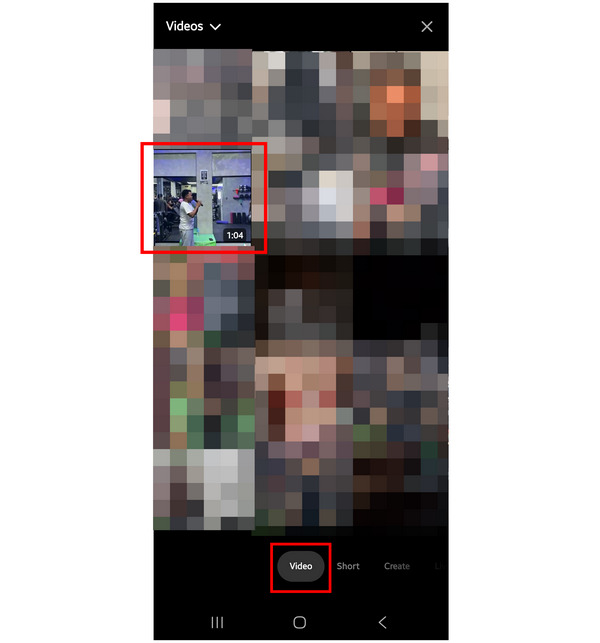
2. Inside YouTube Create’s main menu, go to Video and then select the file you want to edit. Wait for the video to be imported to YouTube Create.
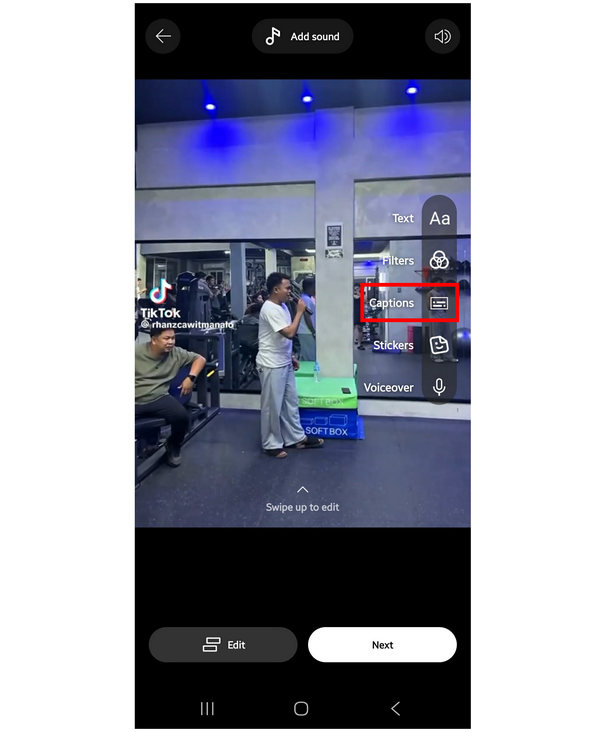
3. Once the video has been added to YouTube Create’s main editor, click on Captions.
After selecting the Captions option, simply wait for YouTube Create’s caption generation to load.
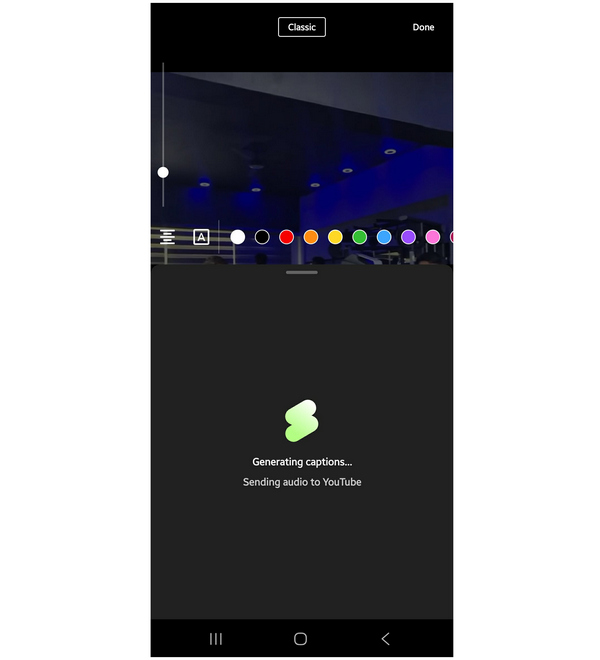
After the auto-generated caption has been added, you have to ensure that its accuracy is close enough to the actual audio of your video. To learn how to test caption accuracy, make sure to read the next section of the article.
Part 3. How to Test Caption Accuracy
To accurately measure the quality of YouTube Create’s auto-captions, it is advisable to do an accuracy test using the proposed methods in this section.
You may test the auto-caption accuracy by running the Ground Truth test. This can be done by writing a 60-second script manually. Then reading it while recording yourself in a video. Next, import the video you have recorded into YouTube Create and compare the accuracy of the caption and your written script.
To add an objective measurement, calculate the Word Error Rate (WER) of your recorded video and the generated caption. If YouTube Create misses more than 1 per 10 words, it is not pro-grade and is not considered accurate.
Part 4. Why You Might Need a Desktop Alternative
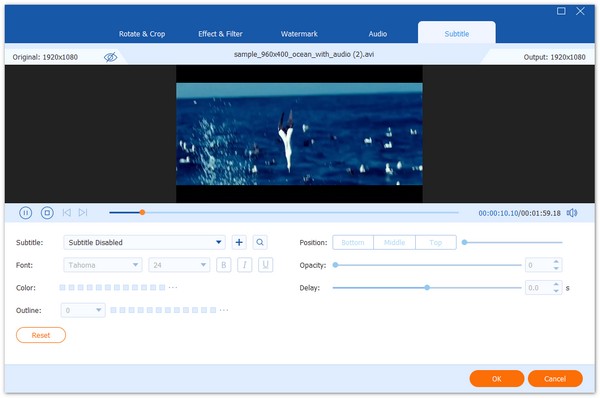
With the limitations of YouTube Create’s auto-captions now discussed, let us now move forward to featuring the best option for adding external subtitle files into videos with AnyMP4 Video Converter Ultimate.
In contrast to YouTube Create, AnyMP4 Video Converter Ultimate is geared towards precise subtitle integration using external subtitle files. These include file types such as SRT, SSA, or ASS into your videos.
The program integrates these subtitle files into your video by adding them directly instead of just burning in the text together with the video. This allows for deep customization of the integrated subtitle, like changing its font, color, opacity, position, and audio-video sync.
Additionally, the program also allows batch processing of 10+ videos at once, making subtitle integration much more automated and practical. The software may also read 500+ media formats, including videos saved in MP4, MKV, or AVI. Neither of which YouTube Create can do.
To experience the practicality of AnyMP4 Video Converter Ultimate firsthand, make sure to download it using the link below.
Part 5. YouTube Create vs. AnyMP4 vs. CapCut: Which Should You Choose
To compare YouTube Create with our proposed alternative and another popular mobile-based editor, we have provided a table below comparing YouTube Create, AnyMP4 Video Converter, and CapCut based on their supported platforms, difficulty, strengths, practical AI features, and pricing plans.
| Video Editing Tools |
Primary Platform |
Ease of Use |
Primary Strength |
AI Features |
Costing |
| YouTube Create |
Android
iOS |
Very Easy |
Built into the YouTube app. |
• Audio cleanup.
• Automated captions. |
Free |
| AnyMP4 Video Converter Ultimate |
macOS
Windows |
Very Easy |
Integrating external subtitle files, such as SRT and SSA, to videos. |
• Video quality upscaling
• Smart subtitle sync. |
Free - $18.75 |
| CapCut |
Mobile
Browsers
Desktop |
Intermediate |
Viral editing templates. |
• Auto-editing.
• AI effects.
• Voice changing. |
Free - $89.99 |
Part 6. Pro Tips for Improving Auto-Caption Accuracy
When using auto-captions, you have to ensure that the video you will enhance has both audible and clear audio. These two factors are the most important elements that you should focus on to ensure that your auto-caption will be accurate or close to the actual words spoken in the clip.
However, the most reliable way to add an accurate caption to your videos is to just integrate subtitle files into them. This is even more accessible if you want to add subtitles to offline MP4 movies or TV show episodes, since you can integrate text files formatted as subtitles like SRT.
Part 7. FAQs About Auto Captions in YouTube Create
Does YouTube Create auto-captioning cost money?
No, it does not. YouTube Create is free to use. Their auto-caption is a free feature as well.
Can I export the SRT file from YouTube Create?
No, you cannot. YouTube Create can only produce auto-captions. It cannot integrate subtitle files like SRT.
Does it support languages other than English?
Yes, it does. YouTube Create supports other widely used languages other than English. Some examples are French, Italian, Japanese, Korean, Portuguese, Spanish, Vietnamese, and more.
Why do YouTube’s auto-translate captions not work?
Auto-translate usually fails when the user does not add a transcript reference. This makes YouTube Create’s auto-caption feature only reliable for the English language. It is not reliable for other languages.
Are auto-generated captions reliable?
It is highly reliant on the quality of your audio. You must ensure that your audio is clear and audible. If it meets these conditions, your auto-captions will have impressive accuracy. However, less-accurate subtitles may be good enough for regular short-form or TikTok captions.
Conclusion
Now that we have reviewed and provided a tutorial on using YouTube Create’s auto-captions, we hope that you will now be able to produce videos with accurate subtitles to improve the accessibility of your content. For a more accurate and professional-grade subtitle integration, we recommend using AnyMP4 Video Converter Ultimate, which you can download using the link below.



 Add your comments to join the discussion here