How to Master YouTube Create Overlay Stickers: A Creator’s Guide (2026)
Are you looking for a detailed guide to learn how to add overlay stickers on YouTube Create to improve the visual engagement of your short-form content? This article guide is perfectly made for you. Discover the importance of using properly added stickers on your videos, as well as the proper steps to learn how to add them. I will also include a detailed step-by-step guide based on my experience to create highly interactive videos produced with high-retention editing.
<
Part 1. Why Overlay Stickers are a Game Changer for Your Channel
Boosting Audience Retention with Visual Cues
When looking for a reason to add stickers to your YouTube Create projects, the most likely reason is to improve audience retention on your content. Once you have enough experience in doing so, you can add custom YouTube stickers that you created yourself for an additional personal touch.
Expressing Brand Personality
Besides basic editing and adding interactions to your posts, using custom stickers can also improve your channel's branding if you use the custom feature to add a sticker that reflects your brand's personality. As such, learning how to make stickers on YouTube is a great skill if you are making content for brands. This should be one of the next skills you should learn after learning how to upload YouTube Shorts.
Part 2. How to Add Stickers Directly in the YouTube Create App
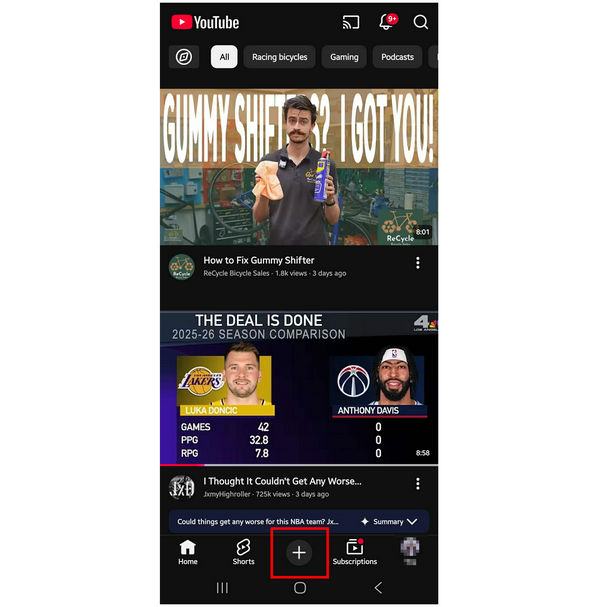
1. Open YouTube Create on your app by selecting the Add button.
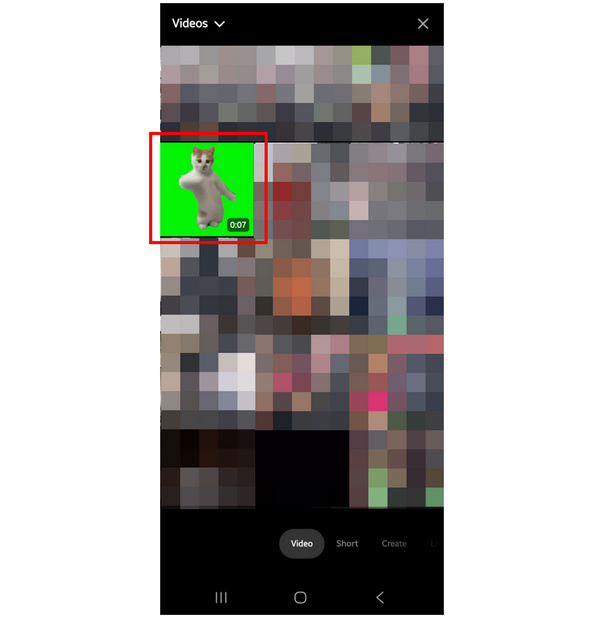
Go to Videos and then select the file you want to add a sticker to.
2. Once the video has been added to the YouTube Create editor, select Stickers.
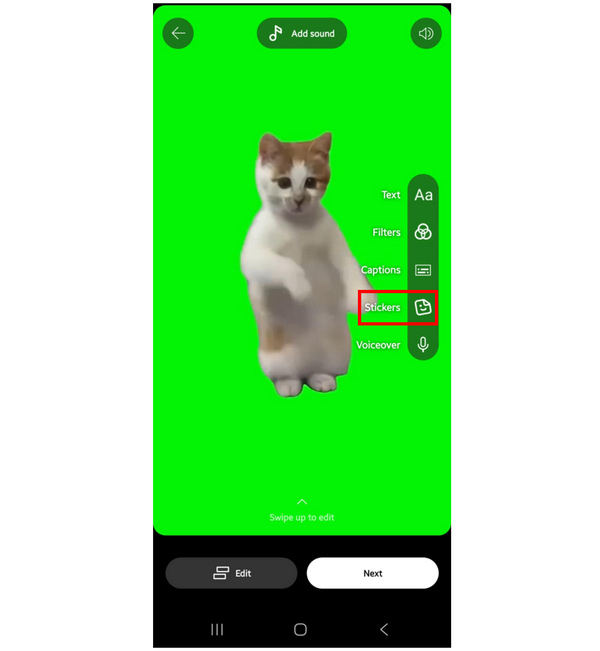
Then, choose the type of sticker you want to add to your video.
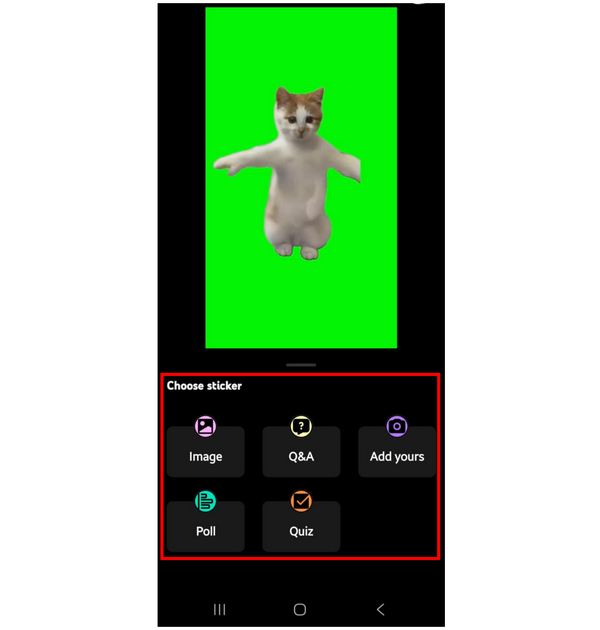
3. With the selected sticker now added to your video, you can now customize its size and position on your screen. You can move it using tapping and holding and dragging it around the screen. You can resize it by pinching in or out.
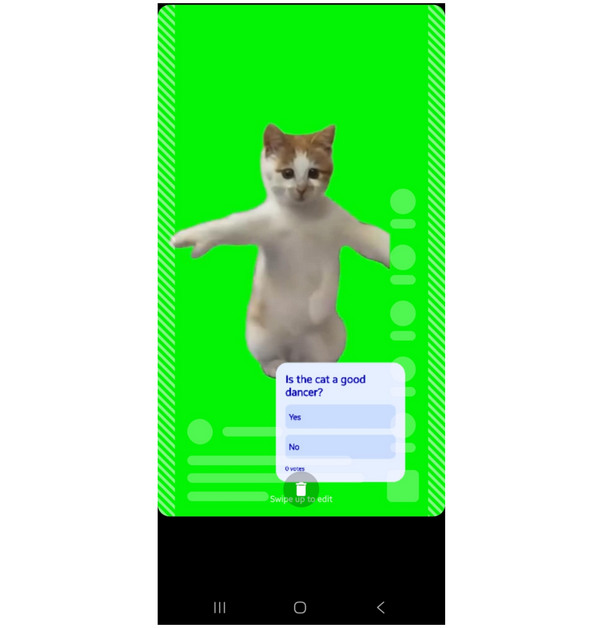
With your video now added with an interactive sticker, your viewers will be able to interact with the information available in your content. This enhances your videos’ social media appeal. To learn how to remove stickers from images and videos, you can do so by dragging down the sticker in the video editor.
Part 3. Elevating Your Overlays: Pro Desktop Solutions with AnyMP4
Why Desktop Prep Beats Mobile-Only Editing
Although sticker production using mobile devices is easier to use in general, they are limited in terms of control and more advanced tools for more complex editing. With that in mind, using a desktop-based solution will be a way better option if you want to create high-quality stickers from both images and video files.
To learn more about one of the best programs for sticker production, make sure to read our quick review of AnyMP4 Video Converter Ultimate featured below.
Using AnyMP4 Video Converter Ultimate for High-Res Stickers
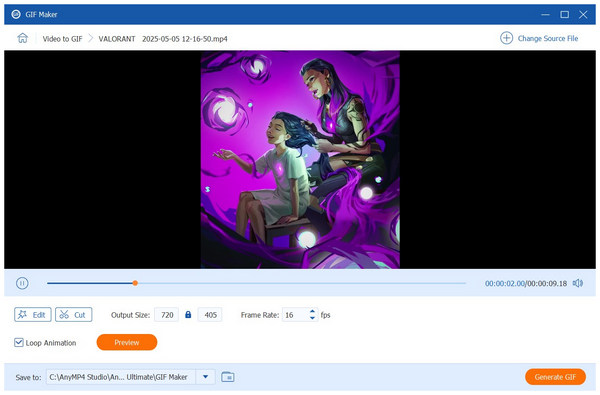
Although YouTube Create can be used to produce custom stickers, desktop-based solutions are still a better option if you want to create high-quality overlays. If you are looking for a professional preparation hub to create stickers and overlays, AnyMP4 Video Converter Ultimate should be one of your top picks.
When it comes to sticker production, it is equipped with exclusive GIF Maker and image format converter tools. Both are excellent choices to create moving overlays and PNG files that work best for producing logo stickers.
To improve the security of your content, AnyMP4 Video Converter Ultimate is also equipped with a Watermark Editor tool. You can use this to add a recognizable marking on your video before sharing it online to counter plagiarism and republishing.
The sticker production features of the program are also supported by the batch processing capabilities of the program. You can create as many as 50+ stickers or icons at once from different videos or images.
These features are all supported by the GPU-acceleration feature of the program that can process media files 70x faster than traditional editing software.
To experience more practical sticker production, make sure to try using AnyMP4 Video Converter Ultimate by downloading it using our link provided below.
Part 4. Tool Comparison: Mobile vs. Desktop Overlays
With the strengths of YouTube Create and AnyMP4 Video Converter Ultimate now discussed, we will now provide a detailed comparison table between the two software. These measurements are selected as they are important when it comes to sticker and overlay production.
| Video Filter and Effects Editor |
Supported Platform |
Primary Goal |
Sticker Source |
Ease of Use |
Pricing |
| YouTube Create |
Android
iOS |
• Fast sticker production.
• Social-media-ready overlays. |
Built-in YouTube library. |
Easy |
Free |
| AnyMP4 Video Converter Ultimate |
Windows
macOS |
Producing high-quality GIFs and PNG images as video overlays. |
Local image and video files for sticker production. |
Easy |
Free - $18.75 |
Part 5. Troubleshooting & Pro Tips for Seamless Overlays
To create seamless overlays and digital stickers, make sure to only use media files that are high-resolution. Then, convert them to a format that can safely be added on top of video layers during editing, some examples of which are PNG and GIFs.
Before producing these stickers, make sure to save a backup file as well, since they will be useful if you make a mistake during the editing process of your overlay media. Making a backup file is a common tip, but it is unfortunately forgotten by most users.
Part 6. FAQs about YouTube Create Stickers
Can I add my own custom stickers to YouTube Create?
Yes, you can. YouTube Create can select images and videos on your device to be added as a sticker. They will also give you access to edit the selected file.
How do I make my stickers move?
You need to use a GIF image to make moving stickers. Unfortunately, GIFs are harder to edit. However, there are GIF libraries that you can use to add to videos.
Why is my sticker quality blurry?
If the image that you have selected has low quality. Its quality may have been affected during the editing process. To avoid this, make sure to only use high-resolution files for sticker production. Use one that fits with YouTube Shorts' dimensions.
Is it hard to create digital stickers?
No, it is not. There are numerous options to create stickers. Two easy options are YouTube Create and AnyMP4 Video Converter Ultimate.
Why are GIFs often used as overlays?
GIFs are used as overlays since they are dynamic and more pleasing to watch. Moving overlays are generally better looking than a regular image. This makes them common as overlay options.
Conclusion
Now that we have discussed how to use YouTube Create to produce overlay stickers, we hope that you will now be able to create stickers on your own. To create higher quality media, make sure to consider using AnyMP4 Video Converter Ultimate, downloadable with the link below.



 Add your comments to join the discussion here