Master YouTube Create Beat Matching: A Guide to Perfect Rhythm in Every Short
Do you want to improve the overall quality of your short-form content to make it professional-looking with zero effort? This article will provide you with all the details you need to learn how to beat match using YouTube Create as your main video editor. When used properly, these adjustments will improve the viral potential of your content since videos with sync beats are way more satisfying to watch due to their high-retention editing. This is especially true if you want to produce dance videos with TikTok-style edits. Make sure to read our guide to learn more.
Part 1. What is YouTube Create’s 'Sync with Beats' Feature
What is YouTube Create’s 'Sync with Beats'
Syncing beats on YouTube Create is the option to edit the sync of your file’s audio and video to improve the creative value of your file. The most basic example of beat syncing is through editing a dance video and syncing the beat of the music to each step of the dancer. When applied correctly, your content will be much more appealing to watch, especially if you want to produce it for short-form content or add audio to MP4 files.
Why Beat Matching is the Secret to High Retention
If you are looking for a reason to learn how to beat match, the most compelling reason is that properly applying this effect will greatly improve the retention of your video by your target audience. This is highly effective since most short-form content requires creators to catch the attention of their viewers in an extremely short timeframe.
Part 2. Step-by-Step: How to Use Beat Matching in YouTube Create
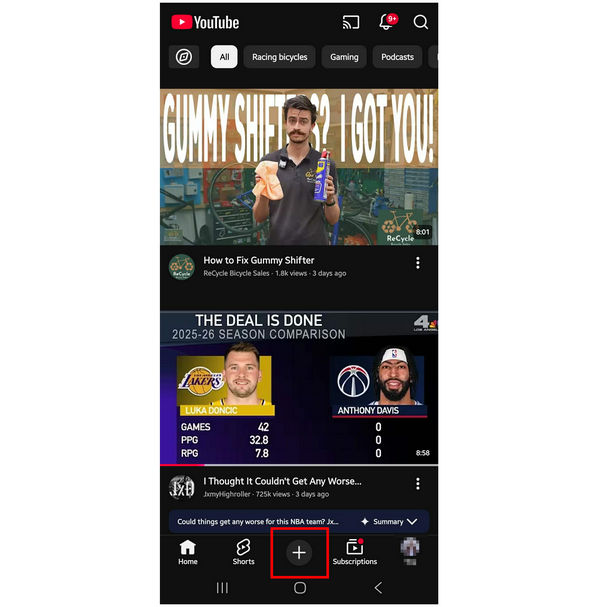
1. Open your YouTube app and then select the Create button.
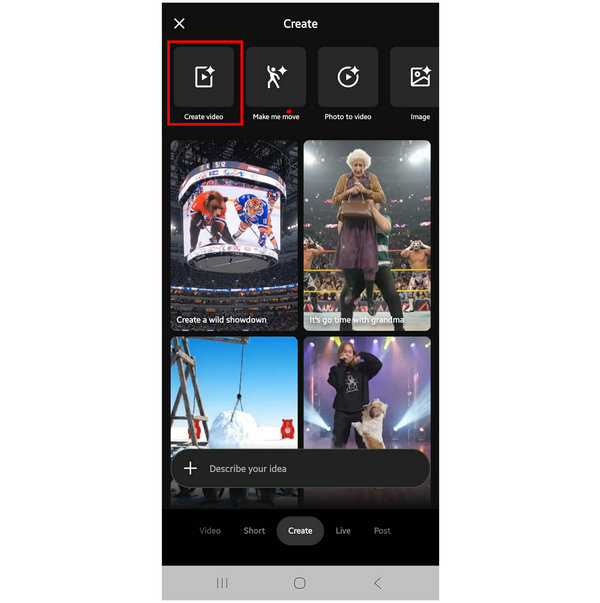
2. In YouTube Create’s main menu, select the Create Video option.
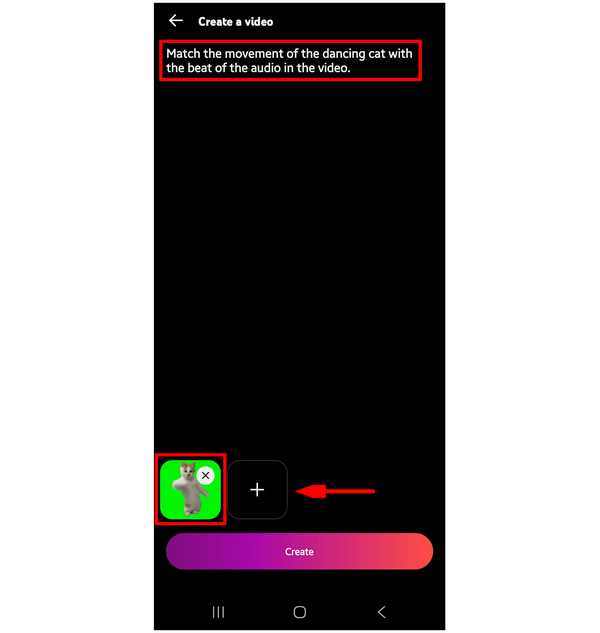
3. Once you are in the Create Video menu, select the Add button to import the file you want to have its video and audio beat synced. Then, write the AI prompt above; you have to specify in the prompt that you want to sync the subject in your video with the beat of the audio. Finally, click on Create.
Now that we have provided our readers with a comprehensive YouTube beat-matching tutorial, we hope that you can now edit your videos or fix out-of-sync YouTube TV content with YouTube Create’s AI system. If that is not the case, you can use the proposed alternative desktop option in the next section of the article for a more accurate audio syncing option.
Part 3. Beyond Mobile: Using AnyMP4 Video Converter Ultimate for High-End Editing
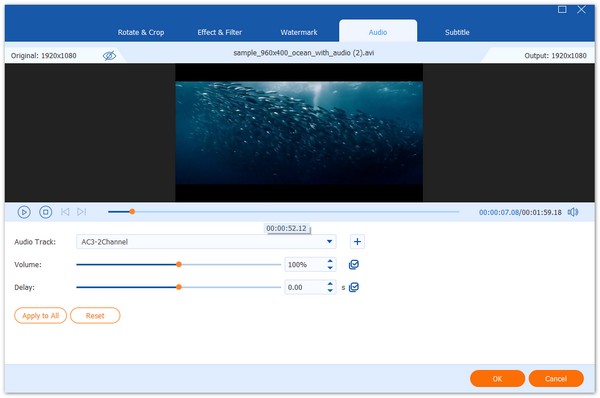
Although YouTube Create can adjust audio sync much more practically and easily using AI, it is far from being accurate. It is a common sentiment for most users that only relying on the YouTube mobile tool causes them to hit a quality wall. As such, using a desktop-based solution such as AnyMP4 Video Converter Ultimate is a good alternative and upgrade.
To start, this alternative option can apply much more precise audio trimming if you want to apply direct adjustment to your video file. This is a good addition since you can determine how long your entire video’s duration will be.
In terms of beat syncing, the MV Maker feature of the software can accurately adjust the audio delay of your video file. This gives its users more control over applying the delay between the audio and the video.
For visual adjustments, the MV Maker can also apply pre-built themes to your file to apply color filters more easily. This is best applied when used together with the AI video enhancement feature in the toolbox of the program.
Finally, the program can also convert any video format into a more popular file type, such as MP4, to make your file easier to upload to YouTube. This is the perfect solution if the video you are editing is saved in an uncommon file format.
To start using the software for more practical video and audio editing, make sure to download it using the link below.
Part 4. Comparing the Best Beat-Matching Tools
For additional beat-matching tool options, we have provided three audio editing solutions you can use as different alternatives across different platforms. We compared these tools together with AnyMP4 Video Converter Ultimate that we have recommended above.
| Feature |
AnyMP4 Video Converter Ultimate |
Rekordbox (Pioneer DJ) |
Mixed In Key (MIK) |
| Platform |
Windows, macOS |
Windows, macOS, iOS, Android |
Windows, macOS |
| Primary Role |
Multimedia Conversion and Accurate Audio Delay Editing |
Professional DJ Performance |
Harmonic Analysis & Audio Preparations |
| Beat Matching |
Manual audio-to-video syncing using the MV/Collage maker. |
Automatic beat-gridding and 'Sync' for live mixing. |
High-accuracy BPM syncing for technical and advanced beat sync. |
| Editing Capabilities |
Trim, Crop, Filter, & Rotate video/audio. |
Live loops, hot cues, and stem separation. |
Cue point suggestion and metadata cleanup. |
| Workflow |
Optimized for creators converting clips and syncing videos for social media. |
Best for DJs performing live sets in clubs. |
Best for producers/DJs editing for perfect technical accuracy. |
Part 5. Troubleshooting: What to Do When the Sync Feels 'Off'
If your file’s audio-video sync sounds off, we recommend using a manual multimedia editor instead. Although YouTube Create’s AI tool can function well with prompts, having access to manual sync editing is always a good option.
To avoid such issues, make sure to preserve a backup copy of the audio file you are editing. You can then use the backup file by editing it in the manual multimedia editor of your choice. In addition to beat syncing, you can also use these audio editors to add voiceovers to your videos.
Part 6. FAQs About Syncing Beats on YouTube Create
Can I use my own music for beat matching in YouTube Create?
No, you cannot. If you want to apply audio to your YouTube Create projects; you can only use the local music in its library. However, you can add a video with edited audio, and YouTube Create’s AI can then adjust it.
Why isn't 'Sync with Beats' showing up for me?
Unfortunately, beat syncing on YouTube Create is not a one-button option. You can only apply such adjustments using the AI prompts of the editor. This is one of the limitations of YouTube Create.
Does AnyMP4 work on Mac and Windows?
Yes, it does. AnyMP4 Video Converter Ultimate is available for both Mac and Windows. Most multimedia apps of AnyMP4 are compatible with them as well.
Is it hard to sync audio and video?
It depends on the software you will use. If you use traditional audio editors, it will be complicated. However, there are beginner-friendly tools designed for automated audio adjustments, such as AnyMP4 Video Converter Ultimate.
Can I use video editors to beatmatch?
Yes, you can. Most traditional video editor tools can be used for audio as well. However, they are generally more complicated to use than just audio editor programs.
Conclusion
Now that we have reviewed and provided a guide on using YouTube Create to sync beats, we hope that you have learned how to use it for syncing your audio and video creatively. If you are looking for a solution to edit beat sync manually and more accurately, you may use AnyMP4 Video Converter Ultimate, which you can download below.



 Add your comments to join the discussion here