
Quick Fix Guide:
App Crashes? Update to the latest 2026 version or simplify complex layers.
Stuck at 0%? Check app permissions and free up 2× the video size in storage.
Stuck at 99%? This is a RAM/Rendering error; clear cache and close background apps.
You’ve spent hours perfecting your transitions and adding the right stickers in the YouTube Create app, only to hit a wall: an Export failed error. It’s frustrating, especially when the progress bar is stuck at 0% or 99% and gives no clear explanation. In 2026, this has become a common issue, particularly with ongoing 2026 updates and lingering beta issues that affect export stability.
This post focuses on the YouTube Create export failed problem by breaking down the real reasons exports fail. Instead of vague advice, this troubleshooting guide explains the most common causes and explains why they happen in the first place. You’ll also find quick fixes to help you get your video exported without losing your project.
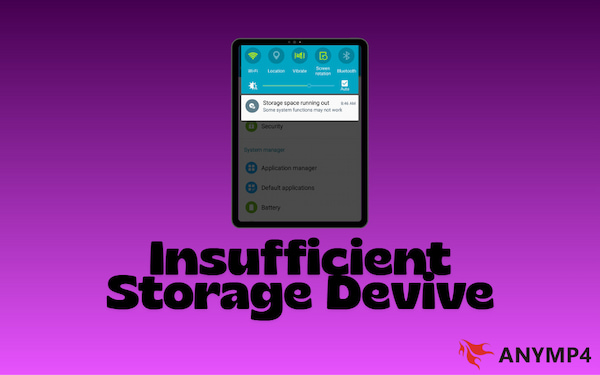
When YouTube Create exports a video, it generates a high-quality temporary version of your project. For example, a 2-minute 1080p video with multiple transitions and background music can create hundreds of MB of cache during processing. If your device storage is nearly full, the app may run out of space mid-render, resulting in a video rendering error.
If you’re making content for YouTube Shorts, ensure your video meets the required duration, size, and format. Not sure about the specs yet? Check here to learn how long YouTube Shorts should be before you export and upload.
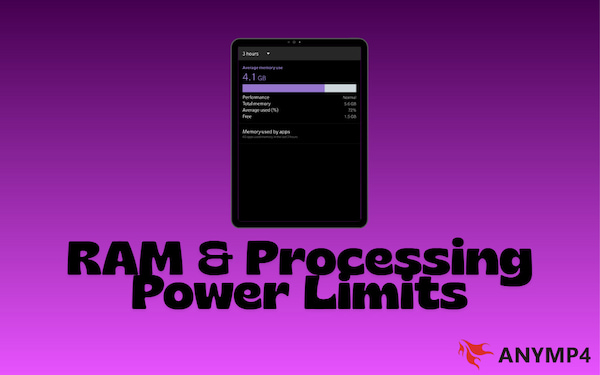
Devices with limited RAM, let's say 2-4GB, can reach their max allocation, leading to app crashes. If the CPU or GPU cannot keep up with complex effects or high resolutions, the system may throttle or terminate the process to protect itself, causing YouTube Create to fail.

YouTube Create is still in development, and some experimental features may cause instability. If you are using a beta or outdated version, the app may crash unexpectedly. For example, MP4 codec issues can sometimes trigger export failures, even on high-performance devices.
| Error Symptom | Cause | Quick Fix |
|---|---|---|
| Stuck at 0% | Storage or Permissions | Grant All Files access and delete large apps |
| Freezes at 50-70% | CPU Overheating | Remove phone case and let device cool down |
| Fails at 99% | RAM/Encoding Finalization | Clear cache and merge overlapping audio tracks |
| Instant Crash | App Version Conflict | Update YouTube Create and restart device |
YouTube Create relies on your device’s temporary storage (cache) and available RAM during export. Cached files from previous sessions or other apps can take up memory. Clearing the VRAM allocation can speed up rendering.
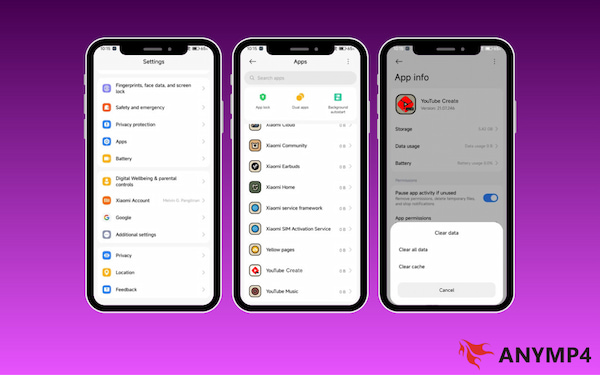
1. On your Android device, open the Settings app and scroll down to Apps. Locate the YouTube Create app, select Storage, then tap Clear Cache.
2. Close background apps and be sure no other apps are running in the background. Then, restart your device to refresh RAM allocation and clear any lingering processes.
On iOS, you need to uninstall and reinstall the app to clear cache, as iOS doesn’t allow manual cache clearing.
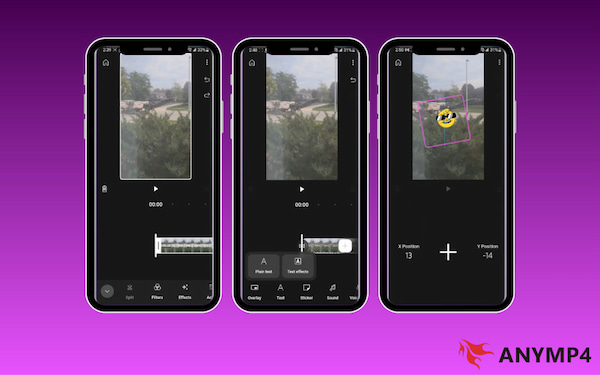
Sometimes, there are no actual glitches in mobile video editing. It’s just that complex projects with multiple layers, transitions, or audio tracks demand more RAM and processing power. On mid-range/older devices, this can overload the system and cause the export to fail.
Here’s how you will simplify your projects:
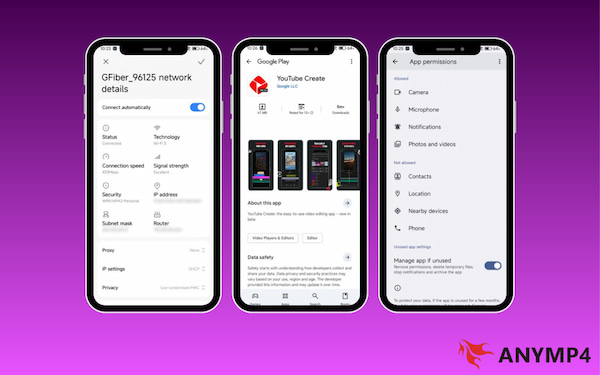
Although exporting is local, YouTube Create may verify project details or sync content with your account. Limited network access or insufficient app permissions can sometimes interrupt the export process. To fix it, you can follow these steps:
Sometimes, no matter how much you optimize your mobile device, you may still experience failed YouTube exports. If you’ve tried the mobile fixes above and the app still crashes, your phone’s hardware may simply be unable to handle the project's complexity. In these cases, we recommend a professional recovery method using a desktop converter to save your hard work. It gives you access to more processing power, better stability, and advanced tools that mobile apps simply cannot match. AnyMP4 Video Converter Ultimate is the ideal Plan B for these situations. It ensures a successful export while simultaneously enhancing and optimizing your content for YouTube.
Export your project from YouTube Create in the highest possible resolution, even if it’s partially finished. Then, move the project to your PC via USB, cloud storage, or direct transfer.
1. After saving the project to your PC, get the free download of AnyMP4 Video Converter Ultimate. Install the desktop editor and converter, and be sure to finish the setup process. Once the installation is completed, run the software to access its main dashboard.
Secure Download
Secure Download
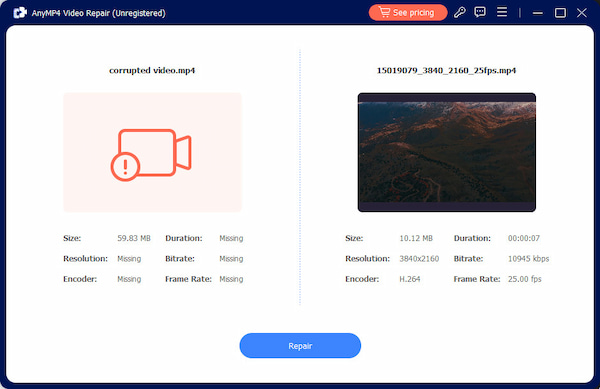
2. If your file is corrupted, navigate to the More Tools tab to access AnyMP4 Video Repair. Click the Red Plus button to import the corrupted video file, then add a sample video. The tool will rely on the sample video to reconstruct and fix your corrupted project.
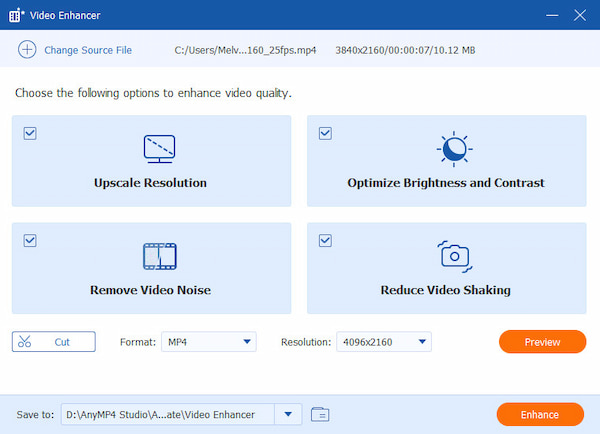
3. Switch to the Video Enhancer tool and use the Upscale Resolution feature to get superb video quality. This will help you convert 720p mobile export to 4K for sharper visuals. If needed, you can optimize video effects, apply denoising, and reduce video shakes.
4. If your video is too large for mobile upload, use the Video Compressor tool. This tool reduces file size without quality loss, ensuring smooth uploads even on slower networks. Simply set the YouTube Create app requirements for file size, format, and resolution.
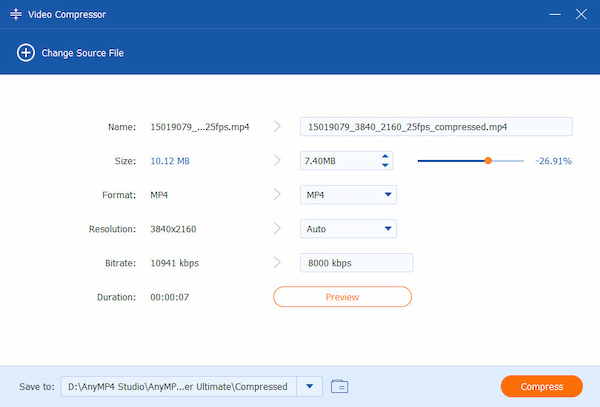
Desktop software like AnyMP4 Video Converter Ultimate leverages full CPU/GPU power, bypassing the mobile limitations that cause export failures. It also fixes corruption issues, converts to YouTube-friendly formats, and even enhances the video resolution. If you want your videos to stand out, always edit your thumbnail to the correct YouTube thumbnail size.
| YouTube Create | VS | AnyMP4 Video Converter Ultimate |
| Android and iOS | Platform | Windows and Mac |
| Prone to export failures on longer or complex projects | Export Stability | Highly stable; avoids mobile memory and OS restrictions |
| Limited to phone CPU/GPU | Processing Power | Full PC hardware with NVIDIA, AMD, and Intel acceleration |
| Depends on video duration and resolution | Export Speed | Up to 70x faster, regardless of video duration and speed |
| Up to 1080p | Max Resolution | Up to 8K/4K Ultra HD with upscaling support |
| Stickers, Music, Transitions, AI captions, and other creative tools | Editing Tools | Compressor, Noise Removal, Video Denoiser, Video Effect Optimizer, Video Repair, and more technical tools |
| Limited to MP4 | Export Format | MP4, MOV, MKV, AVI, WebM, and 500+ more |
| Large files may fail to upload | File Size Control | Built-in compressor reduces size without quality loss |
| Quick edits and short videos | Best Use Case | Reliable Plan B for failed exports and professional final output |
Q: Why does my export freeze at 99%?
A: An export freezing at 99% means YouTube Create completed the visual rendering but failed during the final steps. This last phase requires the app to have uninterrupted access to free storage and system resources. If your device runs out of space or RAM, or if the OS background-throttles it, the export appears stuck.
Q: Does YouTube Create work on all phones?
A: No, YouTube Create does not perform equally across all phones, even if the app installs successfully. It may open on many Android devices, but smooth exporting depends on the phone’s RAM, processor, GPU, and storage.
Q: Will I lose my project if I delete the app?
A: Yes, in most cases, you will lose your project if you delete YouTube Create. Projects are stored locally within the app, not in the cloud. If the app is removed, its internal data may be deleted, unless you have successfully exported the video.
The YouTube Create export failed error can feel discouraging, but it doesn’t have to derail your progress. Technical hiccups are part of the creative process, not the end of it. The key is knowing how to respond in a way that keeps your creative flow intact and your momentum going. By understanding what causes export failures and applying the right fixes, you can stay in control of your content. Whether it’s clearing cache, simplifying your project, or switching to a more seamless, desktop-based solution like AnyMP4 Video Converter Ultimate. Don’t let technical errors stop you from sharing your work. These issues are just speed bumps, not roadblocks. Keep creating, stay flexible, and remember: a frozen rendering bar should never stand between your ideas and your audience.
Secure Download
Secure Download
 Updated by Mark Cristobal to Edit Video
More readings
 How to Export GIF in DaVinci Resolve in Less Than Minutes
If you want to learn how to use DaVinci Resolve to export GIFs, get into this post. Discover the most convenient methods to export GIFs without any trouble.
 3 Best Ways to Save Separate Audio Tracks on Streamlabs
Wondering how to export different audio tracks when recording on Streamlabs? This post will guide you with the three best ways. Read on to learn more details.
 No Sound on My YouTube Videos? Know Why and How to Fix Them!
Learn the common reasons behind no sound on my YouTube videos problems. Equip yourself with the knowledge to resolve them quickly and easily here!
 Why YouTube Videos Are Not Loading? 5 Causes Explained Here!
This post will outline five reasons why YouTube videos are not loading and refuse to play. Also, check the quick solutions you can apply to resolve the issue.
 Add your comments to join the discussion here