Master YouTube Create AI Audio Cleanup: How to Get Studio Sound on Mobile
When capturing short-form content or videos in general, a common issue when using only your mobile device is background noise captured by your camera’s microphone. These may come from background humming, distracting ambient audio, or even loud noises that may completely ruin your footage. Fortunately, YouTube Create AI audio cleanup offers these services for free, and the software can produce studio-quality videos within the YouTube app itself. To learn how to use YouTube Create for cleaning video and audio, I personally tested cleaning a noisy vlog in a coffee shop to see if AI could actually save the file.
<
Part 1. What is YouTube Create’s AI Audio Cleanup
YouTube Create is the built-in video editing tool available in the iOS and Android apps of YouTube. It uses rich AI features to generate videos and produce photos to become an AI-generated clip.
If you plan on using the tool for removing background noise from audio, you can do so using the AI prompts. In the older versions of YouTube Create, the audio cleanup tool is automatically available in the editing timeline of the software. Unfortunately, this is not the case anymore.
To use the tool for AI-powered audio cleanup, you have to upload the video you want to fix in the Create tab and write a basic AI prompt for your video. To learn how to use it, please refer to our guide in the next section of the article.
Part 2. Step-by-Step: Using Audio Cleanup in the YouTube Create App
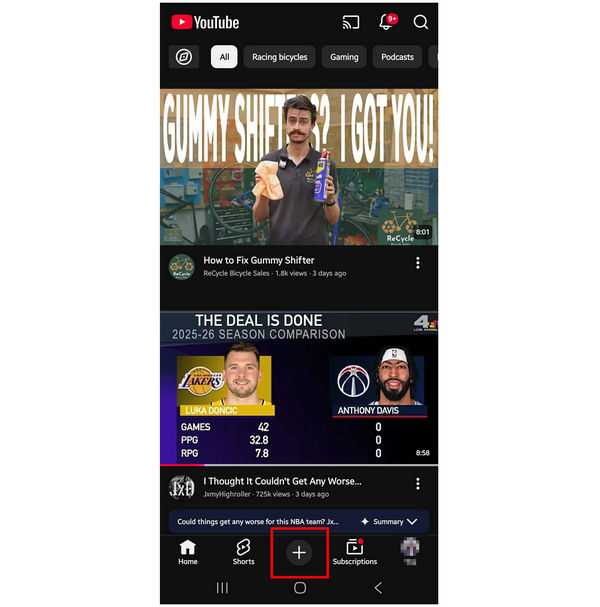
1. Open your YouTube app and then select the Create button.
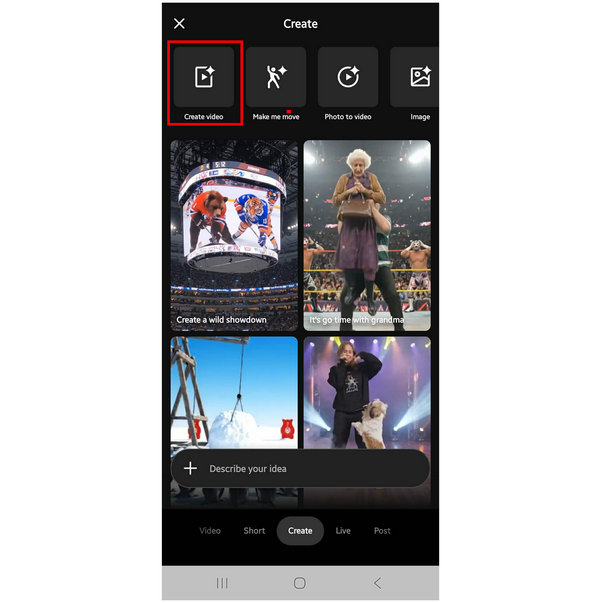
2. In YouTube Create’s main menu, select the Create Video option.
3. Once you are in the Create Video menu, select the Add button to import the video file you want to clean up. Then, write the AI prompt in the text box above, specifically stating that you want to clean up the background audio. Finally, click on Create.
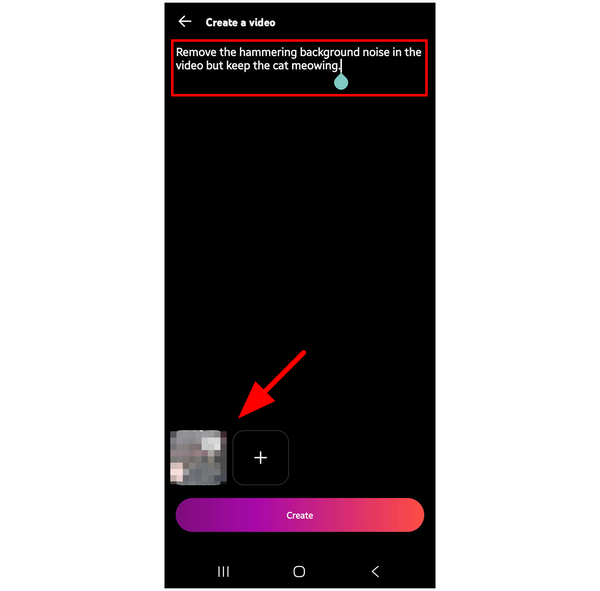
Since the automatic background audio removal in YouTube Create's editing tool was removed, you can only remove unwanted background audio from your videos using the program's AI prompt.
Part 3. Pro-Level Alternative: When Mobile Cleanup Isn't Enough
Although YouTube Create may be enough for basic audio cleanups, desktop-based options remain superior if you want to use pro-level noise removal during video editing. In this case, AnyMP4 Video Converter Ultimate should be your top choice for high-quality audio cleanup.
When producing professional-grade video projects, higher-quality files are used, such as 4K or 8K UHD media. These types of videos can be edited with no problem in AnyMP4 Video Converter Ultimate’s Noise Remover tool. Unfortunately, YouTube Create won’t be able to access these files.
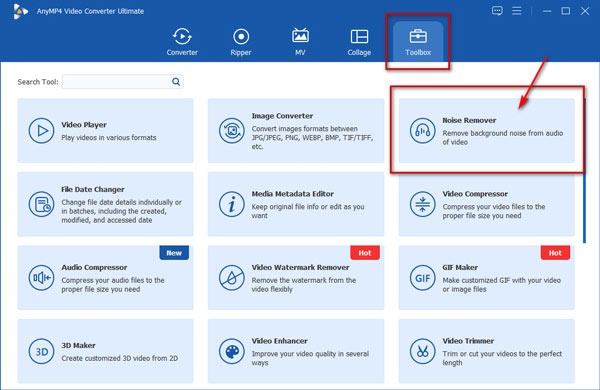
For handling high-quality audio cleanup, the Noise Remover tool in AnyMP4 Video Converter Ultimate’s Toolbox section features a dedicated AI-supported audio noise reduction feature that identifies and deletes specific frequencies in your audio, such as faint hisses and humming.
Moreover, the software also supports batch processing, which allows audio cleanup for multiple files at once. It is also available to other features in the software, such as format conversion, video enhancement, file compression, and more. All of these can apply their respective adjustments while preserving the video and audio quality of the files.
To learn how to use the Noise Remover tool of AnyMP4 Video Converter Ultimate, make sure to read our three-step guide below. Do not forget to download it as well for an easier time following our guide.
1. Open AnyMP4 Video Converter Ultimate and select the Toolbox option. Then, click on the Noise Remover tool.
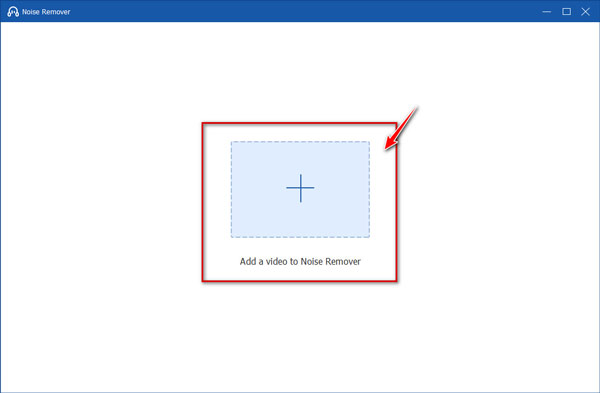
2. Import the video you want to have its audio cleaned up by selecting the Add button in the pop-up menu that will appear.
3. Once the video has been uploaded to the Noise Remover tool, select the checkbox in Enable Audio Noise Reduction to add the said effect. You may also adjust the Volume and Delay of the audio in the video file according to your needs. Otherwise, click on Export to begin producing the video with cleaned-up audio.
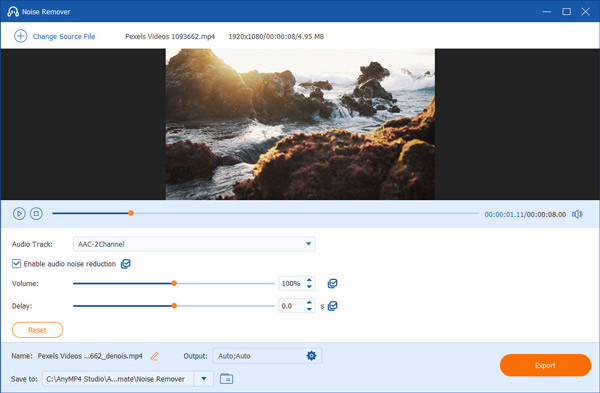
Instead of AI prompts or timeline-based editing, using an automated noise reduction button is way more practical and easier to use. As such, AnyMP4 Video Converter Ultimate works great both as a supplementary tool and as beginner-friendly editing software.
Part 4. YouTube Create vs. AnyMP4 Video Converter Ultimate: Which Should You Choose
To have a better understanding of how YouTube Create compares to the proposed video editing alternative, we will provide a detailed table comparing YouTube Create and AnyMp4 Video Converter Ultimate in terms of important key measurements.
| YouTube Create |
VS |
AnyMP4 Video Converter Ultimate |
| Android, iOS |
Primary Platform |
Windows, macOS |
| Producing short-form videos and short vlogs. |
Best Used For |
Format conversion and one-click audio clean up. |
| Audio cleanup and automatic captions. |
Main Use of AI Features |
Video quality upscaling and stabilizing shaky videos. |
| Free |
Pricing Plans |
Free - $18.75 |
| Beginner-friendly |
Ease of Use |
Beginner-friendly. |
Part 5. How to Test Your Audio Quality
Once the audio cleanup is done, you need to ensure that the quality of your audio has improved in the background noise department. For an easier time listening to these smaller details, we recommend testing your audio using three different options.
If you have access to an enclosed space, listen to your music file and focus on the background noise from it. The most accessible location to do this is inside a car. Make sure to play around with the volume of your music file to test the background noise level in different intensities.
For more accessible audio quality testing, you can use high-quality stereo headphones or earphones. Having a stereo audio channel is extremely important since you need to ensure the spatial audio and overall immersion of your file.
Part 6. FAQs About Using YouTube Create for AI Audio Cleanup
Does AI Audio Cleanup remove music?
No, it does not. Audio cleanup only removes unwanted background audio. Your main music will not be affected.
Is YouTube Create free?
Yes, it is. YouTube Create is a built-in feature in the YouTube app itself. It can be used for free.
Can I use these tools on a PC?
No, you cannot. YouTube Create is not available on YouTube for the browser. It can only be accessed in the YouTube app for iOS or Android.
Is YouTube Create reliable as an editor?
It depends on your needs. For simple adjustments, it may be enough. However, the lack of advanced editing tools hinders it from being more effective.
Does YouTube Create use command prompts?
Yes, it does. You can apply command prompts on YouTube Create. This is mostly used for producing AI-generated videos from regular images.
Conclusion
Now that we have provided a quick review and tutorial for using YouTube Create for AI audio cleanup, we hope that the information we have discussed will prove useful for your multimedia needs. If you are looking for an alternative with deeper features, you may also consider AnyMP4 Video Converter Ultimate, downloadable using the link below.




 Add your comments to join the discussion here