Master YouTube Create Filters and Effects: A Creator’s Guide to Viral Visuals
Have you browsed YouTube Shorts lately and noticed how videos with millions of views look so polished and cinematic? If so, you have to learn how to effectively use video editing tools to make producing these types of videos possible on your device. In this article, we will learn how to elevate your videos using the filters and effects tools in the YouTube Create app. Read this guide to learn how to apply high-retention editing to raw footage and make content that starts collecting views until it becomes trending. We will provide multiple options to do so with YouTube Create and other desktop alternatives.

<
Part 1. What is the YouTube Create App? (And Why You Should Care)
YouTube Create is the built-in video editing feature in the YouTube app for Android and iOS devices. It was integrated into the program to make content production way more efficient for their users. As such, it was equipped with essential features to enable high-retention video editing effects, making it easier to use filters on YouTube. To learn how to use the program, make sure to read our guide in the next section.
Part 2. Step-by-Step: How to Use Filters and Effects in YouTube Create
Applying Preset Filters for Instant Mood
1. Open the YouTube app and select the Create button.
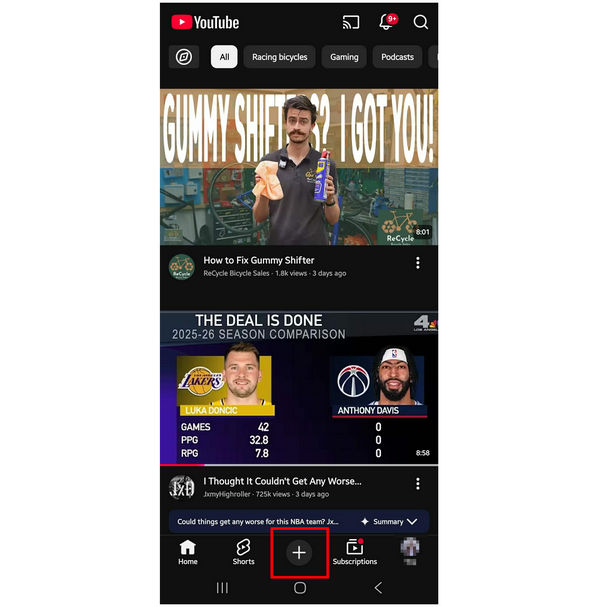
2. Select Video and then choose among the available video files on your device.
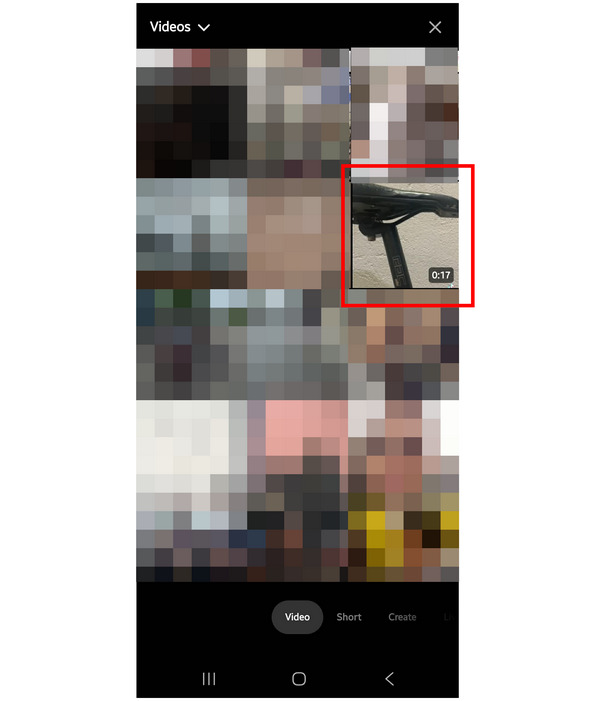
3. Once the video has been added to the main editor, select the Filter tool.
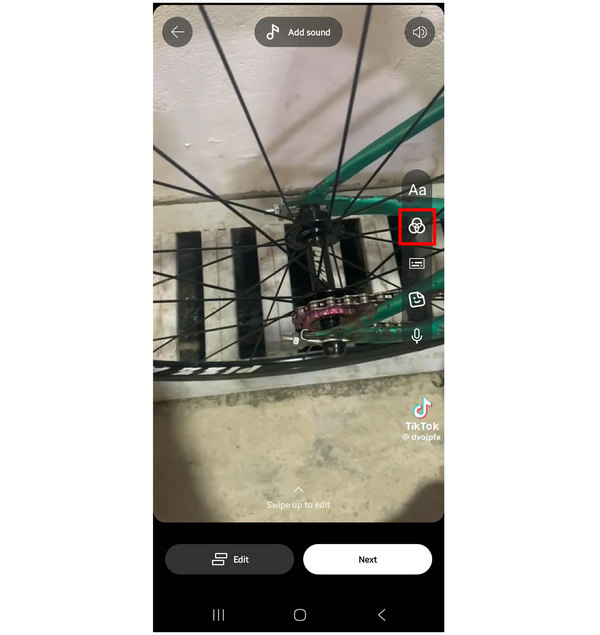
Choose among the available filters in YouTube Create. Select one and then tap on the Check button to confirm the selected filter.
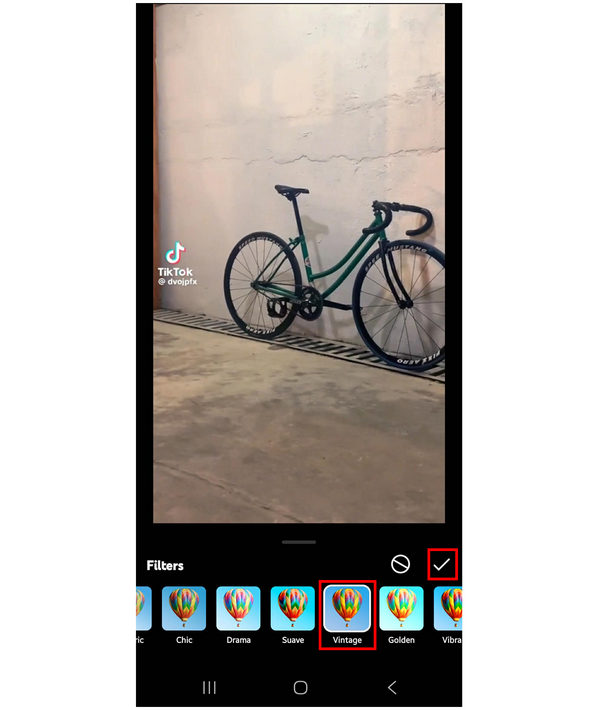
For quick filters and adjustments, the default filter tool of YouTube Create may be sufficient. To learn the more advanced option in the program using AI, read the next tutorial below.
Using Advanced Effects (Background Removal & Beat Matching)
1. Open the YouTube app and select the Create button.
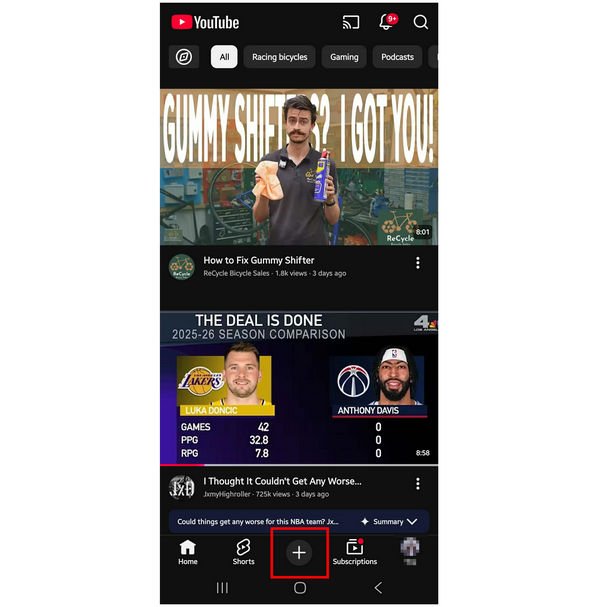
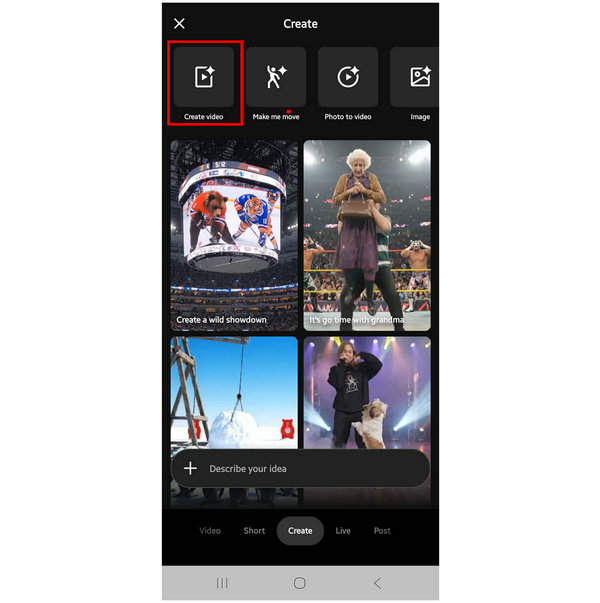
2. In the YouTube Create menu, select Create. Then, tap on the Create Video option.
3. In the AI prompt menu, tap on the Add button to import the video you want to apply advanced effects to. Write the prompt and then click on Create to produce the AI-enhanced version of your file.
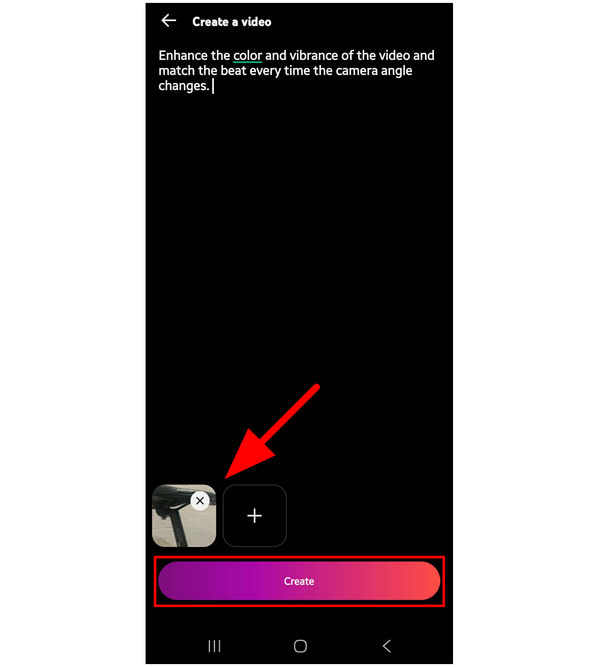
With access to AI prompts in YouTube Create, you can now produce videos with advanced effects. However, make sure to preview the AI-applied effects on your videos to ensure their quality.
Part 3. Limitations of Mobile Editing: When to Move to Desktop
When editing only on mobile devices, you have very limited access to high-end tools and creative effects. A good example is also YouTube Create’s limited selection of filters and lack of a dedicated video filter editor. If you feel like that is the case, moving on to desktop-based solutions could be the answer.
Unlike mobile-based video editors, professional-grade options for desktop offer way more advanced tools that you can use. Although most of them are on the technical side, you can use programs that are designed for beginners that can perform way better than limited mobile-based solutions.
To learn the best beginner-friendly editor for high-end effects, make sure to read the next section of this article.
Part 4. The Pro Solution: Using AnyMP4 Video Converter Ultimate for High-End Effects
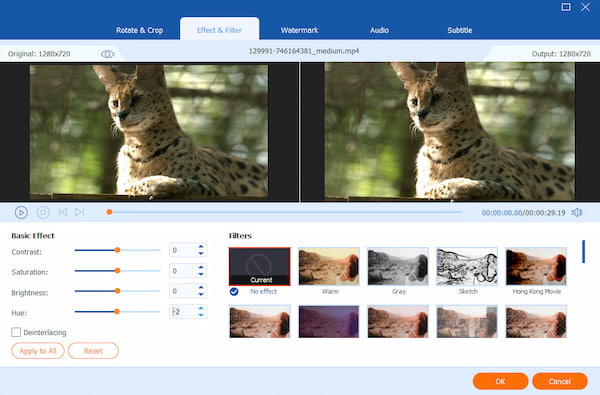
Although YouTube Create is good enough for quick mobile editing, creators who are seeking a more professional solution will be better equipped if they use a desktop-based option. In this case, AnyMP4 Video Converter Ultimate is one of the best programs as an alternative to mobile editors.
To start, the program performs way better than YouTube Create thanks to its AI-powered video enhancement feature. This made the program capable of upscaling video resolution all the way to 4K or 8K UHD, all while reducing visual noise.
It can also be used to batch edit up to 50 videos at once to apply smart filters and watermarks. This is a huge timesaver if you wish to process multiple media files, and this feature is supported by its hardware acceleration feature, making the tool 70x faster than regular video editors. This makes the rendering speed of the program way faster than other PC-based editors.
Finally, it is equipped with a beginner-friendly Toolbox feature designed to provide its users with professional video editing options, such as a watermark remover, color correction tool, and 3D maker options that can perform way better than mobile apps.
To start using AnyMP4 Video Converter Ultimate as your professional video editing solution, make sure to download it using the link below.
Part 5. Comparing YouTube Create vs. AnyMP4 Video Converter Ultimate
For a quick comparison of YouTube Create and AnyMP4 Video Converter Ultimate, make sure to read our comparison table below. This will tackle everything you need to learn about the primary differences between the two editing tools.
| Video Filter and Effects Editor |
Primary Platform |
AI Capabilities |
Effect Variety |
Advanced Tools |
Pricing |
| YouTube Create |
Android
iOS |
Auto-caption.
Audio cleanup.
Background removal. |
Audio beat syncing.
Animated texts.
Basic creative adjustments. |
Direct access to the YouTube music library. |
Free |
| AnyMP4 Video Converter Ultimate |
Windows
macOS |
Resolution upscaling.
Video stabilization.
Brightness and color balancing. |
Natural video quality enhancement.
Effect filters.
Color balancing tools. |
Format converter.
DVD ripper.
Hardware-accelerated performance. |
Free - $18.75 |
Part 6. Pro Tips for Better Video Aesthetics
To ensure that your video will look better when using effects and filters, you have to ensure that you are following these three tips: use the proper effects, add a suitable audio, and do not go overboard.
If these principles are met, you will be able to ensure that the video you produce will be aesthetically pleasing and balanced. All you have to do is select the best video editing software, use the right effects, and learn how to apply them properly in your video project.
Part 7. FAQs About YouTube Create Filters and Effects
Is YouTube Create free?
Yes, it is. YouTube Create is available for free. It can be accessed in YouTube’s mobile app.
Can I remove a background without a green screen?
Yes, you can. You can use traditional video editors and remove them using editing tools. You can also use AI-assisted video editors for automatic background removal.
Does AnyMP4 Video Converter Ultimate support 4K?
Yes, it does. You can use AnyMP4 Video Converter Ultimate to edit 4K videos. You can even use it to convert videos into 4K UHD quality.
Can I use YouTube Create for professional video?
No, it is not advisable to do so. YouTube Create is only advisable for basic short-form videos. Its editing tools are not enough for professional editing.
Are there any desktop editors that are easy to use?
Yes, there are. One good example is AnyMP4 Video Converter Ultimate. It is equipped with a video editor as well as AI tools for video enhancement and conversion.
Conclusion
Now that you have learned the full capabilities of using YouTube Create for filters and effects, we hope that this article will be enough to help you learn how to use the program for simple editing projects. If you think that mobile editing is too restricted, make sure to consider using AnyMP4 Video Converter Ultimate as an alternative, which you can download with the link below.






 Add your comments to join the discussion here