- Convert video, audio, and DVD over 500 formats.
- GPU acceleration to speed up the conversion process at 70X faster.
- More than 16 editor tools in the toolbox (Updating).
- Create videos for TikTok, YouTube, Facebook, etc.

Free Download100% Clear & Secure
Free Download100% Clear & Secure
MP4 to FLAC
Back to main page
Setting
Custom resolution:
| Core Features | Web Version | Pro Desktop |
| Max File Size | 50MB (Login: 100MB) | No Limit |
| Daily Limit | 2 Files (Login: 10 Files) | Unlimited |
| AI Video Upscaling | No | Yes (Up to 4K/8K) |
| GPU Acceleration | No | Yes (70X Faster) |
| Batch Processing | No | Yes |
Failed to upload media file! Please try again, or use AnyMP4 Video Converter Ultimate for Desktop.(Error code: 20015)

The original video resolution is higher than 1080p. If you want to output the original high resolution, you need to download the Pro Version. Or would you like to output the default 1080p resolution?

At a Glance: Quick Recommendation
For users seeking lossless quality and batch processing, AnyMP4 Video Converter Ultimate is the top-rated professional choice due to its 70x conversion speed and hardware acceleration. If you only have a single small file, CloudConvert remains a reliable web-based alternative.
Want to extract audio from MP4 files but are hesitating because you are worried about sound quality loss, slow upload speeds for large files, the risk of privacy leaks, or the inability to retain the original ID3 Tags (Metadata)? Don’t worry! This updated 2026 guide will introduce you to the top three MP4-to-FLAC converters (including both desktop and online). By choosing the one that best suits your needs, you can easily extract lossless audio and convert the files while ensuring your privacy and metadata.
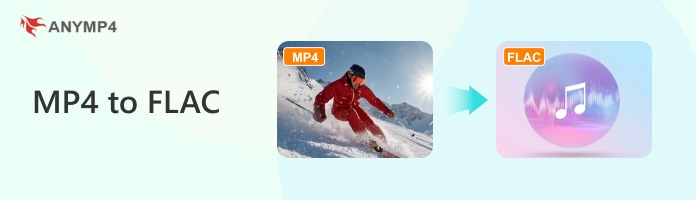
MP4 containers typically store audio using lossy encoding formats such as AAC or AC3, which sacrifice some data to save space. In contrast, FLAC is a lossless format that uses bit-perfect compression, preserving 100% of the source data.
When extracting FLAC audio from an MP4 file, the audio is decoded and packaged without any other modifications. FLAC format ensures zero intergenerational loss, preventing audio compression and degradation.
How We Tested (Experience):
Comparison Table of Top Methods:
| Method | Speed | Batch Support | Max File Size | Quality Loss | Processing |
|---|---|---|---|---|---|
| AnyMP4 Video Converter Ultimate | 70x (Fastest) | Yes (Unlimited) | Unlimited | Zero (Lossless) | Local (Secure) |
| VLC Media Players | Moderate | Manual | Unlimited | Low | Local |
| Online Tool | Slow (Upload) | Limited | Usually < 100MB | Low | Cloud (Public) |
Why is AnyMP4 Video Converter Ultimate the Expert's Choice?
In our rigorous benchmarking, AnyMP4 Video Converter Ultimate proved to be more than a simple converter; it is an industrial-grade solution for high-fidelity audio extraction. For audio/video creators who need to extract FLAC audio from dozens or even hundreds of 4K/8K videos and have extremely high standards for sound quality and efficiency, this is the best desktop software.
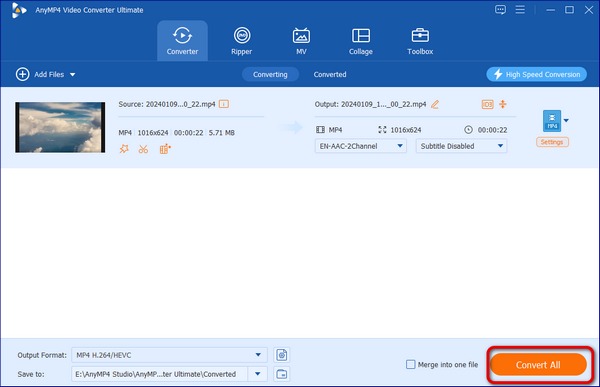
1. Download and install this MP4-to-FLAC converter on your Windows/Mac computer. After installation, it will open automatically.
Secure Download
Secure Download
Click Add Files/Add Folders, or drag your MP4 files directly into the software.

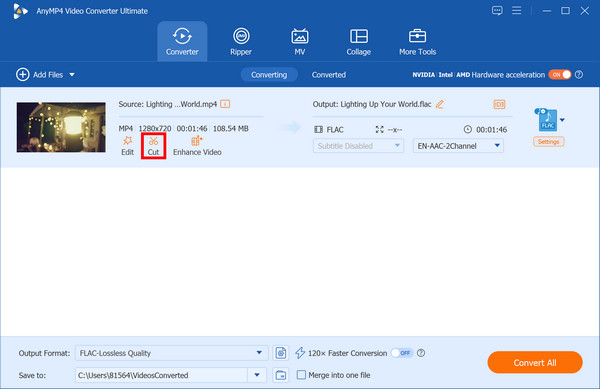
2. Click the Cut button to preview and clip specific segments of the MP4 before extraction, saving significant disk space.
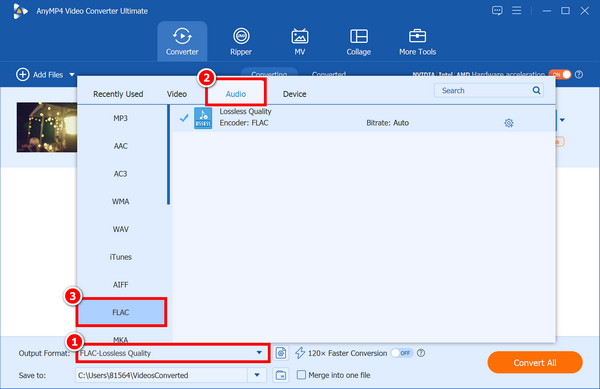
Click the Output Format option to choose the Audio tab > FLAC from the drop-down list. Additionally, you can customize your profile settings by clicking the Custom Profile button.
3. AnyMP4 features a built-in Media Metadata Editor that automatically identifies and migrates all original ID3 tags (Title, Artist, Album) during extraction. Finally, click Convert All to start conversion.
Key Benefits for Users:
PROS
CONS
If you do not want to install third-party commercial software or upload videos to the cloud, the open-source VLC Media Player is also a great option. It features a powerful built-in local transcoding engine, making it ideal for minimalists who need fast local conversions without being constrained by cloud file size limits.
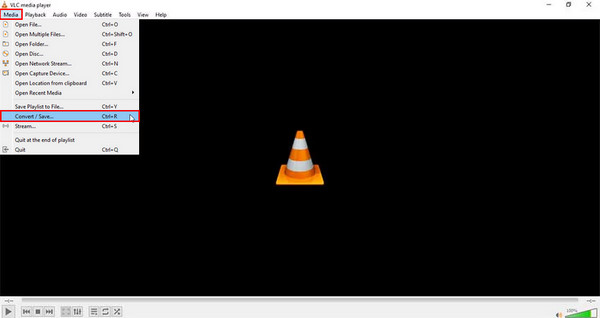
1. Open VLC, click Media > Convert / Save… or press Ctrl + R (Windows) / Cmd + Shift + S (Mac).
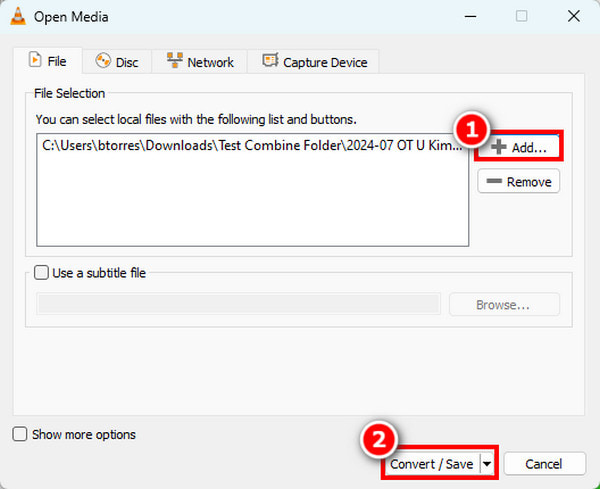
2. Click the + Add... button under the File tab to load your MP4 files, then click the Convert / Save button at the bottom.
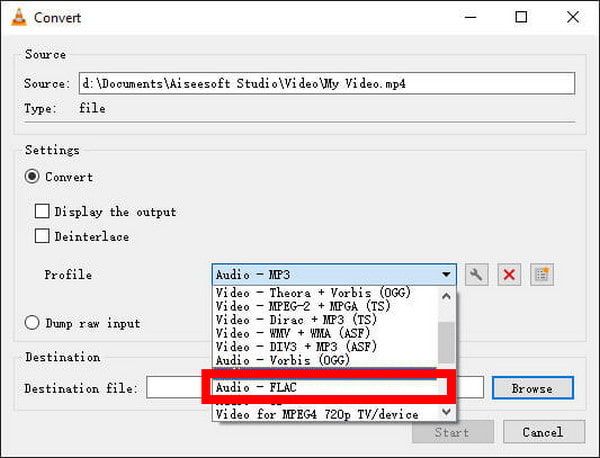
3. Scroll down and choose Audio - FLAC from the Profile drop-down menu. Then, click Browse to choose the destination for the new audio file, and manually name the file extension to .flac. Click Start to run the conversion.
Warm reminder: VLC may remove custom tags during batch processing, resulting in inconsistent metadata. So you may need to re-enter the tags in the Information tab manually.
CloudConvert is a web-based, installation-free conversion tool that lets you process individual files on any device. If you use a mobile or guest device when you are away from home, or if you have only a few small files to process and do not want to install any software, CloudConvert is a suitable solution.
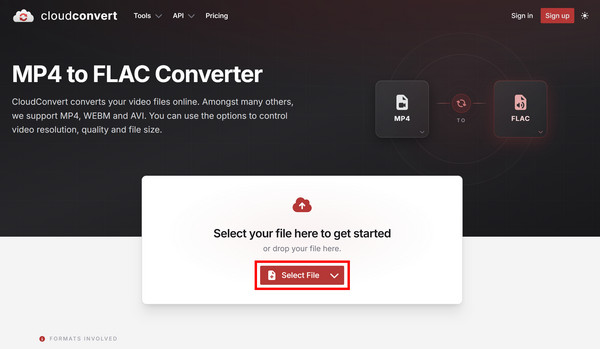
1. Go to the CloudConvert MP4 to FLAC Converter page. Click Select File to upload your MP4 file from your computer.
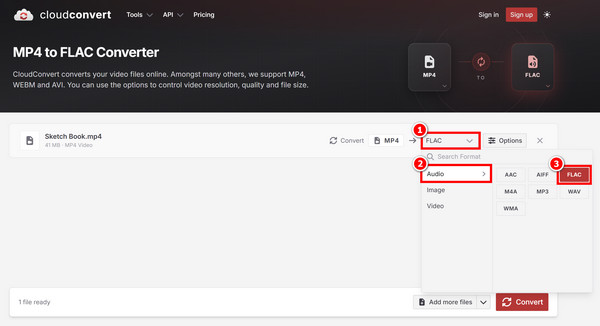
2. Ensure the output format is set to FLAC.
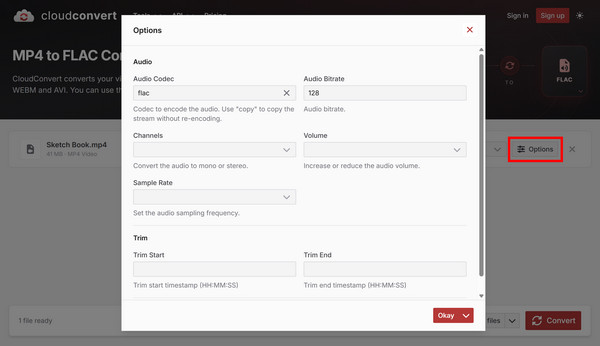
Besides, you can click Options to customize parameters such as audio codec, bit rate, channels, volume, sample rate, or extract a specific section of the audio clip using the Trim Start/End option.
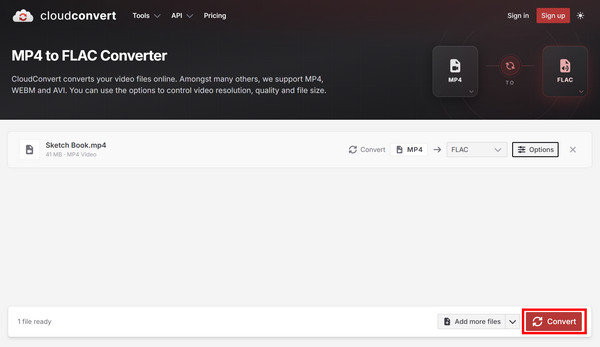
3. Click Convert to start the process. Once the conversion is complete, click Download to save your FLAC file.
Will converting MP4 to FLAC improve the original audio quality?
The short answer is no. Converting an MP4 to FLAC will not improve the original audio quality.
Can I batch convert multiple MP4 files to FLAC at once?
Yes, you can absolutely batch convert multiple MP4 files to FLAC at once. This saves a massive amount of time compared to doing them one by one.
Does converting MP4 to FLAC preserve ID3 tags and metadata?
It depends on the tool you use, but technically, no, ID3 tags are not natively preserved during a direct transcode.
What is the best sample rate for MP4 to FLAC conversion?
The best sample rate for an MP4-to-FLAC conversion is the same as the original MP4 file's sample rate.
Is there a free way to convert MP4 to FLAC without a file size limit?
Yes, absolutely. The secret to avoiding file size limits is to stop using online or cloud-based converters and use a free local software program like AnyMP4 Video Converter Ultimate.
If you are looking for the ultimate in processing speed, batch processing, and privacy protection, AnyMP4 is definitely your top choice. And for quickly processing temporary files, online tools are also an ideal option. Ready to experience perfect sound quality? Download and try AnyMP4, the best converter of 2026, and start your high-speed, lossless MP4-to-FLAC conversion.
Secure Download
Secure Download
 Updated by Alice Thorne to Convert Audio, Convert Video
More readings
 How to Convert MTS and M2TS to AVI Files without Losing Quality
Read and get 2 different ways to quickly convert MTS to AVI online and offline. You can change MTS M2TS to AVI format on your phone or computer.
 Top 3 FLAC CUE Splitters to Split FLAC with CUE (Mac/Win, 2026)
Need a reliable FLAC CUE splitter? Learn how to split FLAC with CUE losslessly into individual tracks on Windows and Mac (Updated for 2026).
 5 Reliable Methods to Convert MP4 to MP3 Losslessly
Check the 5 best ways to convert MP4 to MP3 with original quality. You can extract MP3 audio from MP4 videos online or offline easily.
 100% Working Way to Insert a WMV Video File into PowerPoint on Mac
Read and learn how to insert a WMV file into PowerPoint on Mac. You can convert WMV to MOV and other formats for importing into Mac PowerPoint.
 Add your comments to join the discussion here