
Quick Answer:
To convert iTunes files (M4A or ALAC) to FLAC without losing quality, you need a lossless audio converter. For large libraries, desktop software like AnyMP4 Video Converter Ultimate offers batch processing and metadata preservation. For quick, single-file conversions, browser-based tools like AnyMP4 Free Online Video Converter work best.
Note: Only DRM-free purchased iTunes music, or you can convert locally imported files to FLAC.
Converting iTunes to FLAC is an important step to enjoy lossless audio beyond Apple’s ecosystem. Many iTunes libraries use Apple Lossless (ALAC) or AAC formats, but FLAC offers wider compatibility, especially for Hi-Res audio players, Android devices, and audiophile systems. This post will show different methods to convert iTunes files to FLAC while preserving audio quality, DRM-free content, and ID3 tags/metadata. We will help you choose the best method to achieve high-resolution, organized, and fully compatible music playback without losing original sound fidelity.
How We Tested (Experience & Trustworthiness)
| Best For | Price | Batch Conversion | Keeps Metadata | Ease of Use | |
|---|---|---|---|---|---|
| AnyMP4 Video Converter Ultimate | Large libraries & speed | Freemium and Paid | Yes | Yes (Excellent) | Beginner-Friendly |
| dBpoweramp | Hardcore audiophiles | Paid | Yes | Yes | Moderate |
| Audacity | Free audio editing | Free | Yes | Manual | Advanced |
| AnyMP4 Free Online Video Converter | 1-2 quick files | Free | No | Basic | Very-easy |
Both Apple Lossless (ALAC) and FLAC are lossless formats, meaning they do not discard audio data during compression. However, FLAC files offer broader compatibility across Hi-Fi systems, Android devices, and Windows players.
Converting Apple Lossless to FLAC ensures cross-platform listening, better integration with Hi-Fi audio players, and flexibility. While Apple devices support ALAC, FLAC dominates in open-source environments and advanced playback setups.
Not all iTunes files are convertible. Tracks from Apple Music streaming are protected by DRM, which prevents conversion to FLAC or any other format. You can only convert DRM-free purchased iTunes songs and imported CDs/local audio files. If your goal is audio fidelity and ownership, always ensure your files are DRM-free before converting.
When it comes to converting iTunes to FLAC, AnyMP4 Video Converter Ultimate offers the most efficient solution. It supports lossless audio output (up to 24-bit/192kHz) and uses hardware acceleration for ultra-fast processing. You can convert entire iTunes libraries in one go, perfect for managing large collections. It also preserves ID3 tag, bitrate, and sample rate, ensuring your library remains organized after conversion. The interface is beginner-friendly, yet powerful enough for advanced users managing Hi-Fi collections.
Secure Download
Secure Download
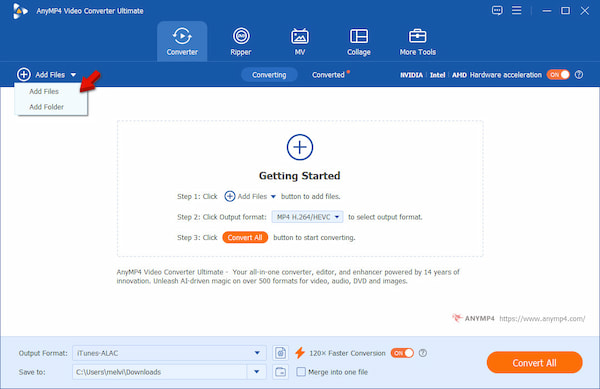
1. Launch AnyMP4 Video Converter Ultimate on your system to access the main interface. In the Converter tab, click +Add Files to import your iTunes tracks (M4A or ALAC). If you’re converting a full album or library, choose Add Folder to enable batch conversion.
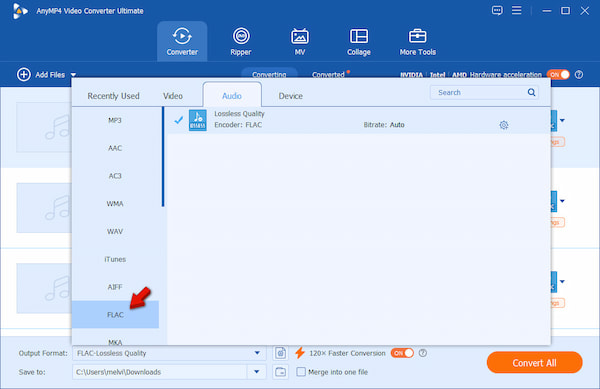
2. Select the Output Format selector, then switch to the Audio category. Select FLAC-Lossless Quality as your desired format. Then, open Profile Settings to configure bitrate, sample rate, and audio channels, ensuring optimal Hi-Res output.
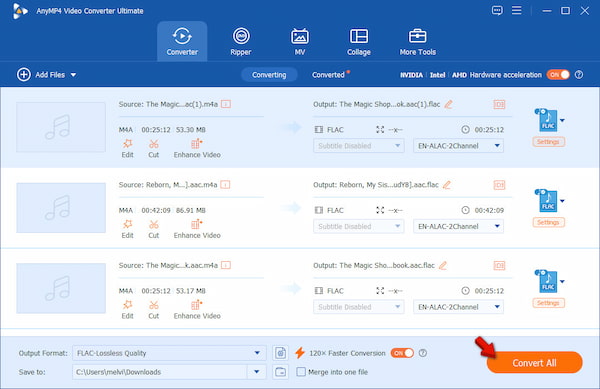
3. In the Save To selector, specify the output destination. Enable 120× Faster Conversion to boost the conversion performance. Click Convert All to convert FLAC files while maintaining lossless compression and metadata.
My Experience: In my testing, AnyMP4 delivered the best performance and speed. I converted a 50-track ALAC album and verified the results using spectrogram analysis. The frequency range remained intact, confirming true lossless conversion. What stood out was the seamless metadata retention, as ID3 tags appeared perfectly on a Hi-Fi FLAC player.
dBpoweramp Music Converter is the industry-standard tool for audiophiles. It integrates directly into Windows File Explorer, allowing you to convert iTunes to FLAC instantly. It also pulls metadata from online databases, ensuring accurate ID3 tags.
1. Navigate to your iTunes music folder and select your M4A or ALAC files. Right-click and choose Convert To from the context menu.
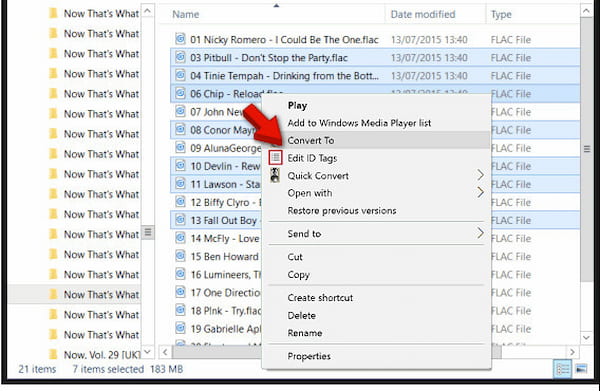
2. In the conversion window, choose FLAC as your output format. Click Convert to start processing files while maintaining audio compression integrity.
My Experience: During testing, it efficiently processed files while maintaining audio compression integrity and preserving all metadata. Additionally, it automatically filled in missing album art and corrected inconsistent tags. However, the speed was slightly slower than that of GPU-accelerated tools.
Audacity is an open-source solution you can use as an M4A to FLAC converter. As an audio editing tool, it offers deep control over waveforms, bitrates, sample rates, and audio effects before exporting to FLAC. It makes it ideal for editing and enhancing audio before conversion.
1. In the File menu, click Import and select Audio to load your M4A file. The waveform will appear, allowing you to inspect the audio visually.
Important Note: You need to install the FFmpeg library before you can import M4A and ALAC files. Without this step, iTunes files may not load properly.
2. Click the File menu again, but this time select the Export Audio option. In the export window, select FLAC as the format type.
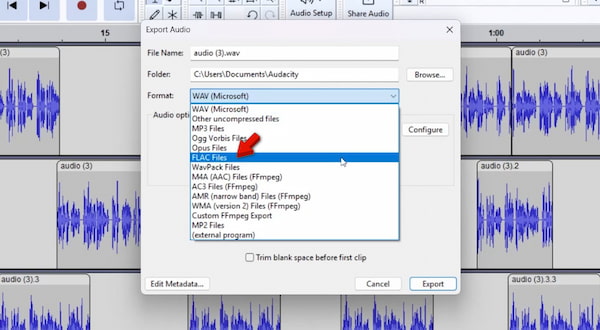
My Experience: In testing, Audacity produced accurate FLAC outputs with no noticeable loss in audio fidelity. However, the process was slower and required manual input for metadata retention. This additional step can be tedious for large libraries.
AnyMP4 Free Online Video Converter is a browser-based tool that provides a quick, hassle-free way to convert iTunes to FLAC. It is 100% free to use and requires no software downloads or installations. It works across Mac, Windows, and Linux with modern browsers. Despite its lightweight design, it still delivers solid audio fidelity, allowing you to adjust bitrate, sample rate, and channel settings before conversion. Additionally, it automatically deletes uploaded files from the server, ensuring your data remains private.
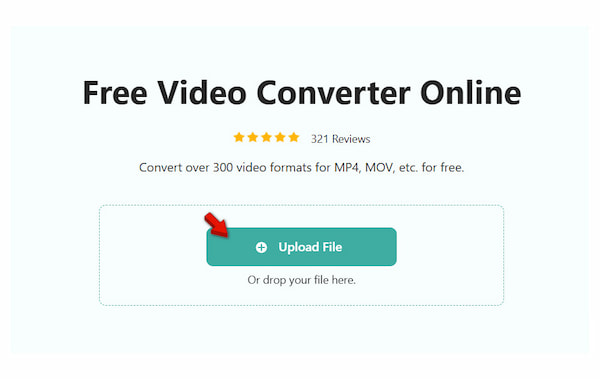
1. On your system, launch a browser and go to the official AnyMP4 Free Online Video Converter page. On the homepage, click + Upload File to add your iTunes audio (M4A or ALAC). You can also drag and drop files directly into the browser for faster access.
2. Navigate to the Format selector and choose FLAC as your output. Adjust the audio bitrate (kbps), sample rate (Hz), and channel count to match your original file for optimal lossless audio conversion. Click Save to convert the file and download afterward.
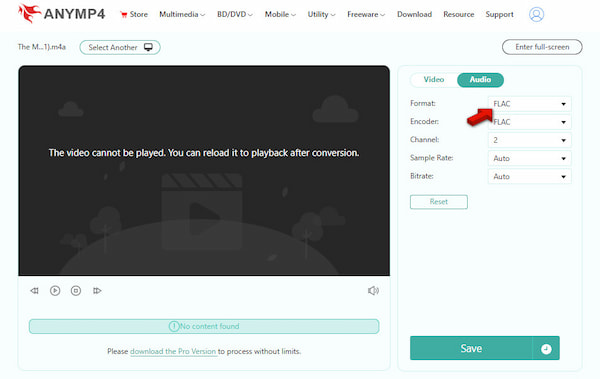
My Experience: During testing, the process was smooth, and the output FLAC file maintained good audio fidelity, with no noticeable distortion. But its biggest advantage is that it requires no installation, no setup, just a quick and secure conversion directly in the browser.
Can I convert Apple Music streaming tracks to FLAC?
No. Apple Music streaming tracks are protected by DRM, which prevents any form of conversion, including to FLAC. These files are encrypted and tied to your subscription, meaning you don’t actually own them. You can only convert DRM-free files.
Will converting M4A (AAC) to FLAC improve audio quality?
No. Converting AAC (a lossy format) to FLAC does not improve audio quality. It is because the original data has already been compressed and partially lost. FLAC will preserve the existing quality in a larger file size without restoring missing details.
Know more here why FLA files are so big.
Do I lose my album artwork when converting iTunes to FLAC?
Not necessarily. It depends on the converter you use. High-quality tools like AnyMP4 Video Converter Ultimate support full metadata retention. However, some basic or free tools like Audacity only preserve partial metadata or require manual editing.
Is ALAC exactly the same as FLAC?
Not exactly, but they are very similar. Both ALAC (Apple Lossless Audio Codec) and FLAC are lossless formats. It means they retain 100% of the original audio data. The main difference lies in compatibility. ALAC is optimized for Apple devices, while FLAC is widely supported across Android, Windows, and Hi-Fi systems.
You may also want to explore the differences between FLAC vs MP3 vs WAV to understand better how audio quality and compression affect your listening experience.
What is the best sample rate for FLAC?
The best sample rate is the same as the original file. Most iTunes music is encoded at 44.1 kHz, which is standard for CD-quality audio. Increasing the sample rate won’t improve quality and may only increase file size. For optimal audio fidelity and efficiency, always match the original sample rate during conversion.
In summary, converting iTunes to FLAC is a practical way to improve cross-platform listening while preserving full audio fidelity outside Apple’s ecosystem. FLAC allows users to enjoy high-resolution, lossless audio on a wider range of devices. This makes it a strong choice for any audiophile looking to break free from platform limitations. However, it’s important to remember the DRM restriction. You cannot convert Apple Music streaming tracks; only DRM-free iTunes purchases or local files are eligible.
The Final Verdict: Choose the right tool based on your needs. For quick and secure online conversion, use AnyMP4 Free Online Video Converter. For large libraries and professional-quality results, download AnyMP4 Video Converter Ultimate. Ultimately, freeing your music from a single ecosystem gives you more control, better compatibility, and a truly flexible listening experience.
 Updated by Alice Thorne to Convert Audio
More readings
 Top 6 Ways to Add FLAC to iTunes for Playback on Windows/Mac
What should you do to play high quality FLAC audio on your iTunes? Follow the top 6 solutions to convert FLAC to iTunes in this article.
 How to Convert AIFF to WAV with 3 Extraordinary Ways You Should Know
When you need to convert AIFF to WAV, you can find 3 best solutions to play AIFF non-compressed audio format on Windows compatible devices.
 4 Best Ways to Convert FLAC to MP3 (2026: Lossless Quality & Batch)
Looking for the fastest FLAC to MP3 converter? Get AnyMP4, VLC, and online tool to batch convert while keeping 320kbps quality and ID3 tags on Windows/Mac.
 Top 3 FLAC CUE Splitters to Split FLAC with CUE (Lossless & Fast)
This guide shows how to use the 3 free FLAC CUE splitter to split FLAC up into individual tracks and convert FLAC tracks to MP3/M4A/AIFF, etc.
 Add your comments to join the discussion here