
Are you struggling with distracting, unwanted sounds in your video? You might be wondering whether VLC can help you remove background noise for better audio quality. Although VLC doesn’t have a true noise reduction filter, it offers a free workaround. This allows you to reduce certain noise frequencies and enhance audio clarity. In this tutorial, we’ll show you exactly how to do background noise removal in VLC. We’ll cover how to minimize background noise using simple adjustments, ideally for a quick solution. This way, you can improve your video’s sound quality using VLC’s available settings.
Regarding the question, VLC Media Player does not have a noise reduction feature. In other words, it cannot remove background noise from audiothe way specialized tools can. However, VLC provides a workaround using its Audio Effects tab, specifically the Equalizer. With it, you can adjust VLC frequency levels to limit background noise and enhance speech clarity. By reducing low-frequency noise and fine-tuning mid- and high-frequency ranges, you can improve sound quality with VLC Media Player.
As mentioned, VLC Media Player does not offer a real noise reduction tool. Still, you can reduce distracting background sounds using its Equalizer under the Audio Effects tab. This method won’t fully remove noise the way AI tools do, but it can reduce static, hiss, or hum.
Here’s how to reduce background noise in VLC Media Player:
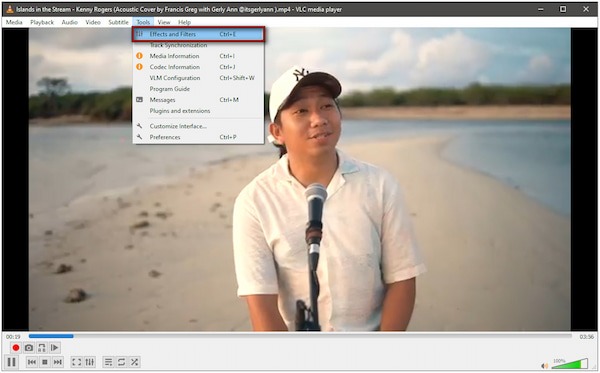
1. In VLC, navigate to the Media menu and click Open File to add the video. As soon as it loads, press the Play button to start the video. Switch to the Tools menu and select Effects and Filters to access the Adjustment and Effects settings.
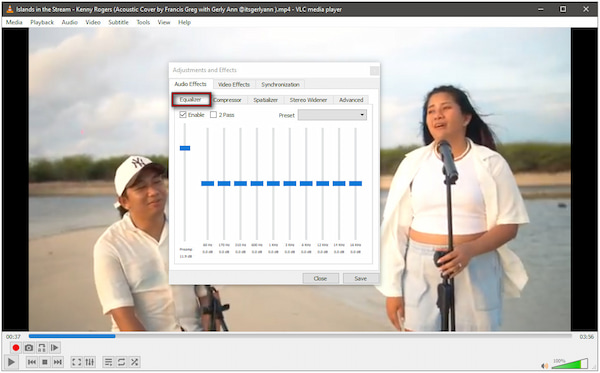
2. Inside the Adjustment and Effects window, click the Audio Effects tab. Open the Equalizer section and tick the Enable box to activate the subcategory. Move the slider levels to adjust the noise elimination levels. This won’t remove noise, but it can mask or minimize it.
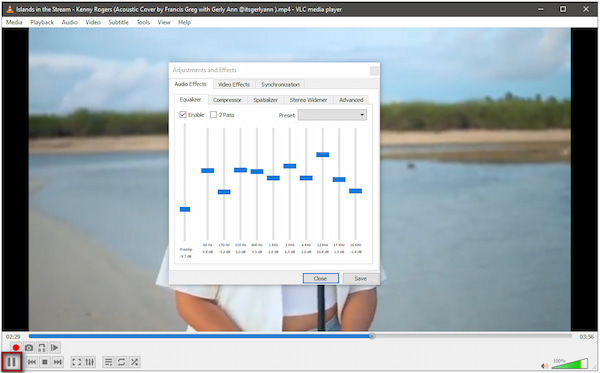
3. Play the video while keeping the Adjustment and Effects window open. Listen closely to see whether the noise has been reduced. If needed, continue adjusting the sliders until you find the best clarity and natural sound.
With the Equalizer tool, you can remove background noise in VLC Media Player. While this method doesn't truly eliminate background noise, it can still improve audio quality. However, there’s a catch: These changes are not permanently saved as they only apply during playback.
VLC is a versatile tool for playing videos and making simple audio adjustments. Many users expect VLC to clean audio in video the way professional software does, but its capabilities are limited. To make things clear, it can only minimize unwanted sounds through manual equalizer adjustments. Below are the main limitations you should be aware of:
• VLC cannot isolate speech from noise because it only adjusts frequencies.
• VLC cannot save your adjustments as a new file; it only applies during playback.
• VLC does not include any feature that automatically removes background noise.
• Over-adjusting frequencies can lead to muffled voices, harsh tones, or unnatural sound quality.
• Any noise minimization must be done manually through the Equalizer, which requires trial and error.
Many users turn to more advanced tools that can remove unwanted background sounds with precision. The best and most reliable alternative to VLC background noise removal is AnyMP4 Video Converter Ultimate. This all-around multimedia software is bundled with a Toolbox boasting more than 20 essential tools. It includes a specialized AI Noise Remover tool that automatically cleans up audio. It analyzes your audio, detects hiss, hum, wind, and other unwanted sounds, and removes them. In addition, you can adjust the volume and delay for better sound clarity.
1. Beforehand, acquire the free download of AnyMP4 Video Converter Ultimate. Install the video noise reduction software and wait for the setup process to complete. Once the installation is finished, run the software to begin cleaning your noisy video.
Secure Download
Secure Download
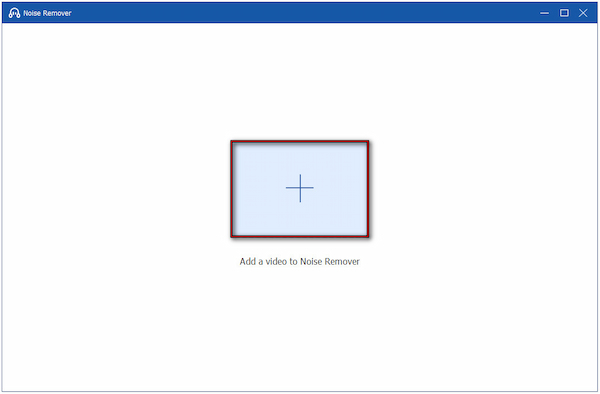
2. Upon opening the software, you’ll land on the Converter tab by default. Proceed to the More Tools tab and select Noise Remover from the list of advanced tools. In the Noise Remover window, click the large Plus button to import the video containing unwanted noise.
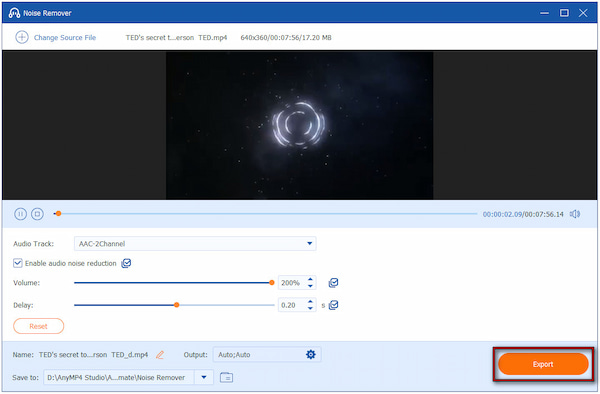
3. Check the Enable Audio Noise Reduction box to activate the noise reduction feature. This will automatically detect and remove background noise, improving voice clarity and overall sound quality. For a clearer output, you may increase the Volume slider to 200%.

Creative Tip: If audio and video are out of sync, adjust the Delay slider to perfectly align them.
4. Once the noise reduction looks and sounds right, click Output to configure output settings. Here, you can change the format, resolution, frame rate, encoder, sample rate, and other settings. After customizing your settings, click Export to save your noise-free video.
AnyMP4 Video Converter Ultimate is a powerful tool to remove background noise from a video’s audio. In addition to the AI Noise Remover tool, it also offers a Video Enhancer. In the Video Enhancer tool, you can use the denoiser to remove background noise from your video.
| VLC Media Player | Feature | AnyMP4 Video Converter Ultimate |
| No, only manual equalizer adjustments. | Audio Noise Reduction | Yes, automatically detects and removes background noise. |
 |
Video Noise Reduction | Yes, with AI to upscale resolution, clean video noise, reduce shake, and optimize effects. |
| Apply only during playback. | Permanence of Changes | Applied and exported in the output file. |
| Up to 4K resolution | Resolution Support | Supports up to 8K resolution |
| Plays most formats | Format Support | Handles more than 500 media formats, including MP4, MKV, MOV, AVI, WMV, etc. |
| Fast | Speed | Up to 120× faster processing speed |
| Basic media playback only | Additional Tools | Converter, MV Maker, Collage Maker, and Toolbox with 20+ editing tools |
Can VLC completely remove background noise?
No, it cannot completely remove background noise because it doesn’t have a dedicated noise-reduction tool. The closest option is the Equalizer, which only adjusts frequency levels.
Why does my audio sound muffled after noise removal in VLC?
The audio sounds muffled because reducing frequency bands with the Equalizer affects the sound. When you lower too many low or mid frequencies, you also weaken important parts of the voice.
Is VLC a good tool for professional noise removal?
No, VLC is not suitable for professional noise removal. This media player software lacks dedicated tools for analyzing and cleaning audio.
Background noise removal in VLC is possible to some extent. However, its tools are limited to basic equalizer adjustments rather than true noise reduction. While it can help improve audio quality for simple playback, it cannot fully clean up noisy recordings. If you need deeper, cleaner, and more accurate noise removal, it’s best to upgrade to a more powerful solution. For fast, automatic, and high-quality audio cleanup, AnyMP4 Video Converter Ultimate offers an advanced AI Noise Remover that delivers results that VLC simply can’t match.
Secure Download
Secure Download
 Updated by Mark Cristobal to Edit Video
More readings
 6 Fixes to Reduce Background Noise on Microphone
Are you wondering how to get rid of background noise on mic? If yes, you are certainly in the exact place! Find out the solution you can apply here.
 Audacity Remove Background Noise to Get a Clean Audio
This is the perfect place to learn how to remove background noise in Audacity! Discover the simple way of performing it at ease here.
 How to Add Noise Suppression to Mic in OBS: Full Guide
Do you want to learn how to activate OBS studio noise suppression? This article explains how to get noise suppression on OBS for improved recording quality.
 Ultimate Guide to Denoise Video in 2 Ways
Click here to see the two greatest-enhancing tools to denoise video with ease. You may also see how we can make denoising more manageable and effective.
 Add your comments to join the discussion here