
When it comes to online video editing tools, CapCut Online Editor is one of the most popular options due to its beginner-friendly design and highly intuitive editing tools. Among video editors, adjusting video speed is an essential skill for enhancing the creative value of your projects. In this article, we will provide a detailed guide about learning how to speed up videos on CapCut. We will also explore basic troubleshooting, tips, and an alternative tool for adjusting video playback speed.


Before proceeding to our video speed-up tutorials, let us first discuss whether CapCut supports playback speed controls. Fortunately, the software offers this service and even provides users with two options for video speed-up: constant and variable speed changes.
If you are interested in learning how to speed up a video in CapCut, make sure to read our detailed tutorial below, which includes two guides for constant- or variable-speed changes.
Continue reading the article below to learn more.
When using CapCut to speed up your video, you should know there are two modes for applying the playback adjustment. In total, CapCut offers Constant Speed Change and Variable Speed Change. These two options differ, and they are meant to be used in specific instances.
To learn how to use CapCut to speed up your videos, read our three-step guide below, which features the two modes in the software.
Of the two playback speed options, constant-speed editing is best for adjusting the duration of the entire video. This is useful for editing a single asset on your editing timeline. However, it has limited accuracy and poor transitions for the effect.
To learn how to apply it, read our three-step guide below.
1 Open CapCut Online video editor, then click Upload or use the Templates to import the video you want to edit.
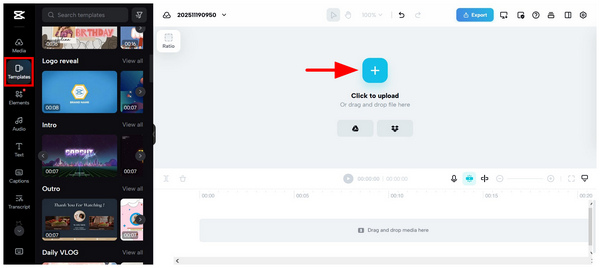
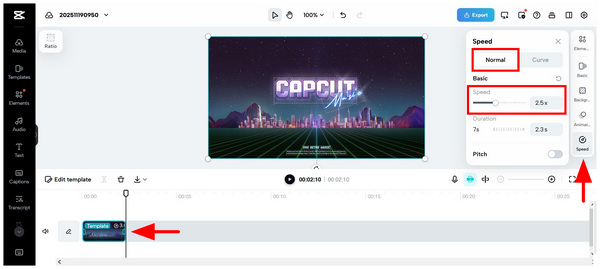
2 Once the video has been imported, click it, then select Speed. In the Speed menu, go to the Normal option. Then, you can change the speed of your video by editing the Speed Multiplier.
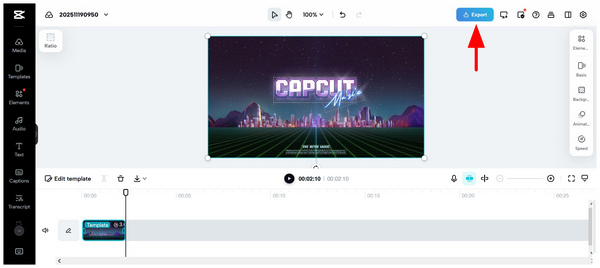
3 Once the edited video’s speed is applied, click Export to start rendering the video at the edited constant speed.
Due to this mode's functionality and limitations, changing the constant speed is only advisable for limited editing work. It is not a good option if you want to have your video to have a smooth transition.
Apart from the online version, CapCut has a mobile version, which can work well as the speed-up video app to change the clip speed.
If you want to add a smoother transition or more creative value to the video you are editing, you can use the variable speed change mode by selecting the Curve option in the Speed tool.
To learn how to use it, read our guide below.
1 Open CapCut Online video editor, then click Upload or use the Templates to import the video you want to edit.
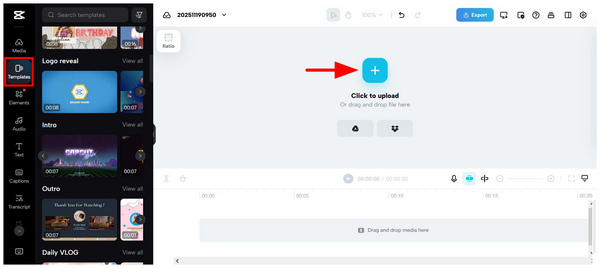
2 With your video now imported into the editing window, click it and then select the Speed tool. In the Speed menu, select the Curve option and then choose the variable speed template you want to use.
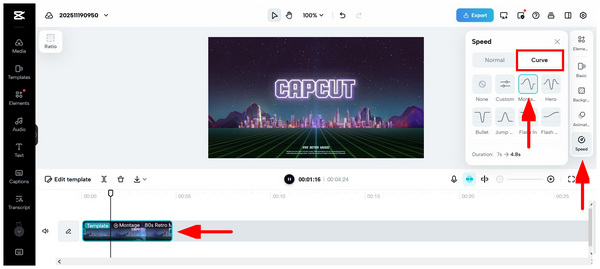
3 Once you are satisfied with the speed-up pattern, click the Export button to produce the edited video, which will be downloaded back to your computer.
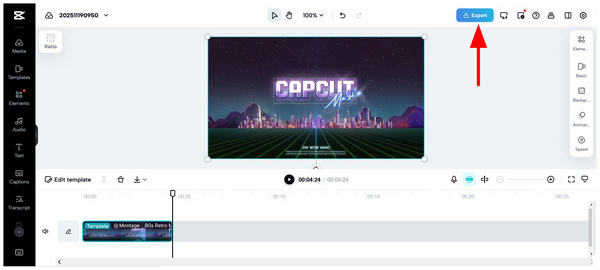
Unlike the constant-speed option, using CapCut’s Speed tool in Curve mode will make your video look divided into sections. This will also provide better creative control for more advanced editors.
If you are experiencing choppy video playback in the preview screen, fear not, since it will not be transferred to the final export of your video. Poor video quality or choppy preview is usually a result of an unstable internet connection.
When using variable-speed changes, ensure you apply the correct template or speed curve to avoid introducing unnatural motion to your video. Fortunately, this can be easily set in the CapCut video editor's preview window.
If you plan to edit long videos but are having trouble with their file size, you may use proxy videos instead. Simply find a file that has a similar duration but lower resolution and quality. This way, you can simulate the original media you want to edit.
Once you are done editing the video's speed, make sure you still have an original copy so reviewing your edited video is easier. This is also helpful if you plan on using the original clip for other purposes.
Since speeding up the playback directly affects the audio, you have to ensure it remains in sync with your video. This is important because the audio should be synced with the video again after you remove the speed adjustment.
Although CapCut is easy to use and lets you conveniently apply speed adjustments, its background as an online tool significantly affects the quality of the video you are editing in the program. As such, multimedia tools such as AnyMP4 Video Converter Ultimate could be a better choice for you to adjust playback speed while maintaining video quality.
Available for both Windows and macOS computers, AnyMP4 Video Converter Ultimate lets users adjust playback speed using the software’s Video Speed Controller tool in its Toolbox feature. Using it, users of the program can easily change the playback speed of videos with multipliers ranging from slow-motion pace (0.125X) to time-lapse speed (8X the original speed). Moreover, a preview window is available in the software to make comparing the original and sped-up files easier.
In addition to the practical speed adjustment option, users can ensure their file is read by AnyMP4 Video Converter Ultimate, which supports popular formats such as MP4, MOV, WMV, AVI, MKV, GIF, and over 500+ file types.
To learn more about what makes this CapCut alternative an excellent choice for video speed editing, make sure to read its main features below. Then, continue reading our three-step guide below.
Secure Download
Secure Download
Recommendation
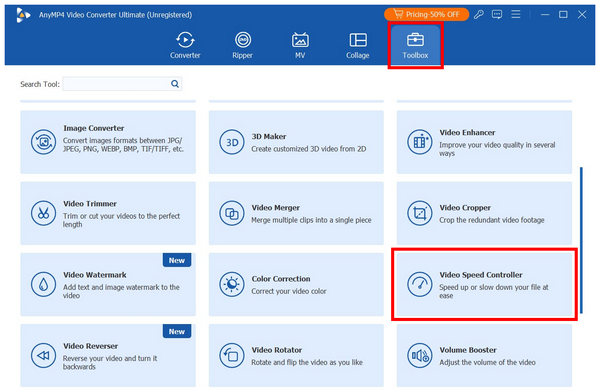
1 Open AnyMP4 Video Converter Ultimate and select the Toolbox tab. Scroll down to find the Video Speed Controller and select it.
2 In the tool’s editing menu, select the Output Setting option. Next, you can adjust the Video Export settings, such as Format, Resolution, Frame Rate, and Quality. Click on OK to confirm.
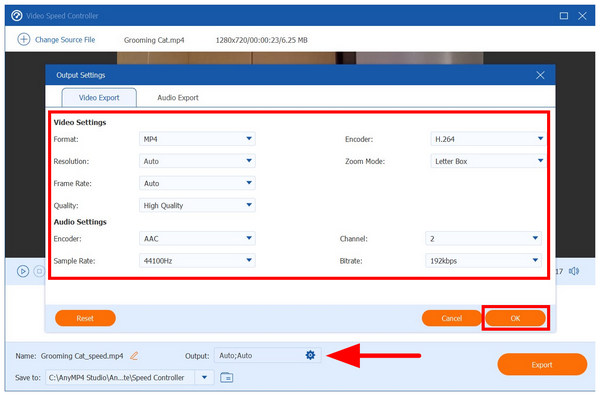
3 You may edit the output settings of your video; otherwise, you can directly apply a video speed adjustment to your file by choosing from multipliers of 0.125X to 8X. Finally, click on Export to produce the video with a speed-up effect.
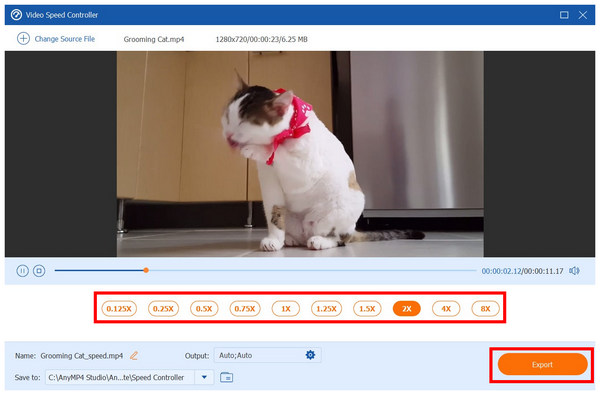
Although AnyMP4 Video Converter Ultimate only offers constant speed changing, its design to preserve video quality is hard to ignore. The more advanced output settings also add greater value to its potential users, especially those experienced with multimedia editing.
Will speeding up a video in CapCut change the audio pitch, and how do I fix it?
Yes, it will. However, you can preserve the original pitch of your video on CapCut. Simply enable the Pitch option in the same Speed tool.
Can I speed up videos in CapCut without leaving a watermark?
Watermark is not correlated to the video speed of your CapCut project. The watermark will remain whether you speed up or not. You can only remove the watermark if you subscribe to a premium CapCut plan.
Does CapCut support frame interpolation/optical flow for smoother slow/fast motion?
Yes, CapCut does support these advanced editing options. However, they are not simple to apply as the basic speed adjustment of CapCut. You need to use more editing options in the program.
How to speed up a video in CapCut on iPhone?
CapCut’s iOS version offers the speed adjustment tool in the main editing menu. Simply find the icon labeled "Speed." Then select how you want the speed modification applied.
Is changing video speed easy?
Yes, it is. Applying video editing to videos is easy. You can even use different tools based on your preference or skills.
With the video playback adjustment options for CapCut now discussed, we hope the information in this article will be enough to make speeding up videos in CapCut easier for you to apply. Due to the limitations of the online tool regarding video quality, we recommend AnyMP4 Video Converter Ultimate if you are looking for a more reliable, stable option. You may download the alternative tool using the link below.
Secure Download
Secure Download
 Updated by Mark Cristobal to Edit Video
More readings
 3 Efficient Ways to Speed Up A Video on iMovie [Mac/iPhone/iPad]
If you want to make time-lapse videos, or watch videos at a faster speed, you can learn 3 easy ways to speed up a video on iMovie for Mac, iPhone, and iPad.
 Step-by-step to Speed up a Video in Adobe Premiere Pro Properly
There are three ways to speed up a video in Adobe Premiere Pro in a variety of conditions. You can learn the workflow of each way in this single tutorial.
 Concrete Guide to Help You Speed up a Video on TikTok Properly
if you want to speed it up or slow down a video on TikTok, you are lucky since this guide tells you the proper workflow on either mobile or computer.
 How to Speed Up a Video on Instagram Reels/Story/IGTV [3 Solutions]
Want to make your Instagram videos attractive by adjusting the speed? Learn how to speed up a video on Instagram through the Reels, Hyperlapse, and other tools.
 Add your comments to join the discussion here