Video Speed Changers Top Picks: Control Video Speed Like a Pro (2026)
Quick Guide: The Best Video Speed Changers at a Glance
- Best Overall for Windows/Mac: AnyMP4 Video Converter Ultimate
- Best for Professional Cinematic Effects: Adobe Premiere Pro
- Best Free/Open Source: VLC Media Player (Live playback) & HandBrake (Encoding)
- Best for Social Media/Mobile: CapCut
- Best Online/No-Install: Clideo
- Best for Browser Content: Video Speed Controller (Chrome Extension)
Imagine you’re watching a 20-minute tutorial, and the instructor is talking at the speed of a sloth. Or perhaps you’ve captured a breathtaking drone shot that would look ten times more 'epic' if it were just 50% slower. We’ve all been there.
Whether you’re an editor trying to hit a specific beat or a viewer trying to save time, video speed manipulation is the 'secret sauce' of modern digital media. In this guide, we aren’t just listing the best video speed changers; we’re solving the stuttering, the pitch-shifting, and the 'my-file-is-too-big' headaches that come with changing tempo.
| Product |
Platform |
Speed Range |
Best For |
Key Edge |
Price |
| Adobe Premiere Pro |
Windows, Mac |
Infinite (Keyframes) |
Pro Cinema |
AI Optical Flow (butter-smooth slow-mo) |
Subscription |
| AnyMP4 Video Converter Ultimate |
Windows, Mac |
0.125x – 8x |
Batch Editing |
Lossless quality & 4K/8K batch processing |
Paid (Free Trial) |
| VLC Media Player |
Cross-platform |
0.25x – 4x |
Instant Viewing |
Real-time hotkeys; no encoding needed |
Free |
| CapCut |
iOS, Android, PC |
0.1x – 100x |
Social Media |
Speed Curves & Auto-Velocity AI |
Free / Pro |
| HandBrake |
Windows, Mac, Linux |
Fixed FPS logic |
Technical Fixes |
Permanent VFR to CFR conversion |
Free |
| Video Speed Controller |
Chrome, Firefox |
0.07x – 16x |
Web Browsing |
Hidden HUD on any HTML5 website |
Free |
| Clideo |
Web-based |
0.25x – 4x |
One-off Edits |
Cloud-based; no installation required |
Free / Paid |
1 Adobe Premiere Pro: The Cinematic Time-Bender
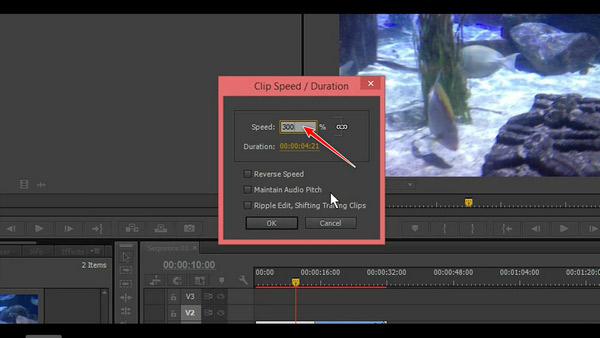
Among the greatest video editors is Adobe Premiere Pro. It's also a lab for manipulating time. The 'Time Remapping' capability is the ultimate goal for professionals. It lets you smoothly switch between multiple speeds in a single clip. Imagine a skater approaching a jump in real time, taking off in extremely slow motion, and then landing back in fast-forward.
The'secret sauce' in this case is Adobe's Optical Flow technology. A 30 frames-per-second video typically looks like a slideshow when slowed down. To make low-frame-rate footage appear as if it were captured with a high-speed Phantom camera, Premiere's AI analyzes the pixels and essentially creates new frames to fill in the gaps. It's excessive for a quick TikTok, but it's essential for a high-end YouTube production or short film.
PROS
- Adopt keyframes to ramp speed up and down with surgical precision.
- The latest version of 'Sensei' (Adobe's AI) makes frame interpolation almost indistinguishable from native high-speed footage.
- It works seamlessly with After Effects if you want to add motion graphics to your speed-ramped clips.
- It includes high-end pitch shifting and 'remix' tools to make sure your audio stays perfectly synced with your speed changes.
CONS
- It is intimidating. If you’ve never used a non-linear editor before, you’ll likely feel lost for the first few hours.
- Adobe’s 'Creative Cloud' fees add up over time, making it the most expensive option on this list.
One-sentence suggestion: Choose Premiere Pro if you are looking to create high-concept 'speed ramping' effects where the timing of the video is an essential part of the artistic storytelling.
2 AnyMP4 Video Converter Ultimate: The All-Rounder Powerhouse
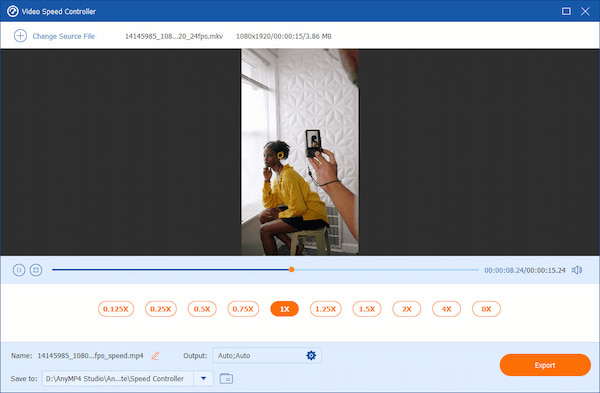
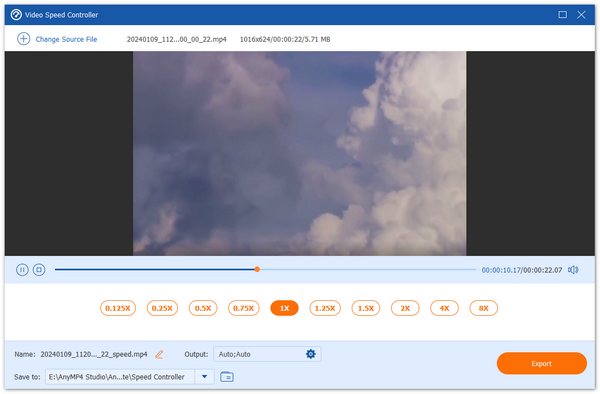
If you’re looking for a tool that sits right in the 'Goldilocks zone'—not too simple, not too complex— AnyMP4 Video Converter Ultimate is your best bet. While many converters treat speed as an afterthought, this software has a dedicated Video Speed Controller module that has become a cult favorite for creators. It handles everything from 0.125x (super slow) to 8x (hyper-speed) with a level of stability that’s hard to find elsewhere.
AnyMP4's 'one-click professional' feel is its most notable feature. To slow down a 4K drone shot without it becoming a pixelated mess, you don't need to spend hours watching tutorials. It is designed for users who appreciate their time and require a flawless, lossless export each and every time. Your 2x speed tutorials won't sound like they were narrated by a coffee-addled squirrel because it also automatically fixes the infamous 'audio pitch' problem.
PROS
- It can keep the original resolution and bitrate intact after video adjustment.
- Offers a wider range of speed presets than most standard players, allowing for very specific 'micro-adjustments.'
- Aside from speed, it gives you access to a metadata editor, a watermarker, and an AI-driven video enhancer in the same interface.
CONS
- It’s a premium tool, so while there is a free trial, you’ll need to shell out a few bucks for the full experience.
- There is no mobile app version, so for your phone footages, you’ll need to transfer them to your PC or Mac first.
One-sentence suggestion: If you want professional-grade speed control without the headache of learning complex editing software, this is the most reliable 'set-it-and-forget-it' tool on the market.
3 VLC Media Player: The 'Watch It My Way' Utility
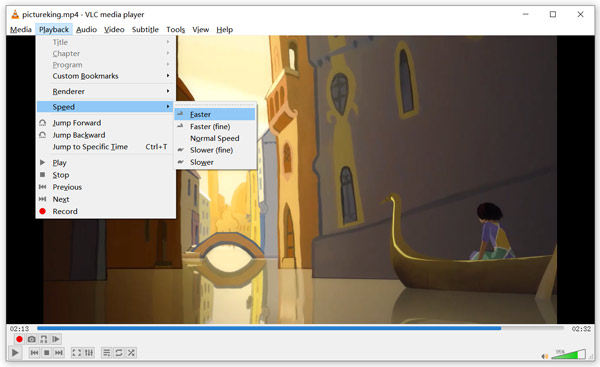
VLC is the Swiss Army knife that everyone already has installed but doesn't use to its full potential. It remains the champion of 'live' speed manipulation. It isn't an editor—you aren't going to export a polished movie from VLC—but it is ideal for temporary, real-time changes to playback speed. If you’re a student trying to cram a two-hour lecture into 45 minutes, VLC is your best friend.
The beauty of VLC lies in its keyboard shortcuts. By simply tapping the ] and [ keys, you can increase or decrease playback speed in increments of 0.1x. It’s incredibly responsive. More importantly, VLC arguably has the best real-time audio-stretching algorithm. Even at 2.5x speed, the audio remains remarkably clear and intelligible, which is why it’s the go-to for power-watchers and researchers.
PROS
- It has no ads, no tracking, and is open-source forever.
- Since it changes speed during playback, you don't have to wait for a file to 'render.'
- It will play literally any file format you throw at it, from old AVI files to the latest 8K codecs.
- It runs on everything from a high-end gaming rig to a ten-year-old laptop without breaking a sweat.
CONS
- You cannot save your speed changes to a new file easily; it’s for viewing purposes only.
- The interface still looks a bit like it’s from the early 2000s, which might put off fans of modern, sleek design.
One-sentence suggestion: Use VLC when you need to consume long-form content at high speeds without the need to edit or share the final result.
4 CapCut: The King of the 'Velocity Edit'
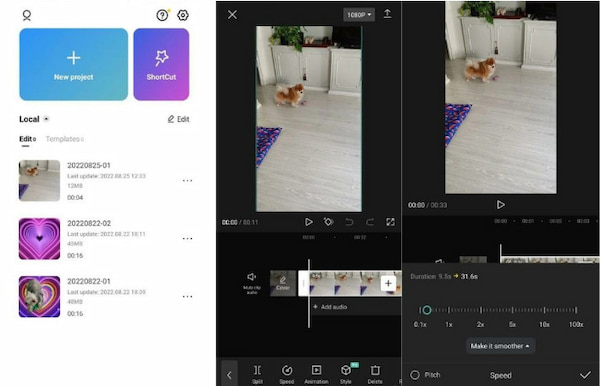
If you spend any time on social media, you’ve seen CapCut's work. It has revolutionized how we think about speed on mobile. CapCut’s 'Speed Curves' are essentially a simplified version of Premiere’s time remapping, designed specifically for the vertical video era. It’s flashy, it’s intuitive, and it’s built for the 'TikTok aesthetic.'
The star of the show is the Velocity template. Forget hand-tweaking keyframes—pick a template and it syncs all the speed changes perfectly to your music. CapCut’s mobile app is now so strong that a lot of creators don’t even bother opening desktop editors for short videos. It’s that rare mix of beginner-friendly and seriously capable, letting anyone create slick speed effects straight from their phone.
PROS
- Everything is touch-optimized, making it very easy to 'draw' your speed curves with a finger.
- One-tap sharing to TikTok and Instagram with all the trendy music and filters ready to go.
- It includes 'Auto-Velocity,' which uses AI to detect beats in your music and automatically match the video speed.
- You can do a surprising amount without ever paying for the 'Pro' version.
CONS
- Being owned by ByteDance, some users are wary of the data permissions the app requires.
- While great for social media, it’s not the best tool for long-form, high-bitrate professional projects.
One-sentence suggestion: This is the ultimate tool for creators who need to make trendy, music-synced 'velocity' edits directly on their phones with zero friction.
5 HandBrake: The Technical Workhorse
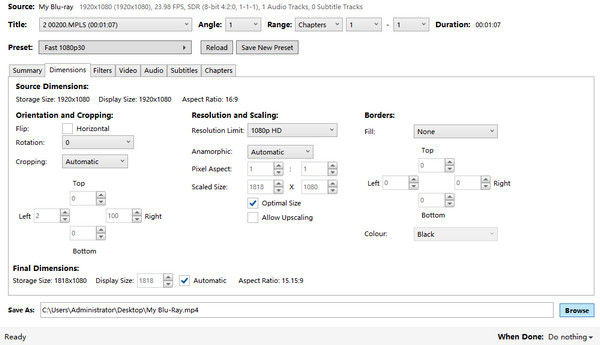
HandBrake is for the tech nerds and the archivists. If you have a video that is 'variable frame rate' (VFR)—which is how most iPhones record—and it’s causing your editing software to glitch out, HandBrake is the solution. It’s a transcoder, meaning it takes a file and 'bakes' in new settings. While it's not as 'fun' as CapCut, it’s more essential for a clean workflow.
With HandBrake, it’s not as simple as just dragging a 'speed slider.' You’re actually fine-tuning the frame rate and filters to make sure your video looks perfect on every screen. This is a lifesaver for slimming down high-speed clips. For instance, if you’ve sped up a video to 4x its original speed, HandBrake lets you re-encode it so the file size matches the new duration—essentially cutting the bulk by 75% and saving you a ton of storage space.
PROS
- You have total control over codecs, bitrates, and frame rates.
- It’s the best tool for converting VFR to CFR (Constant Frame Rate), which fixes most 'audio sync' issues in other editors.
- You can set up a massive list of videos to be processed overnight.
- No watermarks, no 'Pro' tiers, just pure utility.
CONS
- The interface is full of technical jargon like 'RF values' and 'P-frames,' which can be scary for beginners.
- You have to encode a small 'preview clip' to see if your speed changes look right, which can be tedious.
One-sentence suggestion: Use HandBrake when you need to permanently change a video's speed or frame rate while optimizing it for specific devices or storage limits.
6 Video Speed Controller: The Browser's Best Friend
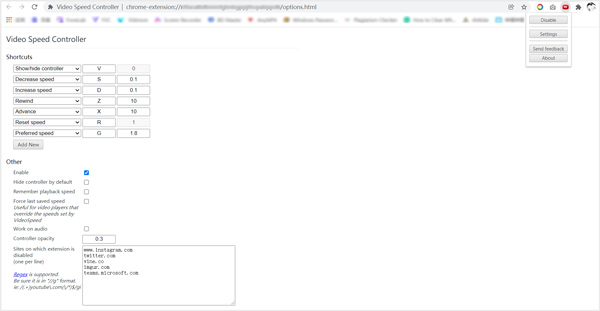
Last but certainly not least is the Video Speed Controller extension (available for Chrome and Firefox). This is the 'hidden gem' of the productivity world. We’ve all encountered those annoying websites—Instagram, Twitter (X), or certain news sites—that use a custom video player with no speed controls. This extension forcibly injects a speed HUD (Heads Up Display) into every HTML5 video it finds.
The reason it’s so popular is its 'invisible' nature. Once installed, you just use the S and D keys on your keyboard to slow down or speed up. You can go all the way up to 10x speed, which is great for skipping through boring intros or finding a specific moment in a long live stream. It’s a tool that once you start using, you’ll wonder how you ever browsed the web without it.
PROS
- Works on almost any site that plays video, bypassing the site's own restricted UI.
- You can set your own custom increments (e.g., speed up by exactly 0.05x).
- You can tell it to always start YouTube videos at 1.2x speed automatically.
- It takes up almost no system resources and stays out of the way until you need it.
CONS
- Obviously, it doesn't work for files saved on your computer or inside dedicated apps like Netflix's desktop app.
- To get the most out of it, you need to memorize the shortcuts, as the tiny on-screen overlay can be hard to click.
One-sentence suggestion: Install this immediately if you want to take back control of your time while browsing social media or watching web-based video content.
7 Clideo: The 'No-Strings-Attached' Online Fixer
If you’re the kind of person who breaks out in hives at the thought of installing yet another piece of software on your hard drive, Clideo is your digital sanctuary. Nowadays, it remains the most popular 'browser-first' video tool, perfect for those quick, one-off edits where you just need to get the job done and move on with your life. There’s no 'Account Required' wall blocking you from the start; you just drag your file into the browser, and you're halfway to a finished product.
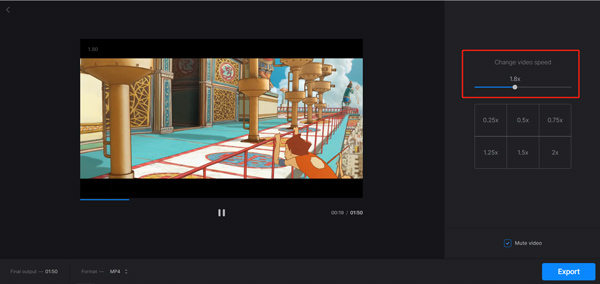
In a sea of over-complicated editors, Clideo is a breath of fresh air because it keeps things so simple. It’s not trying to be some fancy Hollywood software—it just gives you a solid speed tool that actually works. You can hit one of the six presets or just dial it in yourself with the slider. The best part? Since it’s all in the cloud, their servers do the hard work, so your laptop doesn't have to. It’s perfect if you’re on a Chromebook or an older machine that usually chugs during video edits.
PROS
- Works entirely in your browser (Chrome, Safari, Edge)—no installation or disk space required.
- Directly import files from Google Drive, Google Photos, or Dropbox, which is a massive time-saver for cloud-based workflows.
- Clideo uses high-level encryption to ensure your files are deleted from their servers shortly after you’re done editing.
- It’s surprisingly good at handling 'weird' formats like VOB or WMV that some other online tools struggle with.
CONS
- Unless you pay for the Pro version, your exported video will have a Clideo logo in the corner—which is a dealbreaker for professional work.
- You are at the mercy of your internet speed. If you’re trying to speed up a 2GB 4K file, you’re going to be waiting a long time for the upload and the final render.
- While desktop tools like AnyMP4 go up to 8x, Clideo currently caps out at 4x.
One-sentence suggestion: Use Clideo for quick, non-professional projects when you’re on a public or low-powered computer and need a speed fix without the hassle of an installation.
Part 8. Step-by-step Guide: How to Adjust Video Speed in Detail
Now, let's follow us to see how to use AnyMP4 Video Converter Ultimate to speed up or slow down your videos as you need.
1. Download and install AnyMP4 Video Converter Ultimate from the download button below.
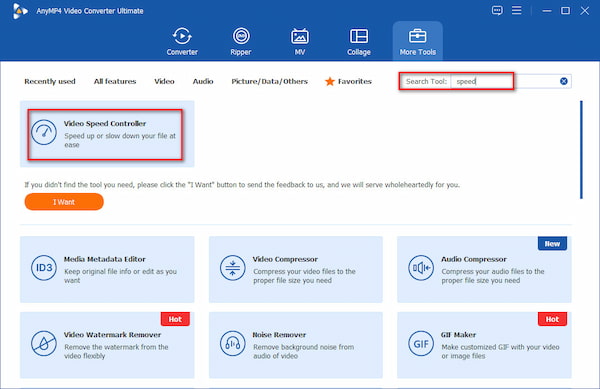
Launch the tool, and choose the More Tools section.
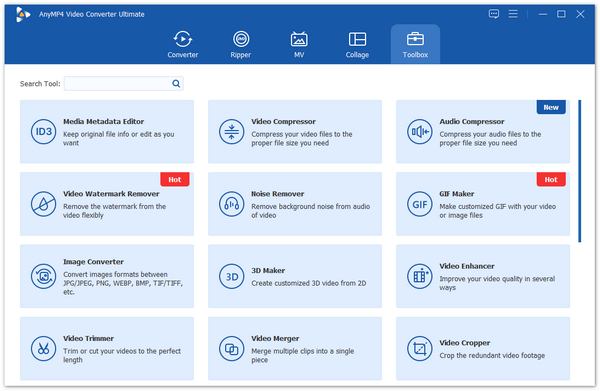
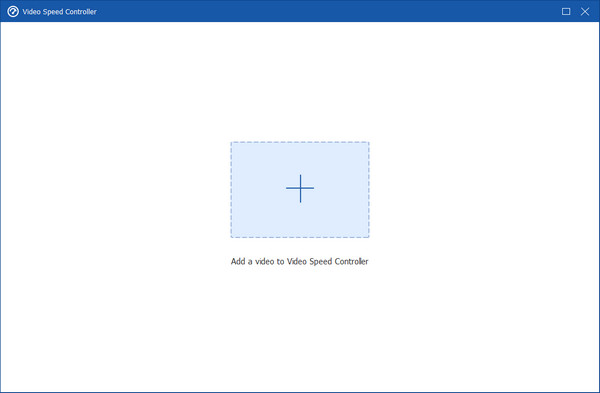
2. Locate and double-click on the Video Speed Controller to open it. Click the big + icon to import the videos you want to edit.
You can also enter 'speed' in the search box in the upper-right corner to quickly find the tool.
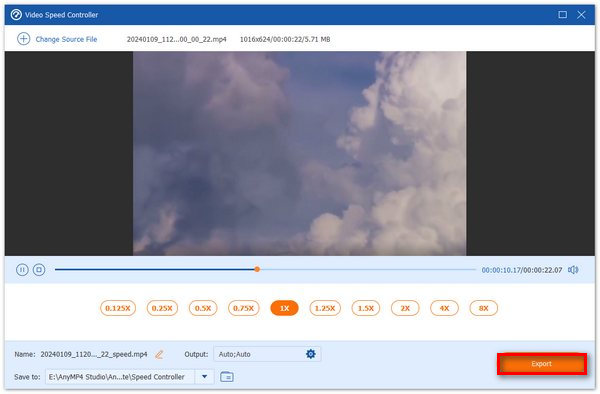
3. There are ten speed options ranging from 0.125x to 8x. Choose one based on your requirement scenarios. You can review the effects in its preview window.
4. After that, you can click the gear icon to customize the output formats. Lastly, click the Export button in the bottom right corner to start.
Simple and intuitive. Ready to fall in love with your new favorite tool? No pro skills required - adjust video speeds in a flash. Download AnyMP4 Video Converter Ultimate now and give it a whirl!
Part 9. Troubleshooting and Tips
Common Problems
My video is stuttering after I slowed it down.
• Solution: Use Frame Interpolation (Optical Flow). This creates new 'fake' frames between the real ones to smooth out the motion.
The audio sounds like a robot.
• Solution: Enable the 'Keep Pitch' setting in your editor. If the software doesn't have it, export the audio separately and use an AI voice fixer.
The file size exploded.
• Solution: When you slow a video down, it becomes longer. If you keep the same Bitrate, the file size will grow. Lower the bitrate slightly during export to keep the file size manageable.
Pro Tips for Better Pacing
1. The 1.25x Sweet Spot: Research shows 1.25x is the optimal speed for information retention—it’s fast enough to save time but slow enough for the brain to process complex ideas.
2. Use 'Ramping': Don't just flip a switch. Gradually move from 1x to 0.5x to emphasize an action (like a skateboarder mid-jump).
3. Check Bitrate: Always ensure your export settings match the new duration. A 10-minute video sped up to 5 minutes needs a different bitrate strategy to maintain 4K clarity.
Part 10. FAQs
Can I change video speed without losing quality?
Yes. Tools like AnyMP4 Video Converter Ultimate use lossless re-encoding engines to ensure the pixels remain sharp even as the timing changes.
Does changing the speed mess with the file size?
For the most part, yeah. If you speed up a video and shorten it, the file size usually drops. On the flip side, slowing it down makes the file larger—provided you keep the quality settings the same.
What is the best speed for watching educational content?
The 'Sweet Spot' is usually 1.25x to 1.5x. Research suggests that most people can comprehend information effectively at 1.25x without losing retention. 1.5x is great for reviewing familiar material. Once you hit 2.0x, comprehension usually drops significantly unless you are highly familiar with the subject or the speaker is a very slow talker.
Can I change the speed of a video on any website?
Yes, with extensions. While sites like YouTube and Netflix have built-in speed controls, many others do not. You can use browser extensions like 'Video Speed Controller' (available for Chrome and Firefox). These tools allow you to use keyboard shortcuts to speed up, slow down, or rewind almost any HTML5 video on the web.
Does speeding up a video reduce its quality?
No. Changing the playback speed does not change the video's resolution or bit rate. However, if your internet connection is slow, playing a video at 2.0x requires your computer to download data twice as fast. This might lead to buffering or lagging if your bandwidth can't keep up.
Conclusion
Speeding up or slowing down a video isn't just a technical toggle—it's a storytelling tool. With this review of the 7 best video speed changers, you can easily choose the suitable tools for video speed adjustment. If you’re looking for the best balance between professional features and an easy-to-use interface, start with AnyMP4 Video Converter Ultimate. It takes the guesswork out of the process so you can get back to creating.
Ready to transform your footage? Download AnyMP4 Video Converter Ultimate and take control of your timeline today!