
Free Download100% Clear & Secure
Free Download100% Clear & Secure
You may already be aware that PowerPoint is one of the most widely used presentation programs. Since its debut, it has become almost synonymous with creating and delivering presentations. Beyond its basic slide creation features, PowerPoint offers a range of powerful tools to enhance accessibility and audience engagement. One of these features is built-in live captions and subtitles, which can transcribe your speech in real time. Additionally, PowerPoint allows you to add subtitles to embedded videos, making your presentations more accessible and inclusive. This post will teach you how to add subtitles to PowerPoint. We will help you make your slides more inclusive, accessible, and engaging.
| Feature | PowerPoint Live Captions & Subtitles | Embedded Video Subtitles | Third-Party Tool |
|---|---|---|---|
| Best For | Live presentations for accessibility or multilingual audiences | Pre-recorded videos in PowerPoint presentations | Full control over subtitle style, multiple languages, and complex videos |
| Accuracy | Depends on speech clarity | Depends on subtitle file quality | Very High |
| Cost | Free | Free | Free and Paid |
| Subtitle Formats Supported | Automatic captions | SRT and VTT | SRT, ASS, SSA, SCC, and more |
| Customization Options | Position, size, color, and style | Position | Font, size, color, outline, opacity, position, delay, etc. |
| Internet Required |  |
 |
|
| Ease of Use | Basic | Easy | Easy |
| Speed | Real-time | Depends on video length | Fast with GPU acceleration (120×) |
| Overall Ratings |
The Live Captions and Subtitles feature lets you add live translation in PowerPoint. As you speak, it displays real-time text on your slides. It can transcribe your voice into on-screen captions in the same language or in another language. Additionally, it allows customization of position, size, color, and style.
Here’s how to add subtitles to PowerPoint using the built-in Live Captions and Subtitles feature:
1. On PowerPoint, open the slideshow where you want to enable captions or subtitles. Navigate to the Slide Show tab located in the top ribbon. In the Captions & Subtitles group, click Subtitle Settings to configure the language and appearance options.

2. In the Subtitle Settings, click Spoken Language and select the language you will speak during the presentation. PowerPoint recognizes many popular languages depending on your region and version. The default is your system locale (e.g., English (United States)).
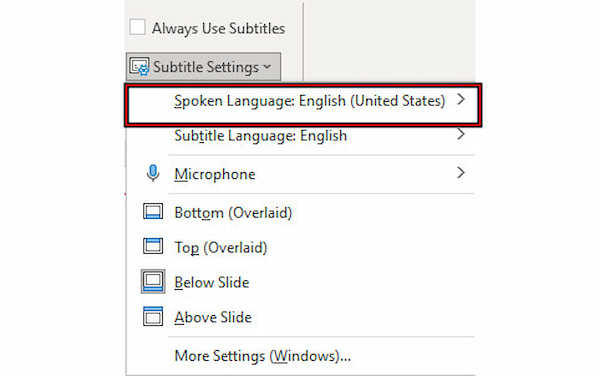
3. Under Subtitle Language, choose the language you want the captions or subtitles to appear in. Select the same language as spoken for captions or select a different language for real-time translation. Then, choose where you want captions/subtitles to appear:
Bottom (Overlaid): text appears over the slide at the bottom.
Top (Overlaid): text appears at the top.
Below Slide: text displayed outside the slide area, underneath.
Above Slide: text displayed outside the slide area, above.
PowerPoint’s built-in Live Captions and Subtitles let you make your presentations more inclusive, accessible, and engaging. However, background noises or accented speech may reduce the accuracy of transcription or translation.
You can also convert PowerPoint into a video to reach a wider audience on any platform.
PowerPoint allows you to add closed captions to videos embedded in your presentation. It supports caption formats such as VTT and SRT, making it easy to synchronize subtitles with video playback. Once added, your audience can view captions directly within your slides. This feature works for local video files you insert into PowerPoint.
Here’s how to add PowerPoint subtitles to embedded videos:
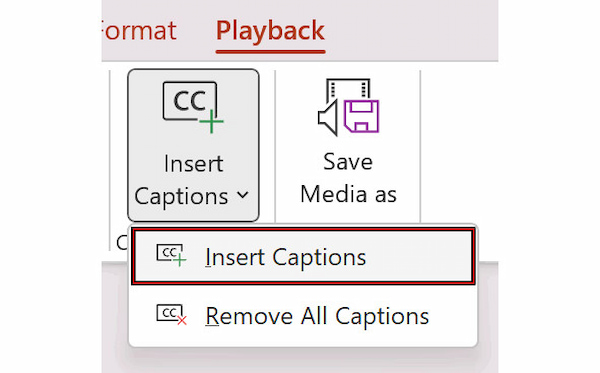
1. In Normal View, open the slide that contains the video where you want to add captions. Click the video to highlight it and to activate the Video Tools options in the ribbon. Navigate to the Playback tab, click Insert Captions, and choose Insert Captions again.
Are you unsure about how to embed an MP4 file in PowerPoint? This guide shows you how.
2. In the dialog box, browse for your .vtt or .srt file, select it, and click Insert. PowerPoint will attach the caption file to the video. Play the video inside your slide to ensure that the captions appear correctly and the timing matches the video.
Adding subtitles to embedded videos in PowerPoint can improve the accessibility of your presentation. When everything works smoothly, you can create an SRT file for PowerPoint videos. However, captions cannot be added to online videos such as YouTube links.
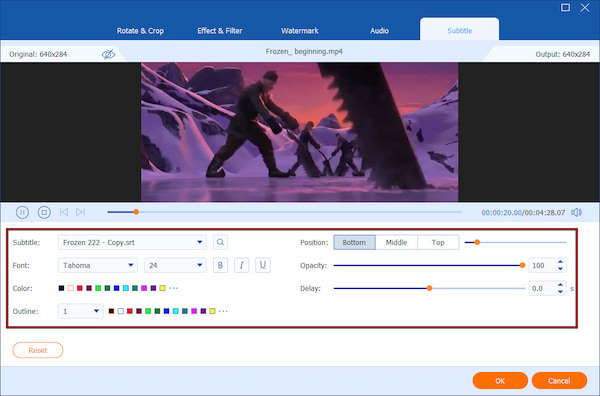
While you can add subtitles in PowerPoint, its built-in subtitle tools are limited. If you want fully customized subtitles, using AnyMP4 Video Converter Ultimate is the best solution. It is a one-stop media software that helps you prepare your videos before embedding them into PowerPoint. It supports over 500 video formats, including those compatible with PowerPoint. Some of which are MP4, M4V, MOV, WMV, MPG, MPEG, and AVI. Additionally, it supports multiple subtitle formats, including SRT, ASS, SSA, and SCC. Notably, it provides a built-in subtitle editor with font styling, syncing, positioning, and formatting options.
Here’s how to add subtitles to a PowerPoint video using AnyMP4 Video Converter Ultimate:
1. To start with, secure a free download of AnyMP4 Video Converter Ultimate. Install the subtitle editor and allow the setup process to complete. Once the installation is finished, open the software on your system to access the main dashboard.
Secure Download
Secure Download
2. As soon as it starts, you will be headed to the Converter tab by default. Click +Add Files to add individual files or Add Folder for multiple video clips. Remember, you can upload PowerPoint-supported formats like MP4, M4V, MOV, WMV, MPG, MPEG, and AVI.
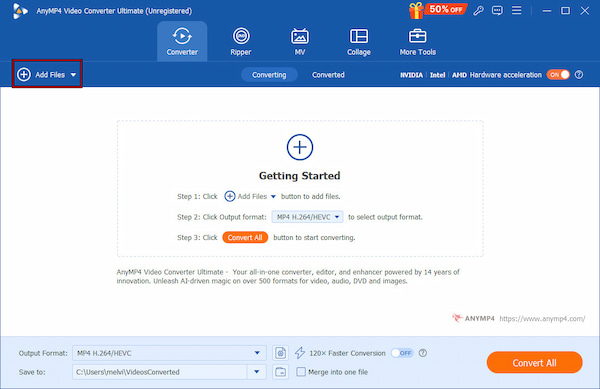
3. After adding the video(s), click the Edit (Magic Wand) button beside the video preview. Inside the editor, navigate to the Subtitle tab and click the Subtitle selector.
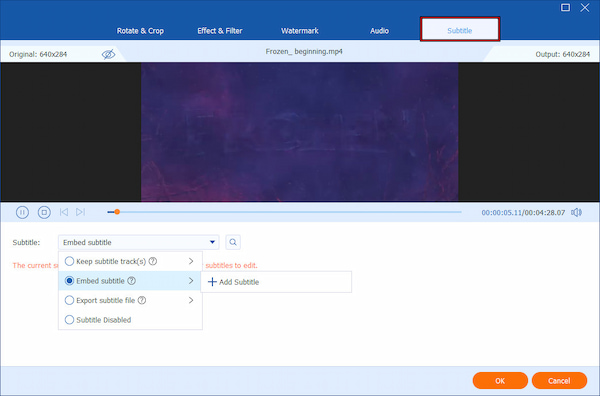
Select the Embed Subtitle option and click + Add Subtitle to upload your subtitle file. If needed, customize the font style, size, color, outline, position, opacity/visibility, and delay.
4. Play the preview to check subtitle timing, styling, and placement. Then, choose your preferred output format and quality/resolution from the Output Format field. When you're ready, click Convert All to permanently embed the subtitles into your video.

AnyMP4 Video Converter Ultimate is an all-in-one tool that gives you full control to add subtitles to a video. Whether you need precise timing, advanced styling, or support for multiple subtitle formats, it's got you covered. It offers a fast, powerful, and user-friendly way to subtitle your videos before embedding them in PowerPoint.
Can I add subtitles directly in PowerPoint?
Yes, PowerPoint allows you to add live captions and subtitles directly during your presentation. You can choose to display captions in the same language you speak or translate your speech into another language. For pre-recorded or embedded videos, you can also insert external subtitle files.
Do I need the internet for PowerPoint subtitles?
It depends on the type of subtitles you are using. Live captions and translated subtitles require an active internet connection. However, if you are using pre-prepared subtitles for embedded videos, you do not need an internet connection.
Can I add subtitles to videos inside PowerPoint?
Yes, you can add subtitles to videos embedded in PowerPoint. However, it requires a compatible subtitle file. PowerPoint supports formats like SRT and VTT for video captions. To do this, you can refer to the previous guide.
Which subtitle format works best?
The most widely supported subtitle formats in PowerPoint are SRT and VTT. Both are text-based, easy to edit, and compatible with embedded videos. For embedding videos in PowerPoint, SRT is usually the safest and most straightforward choice.
Knowing how to add subtitles to PowerPoint can improve accessibility, comprehension, and audience engagement. Whether you choose PowerPoint’s built-in live captions, embedded video subtitles, or a third-party tool, each method offers unique advantages depending on your needs. If you're looking for maximum control and flexibility, AnyMP4 Video Converter Ultimate is the ideal solution. It allows you to embed polished subtitles into your videos before inserting them into PowerPoint. It ensures your presentation is professional, accessible, and ready to make a lasting impression.
Secure Download
Secure Download
 Updated by Mark Cristobal to Edit Video
More readings
 Best Way to Add Subtitles to MP4 Video Fastly
Have you ever be upset that there are no subtitles on your MP4 video? This passage will give you a detailed guide about how to add subtitles to MP4.
 2 Methods to Extract Subtitles from MKV [Soft and Hard]
If you want to extract a subtitle track from the MKV movie, we share 2 ways to meet your needs without interrupting video quality.
 How to Add Subtitles to MKV Quickly on Desktop
 Audio Overlay - How to Overlay Audio on a Video or Audio
How to overlay audio over music? Can I overlay two audio files online? How to overlay audio on a video? Learn 3 easy ways to make audio overlay in video audio.
 Add your comments to join the discussion here