
Quick Answer:
The fastest way to zoom in on CapCut is to use scale feature on PC/Web or Pinch to Zoom on mobile. For smooth transitions, set two keyframes and increase the Scale value gradually. Mobile users can also apply CapCut’s 3D Zoom effect for instant cinematic zoom-ins without manual adjustments.
Capcut is one of the most beginner-friendly mobile and PC video editing options. Designed to make video editing simple and template-based, the editing software has emerged over time as a reliable tool for both PCs and mobile devices. However, the tool’s more advanced functions and editing methods may still be challenging for beginners. As a result, inquiries about how to Zoom in on CapCut have become a common topic among its users. With that in mind, this article aims to provide three solutions for zooming in while editing videos in CapCut. We will explore the standard zoom effect, scale adjustment, and keyframe zooming. Moreover, an alternative video editing option that could dethrone CapCut as the most beginner-friendly video editor will also be featured.

We will start this guide by providing a detailed walkthrough of the standard zoom-in effect in CapCut. According to CapCut reviews readily available online, the software’s editing effects may be the main reason for its ease of use. This is because the editing effects available in it can be added to the editing timeline with a few clicks. These editing elements may also be adjusted using a few slides within the media files used in the video production.
We have provided a detailed step-by-step guide below to help you zoom in on a specific spot in CapCut using zooming effects. The Capcut version used in the tutorials in this article will be their online tool.
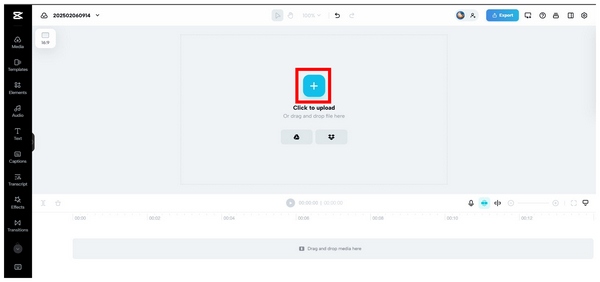
1. Open the CapCut editor on your browser. Then click the Upload Button, or drag and drop the file from your computer. This option lets you add the media files you want to use in the video, whether clips, images, or audio.
Note: The free version includes CapCut branding; you can either subscribe or use video editing tools to remove the watermark.
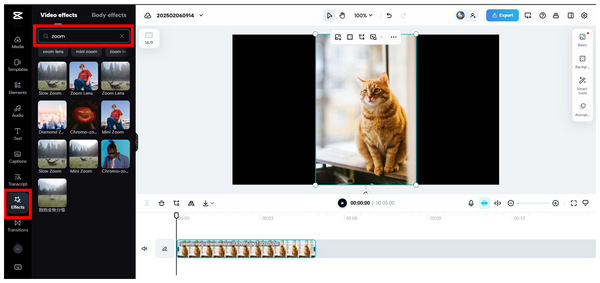
2. Once the media files you want to use for the video production have been uploaded, click Effects and search for zooming video effects. Choose the Zoom option that will work best for your video.
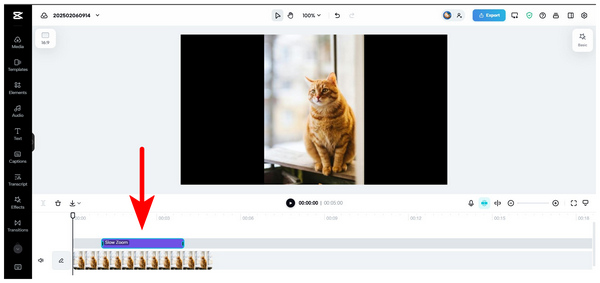
3. Now that the Zoom effect has been added to your editing timeline, you can adjust it to set where the effect will start to appear on your video. Simply click and drag the effect in the timeline.
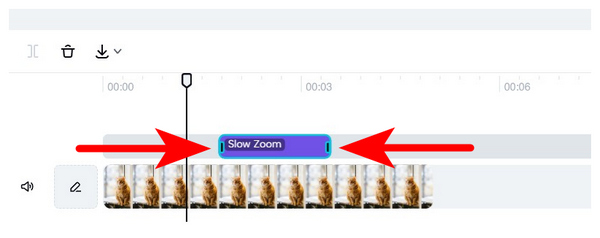
4. After placing the Zoom effect where it will start to appear in the video, you can now adjust its duration by clicking and dragging the sides of the video effect.
5. Now that your video effect has been placed in the clip and its duration is adjusted, you can preview the result of the zoom effect. Simply change the editing timeline if you wish to apply more adjustments.
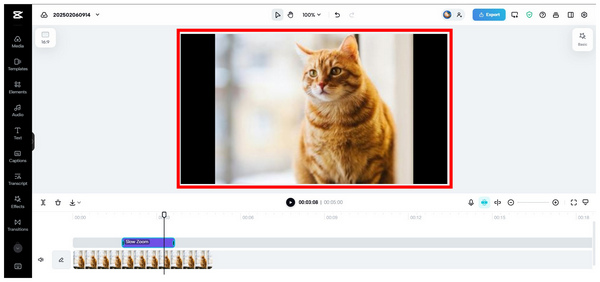
Since the Effects tab of Capcut is the most straightforward way to add different types of zooming effects, this is the most popular option for most Capcut users.
Reviewer Note: Among CapCut zooming options, this method is the easiest to use.
Moving on to the alternative option in CapCut, we will feature the Scale option, which can be adjusted in CapCut’s basic video adjustment tools under the Transform settings. As its name suggests, scale adjustment is also a viable option for applying zooming to your video. With that in mind, this mode could solve issues with zooming into the CapCut video.
For a complete guide to zooming in on a video in CapCut using the scale transform tool, please see our five-step guide to the scale zoom option below.
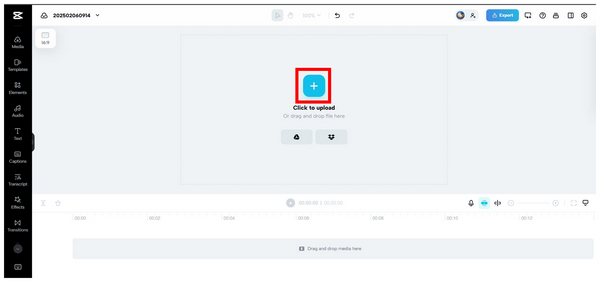
1. Go to CapCut online and open their video editing window. Afterward, click the Upload button to upload the media file you want to use as an asset for your video production.
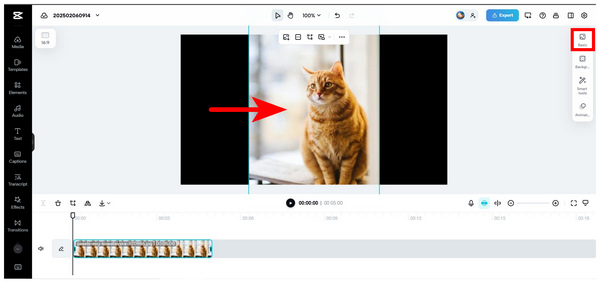
2. Once the media file has been uploaded, click on it to reveal the media file adjustment options available in Capcut. Select the Basic option.
3. Inside the basic editing menu, find the Transform options. Then, adjust the Scale bar with a percentage value using your cursor. You can also change the numerical value on the right side of the adjustment bar.
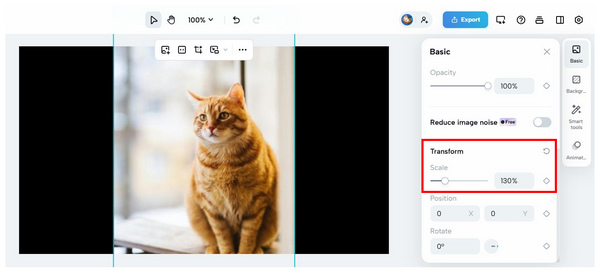
4. As you adjust the bar to the left or right, the selected media file will be zoomed in and out in real-time. Since you have complete control over this option, you can choose the zooming intensity you want to apply.
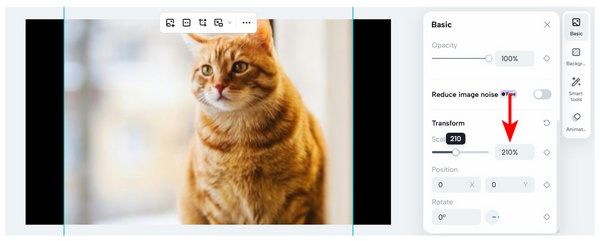
5. Once satisfied with the zooming value, close the media file adjustment options and play the video you edited in the preview window.
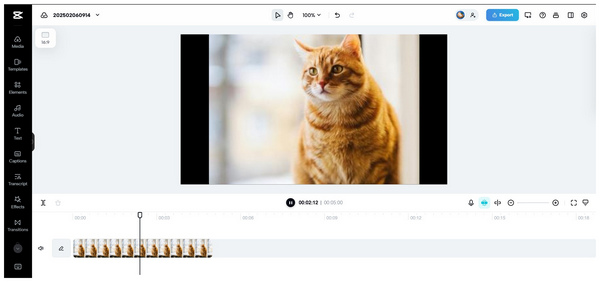
Although not as accurate as the zooming effect option, scale adjustment is better if you want to zoom the entire media file you edit thoroughly.
Although harder to apply than basic zooming, this method rewards practice, as it is the most accurate.
For mobile-based zooming, CapCut also offers a pinch-to-zoom feature that works accurately enough, especially on mobile devices. As its name suggests, this zooming option uses the pinch-to-zoom gesture in your video editor. Although it is easier to use, it is still not the most accurate, especially given the scale and impact of zooming.
If you wish to learn how to zoom in on CapCut on mobile, please proceed to our detailed tutorial below.
1. Open CapCut Mobile and then tap on the New Video button.
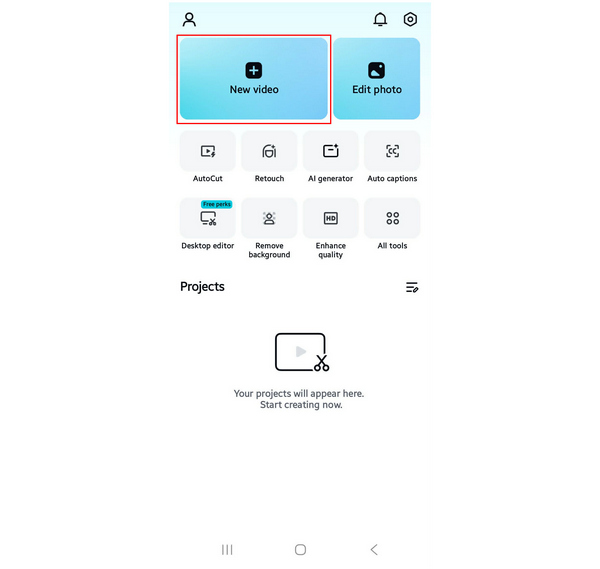
2. Then, browse through your video files and select the video you want to edit. Tap Add after choosing.

3. With the video now added to your CapCut editing timeline, tap on the video to select it.
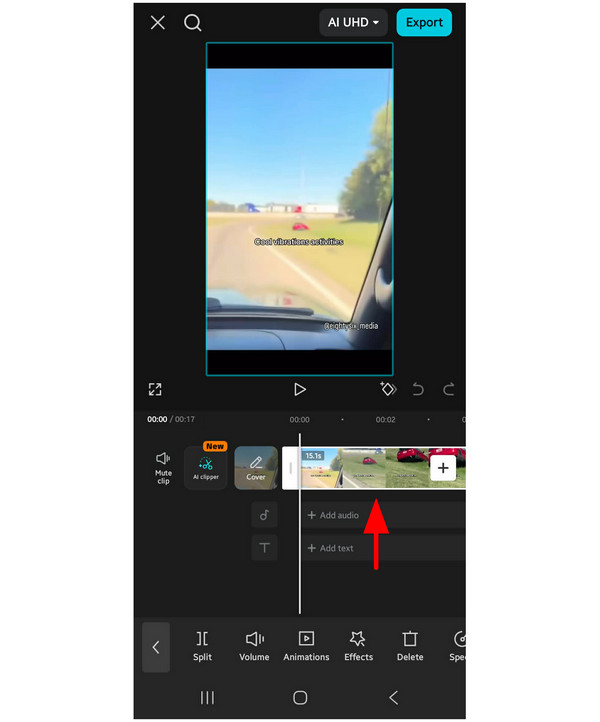
4. While the video is selected, do the pinch motion in the Preview window, and your video file will now be zoomed. You have now added the zoom effect directly on CapCut mobile.
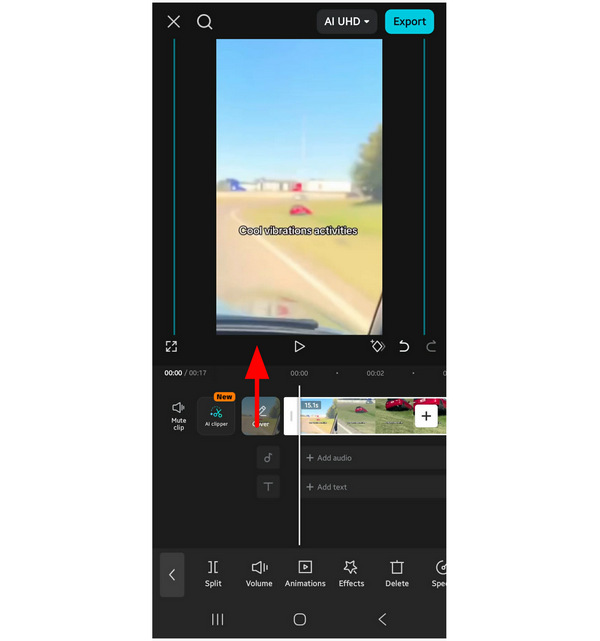
Since pinch-based zooming is the go-to method for creating a zoom-in effect in CapCut mobile, we will now proceed to the fourth option in this article, which features a simple-to-use CapCut alternative for PC. Unlike the zooming options in CapCut, the steps in the alternative below will be much more straightforward.
Reviewer Note: Using zooming motion alone is not the most accurate tool to apply the effect. It is recommended to explore other zooming options in CapCut for mobile.
Compatibility: Windows 11/10/8.1/8/7, Mac OS X 10.12 or above.
Now that we have highlighted the zooming effects available in CapCut, we can proceed to the even more beginner-friendly option for applying zooming effects to your video: AnyMP4 Video Convert Ultimate.
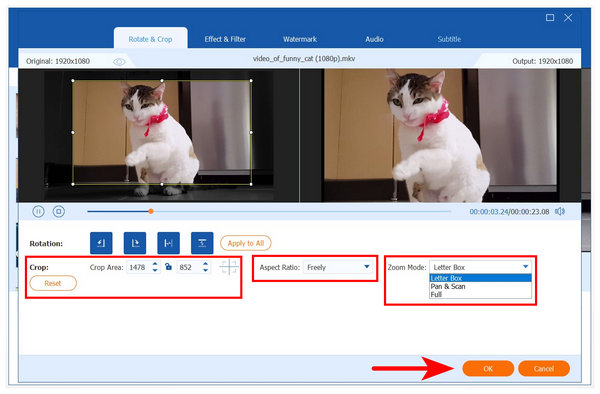
This versatile video converter tool supports video zooming via its MV Editor feature, enabling high-quality videos up to 8K/5K/4K. Zooming effects might be applied in the software using the multiple zooming options: the video cropper tool, aspect ratio editor, and the zoom mode function.
Equipped with three video-zooming options, AnyMP4 Video Converter Ultimate’s MV Editor is a better software for zooming than CapCut. This is because the software offers a combination of versatility and convenience unmatched by CapCut’s basic editing options.
To learn how to use the tool, download the software to make the tutorial easier to follow.
Secure Download
Secure Download
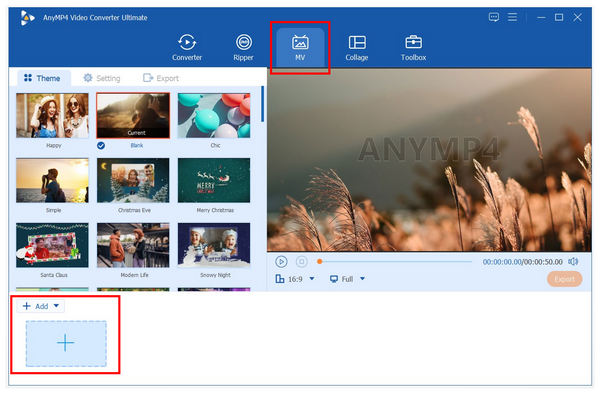
1. Open AnyMP4 Video Converter Ultimate and go to the MV Editor tab labeled MV in the tool’s interface. Then, click on the Add File button below the editor menu.
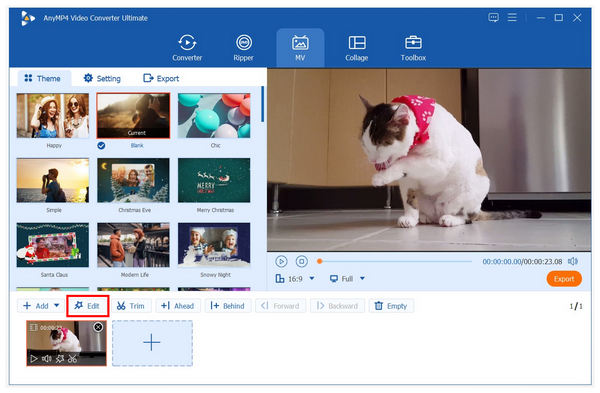
2. Once the file you want to edit has been added, click the Edit button above the editing timeline. This menu will open multiple video editing options you can use to apply different modifications to your video, including zooming.
3. Inside the Edit menu, you can now adjust the cropping tool to add a zooming effect to the video that you are editing. Simply change the Yellow Square on the video on the left side of the interface. The video on the right is the preview window. Alternatively, you can adjust the Zoom Mode that will be applied to your modifications. Simply click OK once you are satisfied with the zoom effect in the preview.
By following these simple steps, applying the zoom effect to the video you edit will be much simpler and easier to use than in CapCut. With that in mind, download AnyMP4 Video Converter Ultimate as your most versatile video editing software.
Desktop-based video editors are still the best for accurate, easy, and reliable zooming effects.
How do I create a smooth zoom-in in CapCut on a PC without choppy motion?
Make sure to apply the zoom effect slowly. Abrupt zooming will naturally make the video choppy. You have to control the zoom effect when applying it.
Where is the keyframe button in the latest CapCut update?
The keyframe effect differs between CapCut mobile and the browser. For mobile, it is above the timeline section. On PC, it can be found in the top-right portion of the video settings.
How do I zoom in on a specific person’s face in CapCut mobile?
You can use the pinching zoom option. Simply select the video on the timeline, then use your fingers in the preview window. Make sure to control the zoom motion to focus on the subject’s face.
Why does my video quality drop when I zoom in on CapCut?
This is because zooming will also highlight the video’s resolution. You will be able to see the video clip’s pixels when zooming. This is a natural effect.
Is the zoom effect on videos easy to apply?
Yes, it is. Zooming is a basic editing tool in video editors. It is both easy to use and apply.
Now that we have provided you with different ways to zoom in on Capcut, we hope this article has helped you in future video editing endeavors. If the proposed CapCut alternative has captivated your interest, download AnyMP4 Video Converter Ultimate for free on the link below. We highly recommend using this alternative, as it offers the best features for high-quality zooming, transitions, and batch editing.
Secure Download
Secure Download
 Updated by Mark Cristobal to Edit Video
More readings
 How to Reverse A Video on CapCut [Complete Tutorials]
Learn how to reverse a video on CapCut in this post. You will get to know how to reverse a video online and on the app, along with the best alternative to use.
 CapCut Video Upscaler: Enhance Footage in High Quality
If you want to upscale your video and don’t know which tool to use, worry not. Check our post and learn more about CapCut video upscaler and its capabilities.
 CapCut Vs. InShot: Which is Better in Video Editing
Struggling to choose between CapCut vs InShot for editing? Check our post and learn their features, pros, cons, and who each app is best for.
 How to Crop on CapCut PC and Mobile: A Complete Guide
This article will serve as your guide to help you learn how to change the ratio in CapCut video editor on different platforms where the software is available.
