
Free Download100% Clear & Secure
Free Download100% Clear & Secure
Subtitles are an essential part of enjoying videos, whether for accessibility, language learning, or creating translated versions. However, not all videos make it easy to access their subtitles, especially when you want to save or edit them separately. This post will teach you how to extract subtitles from videos, covering both soft subtitles and hard-coded subtitles. We will provide a clear, step-by-step guide on various tools and methods for subtitle extraction. By the end, you’ll understand the differences between soft and hardcoded subtitles, know which tools are best for each type, and be able to extract subtitles efficiently.
| AnyMP4 Video Converter Ultimate | VLC Media Player | Maestra AI | DownSub | |
|---|---|---|---|---|
| System Requirement | Windows and Mac | Windows, Mac, and Linux | Online | Online |
| Pricing | Free and Paid | Free | Free and Paid | Free |
| Formats Supported | SRT, ASS, SSA, and more | SRT via VLSub | SRT, VTT, SCC, etc. | SRT and TXT |
| Subtitle Accuracy | Highly Accurate | Depends on database match | Depends on the audio recognition | Depends on availability of captions |
| Batch Processing |  |
 |
|
|
| Extraction Type | Soft subtitles | Online subtitle | AI-generated transcriptions | Retrieves available subtitle tracks |
| Subtitle Customization | |
|
|
|
| Best For | Comprehensive subtitle management | Quick, free subtitle lookup | AI‑powered caption generation | Fast download of existing subtitles |
Before you extract subtitles from videos, it’s crucial to understand the difference between hardcoded vs soft subtitles. This determines what extraction method will work. Soft subtitles are separate subtitle tracks that can be turned on/off in a media player. Because they are not permanently merged with the video, they remain editable, easy to modify, and simple to extract. On the other hand, hardcoded subtitles are permanently burned into the video frames themselves. They appear as part of the picture, meaning you cannot disable them. Additionally, hard subs cannot be extracted as text unless you use OCR tools.
AnyMP4 Video Converter Ultimate is a total media software bundle that simplifies subtitle extraction. Beyond media conversion, it functions as a subtitle editor that can extract subtitles from MP4, MKV, MOV, AVI, WMV, and over 500 other formats. This software supports external subtitle control, allowing you to manage, disable, or export subtitle tracks. It can handle various subtitle file formats, including popular ones such as SRT, ASS, SSA, and others. Remarkably, it allows customization of subtitle appearance before extraction or insertion. You can freely adjust the font style, size, color, outline, position, opacity/visibility, and more.
Here’s how to perform SRT subtitle extraction using AnyMP4 Video Converter Ultimate:
1. First things first, get a free download of AnyMP4 Video Converter Ultimate. Install the subtitle extractor tool and allow the setup process to complete. Once the installation is finished, launch the software on your system to access the main dashboard.
Secure Download
Secure Download
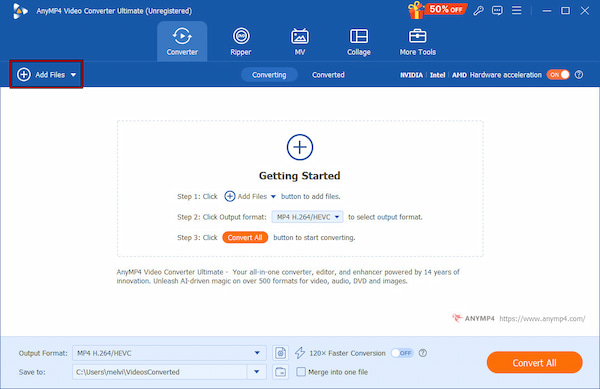
2. When the dashboard loads, you’ll automatically be placed in the Converter tab. Click +Add Files and select the video from which you want to extract subtitles. Please note that your uploaded videos must be saved in one of the following formats: MP4, MKV, MOV, AVI, WebM, etc.
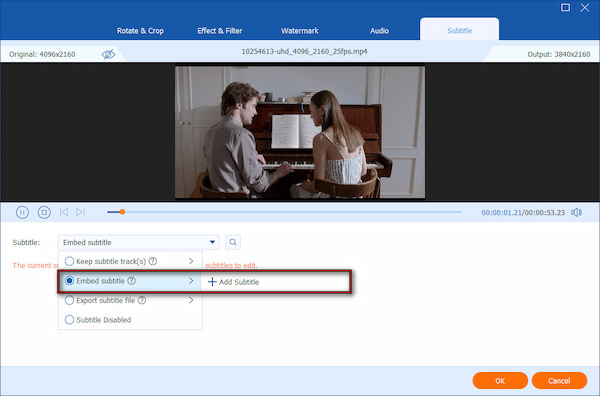
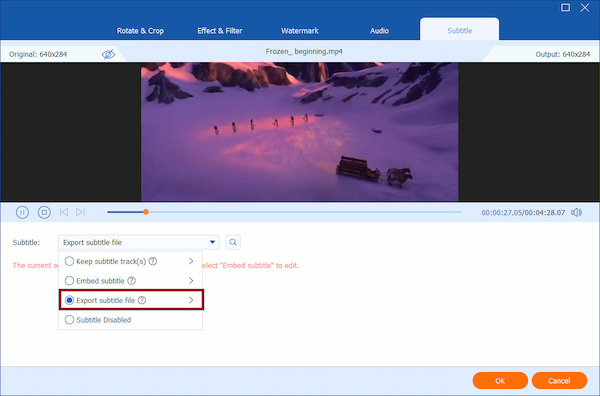
3. After your video is imported, click the Edit (Magic Wand) button beside the preview thumbnail. Proceed to the Subtitle section and open the Subtitle pulldown menu. From the options, choose Export Subtitle File to extract the soft subtitle track embedded in your video.
4. Switch back to the main interface and open the Output Format selector to specify your output format. Turn on the 120× Faster Conversion switch to maximize processing speed. Once everything appears to be in order, click Convert All to finalize the subtitle extraction.
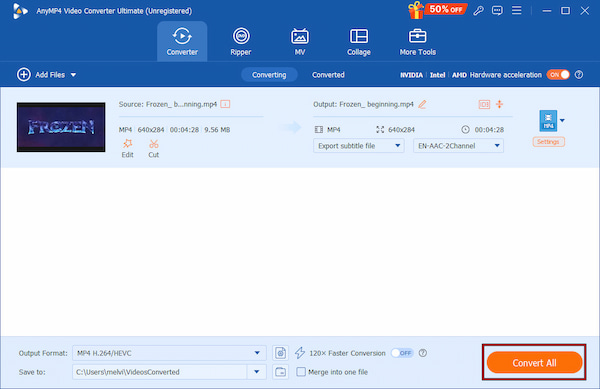
AnyMP4 Video Converter Ultimate makes subtitle extraction from any video a simple, fast, and reliable process. It ensures accurate subtitle extraction without complicated steps or technical barriers. If you regularly handle subtitles, this software is one of the most efficient tools available.
VLC Media Player provides a convenient built-in solution for obtaining soft subtitles through its VLSub extension. With it, you can download the subtitles you need without having to browse multiple websites. Just make sure the video file is correctly named so VLC can locate accurate subtitle matches.
Here’s how to extract subtitles from video using VLC Media Player:
1. In VLC Media Player, click Media and select the Open File option. Select the video file for which you want to download subtitles from your local drive. Next, navigate to the View tab and select VLsub to open the subtitle search extension.
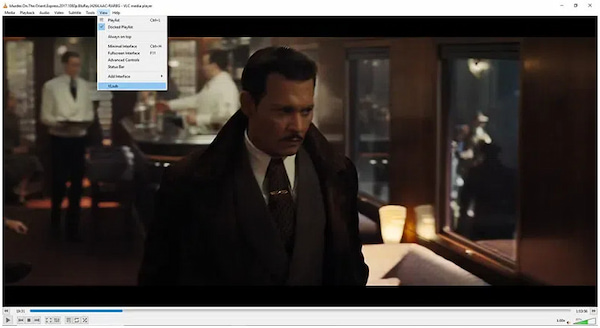
2. A new dialog box will appear. Inside this interface, click Search by Name. VLC will look for subtitles online based on the name of the video file. Browse through the results and select the subtitle file that fits your video version.
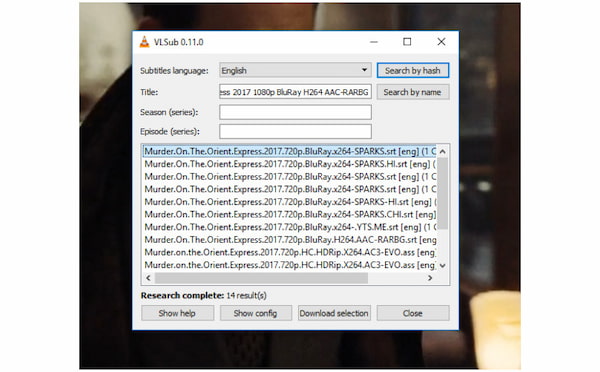
3. Click the Download Selection button to download the subtitle and load it into your video. Once the download is complete, the subtitles will appear immediately during playback.

VLC Media Player’s VLsub extension delivers accurate subtitle downloads within seconds. By then, you can use subtitles in VLC to improve accessibility or repurpose the file. However, if the file name differs significantly from the original release, you may get poor matches.
Maestra AI is a powerful tool that can help you extract embedded subtitles from video. It can export subtitles that are permanently burned into the video directly as a text file. This tool uses advanced AI-powered speech recognition to detect and generate captions from any video.
1. On the Maestra AI homepage, click Upload Your File to load the video that contains hardcoded subtitles. You can drag and drop the file or choose it manually from your computer.
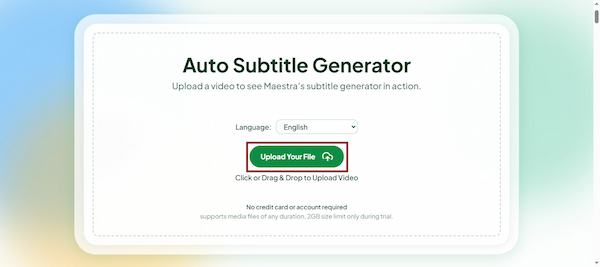
2. Once your file is uploaded, choose your target language for subtitle generation. Then, Maestra will automatically begin generating subtitles using AI speech recognition.
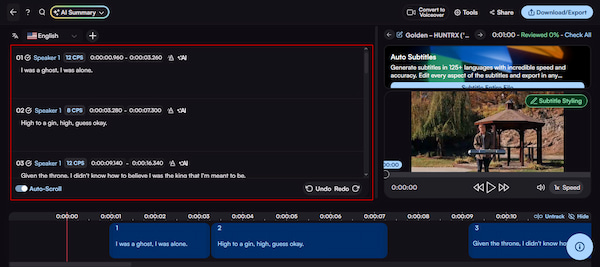
3. After the auto-generation process, proofread and correct any transcription errors that may have occurred. Once you’re satisfied with the subtitles, click Download/Export and select your preferred subtitle format.
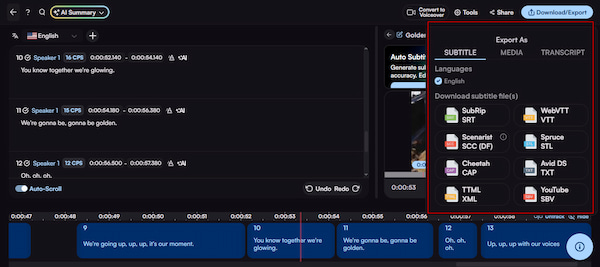
Maestra AI delivers fast hardcoded subtitles extraction through AI-powered speech recognition. It allows you to generate accurate subtitles without manually replaying sections of the video. However, accuracy may vary depending on the clarity of the audio.
Done extracting hard subs? You may also want to check out how to add subtitles to videos.
DownSub is a browser-based solution that allows you to quickly extract subtitles from online videos for free. It supports publicly available videos on platforms like YouTube and can retrieve manually uploaded subtitles or auto-generated captions.
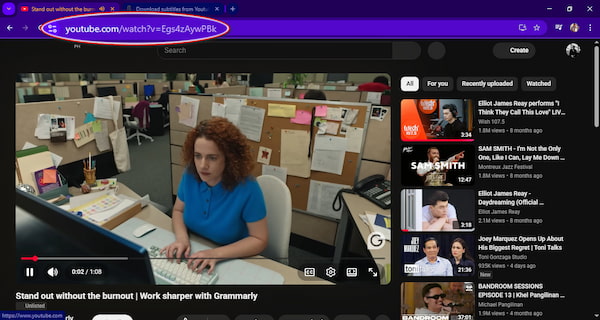
1. Navigate to the online video whose subtitles you want to extract and copy the URL. Next, open a new tab and navigate to the official DownSub website.
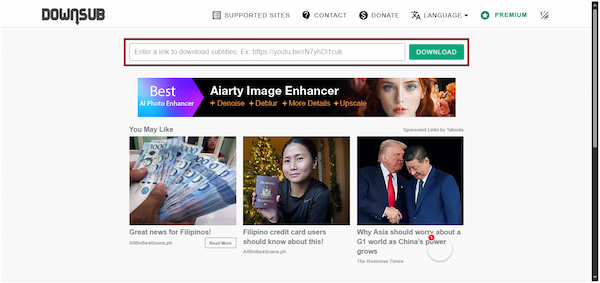
2. On DownSub’s homepage, paste the copied video URL into the input field. Click Download to let the tool locate any available subtitle tracks associated with the video.
3. If multiple subtitle languages or tracks are available, choose the one you want. Then, click your preferred subtitle format, and the file will automatically download and save locally.
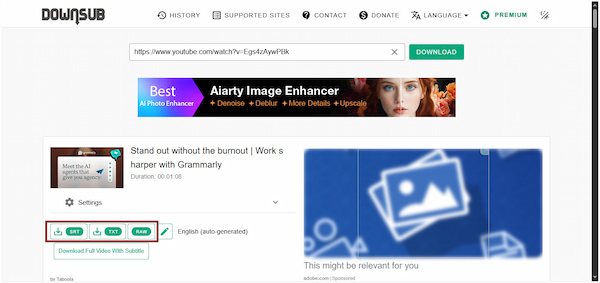
DownSub is the best free subtitle extractor tool. It allows you to extract subtitles from online videos, particularly for YouTube content. However, it only works for publicly available videos, so private, member-only, or restricted content cannot be accessed.
Q: Can I extract subtitles from a Netflix or Amazon Prime video?
A: Yes, extracting subtitles from Netflix or Amazon Prime is possible, but it comes with restrictions. Both platforms encrypt their content and subtitle tracks to prevent unauthorized copying and distribution.
Q: What is the best format to save extracted subtitles?
A: The best subtitle format depends on your intended use. SRT or SubRip Text is widely recommended because it is compatible with almost all media players, video editing software, and streaming platforms.
Q: Is it legal to extract subtitles from a purchased movie?
A: Yes, extracting subtitles from a purchased movie is legal for personal use only. However, distributing, sharing, or uploading the extracted subtitles without permission may violate copyright laws.
Q: What is the difference between hardcoded and soft subtitles?
A: Hardcoded subtitles are permanently embedded into the video frames. This means they cannot be turned off or edited without altering the video itself. Soft subtitles, on the other hand, are separate tracks that can be enabled, disabled, or edited independently of the video.
This guide covered multiple approaches to extract subtitles from videos. Each method has its strengths, depending on your needs, the type of video, and the level of control you desire. Remember, soft subtitles can be easily extracted and customized. Meanwhile, hardcoded subtitles can be captured accurately using AI-powered tools. For the most efficient, reliable, and versatile experience, download AnyMP4 Video Converter Ultimate. It supports hundreds of video formats, allows you to extract and edit soft subtitles, and works seamlessly for batch processing. By exploring different methods, you can determine which tool works best for each project.
Secure Download
Secure Download
 Updated by Mark Cristobal to Edit Video
More readings
 How to Add/Remove/Extract HandBrake Subtitle
Check our post and explore various ways to use HandBrake Subtitle for managing your video’s subtitle. Discover the easy-going solutions with our complete guide.
 3 Best Ways to Rip DVD with Subtitles (Forced and Soft)
Do you want to know how to rip a DVD with subtitles? The three best ways to do it will be introduced in this article! Read on for more information about it.
 How to Easily Add Subtitles to a DVD: 2 Ways on Windows/Mac
Adding subtitles to DVDs can give you a better DVD viewing experience and meet your different viewing, learning, and other needs. Follow us to learn the steps.
 How to Add Subtitles in iMovie on Mac and iPhone
Want to learn how to make subtitles on iMovie? This article is made for you since we will discuss five simple steps to learn how to use iMovie to add subtitles.
 Add your comments to join the discussion here